YouTube AI Video Maker by ngram
YouTube AI Video Maker for product channels that publish consistently
Name the topic, audience, format, length, voice, channel goal, and source material the video should use
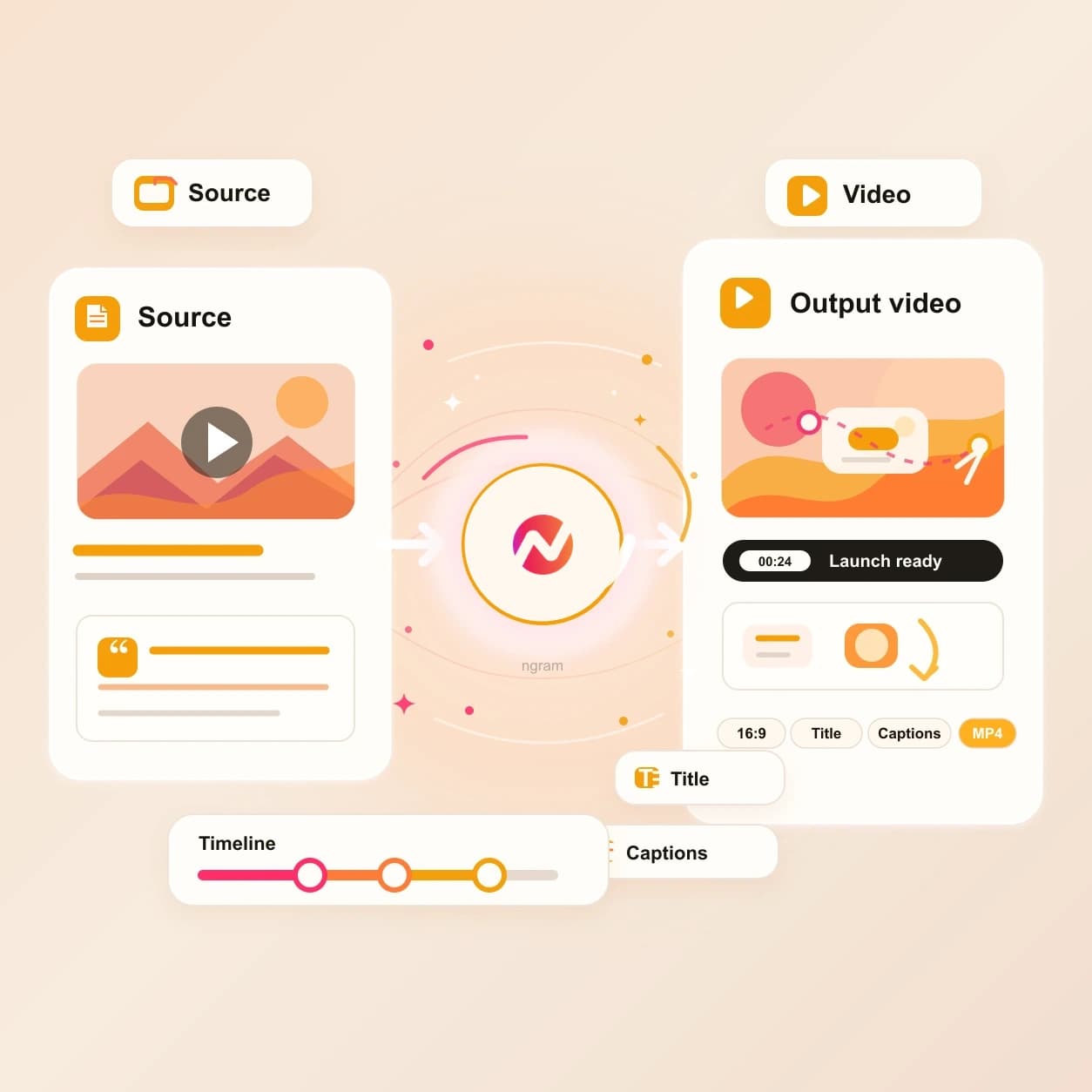
What it does
Turn product knowledge, recordings, and campaign ideas into a repeatable YouTube series. Keep scripts, visuals, captions, thumbnails, descriptions, and revisions connected across every episode.
Trusted by teams at












How it works
How the YouTube AI video maker works.
Give ngram the idea and source context, review the plan, then finish the video and upload package without starting from a blank editor.
Add the YouTube brief
Describe the video or attach a supported reference file. You can also paste a source URL when the topic already lives in a page, article, product note, or help doc.
Brief ready
Review the script and storyboard
ngram turns the brief into a hook, body, CTA, scene plan, visual direction, and estimated timing before rendering the first YouTube video draft.
Plan drafted
Generate the editable video
The project gets scenes, AI voiceover, captions, motion graphics, music, brand treatment, and export settings that can be changed through chat, script edits, or the timeline.
Draft generated
Prepare the channel upload
Create 16:9 and 9:16 cuts, refine the thumbnail, generate title and description options, then publish through the live YouTube integration when the video is approved.
Ready for YouTube
What it can do
What the YouTube AI video maker builds.
The output is a full YouTube video project with planning, generation, editing, metadata, and channel delivery connected.
YouTube script and storyboard
Generate the hook, pacing, scene list, CTA, and chapter-friendly structure before the video render starts.
Learn more about script generationVisuals from your source
Use prompt context, screenshots, product pages, images, and PDFs to shape the scenes, B-roll, backgrounds, and product visuals.
Learn more about AI visualsVoiceover and captions
Generate narration from the approved script, burn in captions by default, and keep both editable when the cut changes.
Learn more about AI voiceoverThumbnail workflow nearby
Move into Image Lab for a branded YouTube thumbnail that matches the final title, topic, and first scene.
Learn more about Image LabSound-off viewing support
Style captions with the active brand kit so tutorials, demos, and Shorts still make sense before a viewer turns sound on.
Learn more about captionsBuilt for full YouTube uploads, not just vertical clips
When it matters
Where the YouTube AI video maker fits.
Use it when the channel needs a complete video: tutorial, demo, explainer, launch, training asset, webinar recap, or a Shorts cut from the same project.
Creator YouTube uploads
Turn a topic, recording plan, reference image, PDF, or page URL into a YouTube video with a planned structure, captions, thumbnail work, and upload metadata.
See YouTube content workflowsTutorial videos
Create step-by-step YouTube tutorials from product notes, help articles, PDFs, or screenshots with clear pacing, voiceover, captions, and chapters.
See tutorial videosProduct demo videos
Build YouTube demos from a product page, launch brief, screenshot, or PDF so prospects can watch the workflow without booking a call.
See demo videosProduct launch videos
Use launch notes, webpages, and product visuals to create a YouTube announcement with a hook, storyboard, thumbnail concept, and social cutdowns.
See launch videosFeature announcement videos
Turn release notes or PRD context into a YouTube-ready feature walkthrough that explains what changed and why viewers should care.
See feature announcementsExplainer videos
Transform a landing page, article, or rough prompt into a YouTube explainer with a focused narrative, visuals, voiceover, and captions.
See explainer videosTraining videos
Convert training PDFs, SOPs, and source URLs into YouTube-hosted modules with narration, captions, and export formats for the channel and the LMS.
See training videosWebinar clips
Repurpose a webinar topic, transcript, or approved recap into YouTube clips and Shorts while preserving the long-form story for the channel.
See webinar clipsSocial media clips
Use the same YouTube AI video project to produce vertical Shorts, square teasers, and feed-ready cuts after the main video is approved.
See social clipsProduct stack
The product stack behind YouTube AI videos.
These ngram features handle the work between a rough YouTube idea and a finished channel upload.
Planning
Script Generation
Turn prompts, PDFs, URLs, and source material into the YouTube hook, script, storyboard, timing, and CTA.
Plan the scriptVisuals
AI Visuals
Generate scene imagery and visual fills for a YouTube video using the script, uploaded references, and brand direction.
Build scene visualsAudio
AI Voiceover
Create narration from the YouTube script, pick a voice, and regenerate affected audio after copy edits.
Add narrationCaptions
Captions & Subtitles
Burn captions into long-form YouTube videos and Shorts so the hook works in muted playback.
Style captionsThumbnail
Image Lab
Create thumbnails and supporting stills that match the YouTube title, channel topic, and brand kit.
Make a thumbnailBrand
Brand Kit
Apply logos, colors, fonts, tone, motion style, screenshot style, and content guardrails to every YouTube draft.
Set brand rulesEditing
Video Editing
Use chat, visual chat, script edits, scene regeneration, canvas controls, and the timeline to finish the YouTube cut.
Edit the draftMore tools
More tools around YouTube AI video creation.
Use these when the YouTube project starts from a narrower source or needs one layer of upload polish.
Create the video
Start from a prompt, text, URL, image, deck, or script when the YouTube brief is already clear.
AI Video Generator
Use the broader generator when the same source should become YouTube, LinkedIn, website, and internal video variants.
Open toolText to Video
Paste a script, outline, or topic and turn it into an editable YouTube video draft with scenes and narration.
Open toolURL to Video
Paste a product page, article, or help doc and let ngram shape it into a YouTube-ready storyboard.
Open toolImage to Video
Animate product screenshots, reference images, and campaign stills when the YouTube video starts from visuals.
Open toolPPT to Video
Convert a slide deck into a narrated YouTube video with captions, scenes, and export settings.
Open toolVideo Script Generator
Draft the YouTube hook, body, scene notes, and CTA before sending the script into production.
Open toolFinish the upload package
Tighten the parts viewers and YouTube see before and after they press play.
YouTube Title Generator
Generate title options tied to the finished video, thumbnail angle, and search intent for the channel upload.
Open toolYouTube Description Generator
Draft the description, chapters, links, hashtags, and CTA from the approved YouTube script or transcript.
Open toolVideo Caption Generator
Generate timed caption lines for the YouTube video, then style them before the final burn-in export.
Open toolAdd Subtitles to Video
Add and burn subtitles into the final YouTube cut so viewers can follow the message without sound.
Open toolAdd Music to Video
Score the YouTube intro, body, and outro with background music balanced under speech.
Open toolVideo Editor
Trim the YouTube draft on the timeline, rewrite the script, regenerate scenes, and export the final channel cut.
Open toolRelated social video makers
Use these channel-specific tools when the same source should become another social cut.
YouTube AI Shorts Maker
Create a YouTube-specific 9:16 Short with title, description, and channel handoff context.
Open toolAI Social Media Video Maker
Create multi-channel social video variants from one prompt, file, or source URL.
Open toolLinkedIn AI Video Maker
Create business-ready LinkedIn videos with supported LinkedIn handoff context.
Open toolTwitter AI Video Maker
Create concise X/Twitter-ready social clips with supported publishing handoff context.
Open toolConvert
Converters that feed YouTube AI videos.
Start with the source you already have, then send the result through the same script, storyboard, video, and upload workflow.
Prompt to Video
Turn a YouTube idea into a script, storyboard, and editable video project without writing the full script first.
Open converterURL to Video
Convert a product page, article, or help doc into a YouTube video plan with scenes and source context.
Open converterPDF to Video
Use a PDF brief, one-pager, report, or training doc as the source for a narrated YouTube video.
Open converterWho it is for
Teams that use a YouTube AI video maker.
The same workflow covers channels run by creators, marketers, product teams, educators, agencies, and customer-facing teams.
Content creators
Plan full uploads, tutorials, Shorts cutdowns, and sponsor deliverables from the same YouTube video project.
See creator workflowsGrowth and marketing teams
Turn campaign briefs, landing pages, and webinar recaps into YouTube videos that also feed paid and organic cuts.
See marketing workflowsProduct marketing
Create YouTube launch videos, demos, explainers, and sales enablement cuts from product notes and source pages.
See PMM workflowsDeveloper relations
Make YouTube tutorials, API walkthroughs, changelog clips, and conference recaps from docs, demos, and recordings.
See DevRel workflowsEducators and trainers
Convert lessons, PDFs, decks, and procedure notes into narrated YouTube training videos with captions.
See educator workflowsAgencies and consultants
Produce client YouTube uploads, ad variants, social clips, and case study videos while keeping each brand kit separate.
See agency workflowsCustomer success
Create YouTube-hosted onboarding, feature education, and support walkthroughs from docs, recordings, and account notes.
See CS workflowsProduct managers
Turn roadmap notes, demos, bug explanations, and release summaries into YouTube videos for customers and internal teams.
See product workflowsIntegrations
Wire YouTube video creation into your stack.
Use live integrations to capture source context, trigger video generation, route reviews, and publish finished videos.
YouTube
BetaWhenThe YouTube-ready video is approved and ready to share.
ThenWrite the YouTube post and choose a one-off time for the YouTube-ready video.
Capture a source page
CaptureWhenA product page, help article, release note, or blog post should become a YouTube video.
ThenSend the page context into ngram so the YouTube script and storyboard start from the live source.
Trigger videos from Zapier
No-codeWhenA form, sheet, CMS entry, or content calendar item marks a YouTube brief as ready.
ThenCreate the ngram video task with the topic, audience, source URL, and channel notes attached.
Run self-hosted workflows
WorkflowWhenA self-hosted pipeline has a transcript, brief, or page URL queued for YouTube production.
ThenStart the ngram generation job, watch status, and route the project link back to the workflow.
Call ngram from agents
AgenticWhenClaude, ChatGPT, Cursor, or another agent is planning a YouTube content workflow.
ThenInvoke ngram through MCP with the prompt, source context, audience, and destination notes.
WhenThe YouTube-ready video is approved and ready to share with LinkedIn.
ThenCompose the LinkedIn post, then publish the YouTube-ready video after its final review.
X (Twitter)
BetaWhenThe team approved the YouTube-ready video; it is ready for X.
ThenWrite the X post and schedule this YouTube-ready video once.
Use automation and agent surfaces when YouTube videos need to start from recurring briefs or external content systems.
Why ngram
How YouTube AI video workflows differ.
A YouTube AI video maker can mean a prompt-only clip tool, a metadata writer, a manual editor, or an end-to-end video project. ngram is built for the full channel package.
| Compare | ngram | Prompt-only generators | Metadata tools | Manual editors |
|---|---|---|---|---|
| Workflow fit | Starts from prompts, JPG, PNG, WebP, PDF, or source URLs, then builds an editable script, storyboard, and video project. | Often focus on generating a short clip from one text prompt. | Help with YouTube titles, descriptions, tags, chapters, and search-focused copy. | Give editors detailed control once footage, script, audio, and assets are already prepared. |
| How ngram fits | Keeps voiceover, captions, thumbnail work, title, description, export variants, and YouTube publishing connected. | Useful when the goal is visual experimentation or B-roll rather than a complete channel upload. | Useful after the video already exists and the upload form needs stronger text. | Work well for teams with a dedicated video operator and a finished brief. |
| Best use | Fits long-form videos, Shorts cuts, tutorials, demos, launch videos, explainers, and recurring channel operations. | ngram is a better fit when the YouTube video needs script planning, editing, captions, metadata, and publishing. | ngram pairs metadata work with the generated video, thumbnail, captions, and export workflow. | ngram helps earlier in the process by planning the video and building the first editable YouTube draft. |
FAQ
Common questions about the YouTube AI video maker
Still curious?
Turn the YouTube brief into a channel-ready video
Give ngram the prompt, source file, or URL. Review the script and storyboard, generate the video, then finish the title, thumbnail, description, captions, and YouTube upload package.
Start the YouTube AI video maker now, then finish the full project in the editor.
Uses the agentic ngram video workflow after sign-in.