AI Video Podcast Generator by ngram
AI Video Podcast Generator for a source-backed discussion

Use one public link that opens without signing in.
- Accepted: Product pages
- Accepted: Articles
- Accepted: Docs
- Accepted: Help pages
- Accepted: Release notes
- Accepted: Case studies
- Not supported: YouTube
- Not supported: TikTok
- Not supported: Instagram
- Not supported: X / Twitter
- Not supported: Facebook
- Not supported: Vimeo
Video generation uses credits. Review your estimate in ngram. MP4 downloads require Basic or higher.
How credits work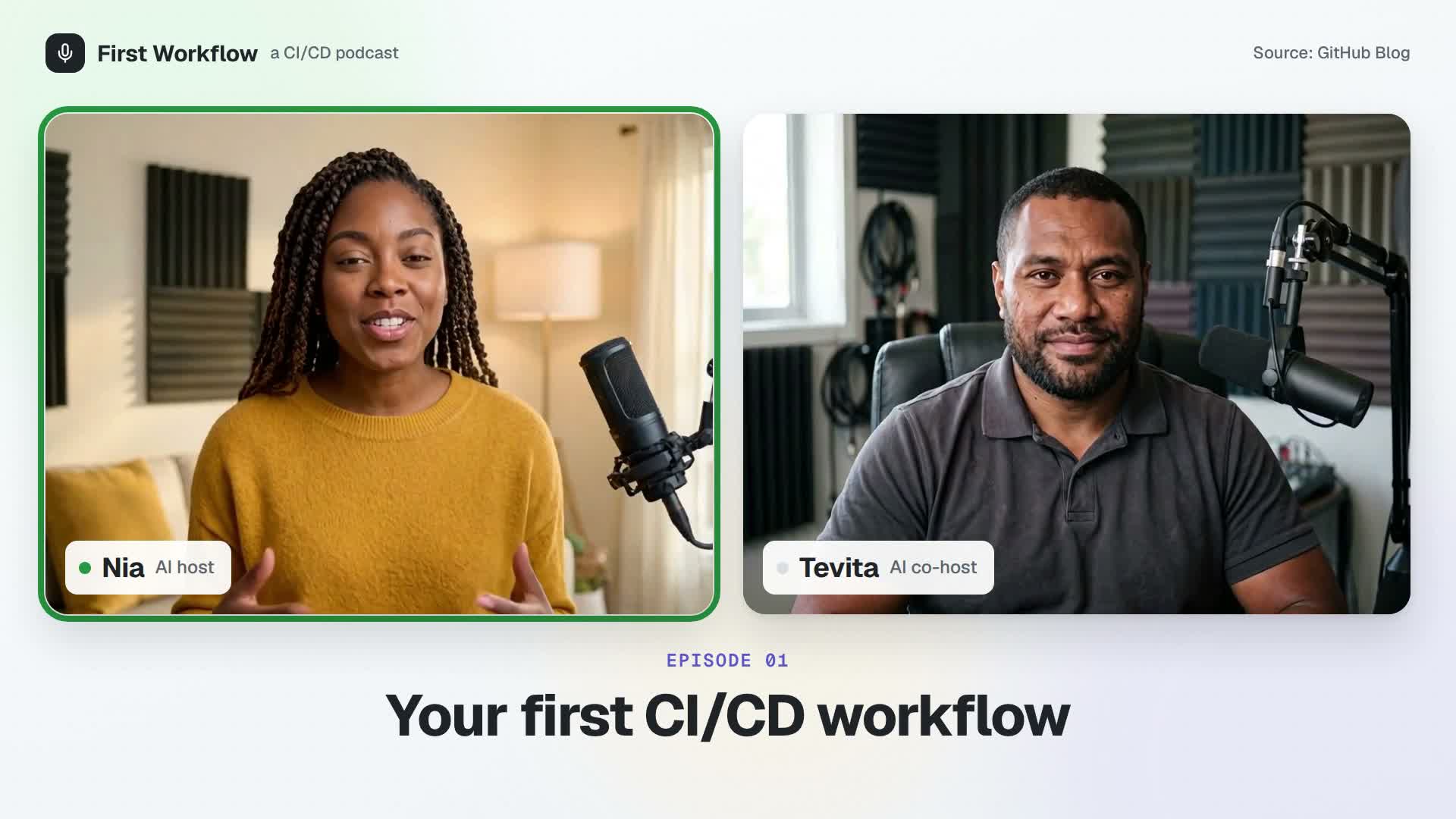
What it does
Bring an article or topic brief and the facts the hosts should explain. ngram plans a scripted discussion with two on-screen avatars and distinct voices, then shows you the dialogue to review before production.
Trusted by teams at


How it works
From source material to a two-host video
Create a new discussion from the material you provide, then check the plan and finished exchange.
Supply the article and discussion brief
In Prompt to video, use Video brief to name the audience, source and points to cover. Give one host practical questions and the other the supported explanations.
Source and roles ready
Confirm Conversation and automatic casting
Confirm Conversation is selected under Start from a style; choose it only if it is not selected. Use Opus 5.5 and keep Presenter and Voice on Auto so ngram can choose the cast and voices.
Conversation selected
Review the proposed speaking turns
Read the plan containing the cast and dialogue. Check each answer against the source, request changes if needed and approve the plan to begin production.
Dialogue reviewed
Watch and revise the finished video
Play the complete result with sound. Check the speaker identities, claims and any captions you enable, then request corrections before sharing or downloading the MP4 on a paid plan.
Ready to share
A public article becomes a two-host discussion
In this 31-second example, fictional hosts Nia and Tevita explain selected takeaways from GitHub’s CI/CD guide. The source was a public article plus a discussion brief; repository, workflow and log graphics are illustrations, not captured GitHub screens.
What it can do
Control the discussion before it becomes a video
Ground the answers in a source
Give the hosts a public article or approved source text and select the points to cover. Review the script against that material before production.
Put both hosts on screen
Conversation mode creates scripted dialogue with two or more visible avatars and distinct voices. Use the brief to explain what each role should contribute.
Review the dialogue in the plan
Read the cast and speaking turns before approving production. Request a revision when an answer changes the source’s meaning or a question adds little to the explanation.
Check the finished delivery
Watch the complete discussion and request changes to a named host or line. Turn captions on when needed and review their wording and placement before sharing.
When it matters
Choose the job the discussion needs to do
A host exchange is useful when questions help the audience understand an approved explanation. Choose the source and format for that specific job.
Product Explainer Video
Use a product article as the basis for a question-led explanation. Give the hosts the approved product facts, and add real screenshots or recordings when an answer needs to show the interface.
Open AI video use caseFounder Explainer
Explain a founder’s approved product argument through a fictional questioner and guide. Keep the generated hosts distinct from the founder and ground each answer in the supplied source.
Open AI video use caseFounder Social Content
Adapt an approved essay into a short discussion for a professional feed. Select the point the audience should understand and review the hosts’ claims before sharing the video.
Open AI video use caseNewsletter Video
Make a two-host companion to a newsletter article. Use the questions to introduce the takeaways and send viewers to the complete written source for the supporting detail.
Open AI video use caseLinkedIn Video
Turn one business article into a discussion for LinkedIn. State who the topic helps, keep the host exchange focused and review the final framing and captions for the feed.
Open AI video use caseEducator Course Content
Use a question-led segment to explain a source concept before a lesson discussion. Supply the learning objective and approved material, then have the instructor review the generated answers.
Open AI video use caseDevRel Tutorial
Introduce a technical article with a questioning host and an explaining co-host. Check the terminology against the source, and use actual task footage when the lesson needs to demonstrate clicks.
Open AI video use caseCustomer Success Feature Education
Answer a product question from current education material with two fictional hosts. Keep feature conditions and the next step tied to the approved source the customer can consult.
Open AI video use caseSupport FAQ Video
Make an approved support answer easier to follow through a question-and-answer exchange. Use your current help article and review every policy condition before publishing the discussion.
Open AI video use caseProduct stack
The features behind the two-host exchange
Conversation mode
Create a scripted discussion with visible avatars and distinct voices. Use the source and role descriptions to guide the proposed cast and speaking turns.
Explore Conversation modeScript Generation
Turn the source into dialogue that follows the audience’s questions. Review both the answer and its qualifications before the video is made.
Review script generationAI Voiceover
Use automatic voice selection for the Conversation recipe, then listen to the planned roles and finished exchange to check that each host is easy to distinguish.
Explore AI voiceoverCaptions
Enable captions when the discussion needs to work with sound off. Review the words, timing and placement alongside the host exchange.
Explore captionsMore tools
Choose the next step for your material
Prepare or change the presentation
Shape the discussion script
Use the script generator when the source needs a tighter written outline before you create the host exchange. Keep the resulting questions and answers tied to your approved facts.
Open toolUse a direct presenter explanation
Choose the avatar workflow when one person should deliver the message directly. Use Conversation mode when a second speaking role adds a useful question or response.
Open toolRepurpose an existing episode
Start with an episode transcript and show notes when the conversation already exists. Preserve its meaning while making a visual version or a focused clip.
Open toolConvert
Start from the source you have
Discuss a published article
Use one public article as the factual source for the hosts. Choose the points worth explaining and keep attribution attached to any quotation.
Open converterAdapt an approved company post
Give a company post a question-led video companion. Keep the argument and examples consistent with the written source as you revise its presentation.
Open converterUse approved text or an outline
Paste the material when there is no public URL. Name what the hosts should explain and review any factual statements added while drafting the discussion.
Open converterWho it is for
Bring the questions your audience asks
Product Marketing
Use a question-led discussion to explain an approved product idea or article. Add actual product assets when the answer needs visual evidence.
See product marketing workflowsDeveloper Relations
Introduce a technical source with practical developer questions. Verify terminology and keep generated diagrams distinct from real product footage.
See developer workflowsEducators and Trainers
Use the host exchange to introduce a source concept and lead into a lesson discussion. Keep learning objectives and assessment in your course workflow.
See teaching workflowsSupport Teams
Explain a current help answer with a questioning and explaining role. Supply the approved policy and use real screens when customers need to follow steps.
See support workflowsSales Enablement
Turn approved explanation material into a model exchange reps can watch and discuss. Keep product commitments tied to the current talk track.
See enablement workflowsHR and Internal Comms
Explain an approved internal topic through employee questions and the permitted answer. Review policy conditions before sharing the generated discussion.
See internal communication workflowsIntegrations
Publish the reviewed discussion when it is ready
Create and review the Conversation video in Studio first. Use a publishing integration only after the content and destination are approved.
Share the discussion on LinkedIn
Publishing BetaThe source-backed host discussion is reviewed and ready for a public professional audience.
Open Share on the finished video, choose LinkedIn, connect or select the destination and review the post before publishing.
Why ngram
Choose the format that fits the source
Decide whether you need a new scripted explanation or a visual edit of a conversation that already exists.
| Compare | ngram | Recorded host conversation | Narrated explainer | Episode repurposing |
|---|---|---|---|---|
| Workflow fit | Start from an article or brief with approved facts. | Record people discussing the topic with their consent. | Start from the same approved source material. | Start from an authorized episode or transcript. |
| How ngram fits | Choose Conversation and review the cast and dialogue in the plan. | Use their actual answers and preserve the speaker’s meaning. | Use one narrator when an exchange adds little to the message. | Select a focused exchange without inventing new guest remarks. |
| Best use | Watch the visible-host video and request revisions before sharing. | Edit the authorized recording for the intended audience. | Pair the explanation with visuals that support the source. | Review the excerpt’s context before publishing the shorter edit. |
FAQ
AI video podcast generator questions
Give the source two useful host roles
Bring an article or approved brief, choose what the audience should understand and review the speaking turns before making the video.
Use Conversation with Opus 5.5, Presenter Auto and Voice Auto.