Woodcut Video Style
High-contrast carved shapes with bold hatching, like a block print.
See it in action with OpenSpace Capture.
From this input to this video
A woodcut explainer showing how a site walk becomes a visual record, with mapped captures and side-by-side date comparisons.
Create a 40-second explainer video for OpenSpace Capture, a construction reality-capture platform for construction project teams. Pull the story and visuals from https://www.openspace.ai/products/capture/. Open on the jobsite problem: finding out what was built, where it is, and what changed since the last site visit. Reveal OpenSpace Capture as the fix, then show how it works in three beats: capture the jobsite with a 360-degree camera during a site walk, find captured images on the floor plan and navigate the recorded site, compare the same area from two dates with Split View. Clean, confident B2B aesthetic with crisp UI motion graphics. Tone: clear and practical. Close on the product name and the line Explore OpenSpace Capture. Voiceover language: English.
Read the exact input
Prompt
Create a 40-second explainer video for OpenSpace Capture, a construction reality-capture platform for construction project teams. Pull the story and visuals from https://www.openspace.ai/products/capture/. Open on the jobsite problem: finding out what was built, where it is, and what changed since the last site visit. Reveal OpenSpace Capture as the fix, then show how it works in three beats: capture the jobsite with a 360-degree camera during a site walk, find captured images on the floor plan and navigate the recorded site, compare the same area from two dates with Split View. Clean, confident B2B aesthetic with crisp UI motion graphics. Tone: clear and practical. Close on the product name and the line Explore OpenSpace Capture. Voiceover language: English.
Selected style
Woodcut
Source material
Read the video transcript
What was built? Where is it? What changed since the last site visit? Too often, the answers are scattered across photos and memory. OpenSpace Capture gives your team a clear, complete visual record of the site. Mount a 360-degree camera on your hard hat and walk the site as usual. It captures an image every half second. Spatial AI pins each image to your floor plan. Click any spot and navigate the recorded site from anywhere. With Split View, compare the same area from two dates, side by side, and see exactly what changed. See your site clearly. Explore OpenSpace Capture.
Make it yours
Fill in your details here, or continue and finish your brief in ngram.
Trusted by teams at


When to use Woodcut
Shape the subject with contrast
Carved shapes and hatching work best with a clear silhouette. Keep the important subject distinct from the background.
Use texture with restraint
Let the print-like marks give character while the composition remains readable. Short wording suits the strong visual contrast.
Provide the story's anchors
Supply the factual story, key objects and relevant reference images. Describe which details make the subject recognisable.
What to bring
Supply the factual story, key objects and relevant reference images. Describe which details make the subject recognisable.
Related video styles
Compare a few directions before you start your draft.
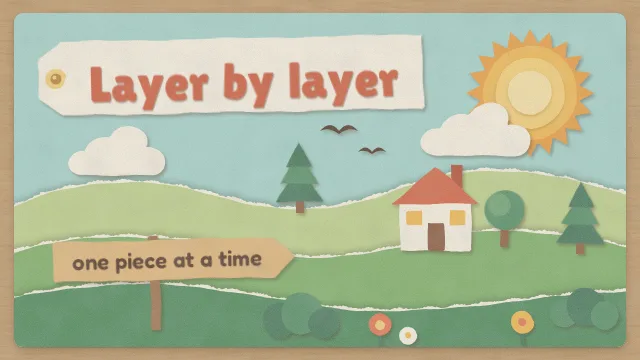
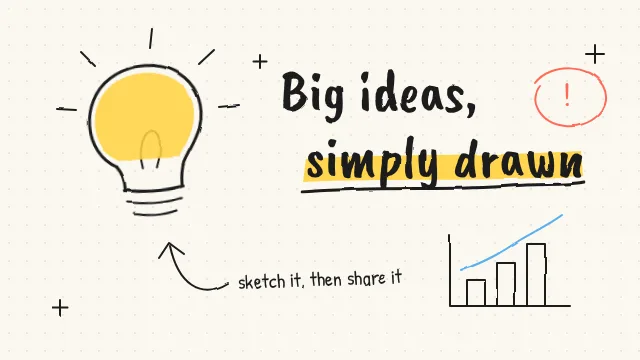
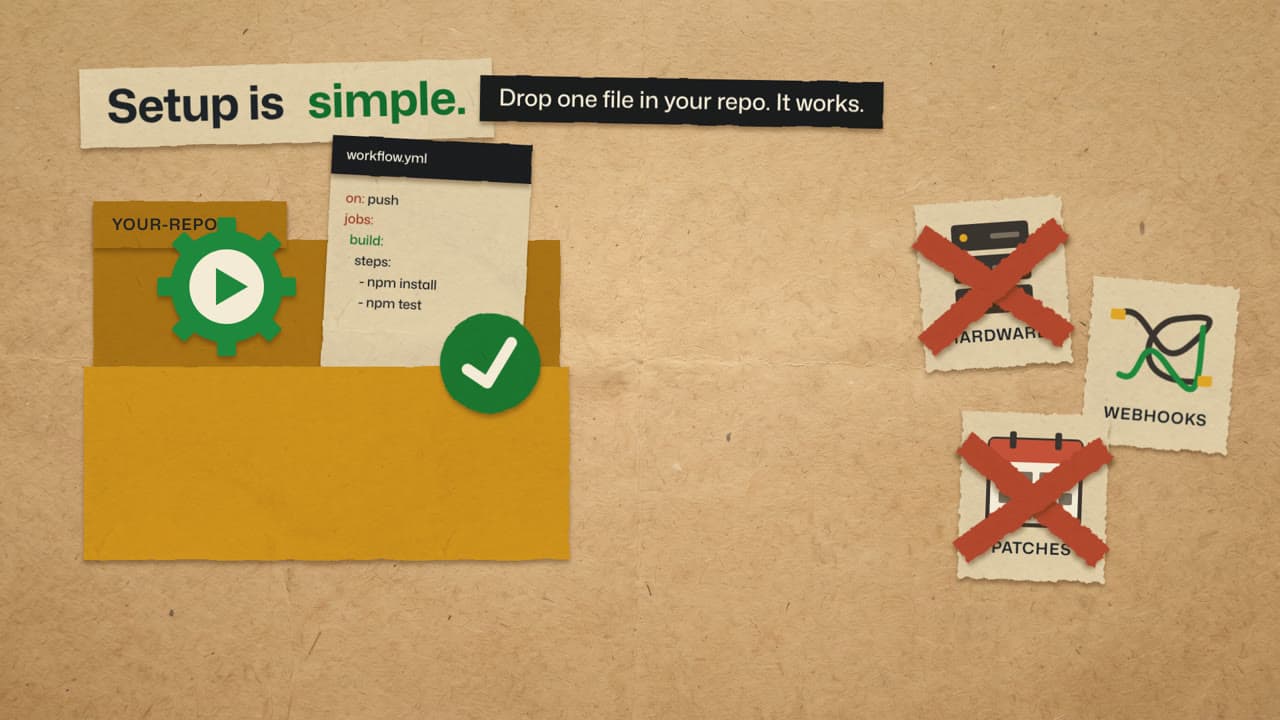
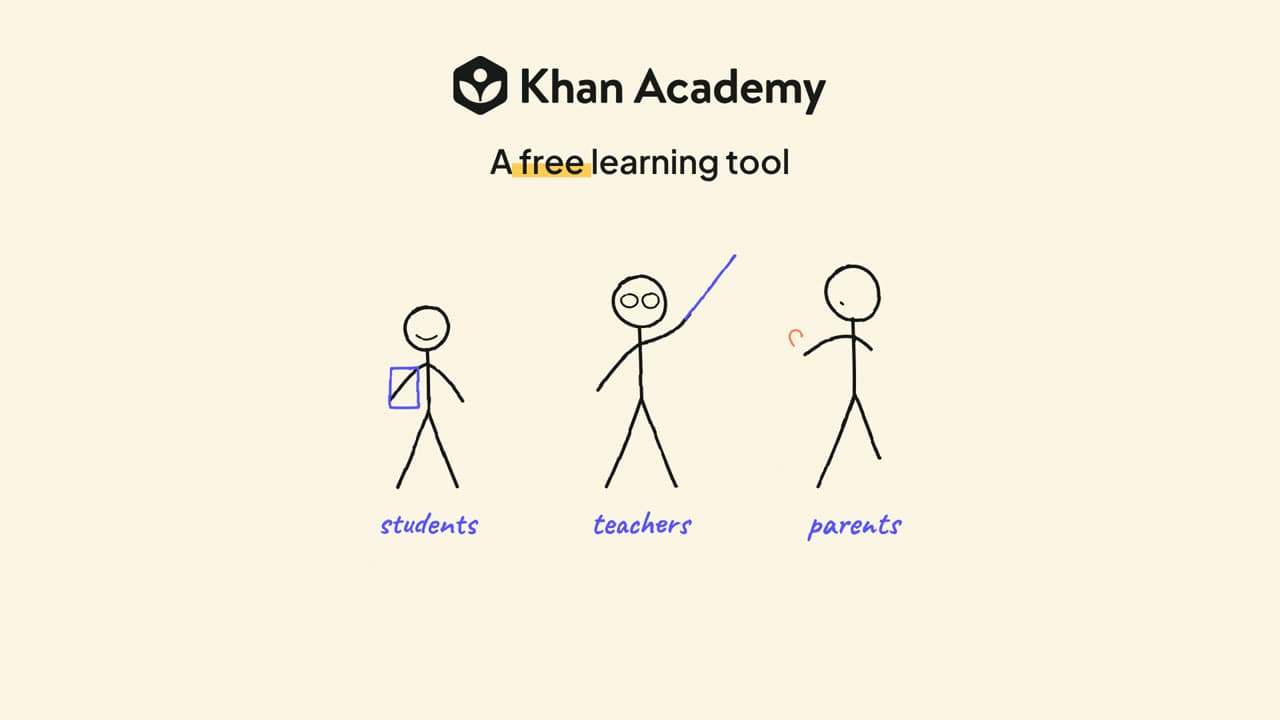
Explore related video examples
Put this style to work
Video workflows for your team
Refine your video in ngram
Connect your video workflow
whenThe finished construction explainer is ready to share with its YouTube audience
thenCompose the construction explainer as a YouTube post, then publish it.
whenThe finished construction explainer is ready to share with its LinkedIn audience
thenShare the construction explainer on LinkedIn once the post is composed.
whena new product page goes live
thenauto-render an explainer and notify the team
Tools for your next video
Start with your existing material
Style template questions
Will my selected style survive sign-in?
Continue with your brief and chosen style in ngram. You can fill in the remaining details or change your selections before creating the video.
Can I change the style in Studio?
Yes. The selected style is a starting point. You can choose another active style or adjust the video before generation.
Does the template copy the preview video?
Your brief starts a new video using the chosen visual direction. Add your own source material and adjust the settings to make it yours.
What source material should I bring?
Use your own product links, screenshots, recordings or documents. The example’s exact input shows how source material and a filled-in brief work together. Add your own material in ngram before creating the video.
Can I use my brand with this style?
Yes. Set up your Brand Kit first, then select it while creating your video. You can also turn on captions and adjust your video in ngram.