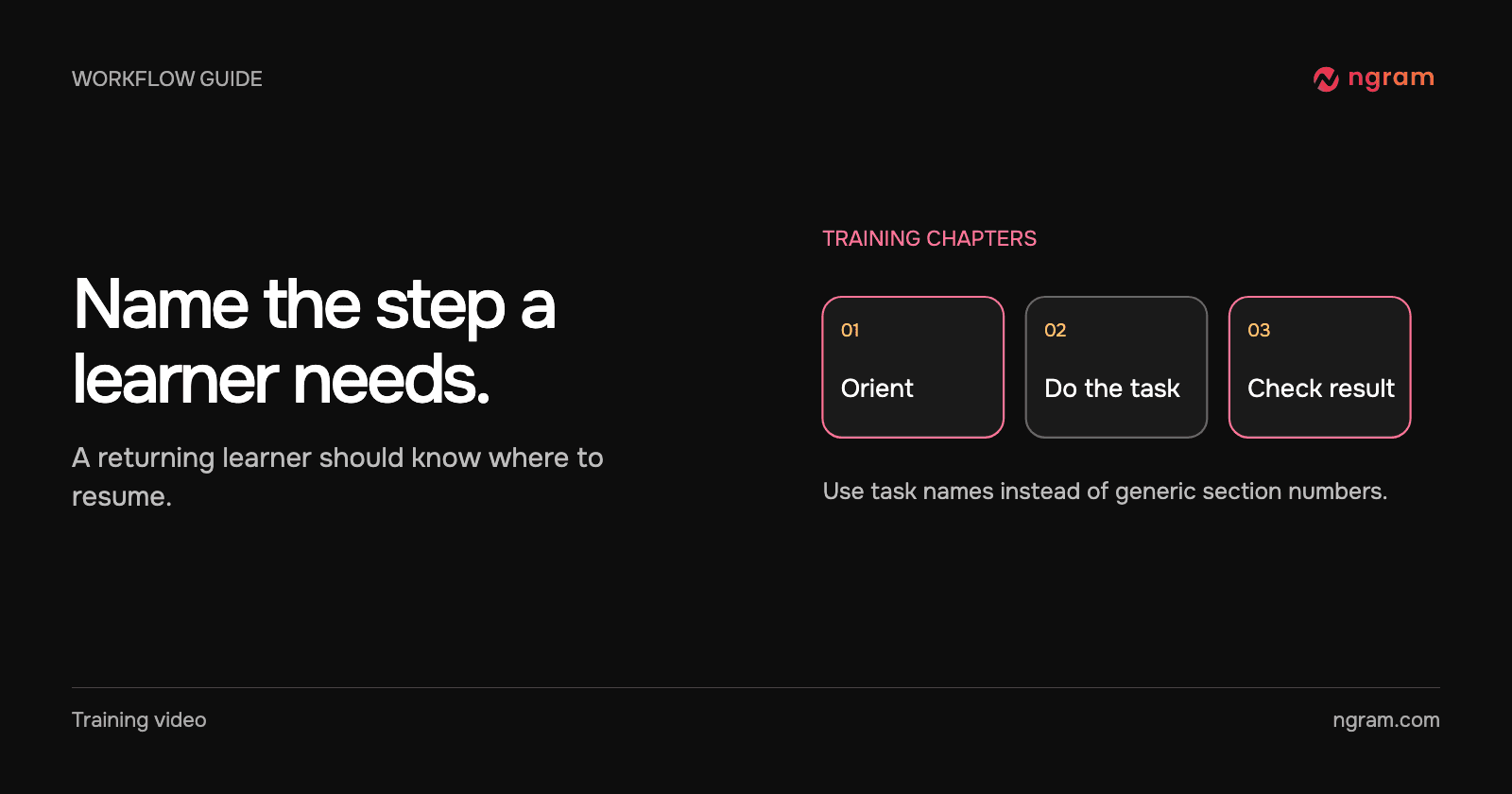

A learner finished the onboarding session last month and now needs one step from the middle of a long recording. “Part two” gives them very little to work with. “Assign the account owner” gives them a recognizable destination before they press play.
Map chapters to tasks, not equal time intervals
Watch the final cut and note where each learner decision begins. A chapter can cover several clicks when those clicks belong to the same task. Split a section when a returning viewer has a distinct reason to look for it. Avoid a new chapter for every camera change; too many labels make the list harder to scan.
Write the titles as instructions or recognizable outcomes. For a handoff lesson, “Kickoff handoff” orients the viewer and “Assign the owner” identifies the next task. For troubleshooting, use the symptom or check the learner already knows.
Enter timestamps against the published version
Open the published video in Video library and choose Player. Under Chapters, enter one time and title per line, beginning at 0:00. Save chapters separately from other player settings. Choose the first frame that gives the learner enough context to act; the label should not drop them into the middle of a sentence.
The recorded example is a short lesson used to show the control clearly. Its two chapters begin at 0:00 and 0:03. A long procedural recording uses the same entry format with more widely spaced tasks.
Test the destination learners actually use
Open the existing watch link or the embedded player in the course page. Check that chapters are enabled on the timeline, then test each intended starting point in that player. The setup clip shows the authoring action, so use the actual destination to verify how the viewer navigates. Check mobile size and listen to the first sentence after the jump.
If the destination requires a downloaded MP4, check the chapter features of that destination’s player separately. ngram’s hosted player configuration does not travel inside every uploaded file. See sharing and publishing and the MP4 export guide before deciding which version to distribute.
Recheck the list after editing the cut
A new introduction or removed scene changes everything that follows it. Reopen the Player tab for the current version and verify the times before reusing a previous list. Ask an employee unfamiliar with the chapter names to find one assigned procedure. If they cannot identify it from the label, revise the words before adding more chapters. The training video workflow can help define the task each chapter needs to teach.