Back to How to
How to

How to Add a Diagram to a Recorded Lecture

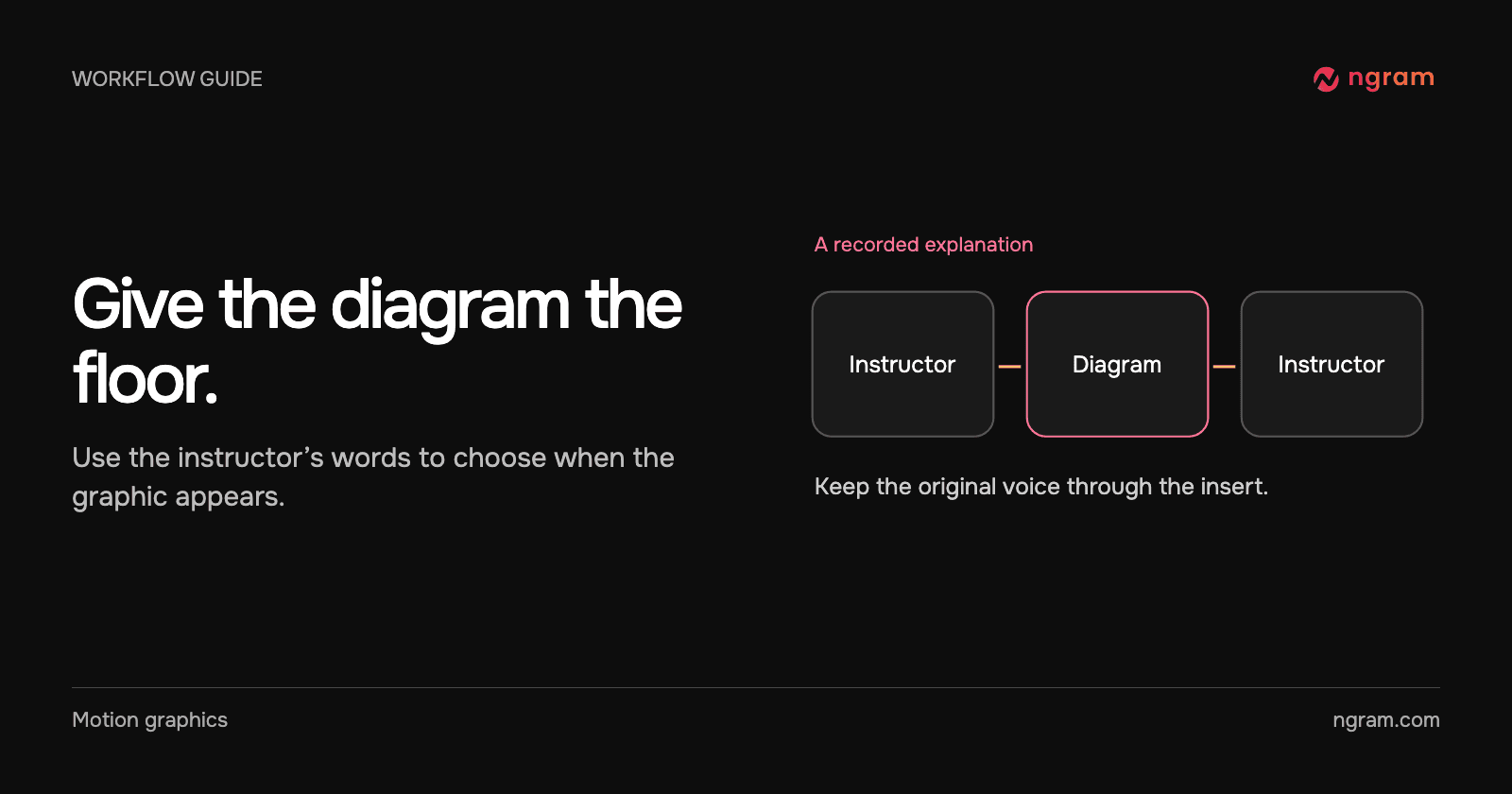
Add a diagram to a recorded lecture while keeping the instructor’s explanation. Choose the right passage, time the insert to the speech and check the return to the recording.

How to Add a Diagram to a Recorded Lecture
3 min read•Updated at November 2, 2026
Written and edited by
Rishikesh Ranjan
Rishikesh Ranjan
all thing growth @ ngram.com

An instructor compares two systems while writing on a whiteboard. Their explanation is clear, but the camera is too far away for a viewer to read both columns. A diagram can carry the comparison while the instructor’s voice continues. You do not need to film the lecture again to make that passage understandable.

Locate the passage, not just the topic

Write down the first and last words of the comparison. Identify what becomes easier to understand when shown visually: a sequence, two alternatives, or the relationship between parts. If the instructor already points to a readable diagram, leave the shot intact. An extra graphic can make the learner switch attention at precisely the wrong moment.

Prepare the approved labels. For a comparison, write them as paired statements. For a process, put the actions in order. Do not infer a missing technical detail from poor handwriting; ask the instructor to supply it.

Give the recording and diagram separate jobs

Upload the permitted lecture recording and say whether to keep, clean, replace or mute the original speech. A brief might read: “Keep the instructor’s audio. When she compares the two storage models, replace the whiteboard view with a two-column diagram using these approved terms. Return to the instructor before the next example.” Use the video editing workflow to review the source and revise the relevant passage.

Ask for an overlay when a short label can sit beside the thing being discussed. Ask for a full-frame insert when learners need room to compare both columns. The motion graphics examples show both treatments.

Watch the transition in a finished lecture

In this excerpt, the HBase instructor remains on screen while labels identify the topic. A full-frame comparison then gives RDBMS and HBase separate columns. The film returns to the instructor at the board. Notice that the diagram explains the same passage; it does not introduce a second lesson.

Check the cut with the audio on

Play from the sentence before the insert through the sentence after it. Does each term appear when the instructor introduces it? Are the two columns still readable at phone width? Does the return to the camera cut off a gesture or a word?

If the diagram arrives late, request a timing change for that passage and keep the narration. If there is too much text, strip the diagram back to the distinction the instructor actually makes. For a precise change to a finished draft, use the guide to revising a video.
Related articles

How to Add Labels and Callouts to AI-Generated Video
How to3 min read

How to Add Labels and Callouts to AI-Generated Video

Add readable labels and callouts to AI-generated footage. Choose the moment, write a short label and decide when a full-frame graphic will explain more clearly.

How Tongram
Rishikesh Ranjan
Rishikesh Ranjan
Growth Lead
Nov 2, 2026
How to Make a Neighborhood Market Update for Past Clients
How to3 min read

How to Make a Neighborhood Market Update for Past Clients

Create a neighborhood market update for past real estate clients using dated, sourced local figures, one explainable comparison and a useful follow-up question.

How Tongram
Rishikesh Ranjan
Rishikesh Ranjan
Growth Lead
Nov 2, 2026
How to Send the Right Onboarding Video When Sales Hands Off an Account
How to3 min read

How to Send the Right Onboarding Video When Sales Hands Off an Account

Turn a sales handoff into an onboarding video that teaches one first task. Choose between an existing lesson and a new draft, then verify what the customer receives.

How Tongram
Rishikesh Ranjan
Rishikesh Ranjan
Growth Lead
Nov 2, 2026
How to Explain Quarterly Results on Video Without Sharing the Whole Spreadsheet
How to3 min read

How to Explain Quarterly Results on Video Without Sharing the Whole Spreadsheet

Build a quarterly video from a small approved extract. Show the metric, periods and arithmetic, keep the workbook private, and distinguish the result from the next-quarter goal.

How Tongram
Rishikesh Ranjan
Rishikesh Ranjan
Growth Lead
Nov 2, 2026
How to Add a Quiz, Poll, or Clickable Button to a Video
How to3 min read

How to Add a Quiz, Poll, or Clickable Button to a Video

Add a quiz, preference poll or timed button to an ngram video. Check the result in Studio and test the shared destination before assigning it to viewers.

How Tongram
Rishikesh Ranjan
Rishikesh Ranjan
Growth Lead
Nov 2, 2026
How to Create a Video From a Notion Database Row
How to3 min read

How to Create a Video From a Notion Database Row

Connect selected Notion pages to ngram, prepare a request row, set Action to Generate and find the finished video. Check permissions and handle a failed row without starting duplicate jobs.

How Tongram
Rishikesh Ranjan
Rishikesh Ranjan
Growth Lead
Nov 2, 2026

Ready to create your first video?

Turn your source material into a video. Shape the brief, review the plan and make it yours.