
When to use this guide
Use this if you manage a product website and need a video based on a page you already maintain. For example, a release page describes a new feature and you need a short clip for the launch email. Have the public URL, the facts that must survive the edit and the destination where people will watch.
Step 1. Choose the page and the job for the video
Not all URL-to-video tools are built the same. Some are optimized for product pages and e-commerce (like JoggAI), others for blog-to-social content (like Pictory), and others for full creative control (like ngram). We'll compare the top options later in this guide, but start by matching the tool to your goal.
Here's a stat that should change how you think about content: 91% of businesses now use video as a marketing tool, according to Wyzowl's 2026 State of Video Marketing report. That's a joint all-time high.
Step 2. Give the tool the URL and any missing source material
Paste the URL of the page that contains the facts your audience needs. Check what a visitor can see when they open that link. If they see a sign-in page, the URL alone will not supply the private instructions behind it.
A public help article can supply the script for a settings tutorial. To show the settings themselves, give ngram Studio the app URL and ask for the task. If the page needs a login, Browser Handoff lets you sign in and give control back. Preview the captured screens before approving the video plan.
If the page has little text, add a brief or a source document. For example, a pricing calculator may show a result without explaining its assumptions. Supply those assumptions before asking for a narrated explanation.
Step 3. Compare the proposed script with the page
This is the most important step, and the one most people skip. After extracting your content, the AI produces a script - a scene-by-scene breakdown of what the video will say and show.
Read it. The AI might have missed your key selling point, included a paragraph that doesn't translate well to video, or structured the narrative in a way that doesn't match your goal.
The best tools let you edit the script directly before rendering, which saves massive time compared to fixing things after the video is built. Look for tools that offer a script generation step before the visual assembly.
Step 4. Choose footage, narration and music
Once the script looks good, you'll typically have options to:
- Choose or swap visuals for each scene (stock footage, AI-generated images, or your own uploads)
- Select an AI voice (most tools offer 50+ voices across 40+ languages)
- Add background music from a built-in library
- Apply your brand colors, logo, and fonts if the tool supports brand kits
The level of customization varies wildly by tool. Some give you granular scene-by-scene control. Others are more of a "click and pray" experience.
Step 5. Set the format for the destination
Before exporting, select the right format for where the video is going:
- 16:9 for YouTube, website embeds, and presentations
- 9:16 for TikTok, Instagram Reels, YouTube Shorts
- 1:1 for Instagram feed, LinkedIn feed
- 4:5 for Facebook feed
Choose the target aspect ratio before generation. ngram's separate video converter changes an exported MP4 to MOV, WebM, or MKV, but it does not create another aspect ratio.
Step 6. Export and verify the result
Hit export, download your MP4, and review the final product. Most AI-generated videos need at least one round of tweaks, whether that's adjusting a scene, swapping a visual, or tightening the script.
The full process, from pasting a URL to having a finished video, typically takes 5-15 minutes. Compare that to the traditional production timeline: according to industry data, the average 60-second marketing video used to take 13 days to produce. With AI tools, that same video takes about 27 minutes.
Play the exported file beside the source page. Pause at each price, availability claim or release date and compare it with the published text. Check that a viewer on the target device can read the on-screen wording, then place the clip in the launch email.
What Types of URLs Work Best for Video Generation?
Not all web pages convert equally well to video. Here's what works best, ranked by effectiveness:
Blog posts and articles work the best. They have clear structure (headlines, subheadings, body text), a narrative flow, and often include data points and images that translate naturally to video scenes. If your source is always a post rather than a mixed set of pages, a dedicated blog to video converter maps headings to scenes automatically.
Product pages are a close second, especially for e-commerce. The AI pulls product descriptions, features, pricing, and images to create product demo or promotional videos.
Landing pages convert well because they're already structured for persuasion: problem, solution, proof, CTA. That's a natural video narrative. If you're creating landing page videos, a URL-to-video tool is the fastest path.
Case studies and customer stories produce compelling videos because the content follows a story arc: challenge, approach, results.
Documentation and how-to pages work for educational videos, though the output tends to be more functional than cinematic.
News articles and press releases convert quickly into short social clips, though you'll want to edit for length.
The key takeaway? The more structured your page content, the better the video output. Pages with clear headings, concise paragraphs, and supporting images give the AI the most to work with.
Best URL-to-Video Tools Compared (2026)
The URL-to-video space has exploded. Here's an honest breakdown of the tools worth considering, what they're best at, and what they'll cost you.
Pictory
Best for: Blog-to-video conversion and content repurposing
Pictory was one of the first tools built specifically for URL-to-video. Paste a blog URL, and it extracts key points, matches them with stock footage, and produces a video with voiceover and captions. The editing is transcript-based, meaning you edit the video by editing text.
Starting price: $19/month (annual) for the Standard plan with 30 videos/month.
Standout feature: Supports over 1,400 document formats as input, not just URLs.
InVideo AI
Best for: Social media content and quick turnarounds
InVideo AI takes a more conversational approach. Paste a URL and describe what you want in a text prompt, and it generates a video. The "magic edit box" lets you modify videos using natural language instructions. With 25 million users across 190 countries, it's one of the most widely used platforms.
Starting price: $20/month (annual) for the Plus plan with 50 minutes of AI generation.
Standout feature: Natural language editing - tell it what to change instead of clicking through menus.
Synthesia
Best for: Professional and corporate videos with AI avatars
Synthesia takes a different approach. It converts your URL content into a script, then delivers it through a realistic AI avatar. This makes it particularly strong for training videos, internal communications, and customer-facing content where a "presenter" adds credibility.
Starting price: $18/month (annual) for the Starter plan.
Standout feature: AI avatars that present your content with natural lip-sync and gestures.
HeyGen
Best for: Marketing teams creating personalized video at scale
HeyGen's URL-to-video feature is part of a broader platform focused on AI avatars and personalized video. It ranks among the most popular AI video generators, and its creator plan now includes unlimited standard avatar generation.
Starting price: $24/month (annual) for the Creator plan.
Standout feature: One-click translation into 175+ languages with lip-synced dubbing.
JoggAI
Best for: E-commerce and product video ads
JoggAI is built specifically for turning product URLs into video ads. It integrates directly with Amazon, Shopify, eBay, and other e-commerce platforms. Paste a product link, and it generates a UGC-style ad complete with AI avatar, script, and product visuals.
Starting price: $7.99/month for the Starter plan.
Standout feature: Batch mode generates up to 10 videos at once from different product URLs.
Steve AI
Best for: Quick, no-fuss URL conversion
Steve AI keeps things straightforward. Paste a URL, choose a visual style, and get a video. It's less feature-rich than some competitors but excels at speed and simplicity. Over 5 million creators use it.
Starting price: $20/month for the Starter plan.
Standout feature: 4K export capability and 16M+ premium stock assets.
ngram
Best for: Teams that need URL-to-video plus full creative control
ngram takes a different approach from pure URL-to-video tools. You can feed it URLs, docs, PDFs, and screen recordings, and it builds a script and storyboard first, before generating any visuals. This means you review the plan before the AI renders anything, catching direction issues early instead of after the video is built.
What sets ngram apart is the combination of AI generation with professional editing tools. You get the speed of AI with the control of a real editor: timeline editing, keyframes, AI-generated visuals, multilingual AI voiceover, auto captions, brand kits, and MP4 export. A separate converter handles MOV, WebM, or MKV when another system requires one of those containers.
Starting price: Free tier available.
Standout feature: Script + storyboard review step before rendering, plus full editing suite.
Here's how the starter plan pricing compares across these tools:
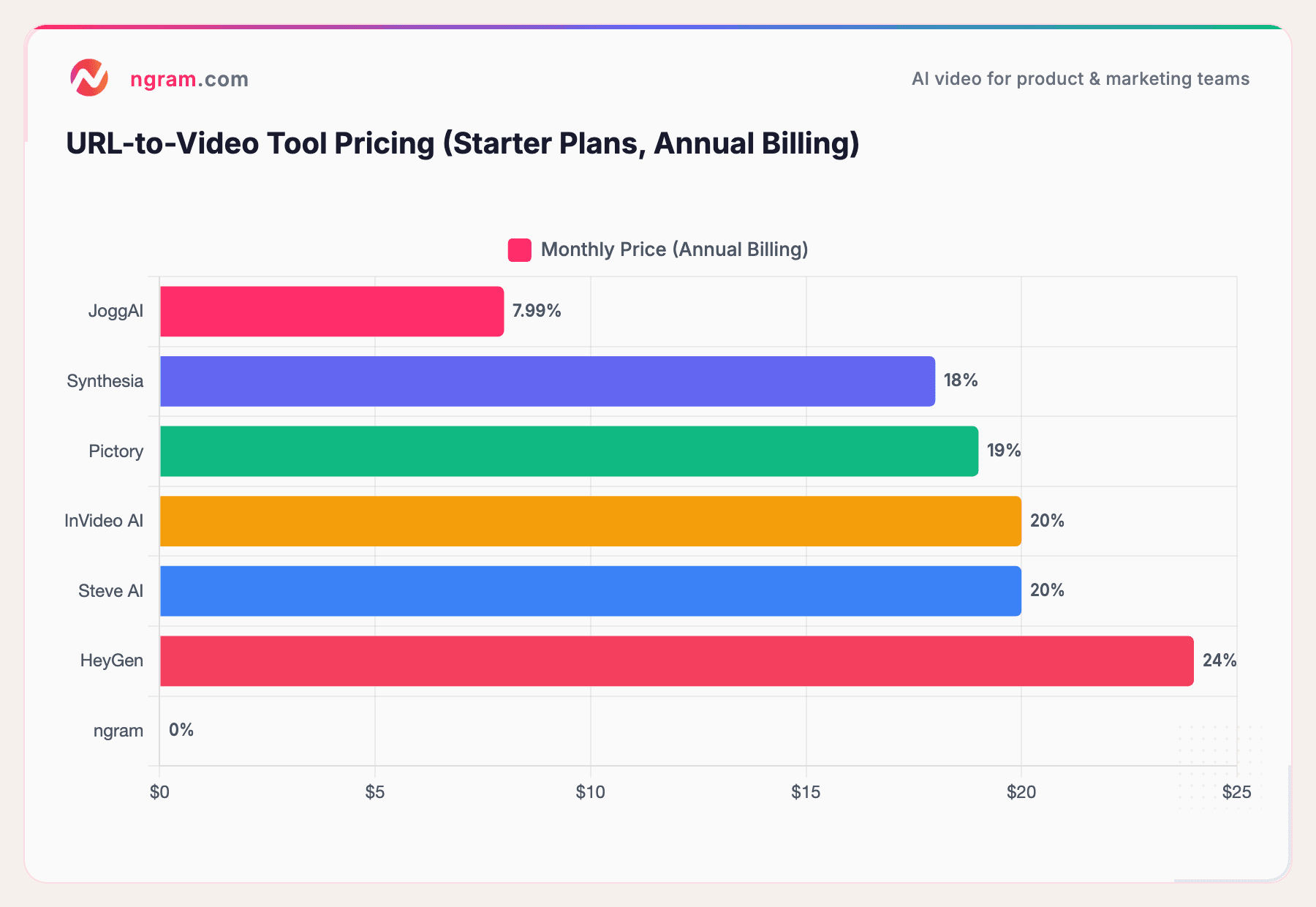
Pricing data from official websites as of March 2026. ngram offers a free tier; paid plans available for additional features.
Pricing is just one piece of the puzzle. The real question is which tool gives you the output quality and control you need. For quick social clips from a blog post, Pictory or InVideo AI get the job done fast. For e-commerce product ads, JoggAI is hard to beat on value. For teams that want AI speed plus real editing capabilities, ngram offers the most complete package.
Want to try it yourself? ngram turns URLs, docs, and recordings into polished videos with full creative control. Get started free - no credit card needed.
The Data Behind AI Video Generation from URLs
Let's look at why URL-to-video is growing so fast, and the numbers behind it.
The AI video generation market is projected to hit $18.6 billion by the end of 2026, up from $5.1 billion in 2023, according to industry research. That's a 34.2% compound annual growth rate. And projections from Fortune Business Insights and other research firms show no signs of slowing.
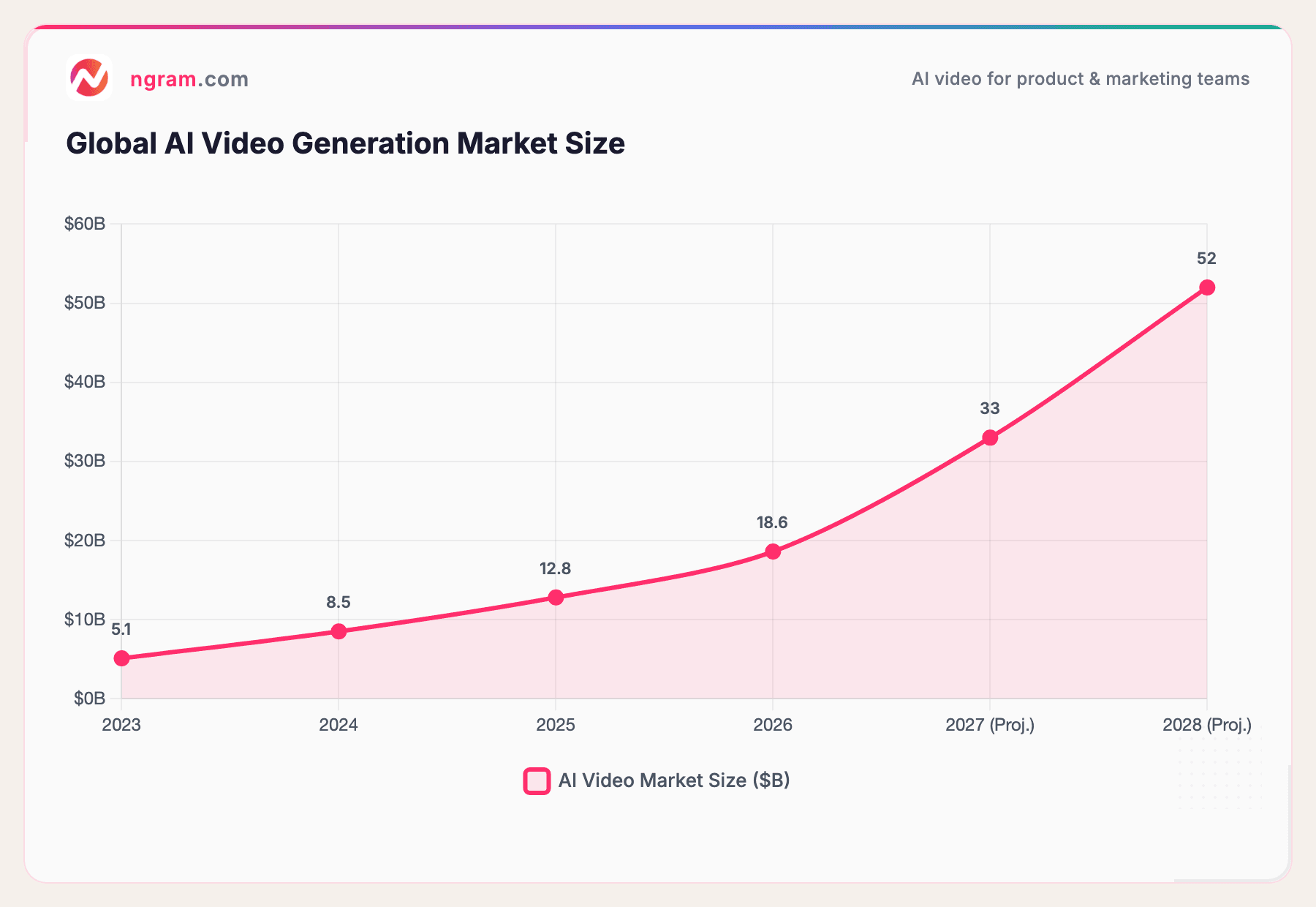
Sources: Fortune Business Insights, Grand View Research, and industry analysis. 2027-2028 figures are projections.
The market isn't just growing in size - adoption is accelerating across every segment. Here are the numbers that matter, according to industry research:
- 124 million monthly active users across AI video platforms as of January 2026
- 63% of content creators have used AI to make videos, up from 51% in 2025
- 840% increase in AI video generation volume from January 2024 to January 2026
- 78% of marketing teams use AI video in their campaigns quarterly
- 73% of Fortune 500 companies have integrated AI video tools
The cost savings are staggering. Traditional video production runs about $4,500 per finished minute. AI tools bring that down to roughly $400 per minute - a 91% reduction, per industry benchmarks. In practical terms, the average 60-second marketing video went from a 13-day production cycle to 27 minutes.
For marketing teams specifically, AI video tools save an average of 34 hours per week that was previously spent on production and editing.
Here's a look at what types of AI video content are being created most:
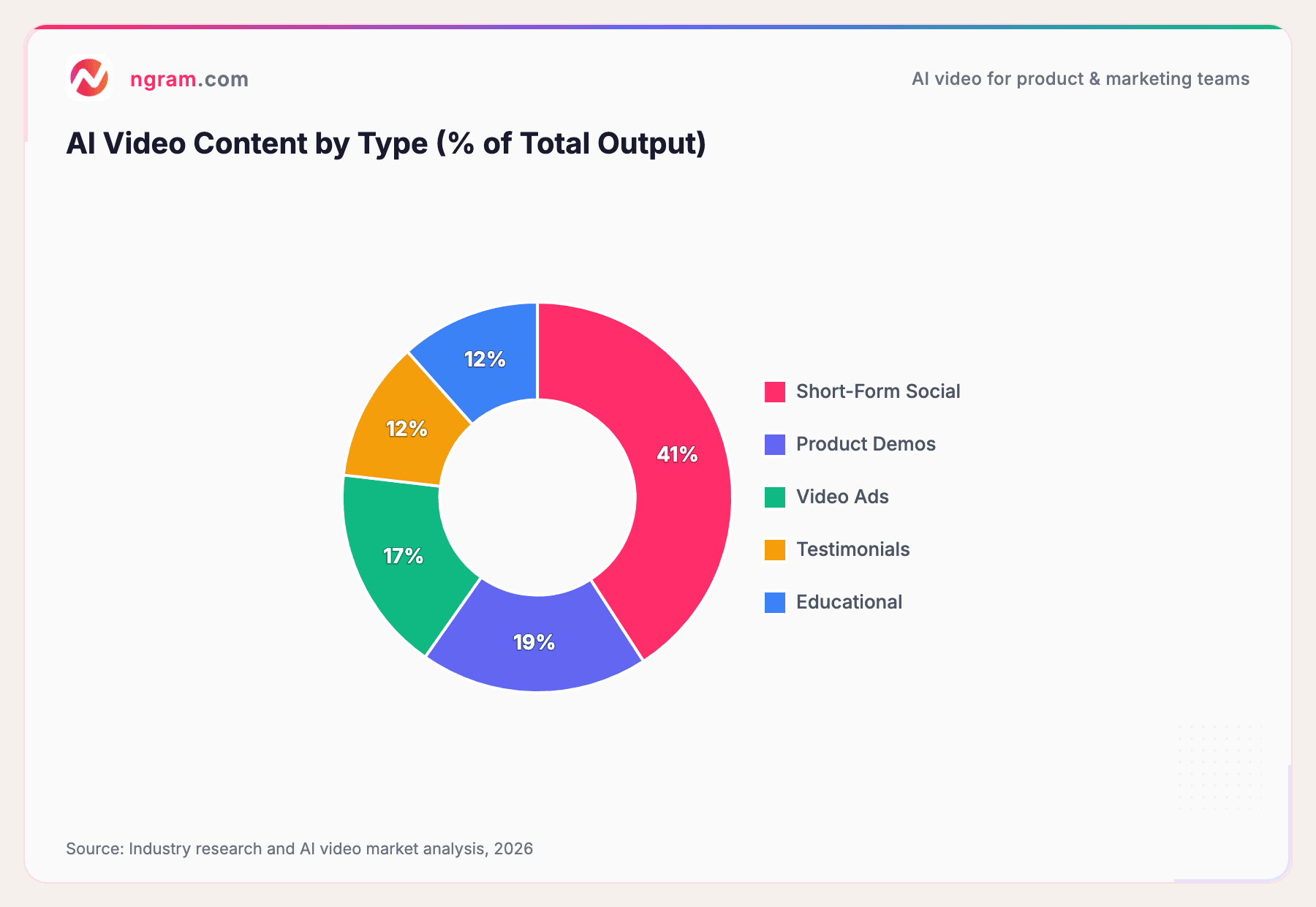
Source: Industry research and AI video market analysis, 2026
Short-form social content dominates because it's where the ROI is most immediate. But product demos and video ads are growing fast, especially as URL-to-video tools make it possible to generate these at scale.
And the video marketing ROI speaks for itself: 82% of marketers say video has given them a good ROI, and 92% of businesses are satisfied with the ROI of their video marketing on social media, per Wyzowl's 2026 report.
Tips for Getting the Best Results from URL-to-Video
After testing every major tool in this space, here's what makes a difference in output quality:
1. Start with Well-Structured Content
The AI is only as good as the content on the page. URLs with clear H1/H2 headings, short paragraphs, and logical flow produce dramatically better videos than messy, wall-of-text pages. If your page reads well, the video script will too.
2. Always Edit the Script Before Rendering
The fastest way to waste time is skipping script review. Most tools give you a script preview. Use it. Cut the fluff, tighten the narrative, and make sure the key message comes through in the first 5 seconds.
3. Set Up a Brand Kit
If you're creating videos regularly, set up your colors, logo, fonts, and intro/outro once. Tools like ngram offer brand kit support so you can select your saved Brand Kit for each video. Create or edit reusable intro/outro slides in the kit on Premium or Ultimate, then choose the opening and closing designs you want for that video. Both start Off.
4. Choose the Right Aspect Ratio First
Don't create a 16:9 video and then crop it to 9:16 later. The framing, text placement, and visual composition are completely different. Pick the format before the AI renders.
5. Match the Tool to the Content Type
A blog-to-social-clip tool will struggle with a product page, and an e-commerce video tool won't do justice to a long-form case study. Use the comparison section above to match the right tool to your content.
6. Don't Over-Rely on AI Voiceover
AI voices have gotten dramatically better, but they still lack the nuance of a real person for certain content types. For product demos and sales content, consider recording your own voiceover and letting the AI handle everything else.
Common Mistakes to Avoid
Pasting URLs with little text content. If your page is mostly images or has fewer than 200 words, the AI won't have enough material to build a meaningful script. Supplement with a text prompt or choose a different source.
Ignoring the script review step. We've seen this repeatedly. People paste a URL, accept the default script, export, and then wonder why the video doesn't make sense. The script is where 80% of video quality is determined.
Using the same tool for everything. No single tool is best at all content types. E-commerce product pages, blog post summaries, and corporate presentations are fundamentally different video formats. Use the right tool for each job.
Forgetting captions. According to industry data, 85% of AI-generated videos now include auto-generated captions, and there's a reason: a massive percentage of video is watched with the sound off. Make sure captions are turned on before exporting.
Not testing multiple URLs. Your first attempt might not be your best. Try different pages from your site and see which ones the AI handles best. Product pages with structured data often outperform free-form blog posts for ad-style videos.
Frequently Asked Questions
Can I generate a video from any URL for free?
Several tools offer free tiers or trials. ngram has a free tier, Pictory offers 3 free video projects, and InVideo AI has a free plan (with watermark). For professional use without watermarks, expect to pay $8-25/month depending on the tool.
What types of URLs work best for AI video generation?
Blog posts with clear headings and structured text make useful sources. Product pages, landing pages and case studies also work well when their facts are current. For a product behind sign-in, use ngram’s attended Opus 5.5 browser workflow and complete the sign-in handoff. Add a brief or supporting files when the page has too little information to explain the subject.
How long does it take to convert a URL to video?
Most tools generate a first draft in 1-3 minutes. However, the full process - including script review, customization, and export - typically takes 5-15 minutes for a polished result. That's still a fraction of the 13-day average for traditional video production.
Can I customize the AI-generated video after creation?
Yes, and you should. Every quality tool lets you edit the script, swap visuals, change voiceover, adjust music, and tweak branding. Some tools like ngram offer full timeline editing for granular control, while others limit you to scene-level swaps.
What video formats and aspect ratios are supported?
Most tools export as MP4 (the universal standard) and support 16:9 (landscape), 9:16 (vertical for mobile), and 1:1 (square). Some support additional formats like 4:5 for Facebook. Always check that your tool supports the aspect ratio you need before starting.
Is URL-to-video generation good enough for professional use?
It depends on the tool and your definition of "professional." For social media content, product clips, and internal communications, AI-generated video is more than good enough today, and it's improving fast. For broadcast-quality commercials or cinematic brand films, you'll still want human editors, but AI can handle the first draft and save significant production time.
References and next steps
- Blog to video — turn an article into a video using its published text.
- Sources and attachments — choose which files or links to give Studio.
- Sharing and publishing — choose how viewers will receive the finished video.