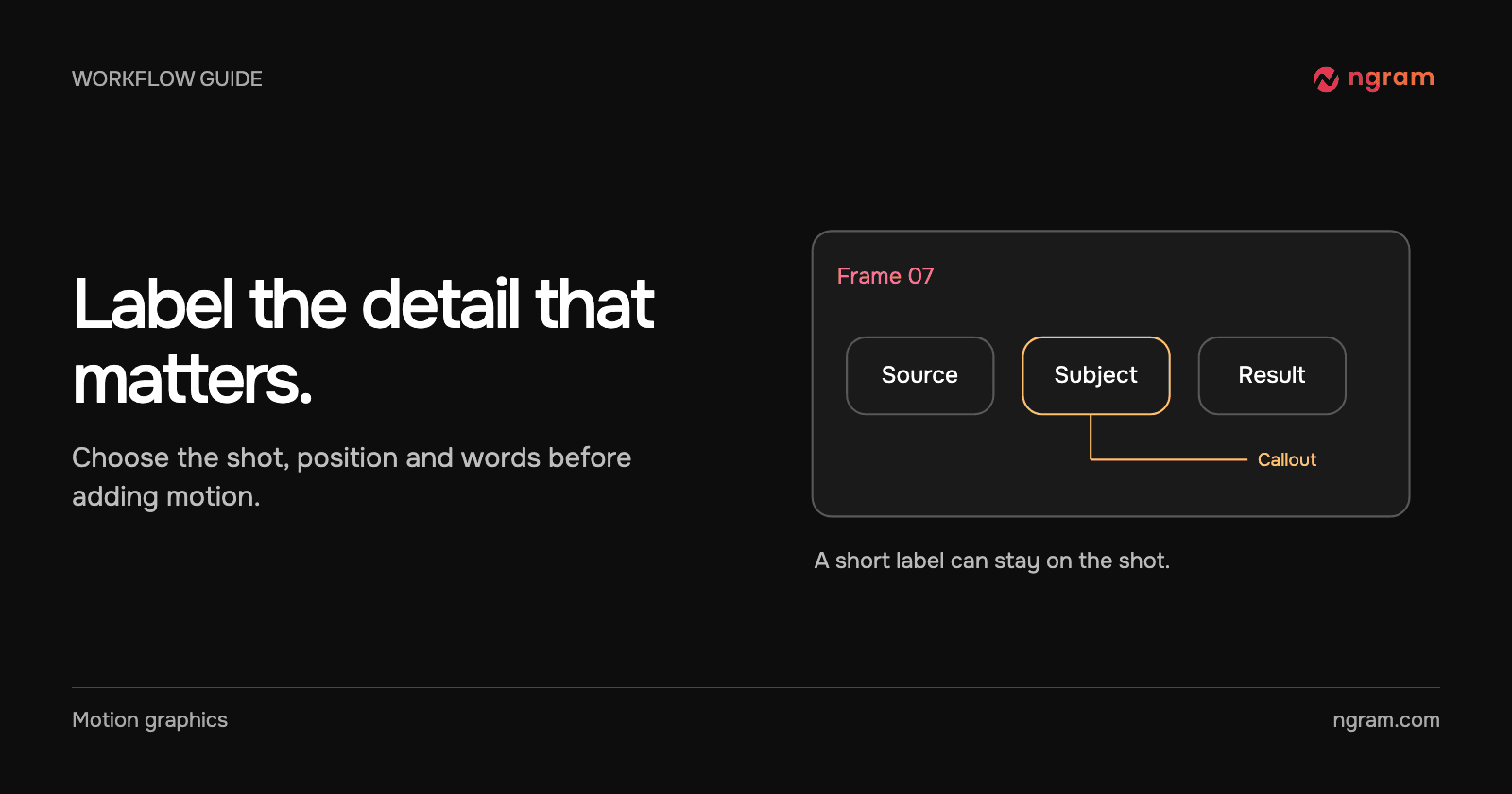

A generated clip shows a person reviewing a table. The intended point is that one row has changed, but the viewer has to guess which row. Put the explanation beside the part of the shot that needs it. A title across the whole frame may tell the viewer what the scene is about while still leaving that row hard to find.
Mark the moment before writing the label
Play the shot once without sound. Pause where the important detail first becomes visible and note what disappears when the camera moves. Write down the smallest claim that the image supports. “Pending approval” is more useful than “Improved workflow” if the viewer can actually see a pending state.
In ngram, provide the intended label in the video brief or ask for a change to the affected scene in an existing draft. Try: “In the shot of a reviewer checking the table, put ‘Pending approval’ beside the highlighted row while the narrator names it. Keep the row and the reviewer’s hands visible. Remove the label when the shot changes.” For available treatments, see motion graphics.
Choose a treatment that fits the frame
Use a label to name something, a lower-third to identify a speaker, or a separate graphic to compare facts. If the viewer must read three definitions while following the action, pause the footage or insert a full-frame explanation. A generated illustration can help explain an idea. For an instruction about the exact location of a control, supply the real product screen.
The Glass example alternates a person at a laptop with a graphic about chats, documents and data. Text placed near the live action takes less space than the comparison frame. Watch where each label leaves the screen; a label that persists into a different shot can appear to name the wrong object.
Correct the shot that is hard to read
Review at the size your viewer will use. Check the first and last frame of the label, the contrast against the background, and whether it covers a face, hand or caption. On supplied footage, request a nearby label or a crop rather than assuming the text will track an exact pixel through camera movement.
If a callout drifts, identify the scene and ask to hold the label in a clear region for the relevant line. If that still obscures the action, move the explanation to its own frame. The guide to revising a video covers targeted requests. Use AI video generation when you also need to create the underlying scene.