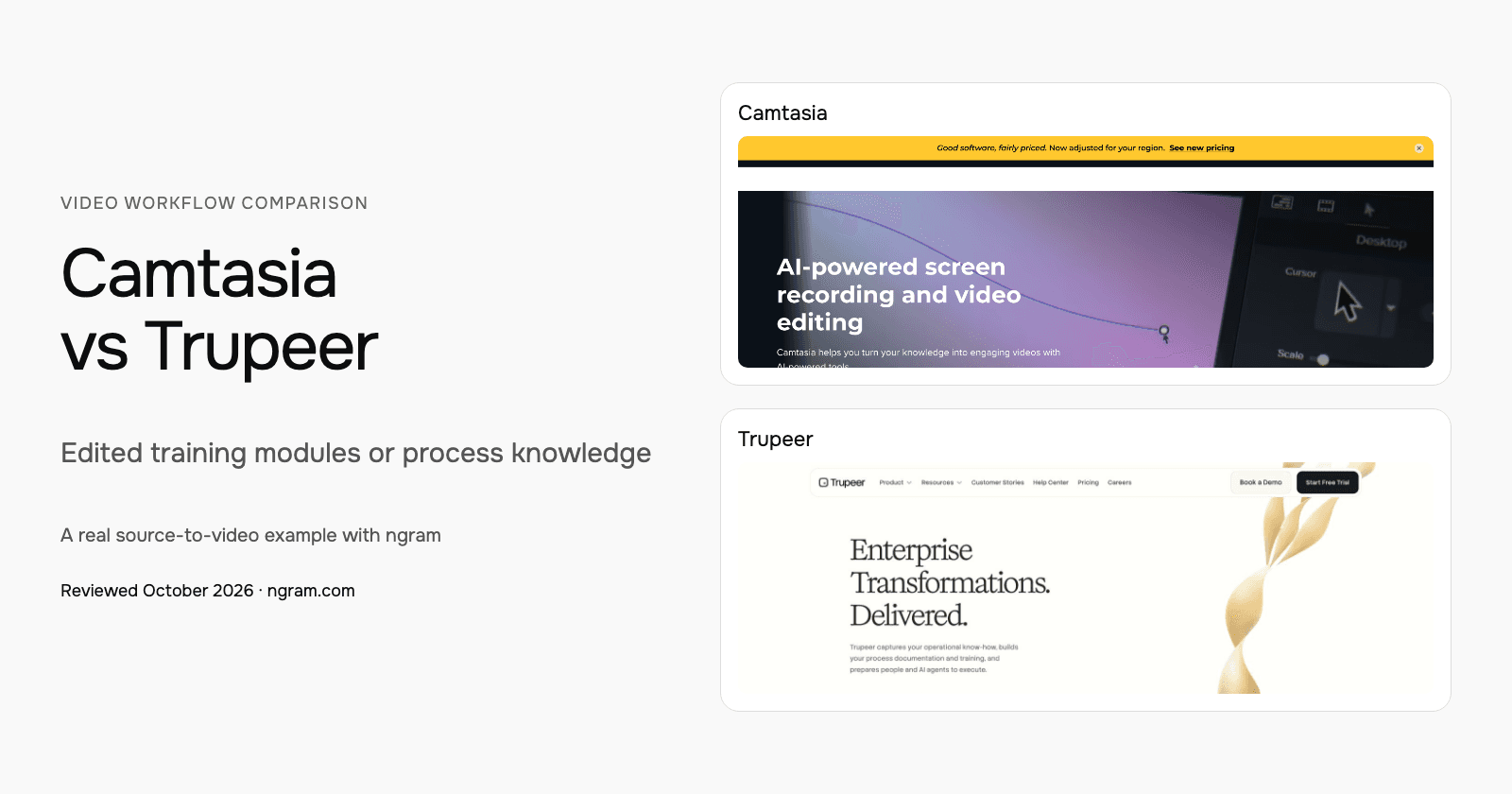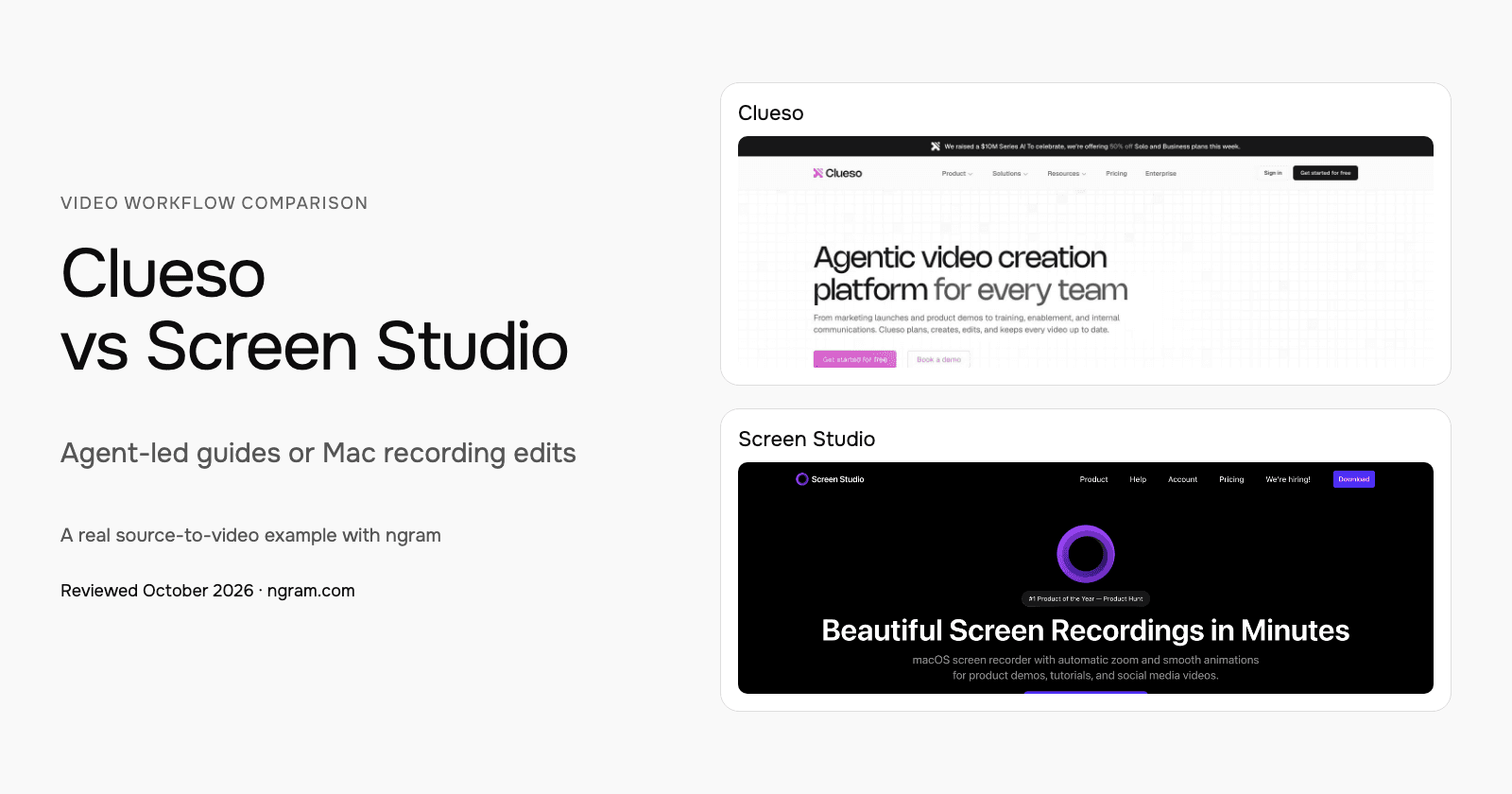

Compare Clueso for agent-led creation and paired guides with Trupeer for process capture, documentation and enterprise knowledge workflows. Both now accept more than a recording. The useful choice depends on your source, editing access, review process and the library you need to maintain.
Clueso vs Trupeer at a glance
| Question | Clueso | Trupeer |
|---|---|---|
| Starting material | Prompts, recordings, screenshots, slides and documents | Recordings/uploads; document-to-video on Enterprise |
| Creation and revision | Agent creation, direct timeline; in-editor chat on Enterprise | Script and media edits; publication review/versioning on Enterprise |
| Reusable brand controls | Business components/fonts; Enterprise Clueprints customization | Brand Kit and custom skills from Scale |
| AI-client workflow | MCP video creation/editing | MCP company-knowledge retrieval |
| Budget | Export minutes plus AI credits | AI credits for video, guides, translation and avatars |
Clueso: Create videos and guides from prompts or existing material
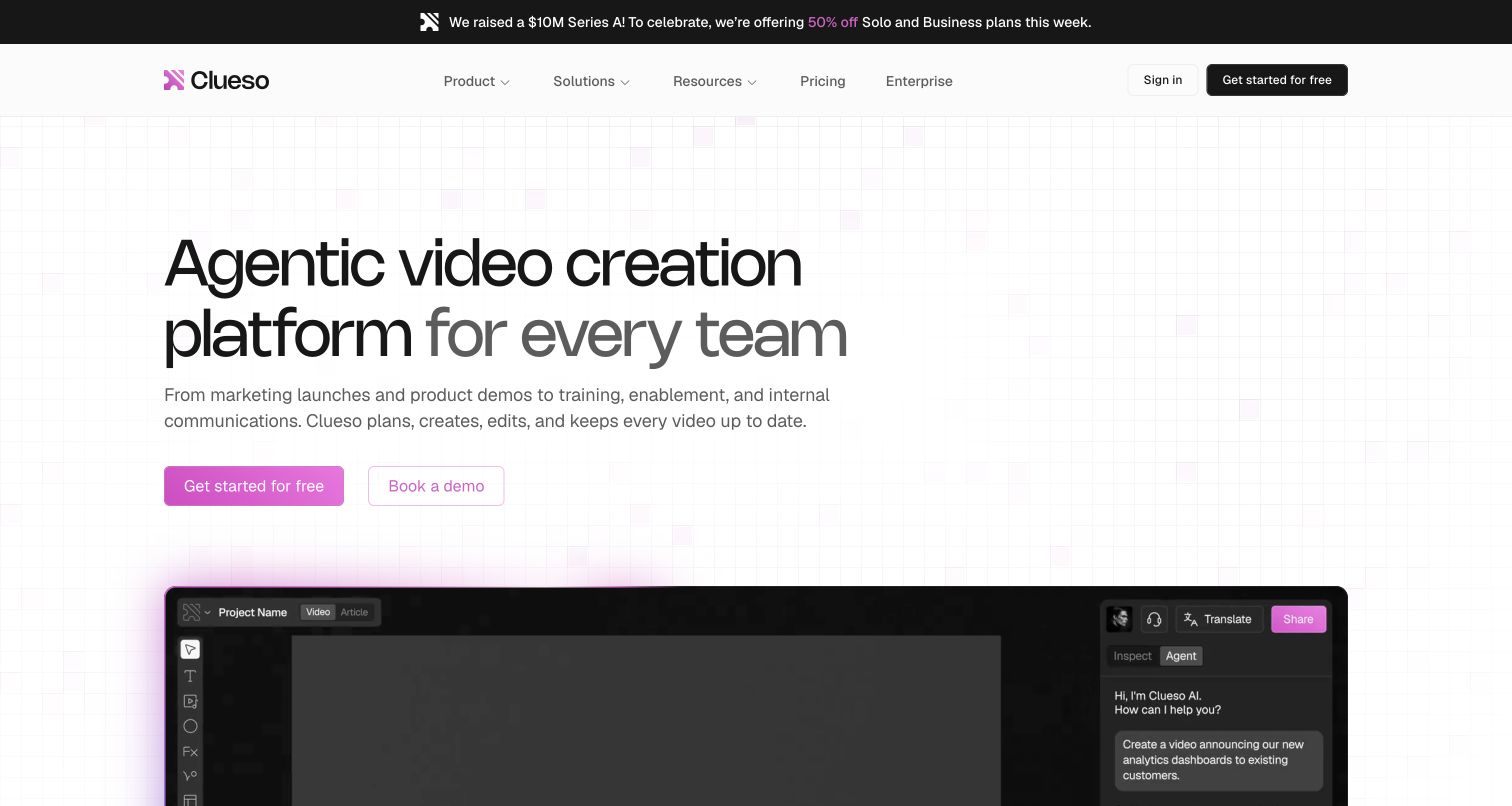
Clueso now creates from prompts, recordings, screenshots, slides and documents. Its agent plans the video, creates narration and visuals, and offers a direct editing timeline. Motion graphics and Clueprints extend the workflow beyond cleaning up a recorded walkthrough.
The same material can become a written step-by-step guide. For a customer education team, compare that paired deliverable: the accuracy of the video, the guide’s screenshots and the work needed when a step changes. Clueso’s current offering should not be evaluated as a recording-only product.
Its pricing table includes prompt creation, PPT/PDF input and MCP, but lists in-editor AI chat editing on Enterprise. Business adds reusable components, custom fonts and collaboration. The auto-update agent is an Enterprise paid add-on. Check those entitlements when evaluating a workflow advertised on the homepage.
Clueso MCP connects video creation and editing to AI clients. Access to MCP does not establish that every Enterprise editing or automation feature is included in a lower plan.
Trupeer: Capture process knowledge as videos and written guides
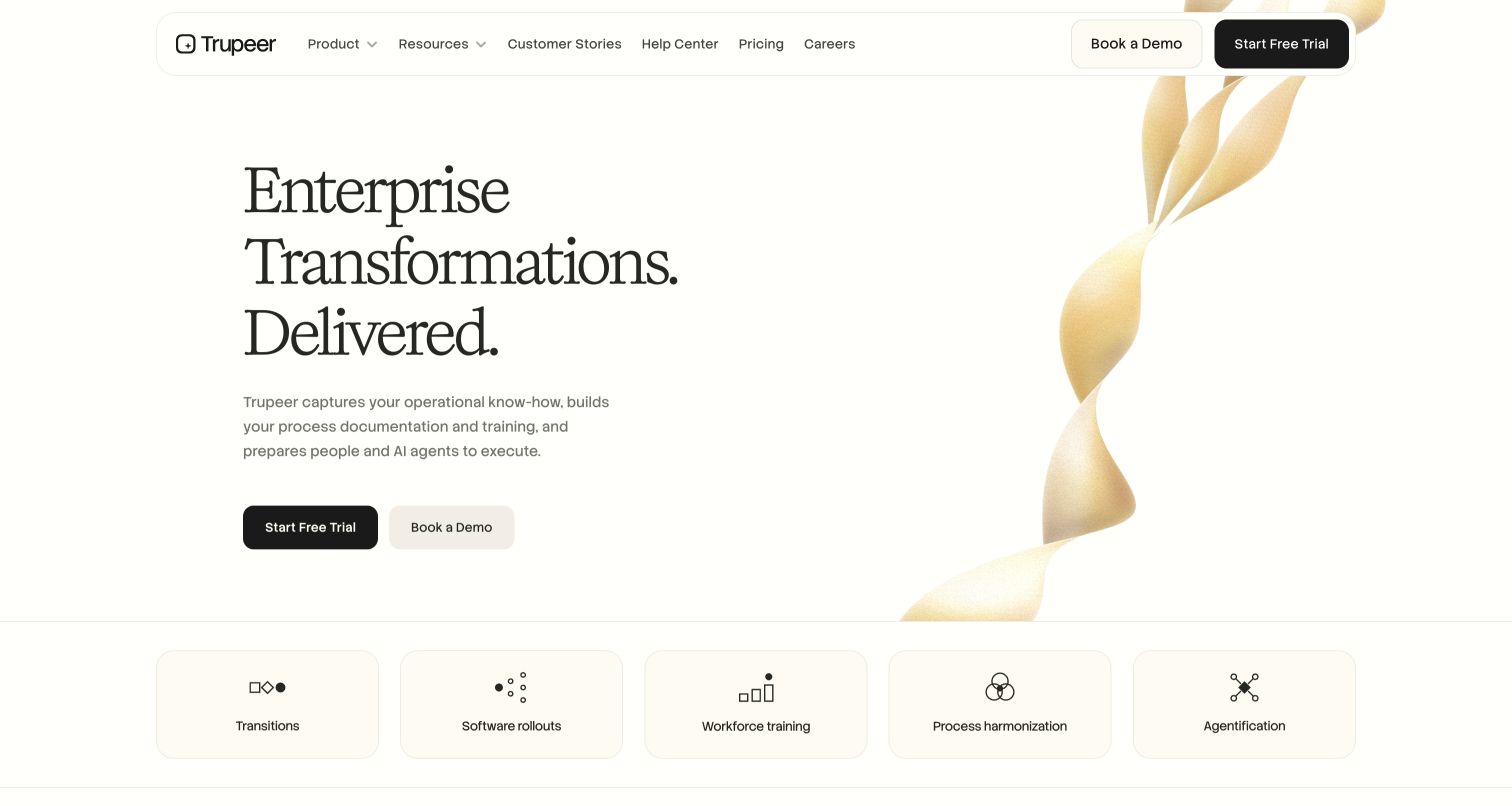
Trupeer turns recorded or uploaded workflows into narrated videos and written guides. Script rewriting, trim, split, crop and synchronization controls let the author revise the result. Its AI zooms and annotations do not mean the video is locked after generation.
Its current releases include Enterprise Doc to Video for uploaded documents and decks, along with review-before-publication and version controls. A blanket claim that Trupeer always requires a screen recording misses that supported path.
Brand Kit and custom skills start on Scale. Custom voice/avatar clones, smart personal-data blur and advanced governance are Enterprise features. Compare the tier that includes the review and brand workflow your team will actually use.
Trupeer also offers a searchable knowledge base and MCP access to company knowledge. That connection serves knowledge retrieval; it should not be assumed to provide the same creation operations as another product’s video-generation connector.
Compare one realistic revision
For a software rollout, prepare one approved process and one later change to it. Compare the generated video, illustrated guide, terminology correction and replacement of the changed step. Then check who reviews the update and where employees find the final version.
For a launch film or an explanation without a recording, try Clueso’s prompt or document workflow and Trupeer’s Enterprise document-to-video path when eligible. Planning exists in both; compare the controls and output that matter to the job.
Pricing: compare the full recurring job
| Plan | Billing checked | Allowance or requirement |
|---|---|---|
| Clueso Solo | $50/month; $40/month equivalent annually | 1 user; 15 export minutes/month or 3 hours/year upfront |
| Clueso Business, default size | $150/month; $120/month equivalent annually | 2 users; 30 export minutes/month or 6 hours/year upfront |
| Trupeer Pro | $49/month; $40/month equivalent annually | 1 creator; 2,000 AI credits/month; 10-minute recordings |
| Trupeer Scale | $249/month; $199/month equivalent annually | 3 creators; 10,000 AI credits/month; 15-minute recordings |
| ngram Basic | $29/month; $23.20/month equivalent annually | 3,000 credits per monthly cycle; 36,000 upfront annually |
Clueso budgets export time and AI credits separately. Solo includes 2,500 AI credits per user/month and Business 3,500. Monthly export minutes do not roll over; annual export allowances arrive upfront. A re-export counts the longest version of that video in the cycle. Compare the selected team size, export volume and AI operations, not just a minute total.
Trupeer uses 100 credits per generated video minute, 50 per document and 100 per translated minute per target language; avatars add usage. Credits reset monthly. Re-exporting generated content does not consume credits. The Free offer is ten days. Knowledge-base and AI-search add-ons have separate prices, so budget the video, guide, translation and delivery together.
ngram pricing includes 1,000 credits/month on Free. Basic costs $29/month with monthly billing and includes 3,000 credits per cycle; annual billing is $23.20/month equivalent with 36,000 credits supplied upfront. The base rate for premium AI video generation is 10 credits per second, with a cheaper model at 3. Share publicly or embed on Free; use a paid plan for MP4 downloads and Basic or above for unlisted links.
See a real source-to-tutorial example
This ngram example turns the public GitHub Actions quickstart into a tutorial. Inspect its exact prompt, source, style, transcript and result, then adapt the brief for your own product. It demonstrates creation from documentation, not an imported Clueso or Trupeer project.
From this input to this video
GitHub’s quickstart becomes an illustrated walkthrough of creating a workflow and finding its run logs.
Prompt
Create a 60-second role-based tutorial video for GitHub Actions (https://docs.github.com/en/actions/get-started/quickstart). The audience is developer users. Cover these modules in order: create the workflow file shown in GitHub’s quickstart in a repository where Actions is enabled; copy the quickstart workflow and commit it; open the Actions tab, select the workflow run, then inspect the job and step logs. For each module, show the UI step on screen, narrate what the developer does and why it matters, then move to the next. Tone: clear, practical and encouraging. End with a brief summary screen listing all modules covered and the line: Create your first workflow with GitHub Actions. Voiceover language: English; apply the brand kit if one is set.
Selected style
Editorial
Source material
Read the video transcript
Let's run your first GitHub Actions workflow. Three short modules, and you're done. In a repository where Actions is enabled, click Add file, then Create new file. Name it dot github, slash workflows, slash github-actions-demo dot yml. GitHub only discovers workflows saved in that folder. Next, copy the quickstart YAML into the file. It runs on every push, on an Ubuntu runner, and echoes a few details about your repository. Click Commit changes. That commit is a push, so your workflow starts right away. Now open the Actions tab. Select GitHub Actions Demo, then click the run your commit triggered. Choose the Explore-GitHub-Actions job and expand any step to read its log. This is exactly what ran, and where you'll debug later. Create, commit, inspect. Create your first workflow with GitHub Actions.
Turn product instructions into a tutorial
See a real GitHub Actions tutorial made from its public quickstart. For your own video, use the relevant documentation and any exported recording that helps explain the steps.
Bring the instructions
Use a public documentation page or upload a PDF. If you have useful footage, export an authorized MP4 from Clueso or Trupeer and upload it to ngram.
Adapt the brief
Add your product, audience and exact steps below. Attach your files and select your Brand Kit in ngram.
Approve the plan
Review the plan containing the script and approve generation. Ask for revisions when the instructions or audience change.
Make it yours
Fill in your details here, or continue and finish your brief in ngram.
Video generation uses credits. Review your estimate in ngram. MP4 downloads require Basic or higher.
How credits workBring useful material into your next video
Use a public documentation URL or upload your approved PDF or PowerPoint. For an existing recording, export the useful MP4 through the source tool’s download controls and your account’s permissions, then upload it to ngram. Keep the original project, guide and review history in their existing home.
Describe the audience, steps and next action. Choose the style, aspect ratio and duration; select your configured Brand Kit in the composer and enable captions when wanted. Approve the plan containing the script, then request revisions or use the editing controls.
When the instructions change, tell ngram the source has been updated and ask it to revise the video. For another channel, change the duration or aspect ratio and request a new version. Review each version before sharing it.
Continue with the SaaS tutorial template, help article to video or screen recording to video. For the direct comparisons, see ngram vs Clueso and ngram vs Trupeer.
Frequently asked questions
Can both Clueso and Trupeer create from documents?
Yes. Clueso lists PPT/PDF creation in its current plans; Trupeer’s Doc to Video release is Enterprise. Compare the selected plan and the intended output rather than assuming both require a recording.
Can I reuse an existing recording in ngram?
Yes. Export an authorized video file from the original tool and upload the useful footage with a brief for your new audience. Keep the original editable project separately; the uploaded video is source material for the new explanation.
How should I compare a video tool with a documentation tool?
Start with the recurring deliverable. Compare the source, one realistic edit, review, export and the way the audience finds the result. Include written guides, knowledge search or learning-system requirements when those are part of the job.
Can I try the ngram workflow before downloading?
Free includes 1,000 credits per month and supports public sharing and embeds. Use a paid plan for MP4 downloads; Basic and above also support unlisted links.
Sources and review
Reviewed October 17, 2026 using official product, pricing, help and release pages. This is a workflow comparison, not a timed performance benchmark or a report of generated competitor outputs. Prices and access depend on the stated billing, region and tier.
Clueso product · Clueso pricing · Clueso MCP · Clueso video/export workflow · Trupeer pricing · Trupeer video workflow · Trupeer releases · Trupeer MCP · ngram pricing
Choose your next step
Compare Clueso for agent-led creation and paired guides with Trupeer for process capture, documentation and enterprise knowledge workflows. Both now accept more than a recording. The useful choice depends on your source, editing access, review process and the library you need to maintain.
Use the editable brief above to [create your first video with ngram](#create), or talk to sales about your team’s workflow.