

Choose a Zight alternative for the result you need: a screen message, process guide, file review or finished video. Zight now includes Smart Actions, video requests and an MCP connection, with plan-specific limits. Its current Create and Collaborate plans replace the older package names in this roundup.
What Zight offers today
Zight: Zight turns captures into shareable video and written material. Smart Actions can make step-by-step guides from recordings, which users review and export. Request Video supports collecting another person’s explanation; the MCP connector lets assistants work with video content and request links.
Create includes five Smart Actions and ten video requests per month at the checked plan. Collaborate includes unlimited AI actions and fifty requests, with branding and team features. The selected Collaborate offer starts at two seats. Check Scale when administrative controls or premium integrations are required.
| Plan | Billing reference | Scope |
|---|---|---|
| Zight | Create: $12.95/user monthly or $9.95/month equivalent annually. Collaborate: $15 or $12, with a two-seat minimum. | Check the matching seats, generation and delivery allowances |
Zight Share is free. Create includes five AI Smart Actions and ten video requests per month; Collaborate adds unlimited AI/actions, fifty requests and branding. Scale uses a custom quote.
Alternatives at a glance
| Tool | Useful starting point | Price reference |
|---|---|---|
| ngram | A new explanation from source material | Free; Basic $29/month or $278.40/year |
| Loom | Screen explanations and async discussion | Business $18/user/month; $15 equivalent annually |
| Snagit | Annotated captures and reusable process guides | India ₹1,599/user/year, billed yearly |
| ScreenPal | Recording, lessons and interactive hosting | Deluxe $4/user/month equivalent annually |
| Droplr | Capture-to-link sharing with team controls | $8/month or $72/year |
| Jumpshare | Record or upload a video, refine it, collect feedback and manage who can view or download it. | Plus $15/user/month and Business $20/user/month with monthly billing. |
| ShareX | Configurable Windows capture and upload workflows | Free and open source |
| VEED | Browser editing and AI-assisted production | Check current regional offer |
Prices reviewed October 18, 2026. Annual commitments, regions, creator seats and usage units differ. These are references to the stated offers, not equal bundles.
ngram: turn a demo into a focused follow-up
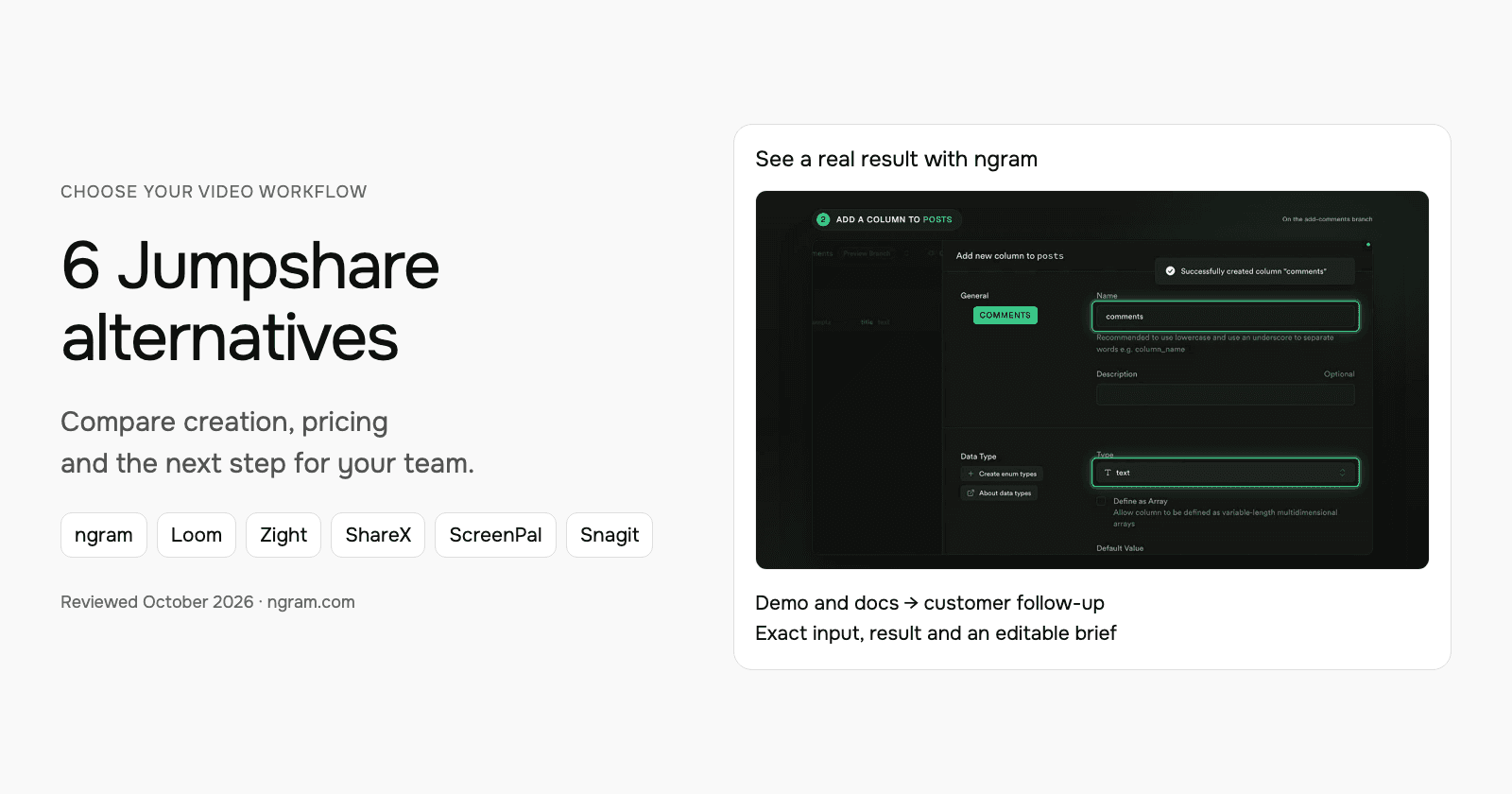
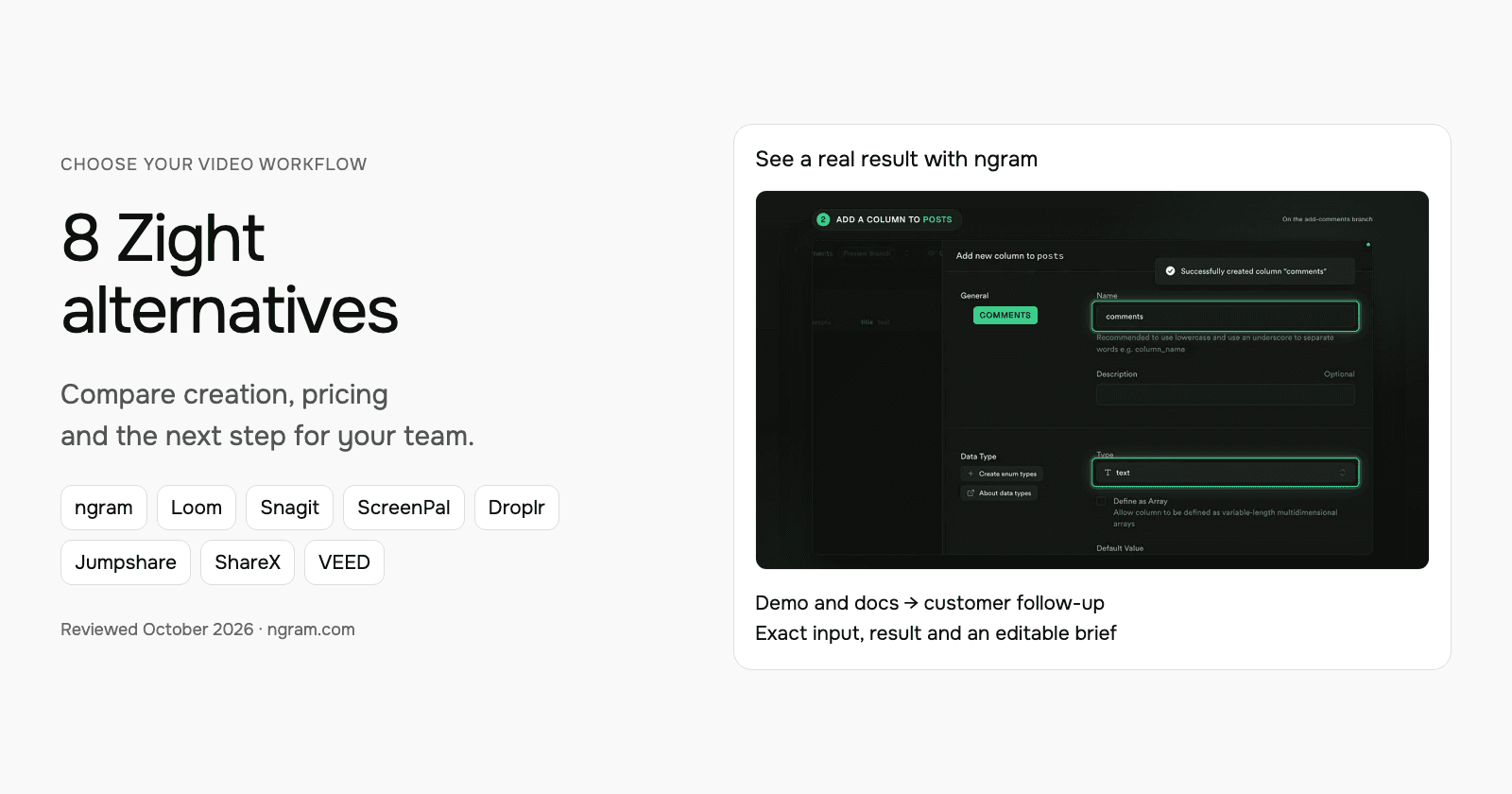
See the actual ngram follow-up made from Supabase’s public demo and documentation. The input and output are shown together so you can adapt the brief for your customer. This is not a Zight output test.
From this input to this video
A recap of Supabase’s public demo: create a branch, change the schema, review and merge. The closing action is a suggested next step.
Prompt
Create a 45-second follow-up video after a demo of Supabase Branching for developers who watched Supabase’s public branching demo. Use these approved demo materials, meeting notes or public product sources: the official demo https://www.youtube.com/watch?v=AMQqhHxz5UI and current documentation https://supabase.com/docs/guides/deployment/branching. Recap the audience goal: test database schema changes separately before merging them into production. Show the workflow discussed: in Jon Meyers’s demo, create an add-comments branch, add a comments column to the posts table, review the changes and merge the branch; recap the real demonstrated workflow rather than implying a private customer meeting. Use this verified supporting detail: the demo shows the comments column in the main branch only after the merge completes. Address this open question using only the supplied answer: Does a branch copy production data? No: the demo and documentation describe an isolated branch with the schema but without production data. Keep commercial terms exactly as stated in the source. End with this next step: as a suggested next step, read the current branching guide and evaluate the workflow in a test project; no buyer commitment is recorded. Describe it as agreed only when the source records that agreement; otherwise present it as a suggestion. Use actual product screenshots or recordings from the supplied sources for UI demonstrations. Tone: helpful and practical. Voiceover language: English.
Selected style
Product spotlight
Read the video transcript
Here's a quick recap of Jon Meyers's Supabase Branching demo. The goal: test database schema changes separately, before they touch production. First, he created a branch called add-comments. On that branch, he added a comments column, type text, to the posts table. Then he reviewed the changes: a diff showing exactly what would run against main. And he merged the branch. The comments column appeared in main only after the merge completed. One open question: does a branch copy production data? No. The demo and the docs describe an isolated branch with the schema, but without production data. A suggested next step: read the current branching guide, and evaluate the workflow in a test project.
Turn a demo into a useful follow-up
The example uses Supabase’s public recording and docs. For your own demo, bring an exported video file or suitable public source and explain what the viewer needs next.
Bring the source
Download authorized source footage from Jumpshare with download permission enabled, then upload the file to ngram. Add supporting documents or a public product page.
Adapt the brief
Fill in your product, audience, verified details and next step below. In ngram, attach your files and select the Brand Kit you want to use.
Approve and create
Review the proposed plan containing the script. Approve it to generate the video, then request any revisions before sharing or downloading.
Make it yours
Fill in your details here, or continue and finish your brief in ngram.
Video generation uses credits. Review your estimate in ngram. MP4 downloads require Basic or higher.
How credits workFill in the audience, message and next step. Choose the style, aspect ratio and duration; attach supporting files in ngram. Select your configured Brand Kit and enable captions when wanted. Approve the plan containing the script, then refine the result through chat or the editor.
ngram pricing includes 1,000 credits/month on Free. Basic costs $29/month with monthly billing and includes 3,000 credits per cycle; annual billing is $23.20/month equivalent with 36,000 credits supplied upfront. The base rate for premium AI video generation is 10 credits per second, with a cheaper model at 3. Share publicly or embed on Free; use a paid plan for MP4 downloads and Basic or above for unlisted links.
Loom: screen explanations and async discussion
Loom suits an explanation that starts with showing the screen. Recording, transcripts, comments and a shared library help a teammate or customer understand the exact workflow being demonstrated.
Business costs $18/user/month or $15/month equivalent annually; Business + AI is $24 or $20. Starter allows 25 videos per person with a five-minute recording limit. Paid tiers add uploads/downloads; AI editing follows its plan entitlement.
Test the actual correction you make most often: removing a detour, explaining a changed screen or replying to a comment. Loom offers editing and AI assistance, so avoid assuming every update requires a full re-recording. Check enterprise eligibility for specific CRM integrations.
Loom reports more than 25 million users across 400,000 companies. That adoption figure provides context; evaluate the recording and revision workflow for your own team.
| Plan | Billing reference | Scope |
|---|---|---|
| Loom plan reference | Business $18/user/month; $15 equivalent annually | Check the applicable creator, hosting and usage allowances |
Match the billing commitment and required workflow. Hosting, creator seats, AI use and events are separate requirements even when they share an account.
Snagit: annotated captures and reusable process guides
Camtasia Snagit captures screenshots, scrolling pages and recordings, with annotation, themes and Smart Redact. Step Capture turns a click-through process into a written guide.
Captured steps can continue into Camtasia Editor for a video. Compare the suite and standalone licenses with the work you need; a guide, a quick screen message and a narrated production are different deliverables.
| Plan | Billing reference | Scope |
|---|---|---|
| Snagit Individual | India ₹1,599/user/year, billed yearly | Non-transferable personal subscription |
| Teams and Business | Check team licensing offer | Transferable licensing and deployment options |
Chrome-verified regional offer, October 18, 2026. TechSmith bills Snagit subscriptions annually; do not present an annual equivalent as an available monthly subscription.
ScreenPal: recording, lessons and interactive hosting

ScreenPal combines recording, editing and hosting. Free recording supports up to 15 minutes; paid Deluxe includes speech-to-text captions. Max and Business add broader AI features, including prompt-based creation and transcript editing.
The published annual equivalents are $4/user/month for Deluxe, $10 for Max and $8 for Business, with a three-user Business minimum. Check the selected plan for quizzes, polls, captions and the AI allowance your lessons need. These figures describe annual commitments.
Its AI tools include narration, transcript revisions and quiz assistance. An SDK also supports embedded recording/editing. A low recorder entry price should not be treated as the price of every training or developer feature.
| Plan | Billing reference | Scope |
|---|---|---|
| ScreenPal | Deluxe $4/user/month equivalent annually | Check the selected recording, editing and delivery scope |
Check the selected billing term and any hosting or learning features separately.
Droplr: capture-to-link sharing with team controls
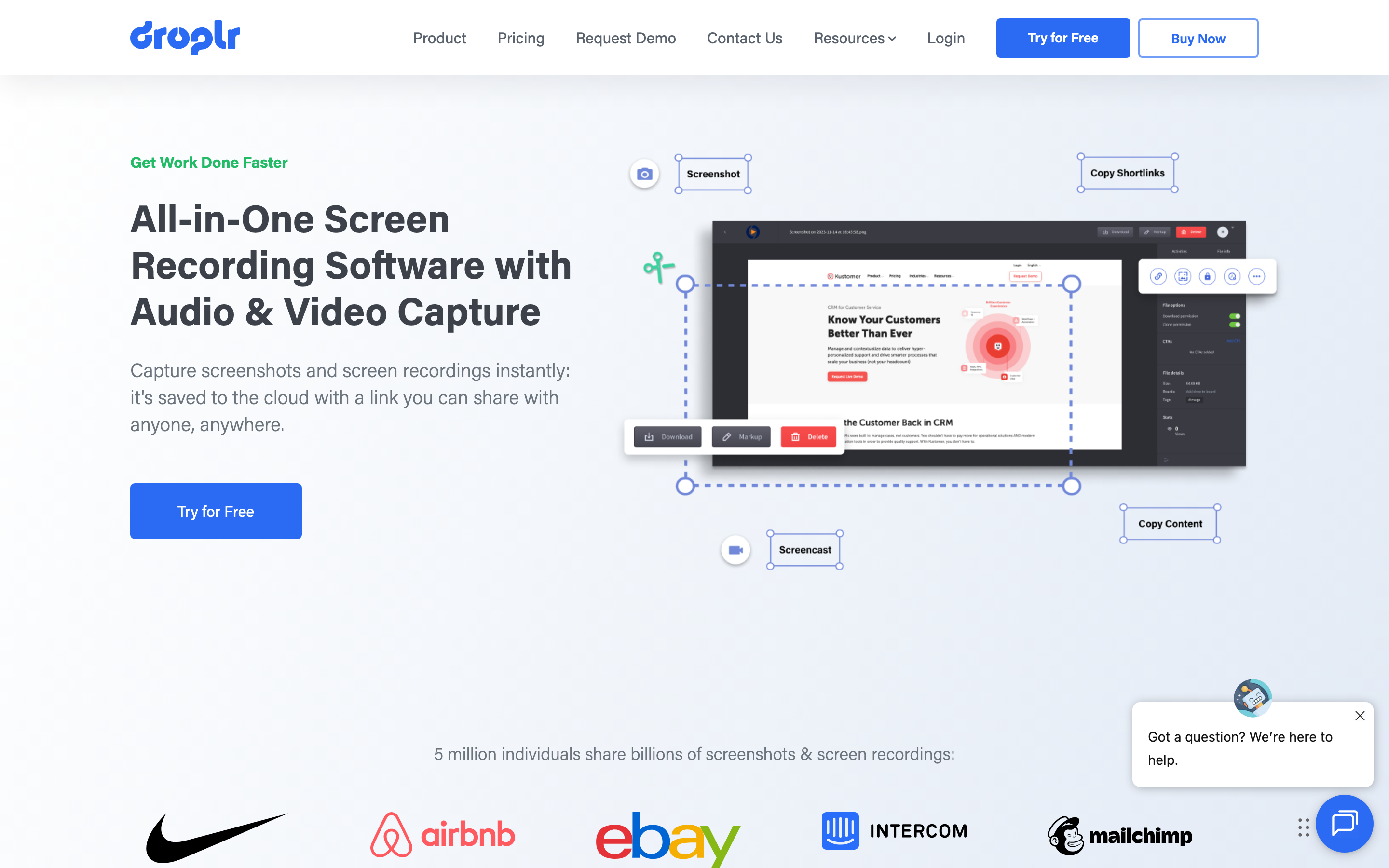
Droplr combines screenshots, annotation, screen recording and hosted sharing. Its public plan table includes 4K recording and unlimited recording length.
Team adds organization features; Enterprise lists SSO, viewer analytics and AI auto-redaction/risk assessment. Check the purchased tier rather than assuming all automated safeguards are in the individual plan.
| Plan | Billing reference | Scope |
|---|---|---|
| Droplr Pro Plus | $8/month or $72/year | Individual capture and sharing |
| Droplr Team | $9/user/month or $84/user/year | Teams up to 15 members |
| Enterprise | Custom quote | Larger teams and enterprise controls |
Annual billing requires the full yearly commitment. Custom domains, branding and analytics may also have plan or add-on conditions.
Jumpshare: record or upload a video, refine it, collect feedback and manage who can view or download it.
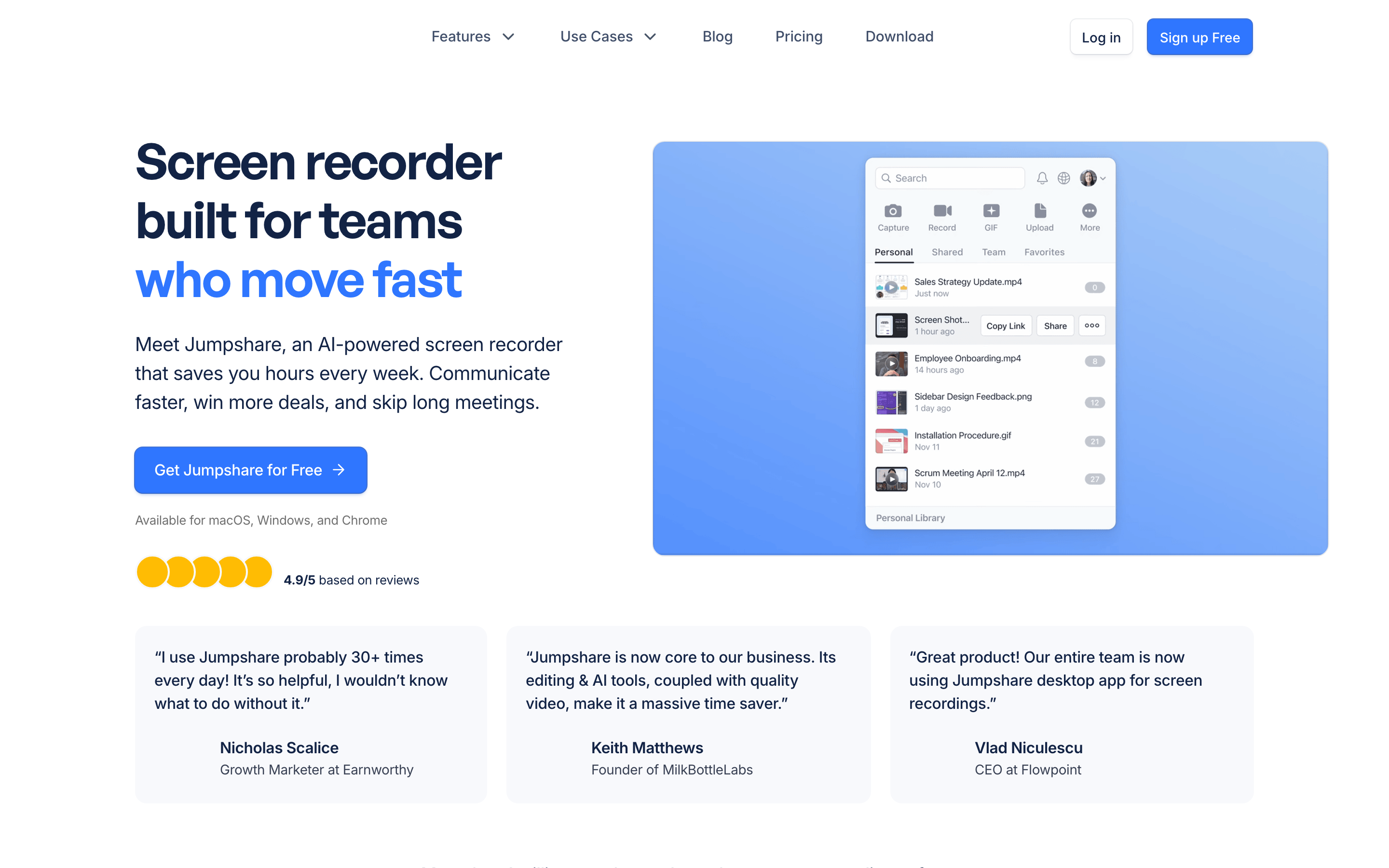
Jumpshare: Jumpshare supports screen recordings and uploaded video, not only files captured inside the app. Its editing tools trim, cut and join footage; captions, thumbnails, markups and comments help viewers understand and review it. Its shared library also covers other file types.
Plus adds editing, captions, branding and sharing controls. Business adds AI titles, summaries, chapters and written follow-up such as tasks, emails and documents, together with Zapier. Storage grows with seats, and viewing bandwidth has its own monthly allowance.
| Plan | Billing reference | Scope |
|---|---|---|
| Jumpshare | Plus $15/user/month and Business $20/user/month with monthly billing. | Check the matching seats, generation and delivery allowances |
Annual billing displays $12 and $16/user/month equivalents respectively. Basic is Free with 25 uploads and five-minute 1080p recordings. Plus adds editing, captions and sharing controls; Business adds Jumpshare AI and Zapier. Workspace storage and bandwidth have separate allowances.
ShareX: configurable Windows capture and upload workflows
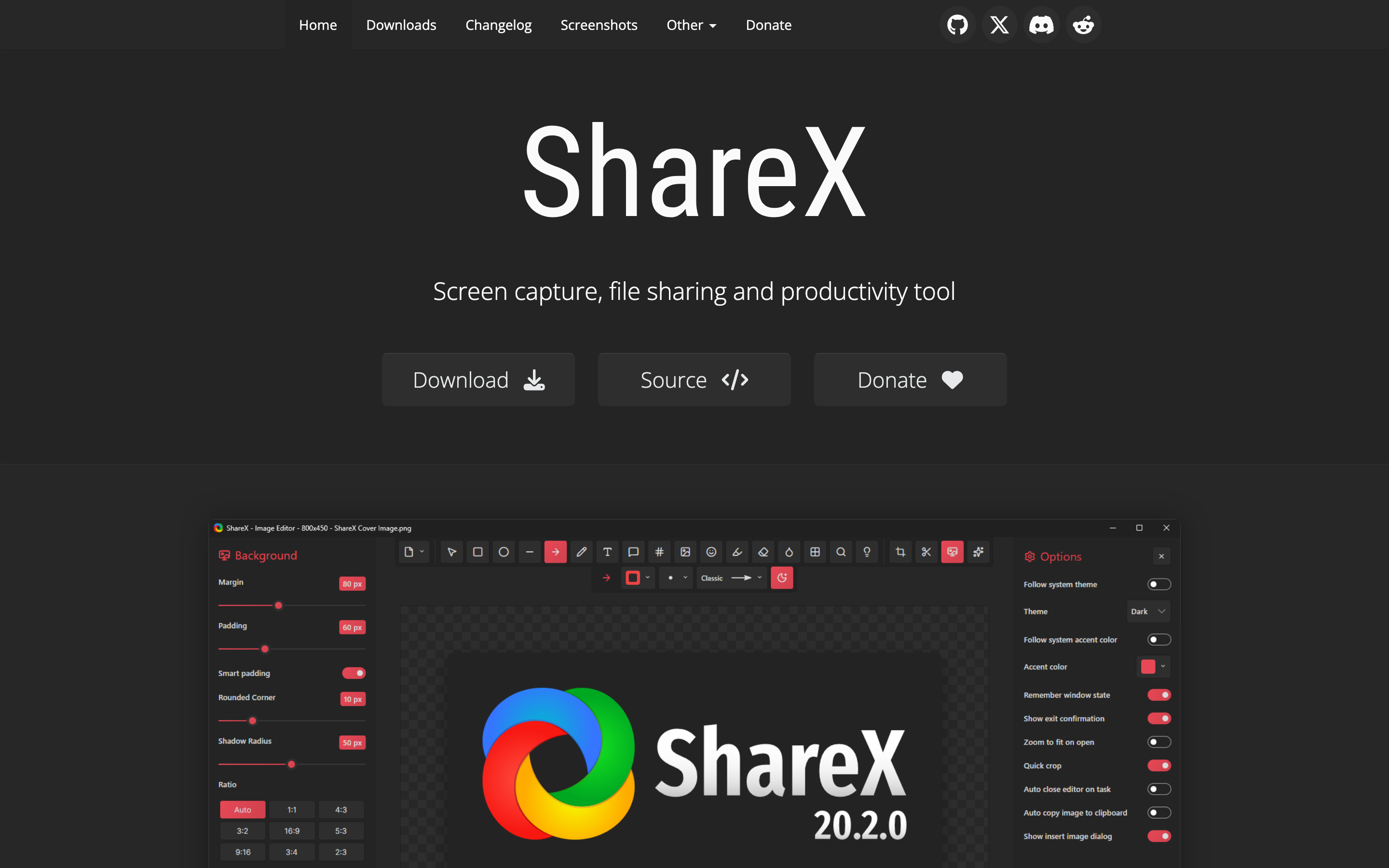
ShareX is a free open-source Windows application for screenshots, recordings, GIFs, annotation and OCR. Hotkeys and after-capture tasks let you repeat a configured process.
Choose your storage/upload destination and sharing behavior. Its image editor supports redaction and markup, while video utilities handle trimming and conversion. It fits teams who want control of a capture workflow and its destination.
| Plan | Billing reference | Scope |
|---|---|---|
| ShareX | Free and open source | Windows application; selected hosting services may have their own costs |
Software price does not include a subscription to any third-party destination you configure.
VEED: browser editing and AI-assisted production
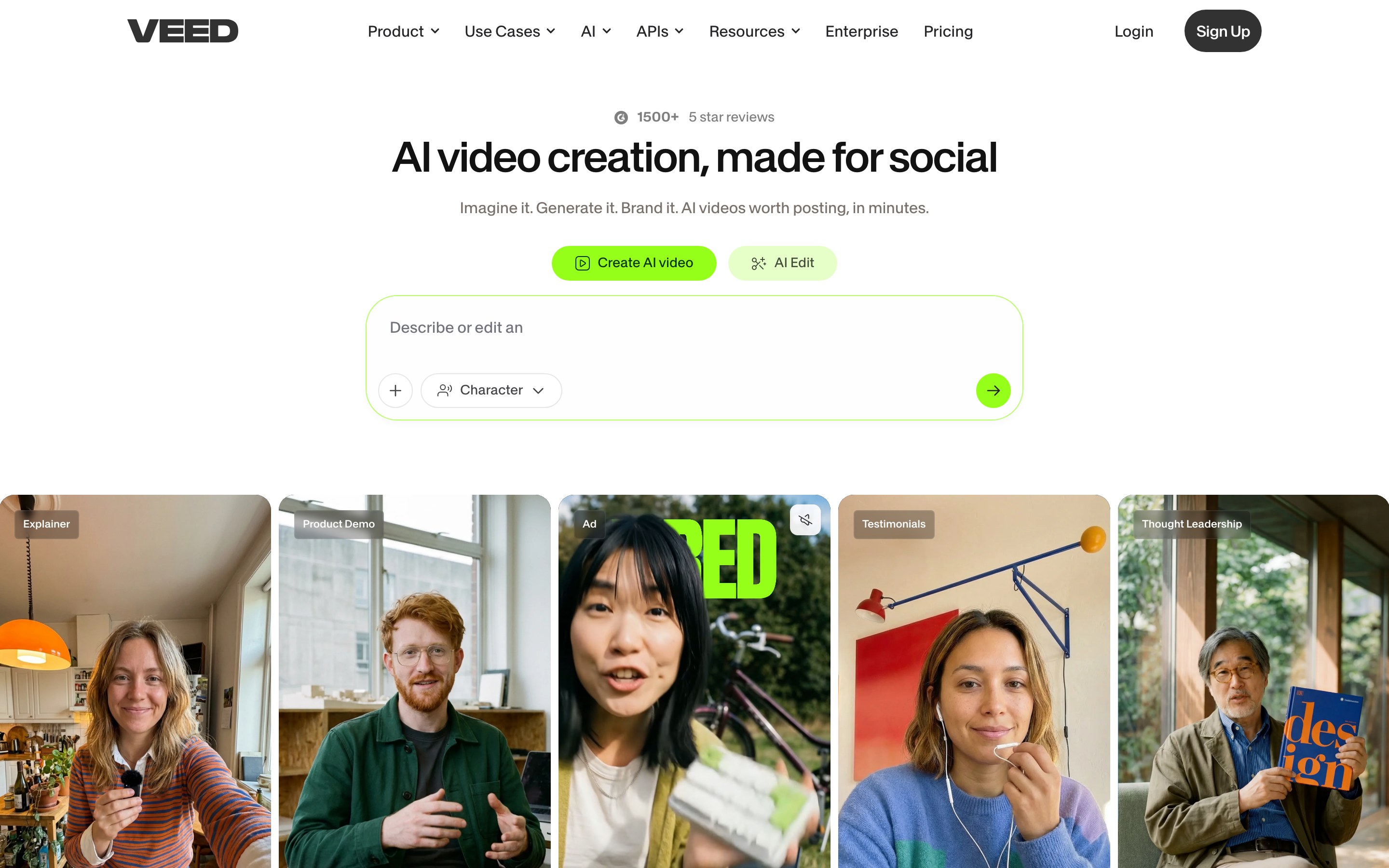
VEED combines browser editing, captions, recording and AI creation. AI Studio includes script review and generated scenes, so evaluate it for a new video as well as post-production on existing footage.
Use its current pricing for the required exports, brand controls, collaboration and AI allowance. The public page did not expose a reliable fixed price in this review, so this shortlist does not repeat an older entry price.
VEED also has developer API/MCP offerings, with Fabric as a separate generation product. A browser-editor subscription should not be assumed to include every developer operation. Keep the original editing project when exporting footage for another creation tool.
| Plan | Billing reference | Scope |
|---|---|---|
| VEED editor | Check current regional offer | Plan-specific exports, collaboration and AI usage |
Compare the actual editor plan and separate developer product when relevant.
Choose by the work you repeat
For recorded updates and comments, inspect Loom. For file sharing and video reviews together, inspect Jumpshare. For capture-to-link delivery, compare Droplr’s team and enterprise controls. Keep Zight when its requests and generated guides fit the support process.
For annotated images and documented steps, compare Snagit. For configurable capture and destinations on Windows, inspect ShareX. For recording, editing and learning workflows, evaluate ScreenPal.
For a narrated explanation from a demo, adapt ngram’s real Supabase follow-up brief. For browser video generation, captions and direct edits, compare VEED. Test the actual delivery and revision you need, not a universal quality score.
Bring your existing material into the next brief
Keep editable originals in their source tools. Export footage you are allowed to reuse and upload the video file to ngram. A downloaded video supplies source material; it does not bring over another tool’s editable timeline, comments, analytics or hosting settings.
Keep existing share links working while you prepare the replacement. Check the new video, captions, quotations and speaker attribution before changing an embed or sending it to your audience. For a different format, change the duration or aspect ratio and request another version after the first video.
Continue with ngram vs Zight, the editable example brief, screen recording to video, content team workflows or integrations and automation.
How this roundup was reviewed
Recommendations follow the official product, pricing and help documentation linked in each section. They describe workflow fit, not a scored or timed competitor-output test. The ngram example shows an actual input and result. Use your own recurring source and revision to evaluate the tool you shortlist.
Frequently asked questions
Which Zight alternative should I choose?
For recorded updates and comments, inspect Loom. For file sharing and video reviews together, inspect Jumpshare. For capture-to-link delivery, compare Droplr’s team and enterprise controls. Keep Zight when its requests and generated guides fit the support process. For annotated images and documented steps, compare Snagit. For configurable capture and destinations on Windows, inspect ShareX. For recording, editing and learning workflows, evaluate ScreenPal.
Can I keep using Zight alongside ngram?
Yes. Keep the source project in its original tool and upload authorized exported footage to ngram when you want a new explanation. Add the audience and message, then approve the proposed plan containing the script.
What should I check before replacing a shared recording?
Keep the original until you have checked the new video and delivery link. Update embeds and links deliberately; comments, analytics and viewer permissions do not transfer with an exported media file.
How should I compare prices?
Use the same billing term and creator count. Check generation, editing, download, hosting and audience allowances. Recording hours, AI credits, storage and finished-video duration measure different parts of the work.
Can I share a video on ngram Free?
Free includes 1,000 credits/month and supports public sharing and embeds. Paid plans allow MP4 downloads; unlisted links start with Basic.
Create your first video with ngram, or talk to sales.