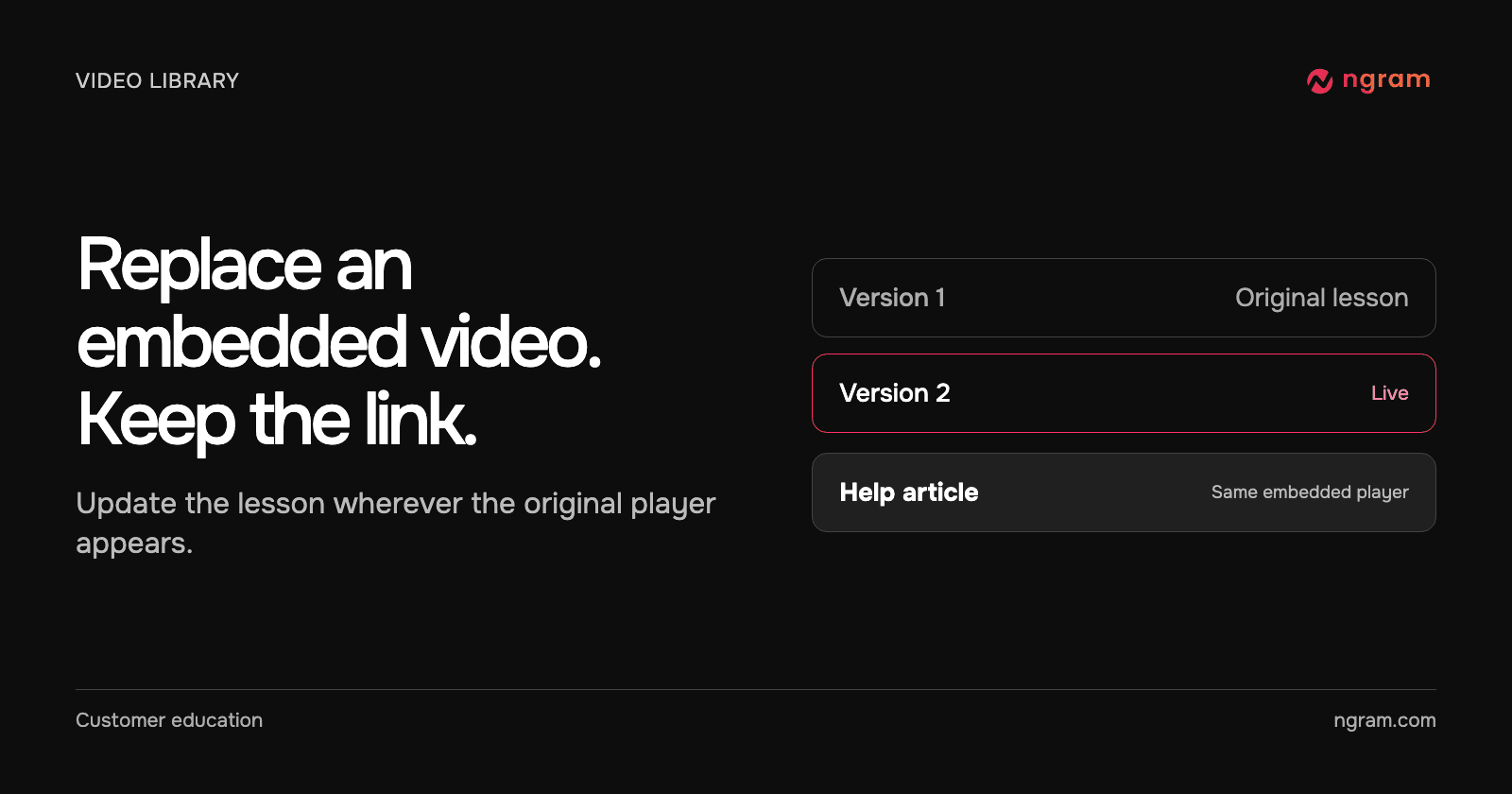

A customer handoff video is embedded in your help center. Someone updates the procedure, you export a corrected MP4, and now the same old lesson is playing in three articles. Before you change any of those articles, check what they embed.
If each article uses the player for the same uploaded video in ngram, you can replace the footage in that library item. The published link and embed code stay in place.
Start with the video your readers already watch
Open one of the pages that contains the old video. Save its URL and note a detail you can use to identify the old cut. In our example, the final slide originally told the account team to send the kickoff notes. The revision tells them to name an owner and a due date. That difference gives you something concrete to check after publishing.
Uploading and replacing files in the library requires Basic or a higher plan. In ngram, open Video library and find the published upload that supplies the player. Confirm the title and duration. If two uploads have similar names, compare the selected video’s share link with the link used by the original embed. Keep the article open in another tab.
This workflow is for an uploaded video published through ngram video hosting. If you uploaded the MP4 directly to a learning platform, that platform owns the file its students see. Use its file-replacement workflow instead.
Upload the revision on the existing video
Open the video’s Versions tab and select Upload new version. Choose the revised file. You should see a second entry beneath the original, which still has the Live label. A new upload can show Processing while ngram prepares it. Readers continue to get the current live version.
Use Upload new version inside this video. The Upload button on the main library screen creates a separate item. That is the right choice when two audiences need different lessons and both links should stay available.
Make the new version live
When processing finishes, find the revised version in the list and select Make live. Read the confirmation, check the version number, and confirm. The Live label should move to the new version. If you still see Processing, refresh the video’s status before uploading the file again.
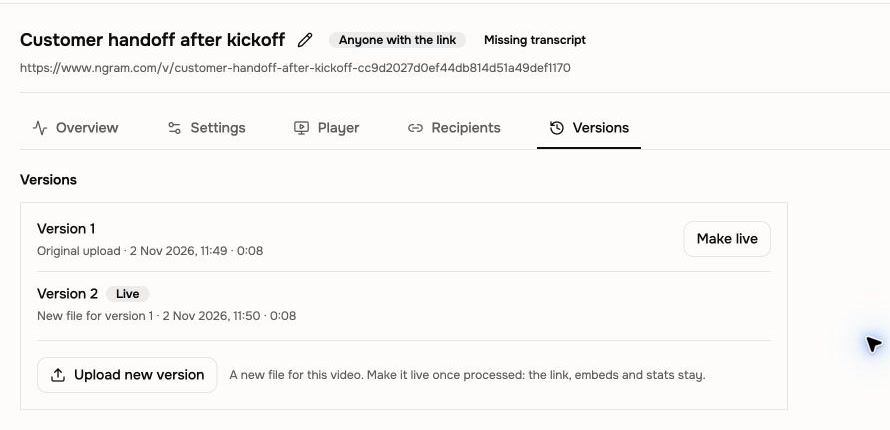
Keep the existing embed code in the article. When you make a revision live, that video’s existing link and embeds serve the selected version. If an article also needs a change to its written instructions, edit those words separately.
Check the original embed as a viewer
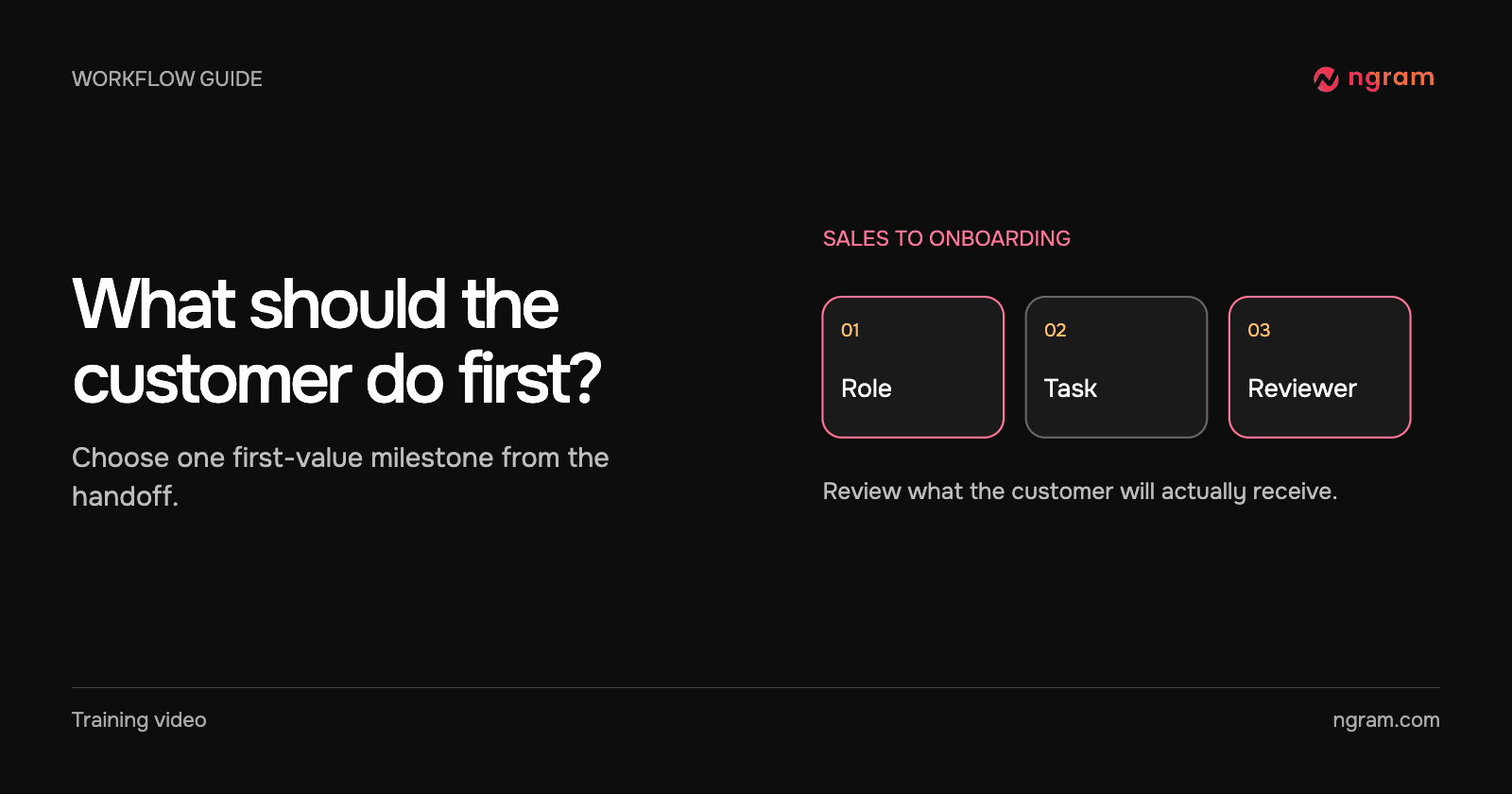
Reload the original article and play the section that changed. In our eight-second customer handoff lesson, the revised final slide reads “Name the owner and date.” We saw that instruction in the original embedded player after promoting the second upload.
Try the result below. This is the original player for the customer handoff lesson. Play through the last slide to see the revised instruction.
- Check the changed moment in the page a reader will actually visit. An editor preview alone does not establish which version the article serves.
- If the new timing differs, revisit any chapter markers or links to a specific moment. A timestamp that pointed to the handoff instruction in the old cut may now point to the introduction.
- If one page still plays the old lesson, compare its embed with the published library item. A copied MP4, a second library item or a player supplied by a different host has its own source.
Decide whether the existing link should change for everyone
Replace the video in place when everyone arriving through that link should learn the revised procedure. For a pilot customer with different steps, publish a separate video and send that audience its own link. For a previously distributed download, send a revised file to the people who need it.
For embed placement and access choices, see Share and publish a video. If the destination requires a fresh file, follow the MP4 export guide.