
Your help article says to open a project and change a setting. The public product page can explain what the setting does, but it cannot show a customer where the control lives inside their workspace. Use attended browser handoff when your walkthrough needs that screen and an authorized person can sign in during the session.
Give the walkthrough a finish line
Choose one action that viewers with the intended role can repeat. Imagine a fictional workshop scheduler where a coordinator needs to move a weekly reminder from Monday to Thursday. A useful ending shows the saved weekday. A shot of a settings menu would leave the viewer guessing whether the change took effect.
Choose a demonstration workspace that contains only material you can show. If the public page already shows the whole task, use it. If the only available workspace contains private records and you cannot safely isolate the relevant screen, prepare an approved recording or a set of screenshots instead.
Take over only for the step that needs your account
In Studio, start a new Prompt to video project and choose a director that supports browsing, such as Opus 5.5. Include the product URL, audience and finish line in the brief. For the fictional scheduler, you might write, “Show a coordinator where to change the workshop reminder. Start in our sample workspace after I sign in. End with the saved weekday visible.” A help article can supply the names of the controls.
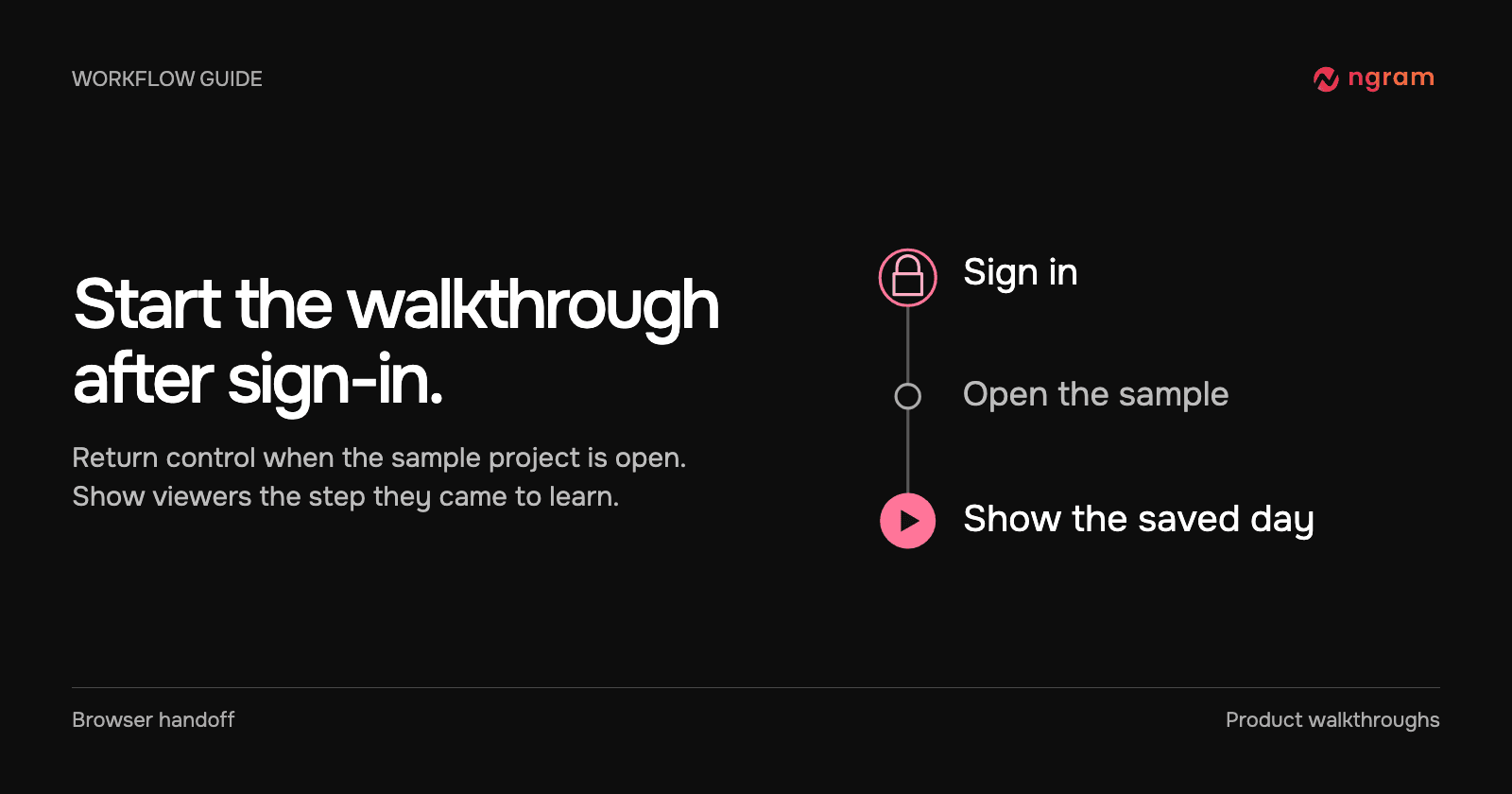
Choose Create video and stay in the conversation. Watch Live Preview while ngram opens the site. When it hands the browser to you, enter sign-in details on that site, keep passwords and verification codes out of the chat, and open the sample project. Choose Done when the right screen is visible. This returns control to ngram so it can continue gathering the screens for the video.
If you cannot reach the intended screen with your role, choose I can’t do this. Provide an approved source or change the task. The browser handoff guide covers the controls. An unattended API job cannot wait for you to sign in.
Watch the handoff as an illustrated example
The silent guide below uses fictional workshop data to illustrate the sequence. Follow the reminder from Monday to Thursday. The final card supplies the detail a reviewer should look for in the finished walkthrough.
Compare it with a finished walkthrough
The next video is an actual ngram output made from an attended visit to a public page. It shows a creator choosing the Conversation style and customizing the brief. Watch for the Use this style button. That recognizable control connects the instruction to the screen a viewer can open. This example required no sign-in.
Review the first frame and the final state
Review the proposed plan and its credit estimate before approving generation. Play the finished video as the person the instructions were written for. Does it start in the correct workspace? Can you read the label at the moment it matters? In the scheduler example, pause at the end and check that the saved day says Thursday.
Check every frame that shows account menus, notifications, project lists or other records. Crop or replace any unrelated detail before you share the video. If you only need to change one line in an existing cut, use video editing. For a workflow that needs new product screens, start with the browser handoff feature.