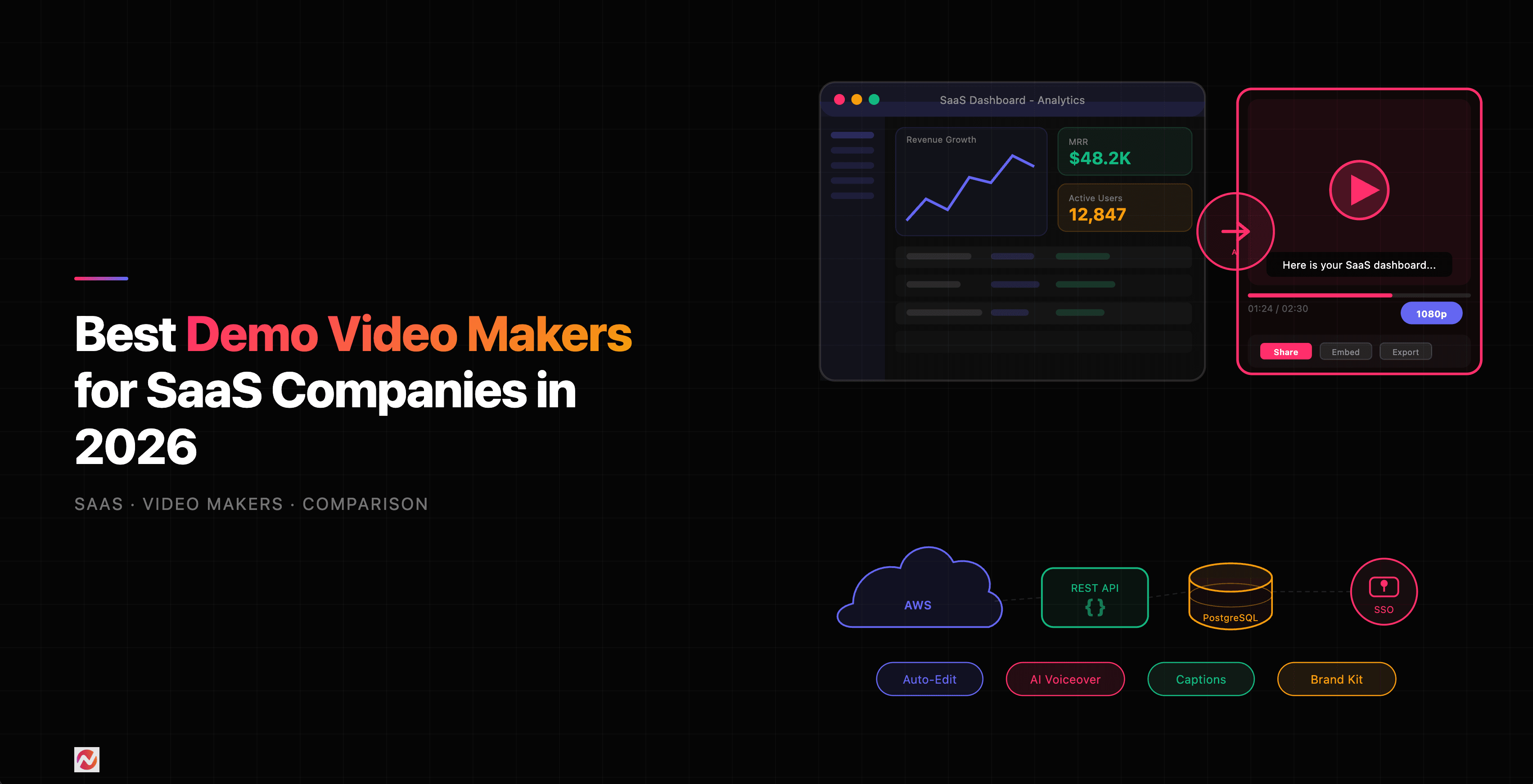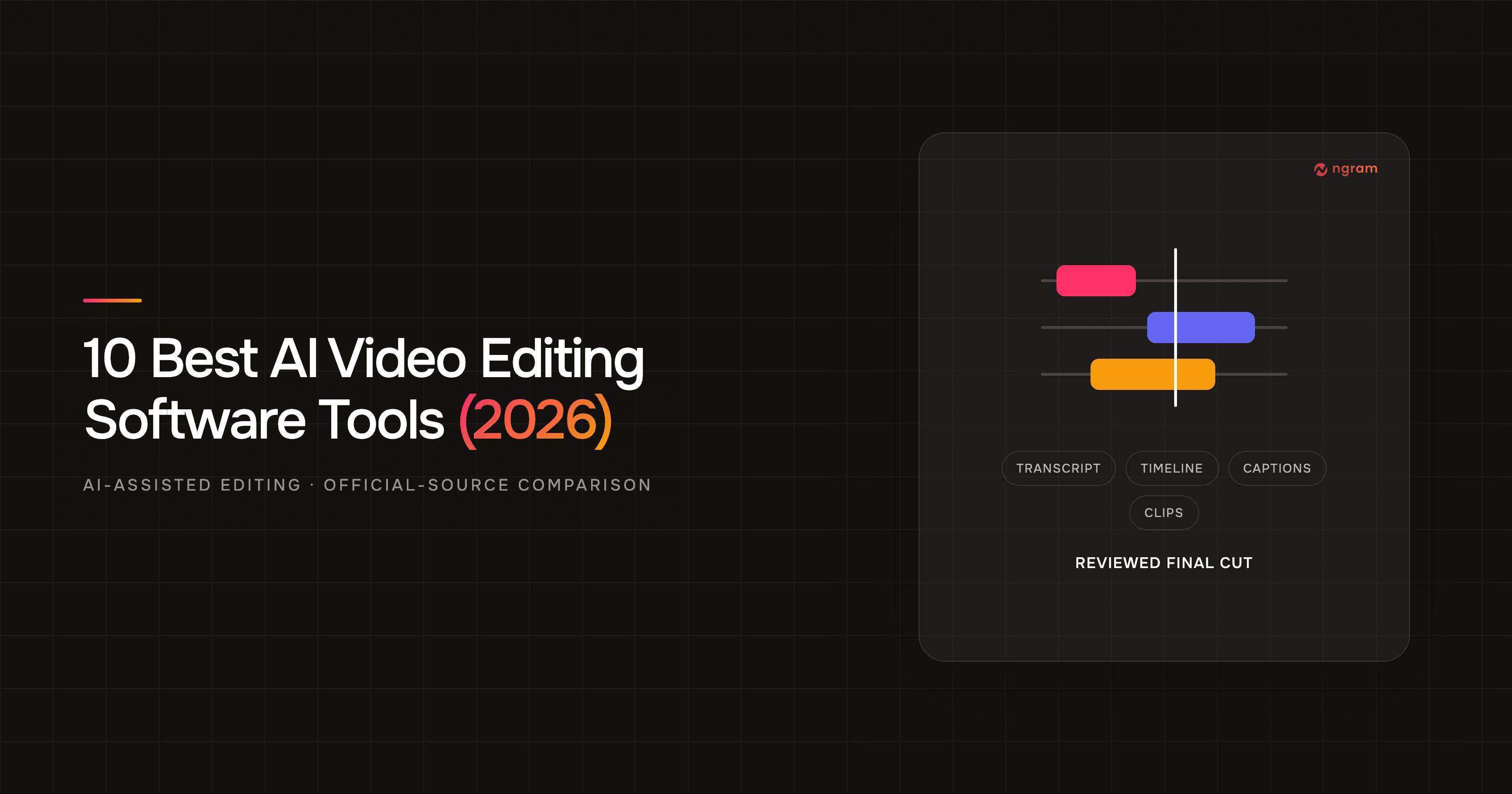

Choose a demo video maker by what you need to produce: a recorded explanation, a presenter-led lesson, an edited video or a new explanation from source material. Loom, Synthesia, VEED and ngram now all include AI features. Compare the source, review step, revision controls and delivery path for the demo your team repeats.
Four workflows at a glance
| Tool | Useful starting point | What to evaluate |
|---|---|---|
| ngram | New business video from a brief and source material | Plan approval, source accuracy, chat/timeline revisions and sharing |
| Loom | Screen/camera explanation and hosted discussion | Capture, transcript edits, viewer access and AI plan |
| Synthesia | Presenter-led learning and communication | Source-to-outline creation, canvas edits and course delivery |
| VEED | Browser editing and AI creation | Script review, captions, uploaded media and editor plan |
See a real demo follow-up made with ngram
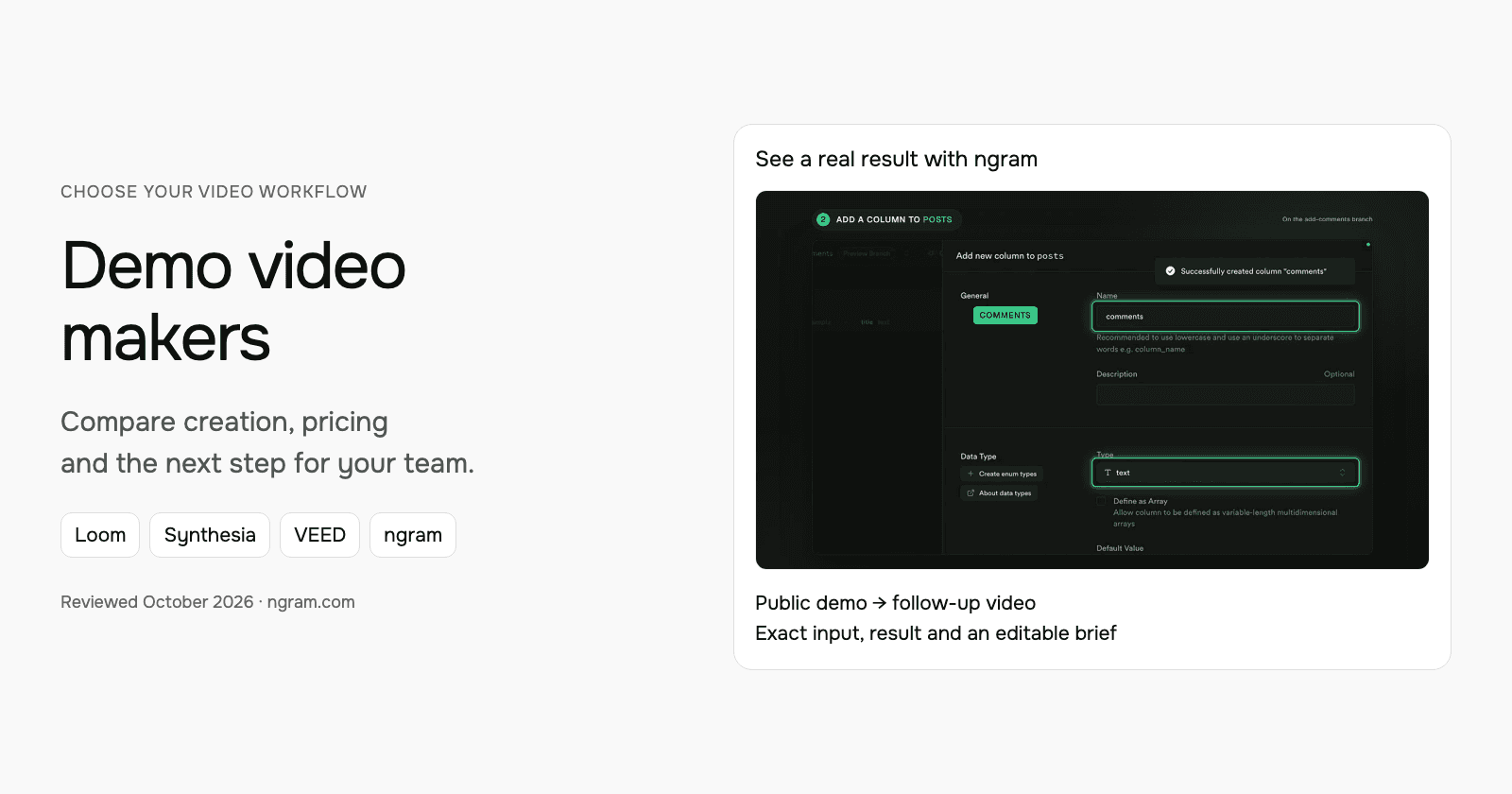
This example recaps Supabase’s public Branching demonstration using the recording and current documentation. It follows the actual create-branch, schema-change, review and merge sequence. The final action is a suggested next step, not a claim about a private customer meeting or buyer commitment.
From this input to this video
A recap of Supabase’s public demo: create a branch, change the schema, review and merge. The closing action is a suggested next step.
Prompt
Create a 45-second follow-up video after a demo of Supabase Branching for developers who watched Supabase’s public branching demo. Use these approved demo materials, meeting notes or public product sources: the official demo https://www.youtube.com/watch?v=AMQqhHxz5UI and current documentation https://supabase.com/docs/guides/deployment/branching. Recap the audience goal: test database schema changes separately before merging them into production. Show the workflow discussed: in Jon Meyers’s demo, create an add-comments branch, add a comments column to the posts table, review the changes and merge the branch; recap the real demonstrated workflow rather than implying a private customer meeting. Use this verified supporting detail: the demo shows the comments column in the main branch only after the merge completes. Address this open question using only the supplied answer: Does a branch copy production data? No: the demo and documentation describe an isolated branch with the schema but without production data. Keep commercial terms exactly as stated in the source. End with this next step: as a suggested next step, read the current branching guide and evaluate the workflow in a test project; no buyer commitment is recorded. Describe it as agreed only when the source records that agreement; otherwise present it as a suggestion. Use actual product screenshots or recordings from the supplied sources for UI demonstrations. Tone: helpful and practical. Voiceover language: English.
Selected style
Product spotlight
Read the video transcript
Here's a quick recap of Jon Meyers's Supabase Branching demo. The goal: test database schema changes separately, before they touch production. First, he created a branch called add-comments. On that branch, he added a comments column, type text, to the posts table. Then he reviewed the changes: a diff showing exactly what would run against main. And he merged the branch. The comments column appeared in main only after the merge completed. One open question: does a branch copy production data? No. The demo and the docs describe an isolated branch with the schema, but without production data. A suggested next step: read the current branching guide, and evaluate the workflow in a test project.
Turn a demo into a useful follow-up
The example uses Supabase’s public recording and docs. For your own demo, bring an exported video file or suitable public source and explain what the viewer needs next.
Bring the source
Download an authorized recording from its original tool, then upload that file in ngram. You can also supply a public demo source and supporting documents.
Adapt the brief
Fill in your product, audience, verified details and next step below. In ngram, attach your files and select the Brand Kit you want to use.
Approve and create
Review the proposed plan containing the script. Approve it to generate the video, then request any revisions before sharing or downloading.
Make it yours
Fill in your details here, or continue and finish your brief in ngram.
Video generation uses credits. Review your estimate in ngram. MP4 downloads require Basic or higher.
How credits workFor your own follow-up, provide an authorized exported recording, approved meeting notes or a suitable public source. Fill in the audience goal, demonstrated workflow, verified supporting detail, open question and next step. The brief below carries those decisions into ngram.
Choose a style, length and aspect ratio. In the composer, select your configured Brand Kit and enable captions when wanted. Approve the plan containing the script, then review the video and request revisions through chat or use the timeline. Keep commercial terms and customer commitments tied to the actual source.
Recording and creation are different starting points
A direct screen explanation can be the right deliverable when the presenter’s own walk-through is useful. A new summary may be more appropriate when viewers need the key steps and a next action from a longer demo. Decide that before comparing editing buttons or headline prices.
ngram accepts source material such as public pages, uploaded PDFs, PowerPoint decks, screenshots and footage. It develops a plan containing the script before generation. Existing recordings can supply evidence for a new explanation; the editable project stays with the original recording or editing tool.
ngram pricing includes 1,000 credits/month on Free. Basic costs $29/month with monthly billing and includes 3,000 credits per cycle; annual billing is $23.20/month equivalent with 36,000 credits supplied upfront. The base rate for premium AI video generation is 10 credits per second, with a cheaper model at 3. Share publicly or embed on Free; use a paid plan for MP4 downloads and Basic or above for unlisted links.
Loom: screen explanations and async discussion
Loom suits an explanation that starts with showing the screen. Recording, transcripts, comments and a shared library help a teammate or customer understand the exact workflow being demonstrated.
Business costs $18/user/month or $15/month equivalent annually; Business + AI is $24 or $20. Starter allows 25 videos per person with a five-minute recording limit. Paid tiers add uploads/downloads; AI editing follows its plan entitlement.
Test the actual correction you make most often: removing a detour, explaining a changed screen or replying to a comment. Loom offers editing and AI assistance, so avoid assuming every update requires a full re-recording. Check enterprise eligibility for specific CRM integrations.
Loom reports more than 25 million users across 400,000 companies. That adoption figure provides context; evaluate the recording and revision workflow for your own team.
| Plan | Billing reference | Scope |
|---|---|---|
| Loom plan reference | Business $18/user/month; $15 equivalent annually | Check the applicable creator, hosting and usage allowances |
Match the billing commitment and required workflow. Hosting, creator seats, AI use and events are separate requirements even when they share an account.
Synthesia: develop the outline, scenes and learning experience
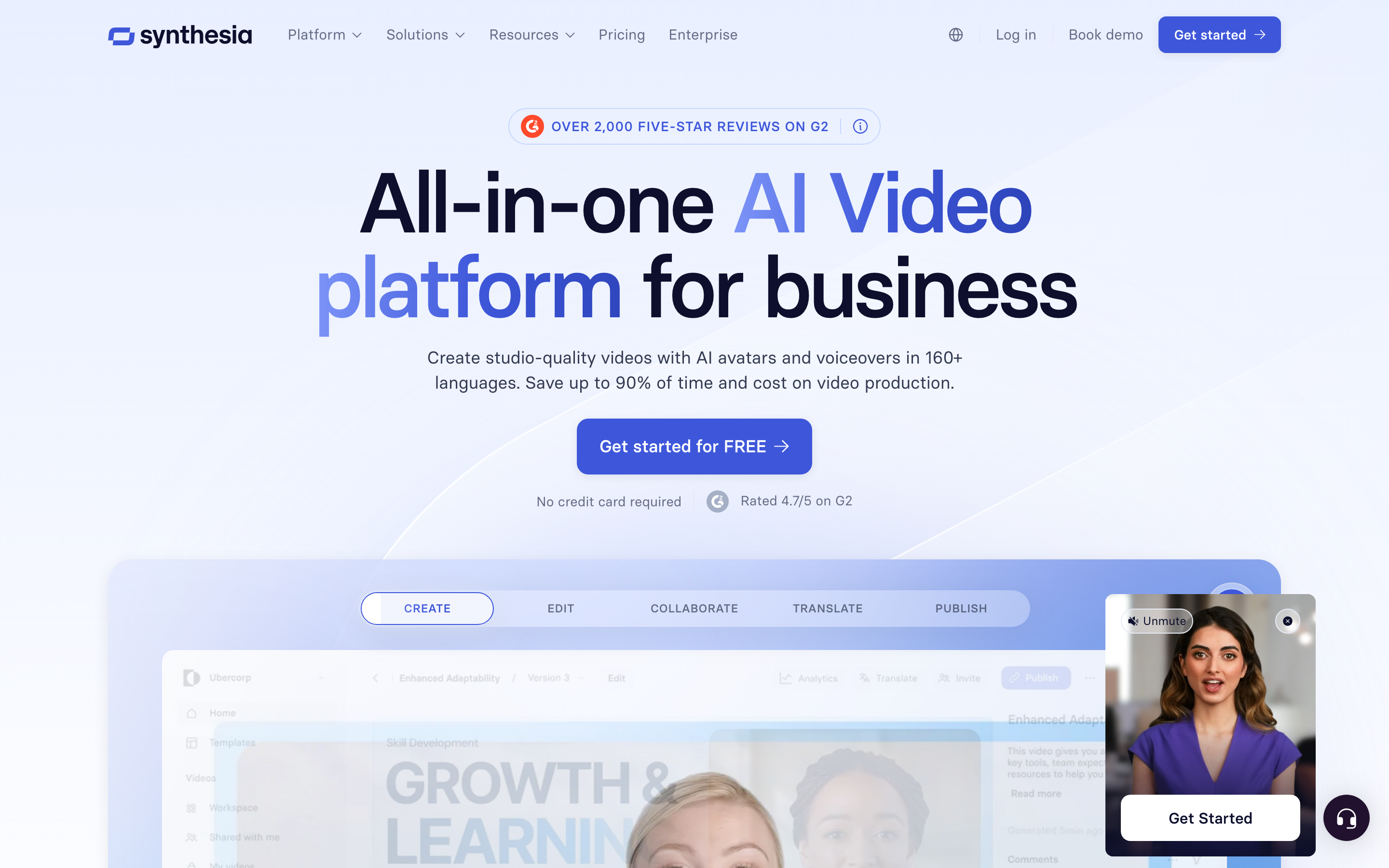
Synthesia Assistant accepts a prompt, files and URL context, then creates an editable outline. Storyboard and Canvas views support scene authoring, and chat can revise scripts and visuals. Its creation workflow includes generated assets and motion graphics.
The AI Screen Recorder provides recording, transcription and scene editing. Recorded product steps can accompany a presenter, so it should not be characterized as a script-only avatar tool.
Current plans meter generated assets with credits. Pro includes interactivity, while Enterprise lists SCORM and Brand Kits. Roleplay learner seats have separate pricing. For training, compare creation, practice and course delivery as distinct requirements.
Sessions includes live avatar roleplays and conversational surveys. The Interactive Avatars API supports real-time experiences in your own product: you bring the language model and speech-to-text, and Synthesia renders the avatar, with optional text-to-speech. Evaluate these separately from recorded-video generation.
| Plan | Billing reference | Scope |
|---|---|---|
| Synthesia Starter, US list | $29/month; $18/month equivalent annually | 1,250 monthly paid credits, plus free allowance |
| Synthesia Pro, US entry tier | $89/month; $64/month equivalent annually | 6,000 monthly paid credits, plus free allowance |
Synthesia prices vary by region. Its current cards use Pro, even where legacy signup parameters still say Creator. Generated assets consume credits; a credit total does not guarantee a fixed finished-video duration. Annual allowances and paid roleplay seats are separate from the monthly figures shown here.
VEED: browser editing and AI-assisted production
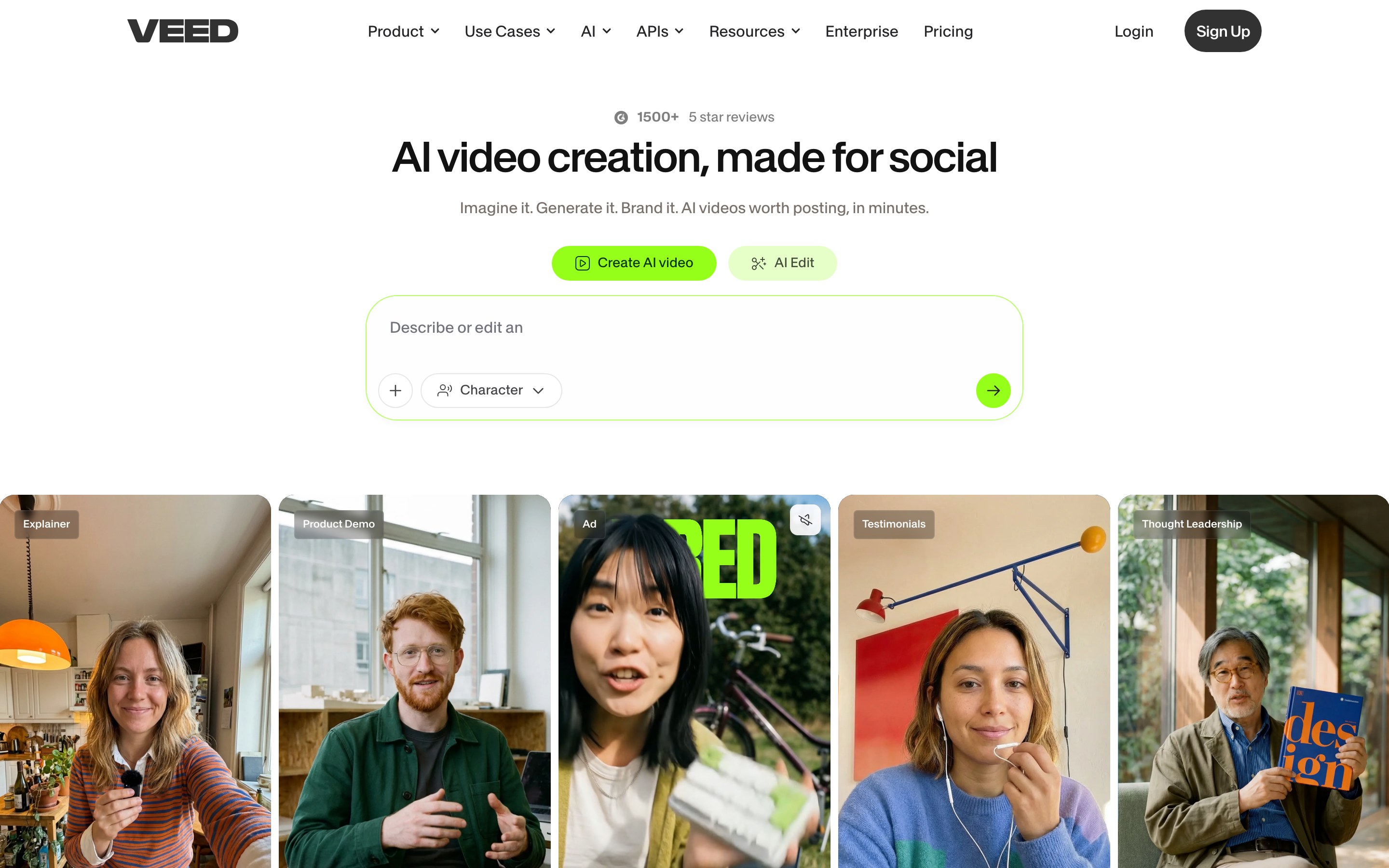
VEED combines browser editing, captions, recording and AI creation. AI Studio includes script review and generated scenes, so evaluate it for a new video as well as post-production on existing footage.
Use its current pricing for the required exports, brand controls, collaboration and AI allowance. The public page did not expose a reliable fixed price in this review, so this shortlist does not repeat an older entry price.
VEED also has developer API/MCP offerings, with Fabric as a separate generation product. A browser-editor subscription should not be assumed to include every developer operation. Keep the original editing project when exporting footage for another creation tool.
| Plan | Billing reference | Scope |
|---|---|---|
| VEED editor | Check current regional offer | Plan-specific exports, collaboration and AI usage |
Compare the actual editor plan and separate developer product when relevant.
Compare one realistic revision
Use the same audience and source material in your evaluation. Ask the creator to correct a product term, replace an outdated screen or shorten one explanation. Review the resulting facts, timing and speech, and record how much editing or new generation that change requires. This gives your team a practical comparison without treating an editorial score as an output benchmark.
Publishing and the next update
Choose the delivery before committing to a workflow: a hosted link for discussion, an MP4 for another platform or an embedded video on a website. Check viewer access and plan eligibility separately from creation. A successful export does not establish that a viewer can open a private link.
ngram Free supports public sharing and embeds. Paid plans enable MP4 downloads; unlisted links start with Basic. After updating the source, tell ngram what changed and ask it to revise the video. For another channel, request a new version and select the length and aspect ratio. Preserve a downloaded copy if you need both versions available, because the public link shows the latest version.
Current pricing: compare the whole job
Monthly and annual commitments differ. A recording subscription, avatar allowance and generation-credit balance do not buy the same work. Include creator seats, source length, chosen models, likely revisions and publishing permissions.
| Product | Checked starting point | Scope |
|---|---|---|
| ngram Basic | $29/month or $278.40/year | 3,000 monthly credits or 36,000 annual credits upfront |
| Loom Business | $18/user/month with monthly billing | Recording/editor plan; Business + AI is a separate tier |
| Synthesia Starter, US | $29/month with monthly billing | Regional pricing and plan-specific credits |
| VEED | Check the current regional per-editor offer | Editor and developer billing are separate |
Market context
Meticulous Research forecasts AI video generation and editing software from $3.67 billion in 2026 to $24.89 billion by 2036, a 21.4% compound annual growth rate. That combined category explains the wider choice of tools; it is not a market-share ranking or a forecast of savings for this demo workflow.
Choose by your recurring demo
Choose Loom when recording a screen explanation and discussing it through a hosted link is the core job. Compare Synthesia when presenter delivery, localization or learning-system requirements matter. Compare VEED when its browser editor and AI script-review flow match your creation and caption work. Try ngram when approved material should become a new explanation with a reusable brief and plan approval.
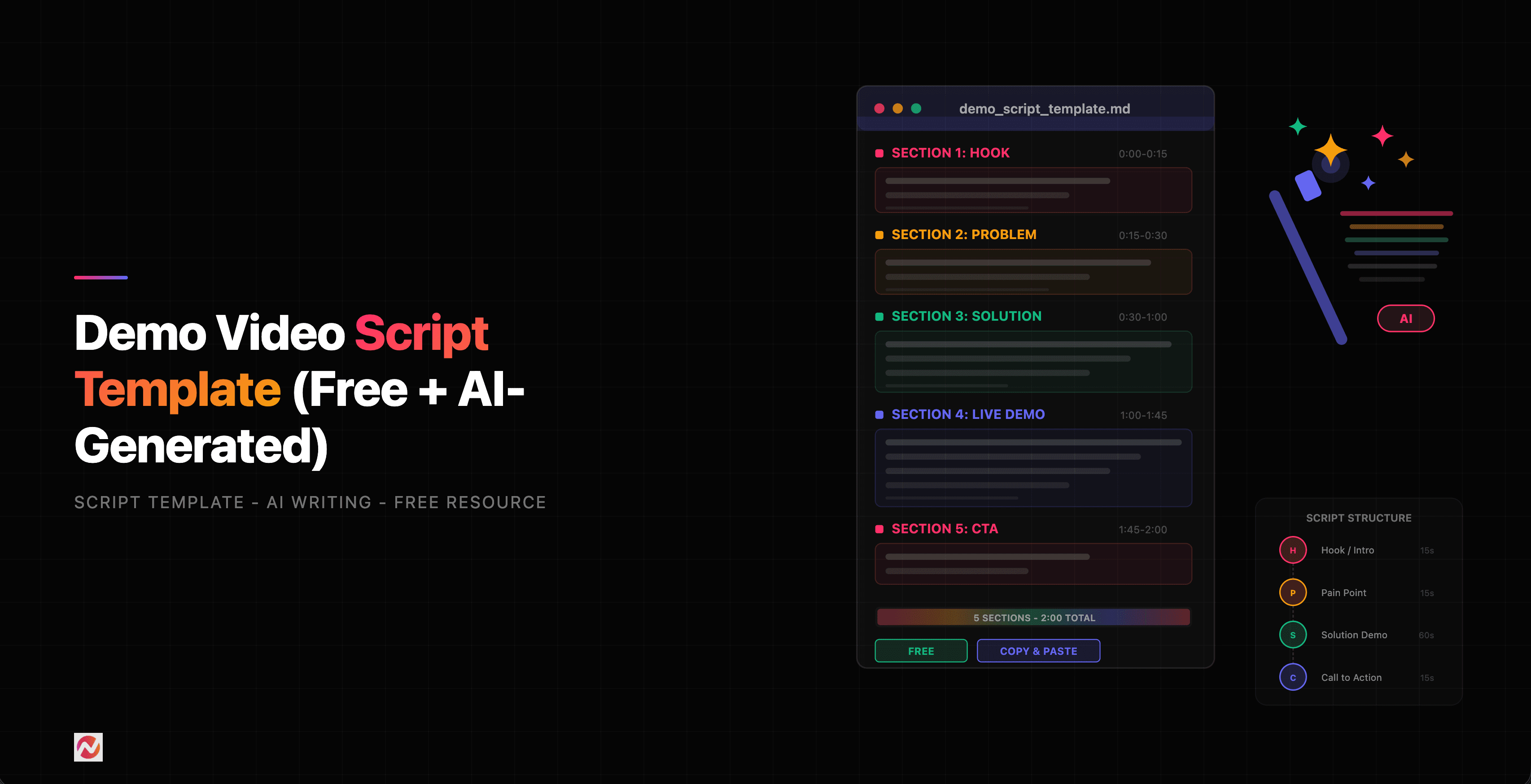
Continue with ngram vs Loom, ngram vs Synthesia, ngram vs VEED, the demo follow-up template or product-demo use cases.
How this comparison was reviewed
This update uses official product, help and pricing sources. It does not claim a timed side-by-side output test or assign numerical quality scores. The embedded ngram result provides the actual prompt, source and transcript so you can inspect that workflow directly.
Frequently asked questions
Which demo video maker should I choose?
Start with the deliverable. Compare Loom for a recorded screen explanation, Synthesia for presenter-led communication, VEED for browser editing and creation, and ngram for a new source-based business video. Then test the revision and publishing step you repeat.
Can I use Loom and ngram together?
Yes. Keep the original Loom recording, export footage you are authorized to reuse and upload it to ngram with the intended audience and next step. The export is source footage; it does not transfer Loom’s editable project or comments.
Can Synthesia create from existing material?
Yes. Its current Assistant accepts sources and develops an outline before creation, with an editable canvas afterward. Check the selected plan for collaboration, interactive learning and course-package exports.
Does VEED offer script review?
Yes. Its current AI Studio Lite flow includes reviewing and editing the script before generating video. It also offers a browser editor and separate developer products.
Which tool is fastest?
This comparison does not establish a timed winner. Test the same recurring task through source preparation, review, one revision and publishing; that total is more useful than measuring only the first draft.
Can I start with ngram for free?
Free includes 1,000 credits/month and supports public sharing and embeds. Use a paid plan for MP4 downloads and Basic or above for unlisted links.
Create your first video with ngram, or talk to sales.
Sources
Loom pricing and feature availability
Synthesia Interactive Avatars API
Synthesia Assistant documentation