Kinetic type Video Style
Bold words, rhythmic motion and a memorable hook.
See it in action with PostHog Session Replay.
From this input to this video
PostHog’s Session Replay product page becomes an animated explanation of recording, finding and replaying a session.
Create a 30-second explainer video for PostHog Session Replay, a session replay tool for product engineers. Pull the product description and visuals from https://posthog.com/session-replay. Open on the problem: bug reports lack the context needed to reproduce an issue. Then show how PostHog Session Replay solves it in two or three steps. Use motion graphics throughout. Tone: clear, technical, confident. Close on the logo and the line Explore PostHog Session Replay. Voiceover language: English.
Read the exact input
Prompt
Create a 30-second explainer video for PostHog Session Replay, a session replay tool for product engineers. Pull the product description and visuals from https://posthog.com/session-replay. Open on the problem: bug reports lack the context needed to reproduce an issue. Then show how PostHog Session Replay solves it in two or three steps. Use motion graphics throughout. Tone: clear, technical, confident. Close on the logo and the line Explore PostHog Session Replay. Voiceover language: English.
Selected style
Kinetic type
Source material
Read the video transcript
A bug report lands: checkout is broken. No steps, no browser, no console logs. Just a ticket you can't reproduce. PostHog Session Replay records what actually happened: clicks, scrolls, form inputs, page views, network requests and console logs. Filter recordings by event, user or error to find the exact session. Then play it back like video. Click any event, error or network request on the timeline to jump straight to that moment. Explore PostHog Session Replay.
Make it yours
Fill in your details here, or continue and finish your brief in ngram.
Trusted by teams at


When to use Kinetic type
Words carry the story
Put the main claim in a short sentence. Let changes in size and position draw attention to the words that matter, with enough time to read each phrase.
Rhythm gives the message structure
Group the brief into a hook, a useful explanation and one next step. Short clauses work better here than a paragraph of small type.
Keep the source concrete
Provide a product URL and the exact feature or benefit to explain. Include approved numbers as text if they need to appear.
What to bring
Provide a product URL and the exact feature or benefit to explain. Include approved numbers as text if they need to appear.
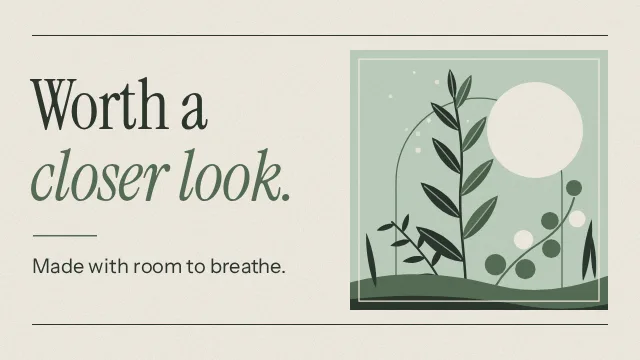
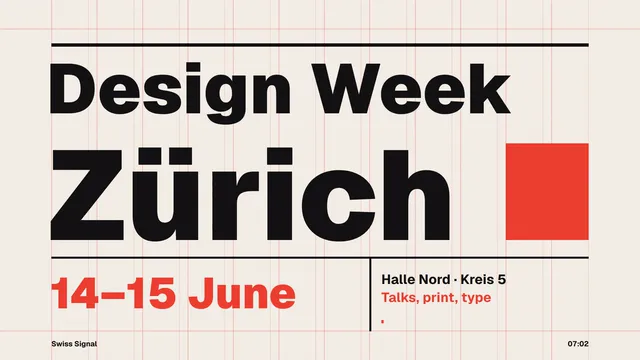
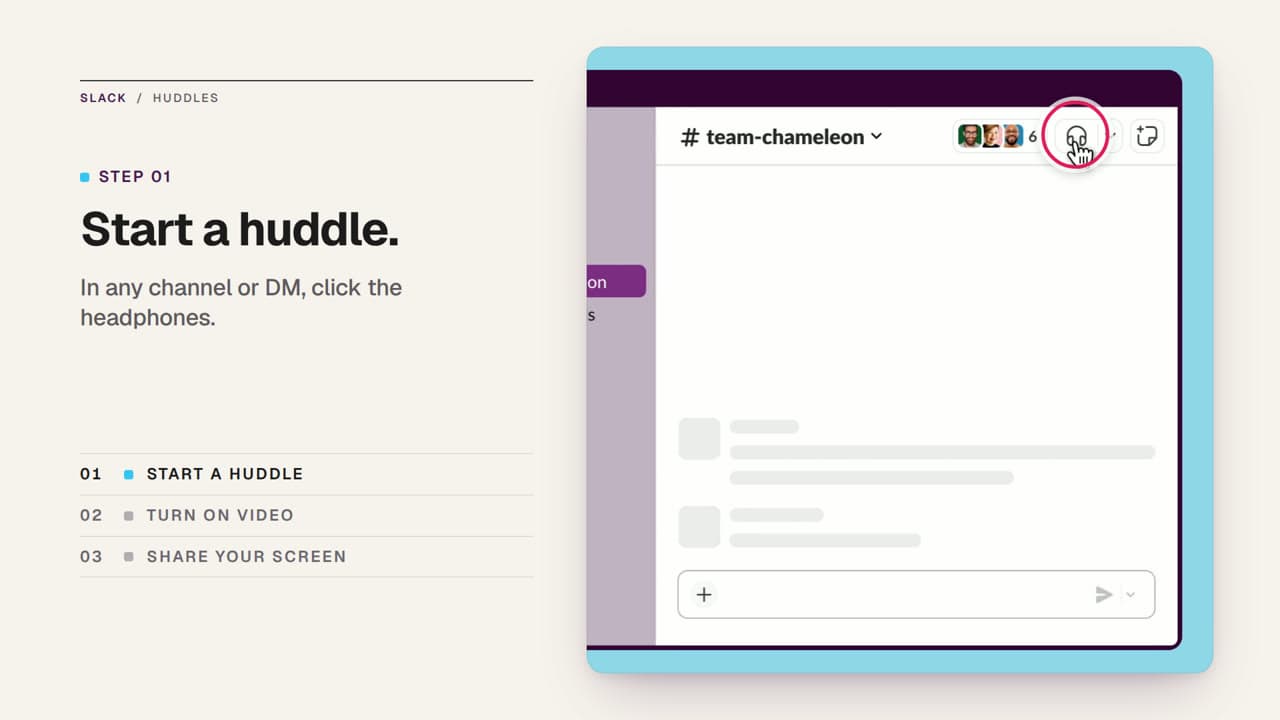
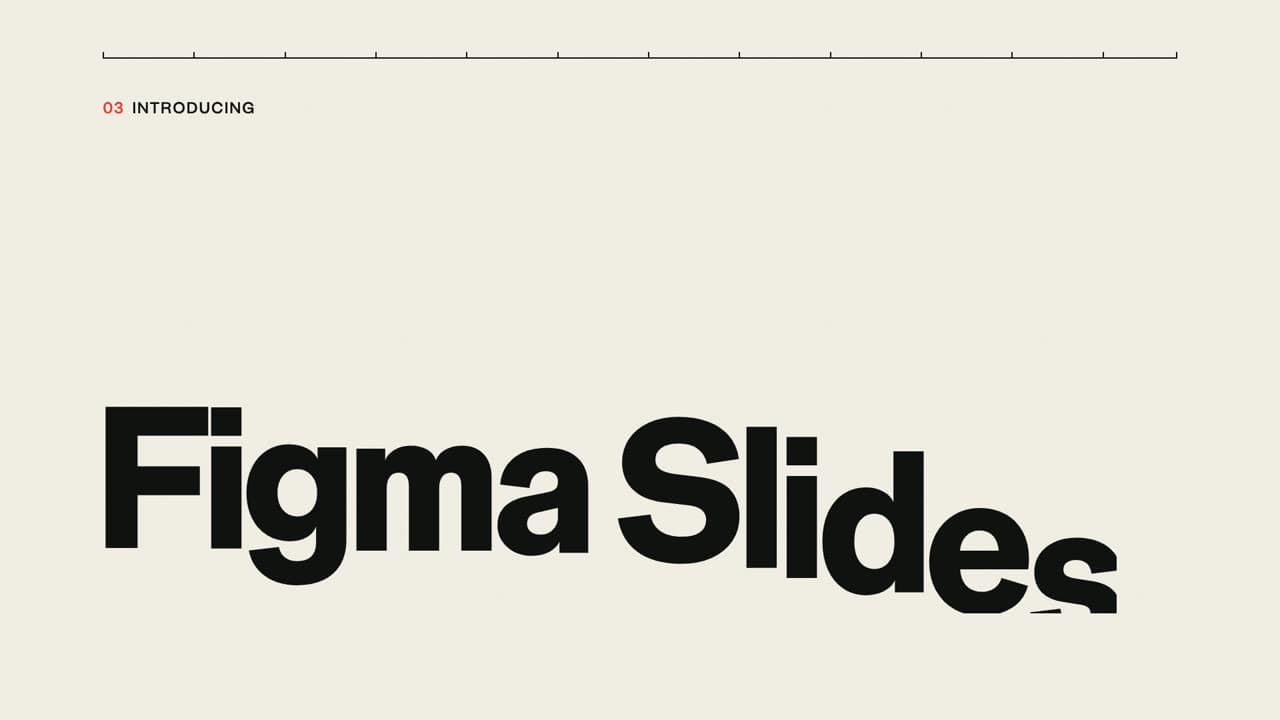
Related video styles
Compare a few directions before you start your draft.
Put this style to work
Connect your video workflow
whenThe finished SaaS explainer is ready to share with its YouTube audience
thenWrite the YouTube post for the SaaS explainer, then publish it.
whenThe finished SaaS explainer is ready to share with its LinkedIn audience
thenPublish the SaaS explainer on LinkedIn after composing its post.
whena product page goes live
thenauto-render an explainer and notify the team
Style template questions
Will my selected style survive sign-in?
Continue with your brief and chosen style in ngram. You can fill in the remaining details or change your selections before creating the video.
Can I change the style in Studio?
Yes. The selected style is a starting point. You can choose another active style or adjust the video before generation.
Does the template copy the preview video?
Your brief starts a new video using the chosen visual direction. Add your own source material and adjust the settings to make it yours.
What source material should I bring?
Use your own product links, screenshots, recordings or documents. The example’s exact input shows how source material and a filled-in brief work together. Add your own material in ngram before creating the video.
Can I use my brand with this style?
Yes. Set up your Brand Kit first, then select it while creating your video. You can also turn on captions and adjust your video in ngram.