Editorial Video Style
Considered typography, imagery and room to breathe.
See it in action with Slack Huddles.
From this input to this video
Slack’s Huddles product page becomes a 30-second demo using its real product footage.
Create a 30-second product demo video for Slack Huddles, a live collaboration feature in Slack for remote product teams. Use https://slack.com/features/huddles as the source. Show the actual product UI from the supplied screen recording, screenshots, or product page. Open on the problem: a quick question needs a live conversation to resolve. Then walk through starting a huddle in a channel or direct message, then turning on video or sharing a screen solving it, narrating each step against the real UI — do not invent fake screens. Tone: clear, friendly, practical. End on the logo with the line Bring the team together in Slack. Voiceover language: English; if no voiceover, use on-screen captions plus light background music.
Read the exact input
Prompt
Create a 30-second product demo video for Slack Huddles, a live collaboration feature in Slack for remote product teams. Use https://slack.com/features/huddles as the source. Show the actual product UI from the supplied screen recording, screenshots, or product page. Open on the problem: a quick question needs a live conversation to resolve. Then walk through starting a huddle in a channel or direct message, then turning on video or sharing a screen solving it, narrating each step against the real UI — do not invent fake screens. Tone: clear, friendly, practical. End on the logo with the line Bring the team together in Slack. Voiceover language: English; if no voiceover, use on-screen captions plus light background music.
Selected style
Editorial
Source material
Read the video transcript
A quick question. But some answers need a real conversation, not another long thread. Start a huddle right where you're working. In any channel or DM, just click the headphones. Huddles start with audio. Turn on video, or share your screen, and work it out together, live. And anything shared in the huddle is saved in Slack. Bring the team together in Slack.
Make it yours
Fill in your details here, or continue and finish your brief in ngram.
Trusted by teams at


When to use Editorial
Give each idea room
Use a clear headline beside a useful image or product detail. Spacious composition helps a viewer follow a considered explanation.
Pace the story like an article
Lead with the question, explain the evidence, then finish with the takeaway. Transitions should connect those ideas without competing with them.
Choose useful imagery
Supply a product page, relevant screenshots or a short article. Tell ngram which facts deserve emphasis and which action closes the story.
What to bring
Supply a product page, relevant screenshots or a short article. Tell ngram which facts deserve emphasis and which action closes the story.
Related video styles
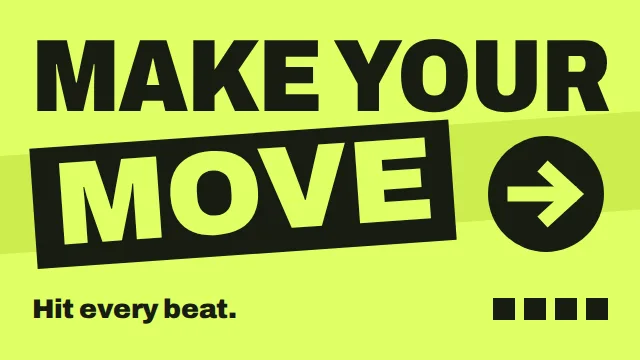
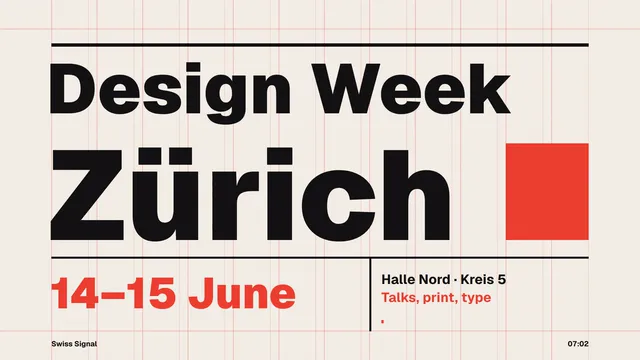
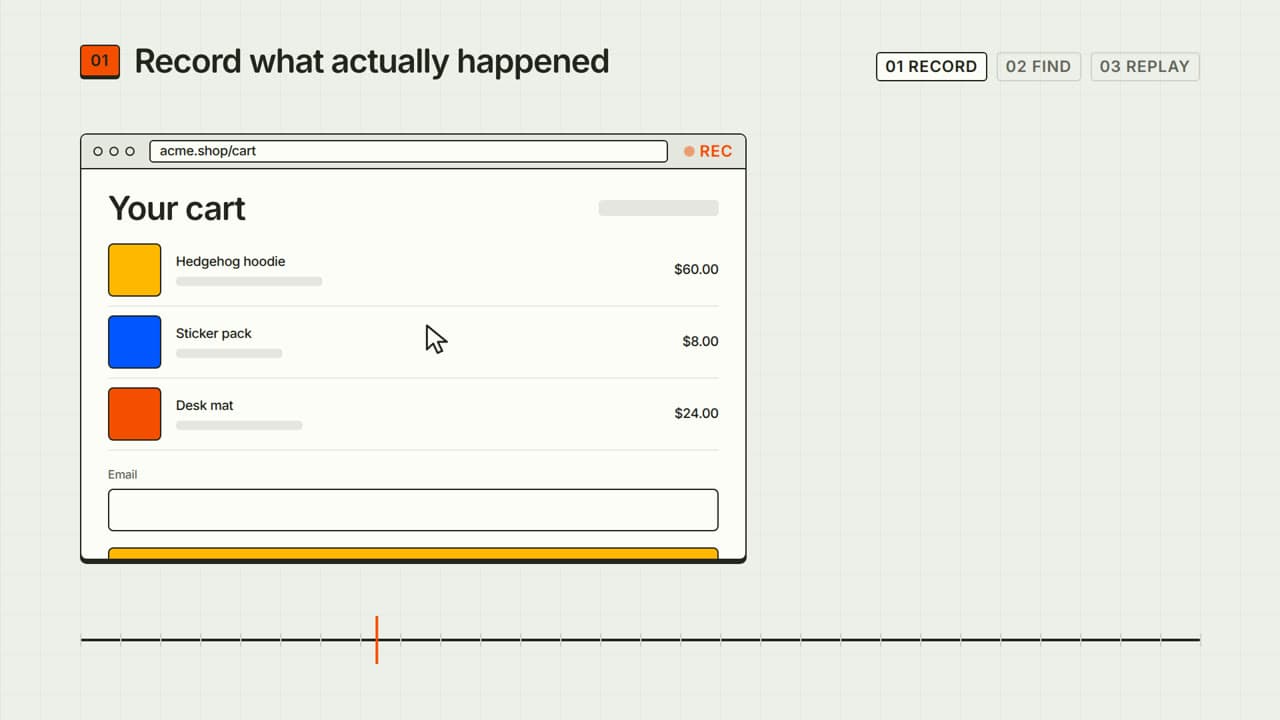
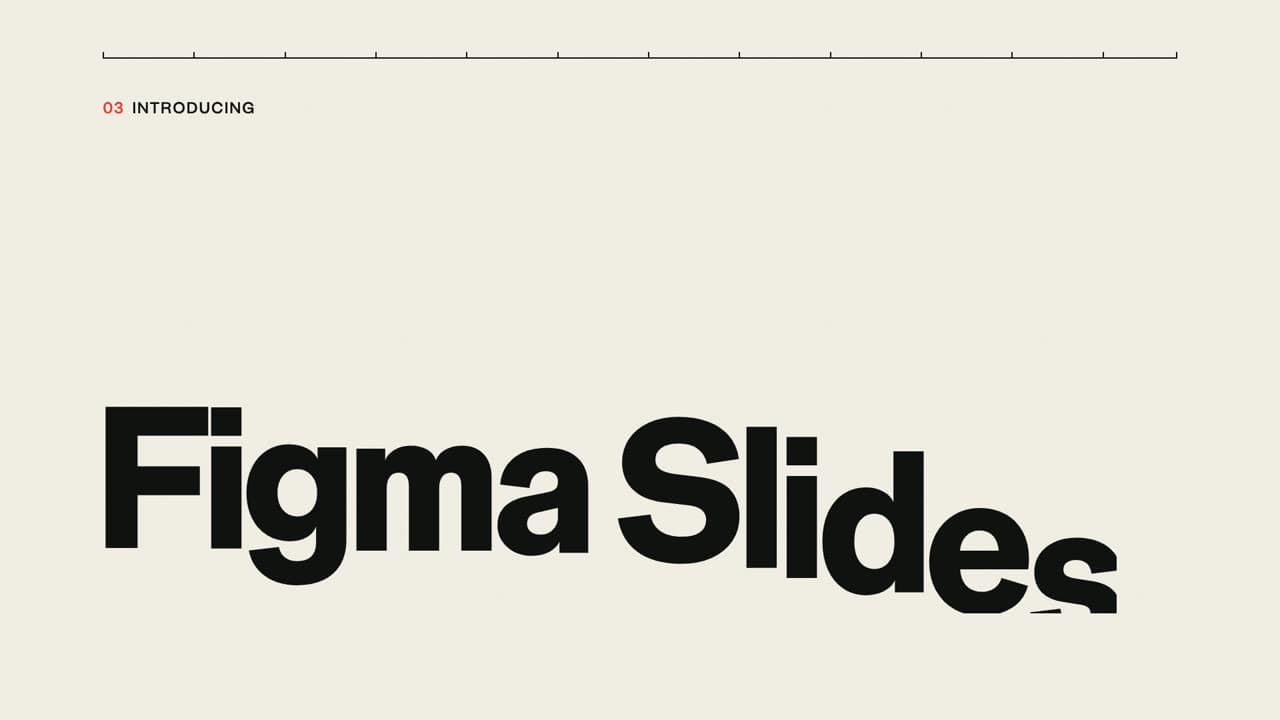
Compare a few directions before you start your draft.
Put this style to work
Connect your video workflow
whenThe finished SaaS product demo is ready for a product-channel upload
thenVerify the YouTube destination before composing the SaaS product demo post.
whenThe finished SaaS product demo is ready for a buyer-facing LinkedIn post
thenVerify the LinkedIn destination before composing the SaaS product demo post.
whena new release ships
thenauto-render a demo and alert the team
Style template questions
Will my selected style survive sign-in?
Continue with your brief and chosen style in ngram. You can fill in the remaining details or change your selections before creating the video.
Can I change the style in Studio?
Yes. The selected style is a starting point. You can choose another active style or adjust the video before generation.
Does the template copy the preview video?
Your brief starts a new video using the chosen visual direction. Add your own source material and adjust the settings to make it yours.
What source material should I bring?
Use your own product links, screenshots, recordings or documents. The example’s exact input shows how source material and a filled-in brief work together. Add your own material in ngram before creating the video.
Can I use my brand with this style?
Yes. Set up your Brand Kit first, then select it while creating your video. You can also turn on captions and adjust your video in ngram.