ngram vs Google Vids
Turn a report into a narrated team update with scenes that show what shipped and what needs attention. Choose Google Vids when you want to preserve your Google Slides as editable scenes and review them in Drive.

ngram
Generated business video
Set the audience and next action, approve the script, and generate a complete update in landscape or portrait.

Google Vids
Drive collaboration
Import Slides as scenes and edit the same video file with your team in Drive.
Made with ngram
Where ngram and Google Vids differ
Look for the Advantage label on the stronger option for each task. A cross applies to the capability or plan named in that row.
| Capability |  ngram | Google Vids |
|---|---|---|
| What changes your choice | ||
| Build a narrated draft with custom scenes | YesAdvantage From the report, approve the proposed narration and generate visuals to match the message in one video. | Limited Storyboard drafts the script, voiceover and scenes with stock or provided assets. Generate and insert custom clips separately. |
| Create a full vertical video for mobile | YesAdvantage Choose portrait for the finished video and set a duration for the channel. | No Vids projects use a landscape canvas. Veo can generate portrait clips to insert into a project. |
| Turn each Google Slides slide into an editable scene | No Use the presentation as source material for a new script and video. | YesAdvantage Import Google Slides so each slide becomes a scene and its notes become the scene script. |
| Give reviewers comment-only access to the editable file | No Share the finished video or collaborate with teammates in ngram. | YesAdvantage Share the editable file with Drive permissions for viewers, commenters or editors. |
| Other capabilities and plan details | ||
| Start a narrated video from a PDF | Yes Attach the PDF, specify the audience and approve the proposed script. | Yes Reference a PDF saved in Drive when prompting Storyboard. It drafts scenes, script and voiceover. |
Start with the source you have
Turn a report into a video
Choose the message and audience. Review the script, then generate scenes and narration.
Keep your existing Slides
Import the deck as editable scenes and give colleagues permission to edit or comment.
Choose the canvas before editing
Use ngram for a full portrait cut. Google Vids uses a landscape canvas even when an inserted clip is portrait.
What each tool does best
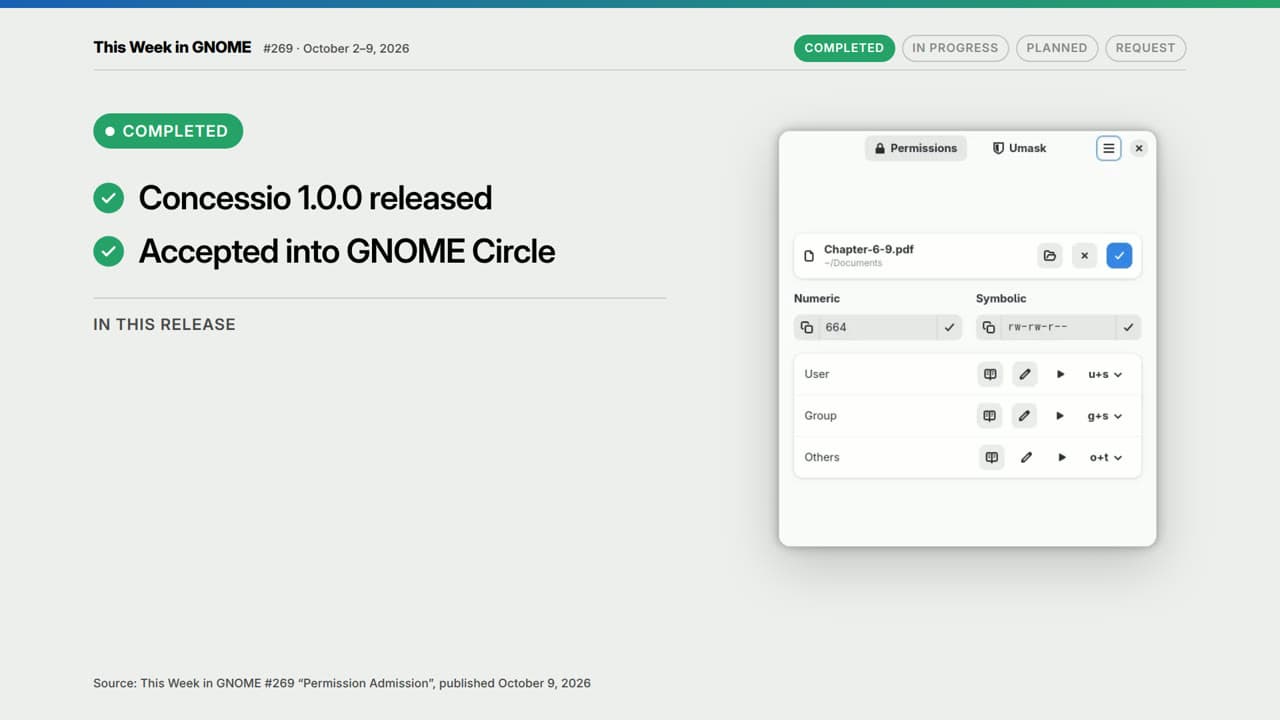
Tell ngram which decisions the team needs to hear. The GNOME example separates completed work, what is still in progress and a request for contributors.
Set the video to portrait when the audience watches on phones. Adjust the brief to fit the shorter cut.
Point to the moment that changed, supply the latest facts and ask ngram to revise the narration or visuals.
Bring in selected slides or the full deck. Each slide becomes a scene and its notes become the script.
Give reviewers commenter access and give the production team editor access to the same video file.
What each account includes
ngram
Free includes 1,000 credits per month. Basic starts at $29 per month on monthly billing.
Google Vids
Google Vids AI features and usage limits vary by personal account or Google Workspace edition.
Who should choose each
Set the audience and next action, approve the script, and generate a complete update in landscape or portrait.
- Your weekly update starts as a report, memo or public webpage
- You want to generate custom scenes and narration from that source
- You need a portrait cut for a mobile channel
Import Slides as scenes and edit the same video file with your team in Drive.
- Your team already works in Google Drive and Slides
- You need to preserve the deck as a sequence of editable scenes
- Colleagues need to comment on the same landscape video project
From this input to this video
GNOME’s public weekly report becomes a short update that separates completed work, work in progress and a request for contributors.
Prompt
Create a 40-second update from the GNOME community, summarized from its public weekly report for GNOME contributors and users, covering October 2–9, 2026. Use this source material: https://thisweek.gnome.org/posts/2026/10/twig-269/. Open with the main takeaway: Concessio joined GNOME Circle and shipped version 1.0, with further permissions work underway. Cover completed work: Concessio 1.0 was released, the app joined GNOME Circle, and the release improved file opening, drag-and-drop support, permission editing with undo, and accessibility. Then explain work in progress: Ronnie Nissan is working on Vala bindings for libacl to support access control lists in Concessio later. State these decisions or requests, with the responsible owner and next date: Ronnie Nissan invites contributors experienced in writing bindings to get in touch; no deadline is supplied in the report. Use only dates and metrics supplied in the source. Clearly label completed, in-progress and planned work. End with Read the October 9 GNOME update and contact the maintainer through the linked project if you can help. Tone: clear and collegial. Voiceover language: English.
Selected style
Editorial
Source material
Read the video transcript
This week in GNOME, October second to ninth: Concessio joined GNOME Circle and shipped version 1.0, and more permissions work is already underway. Completed: Concessio 1.0 is out, and the app is now part of GNOME Circle. The release redesigns file opening, adds drag-and-drop, lets you change file permissions with undo, and improves accessibility throughout. In progress: maintainer Ronnie Nissan is writing Vala bindings for libacl. Planned: support for access control lists in Concessio, later on. A request from Ronnie: if you have experience writing bindings, please get in touch. The report sets no deadline. Read the October 9 GNOME update, and contact the maintainer through the linked project if you can help.
Make a team update from a written report
Watch the ngram example made from GNOME’s public weekly report. Adapt its brief to highlight what shipped, what’s next and who should act.
Bring the update
Paste a public report URL, or attach the source document when you open the brief in ngram.
Give the audience one action
Name the team watching, the progress to highlight and the decision or next step.
Review before sharing
Review the proposed script, generate the video and check it against the report. Share the finished result with your team.
Make it yours
Fill in your details here, or continue and finish your brief in ngram.
Video generation uses credits. Review your estimate in ngram. MP4 downloads require Basic or higher.
How credits workTrusted by teams at


Use the same workflow for recurring updates
Start recurring video requests from your tools
whenA recurring report is ready in a connected tool
thenPass the update and audience instructions to ngram to request a video
whenYour connected assistant has the team update and brief
thenCreate the narrated update from that assistant with available credits
Use video for the teams who need the update
See how ngram stacks up against the rest.
vs
Combine a demo, notes and product facts in a brief. Review the script and generate a follow-up with the next step. Record or…
Read ngram vs BombBombvs
The phishing lesson below uses a script based on public NIST guidance. ngram pairs the narrator’s warning signs with Whiteboard…
Read ngram vs Camtasiavs
Clueso can start from a prompt or supplied files. For a tutorial inside your app, its browser agent can use a demo account to…
Read ngram vs Cluesovs
Review the next step and narration in the plan, then generate visuals around the demo and supporting sources. Use Covideo’s AI…
Read ngram vs Covideovs
The Linear Diffs example starts with the release URL. In ngram you can give the composer that exact page, shape the script and…
Read ngram vs Descriptvs
Bring the demo, product facts and action you want the buyer to take. Review the script, then generate a reusable follow-up. Use…
Read ngram vs Dubbngram vs Google Vids, answered
Is ngram a Google Vids alternative?
Can both tools use a PDF?
Can I export a full portrait video from Google Vids?
Can I use a Google Slides deck in ngram?
Turn your next report into a video
Bring your sources and describe the video you need. Choose a model that prepares a plan if you want to review it before generation.
Video generation uses credits. Review your estimate in ngram. MP4 downloads require Basic or higher.
How credits work