

Table of Contents
When to switch from OBS Studio
| If you need to… | ngram | OBS Studio |
|---|---|---|
| Turn an exported screen recording into a new training video | ✓ Yes · Advantage Bring the recording and written instructions. Approve the script and create narration, callouts and explanatory scenes around the source. | – Limited Capture the screen and audio in OBS, then export the recording to the editor or production tool that will turn it into the lesson. |
| Compose a live stream from several sources | Create the finished explanation in advance and share or embed it where viewers will watch. | ✓ Yes · Advantage Set up scenes, inputs and audio in OBS, then control and switch them during the broadcast. |
For the full workflow and plan differences, see ngram vs OBS Studio.
Start with your current OBS Studio workflow
OBS Studio is free, open-source software for Windows, macOS and Linux. Arrange screen, camera and other sources, mix their audio and switch scenes during a recording or live broadcast. Plugins and Lua/Python scripts provide additional controls.
Media sources and browser sources can supply prepared video, animations and audio. OBS is not restricted to static overlays. Plan the scenes before recording and use the source that supports each part of the production.
For a recording that needs an MP4 container, OBS documents File → Remux Recordings. Keep the original and check playback before uploading. Remuxing prepares the file; a separate post-production workflow handles changes to its recorded content. Upload the compatible MP4 to ngram with the steps and the audience. The example below starts from GitHub’s public quickstart.
OBS Studio is free and open source. The tools you use to edit, narrate or host the recording have their own costs. Current plans
Alternatives at a glance
| Tool | Worth evaluating for | Price reference |
|---|---|---|
| ngram | New tutorials from source material | Free; Basic $29/month or $278.40/year |
| Streamlabs | Live production with overlays and creator tools | Free; Ultra and Ultra+ paid plans |
| Camtasia | Recorded tutorials with detailed editing | Free editor; regional annual paid plans |
| Loom | Screen explanations and async discussion | Business $18/user/month; $15 equivalent annually |
| ScreenPal | Recording, lessons and interactive hosting | Deluxe $4/user/month equivalent annually |
| Descript | Transcript-led editing and AI creation | Hobbyist $24/user/month; $16 equivalent annually |
| VEED | Browser editing, captions and AI creation | Free and paid plans; check current checkout |
Annual equivalents require an annual commitment. These plans contain different seats, usage and delivery features; compare the total workflow rather than treating entry prices as equal bundles.
1. ngram: make a new explanation from your source
This real example turns public GitHub Actions documentation into a tutorial. Inspect the exact input, style, source and transcript with the result, then adapt the brief for your own product. The source is a documentation URL, not an exported screen recording.
From this input to this video
GitHub’s quickstart becomes an illustrated walkthrough of creating a workflow and finding its run logs.
Prompt
Create a 60-second role-based tutorial video for GitHub Actions (https://docs.github.com/en/actions/get-started/quickstart). The audience is developer users. Cover these modules in order: create the workflow file shown in GitHub’s quickstart in a repository where Actions is enabled; copy the quickstart workflow and commit it; open the Actions tab, select the workflow run, then inspect the job and step logs. For each module, show the UI step on screen, narrate what the developer does and why it matters, then move to the next. Tone: clear, practical and encouraging. End with a brief summary screen listing all modules covered and the line: Create your first workflow with GitHub Actions. Voiceover language: English; apply the brand kit if one is set.
Selected style
Editorial
Source material
Read the video transcript
Let's run your first GitHub Actions workflow. Three short modules, and you're done. In a repository where Actions is enabled, click Add file, then Create new file. Name it dot github, slash workflows, slash github-actions-demo dot yml. GitHub only discovers workflows saved in that folder. Next, copy the quickstart YAML into the file. It runs on every push, on an Ubuntu runner, and echoes a few details about your repository. Click Commit changes. That commit is a push, so your workflow starts right away. Now open the Actions tab. Select GitHub Actions Demo, then click the run your commit triggered. Choose the Explore-GitHub-Actions job and expand any step to read its log. This is exactly what ran, and where you'll debug later. Create, commit, inspect. Create your first workflow with GitHub Actions.
Turn product instructions into a tutorial
See a real GitHub Actions tutorial made from its public quickstart. For your own video, use the relevant documentation and any exported recording that helps explain the steps.
Bring the instructions
Use a public documentation page or upload a PDF. For recorded footage, prepare the OBS video as a compatible MP4 and upload it to ngram.
Adapt the brief
Add your product, audience and exact steps below. Attach your files and select your Brand Kit in ngram.
Approve the plan
Review the plan containing the script and approve generation. Ask for revisions when the instructions or audience change.
Make it yours
Fill in your details here, or continue and finish your brief in ngram.
Video generation uses credits. Review your estimate in ngram. MP4 downloads require Basic or higher.
How credits workChoose the style, aspect ratio and duration. Set up and select your Brand Kit in the composer, enable captions when wanted, and approve the plan containing the script. Review the result, ask for revisions or use the editing controls. For another format, choose its settings and ask for another version.
ngram pricing includes 1,000 credits/month on Free. Basic costs $29/month with monthly billing and includes 3,000 credits per cycle; annual billing is $23.20/month equivalent with 36,000 credits supplied upfront. The base rate for premium AI video generation is 10 credits per second, with a cheaper model at 3. Share publicly or embed on Free; use a paid plan for MP4 downloads and Basic or above for unlisted links.
2. Streamlabs: live production with overlays and creator tools
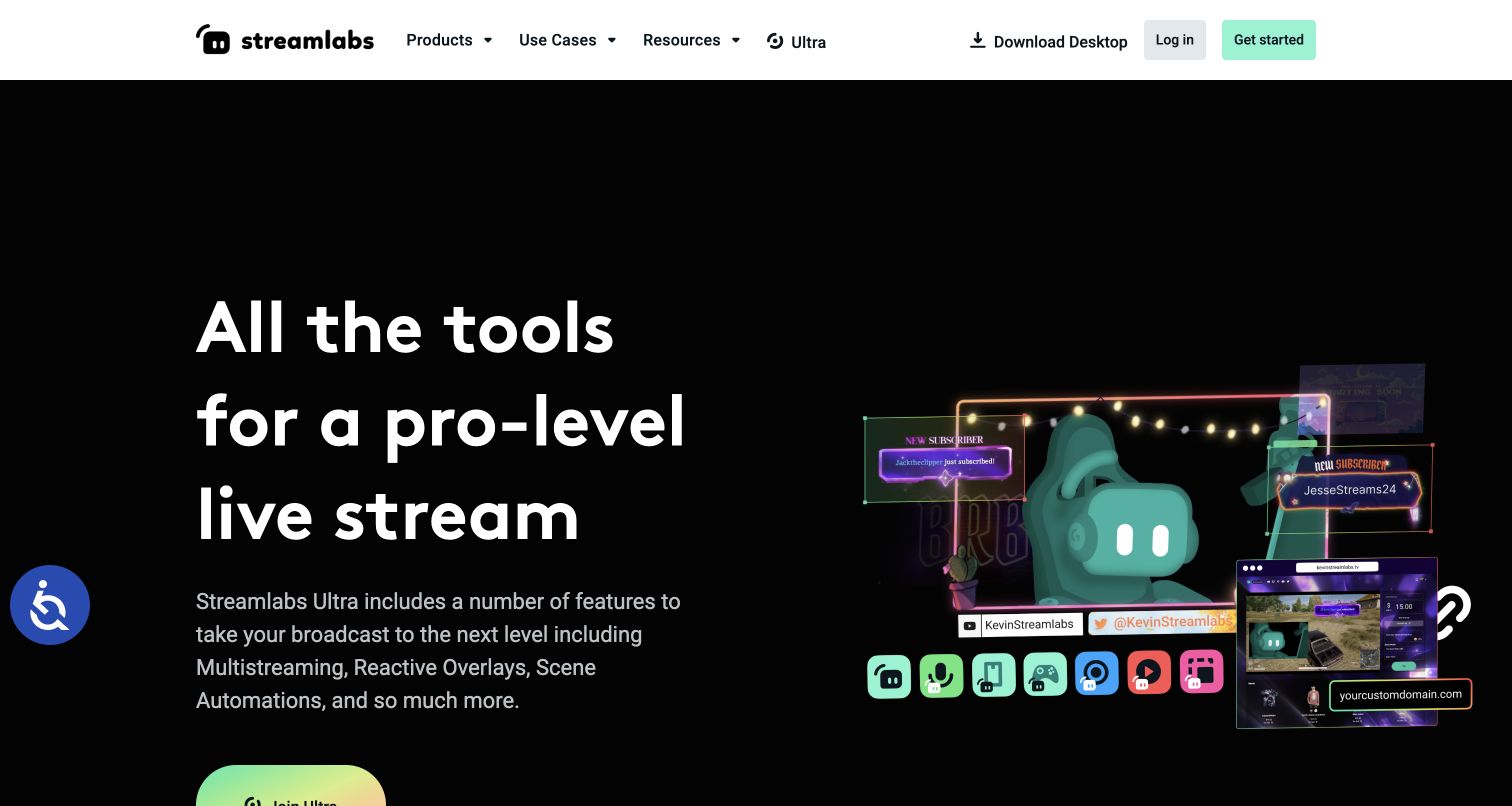
Streamlabs is the live-production alternative in this list. Its desktop and mobile tools combine broadcasting with overlays, alerts, widgets and creator workflows. Compare those controls when the work really is a live stream, rather than a new explanation made after recording.
The current Free plan includes one portrait and one landscape output, free themes, Cloudbot and limited automations. Ultra adds broader multistreaming, premium themes and creator-suite features. Check the selected billing and renewal terms for a current price.
Sidekick supports game-aware automation and a virtual co-host. Free has 100 lifetime interactions; Ultra has 1,000 per month, with higher usage on Ultra+. This AI is part of the live production. For a customer tutorial afterward, keep the useful recording and choose the editing or creation tool for that next job.
3. Camtasia: recorded tutorials with detailed editing
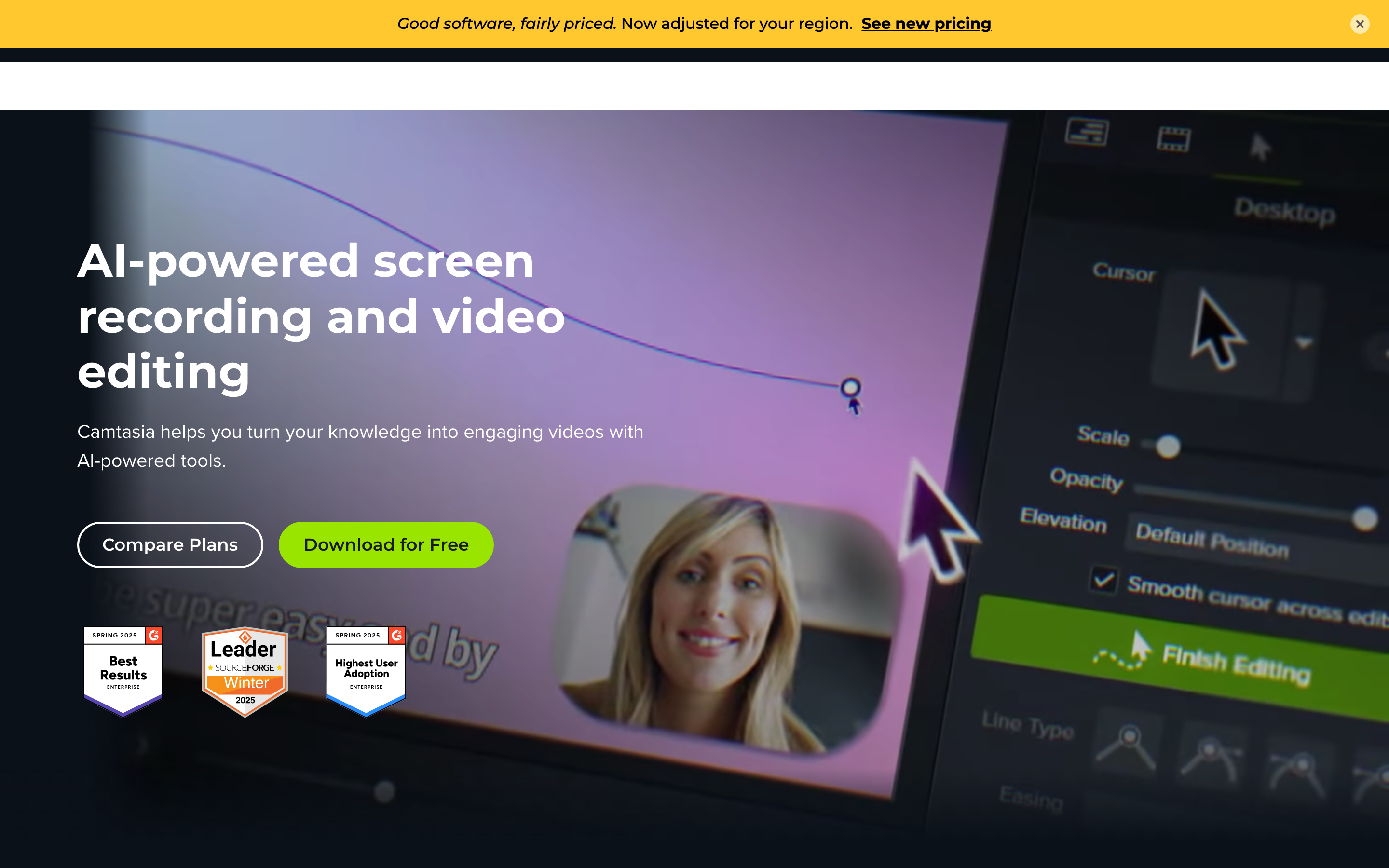
Camtasia provides screen recording, multitrack editing, callouts and cursor effects. The suite also includes transcript-based editing and AI creation tools, with capabilities determined by the plan. It suits teams that need precise control over an instructional recording.
The current store lists Essentials with watermark-free Editor exports, captions, transcript editing and SCORM. Create adds AI scripting and voices; Pro adds avatars and localization. Starter does not unlock watermark-free Editor output.
Use the regional annual price for the selected plan. The listed suite includes Camtasia Online and Screencast hosting for up to 25 videos. Keep the source project when exporting footage for another tool, and test captions or learning-system reporting in the actual delivery environment.
4. Loom: screen explanations and async discussion
Loom suits an explanation that starts with showing the screen. Recording, transcripts, comments and a shared library help a teammate or customer understand the exact workflow being demonstrated.
Business costs $18/user/month or $15/month equivalent annually; Business + AI is $24 or $20. Starter allows 25 videos per person with a five-minute recording limit. Paid tiers add uploads/downloads; AI editing follows its plan entitlement.
Test the actual correction you make most often: removing a detour, explaining a changed screen or replying to a comment. Loom offers editing and AI assistance, so avoid assuming every update requires a full re-recording. Check enterprise eligibility for specific CRM integrations.
5. ScreenPal: recording, lessons and interactive hosting
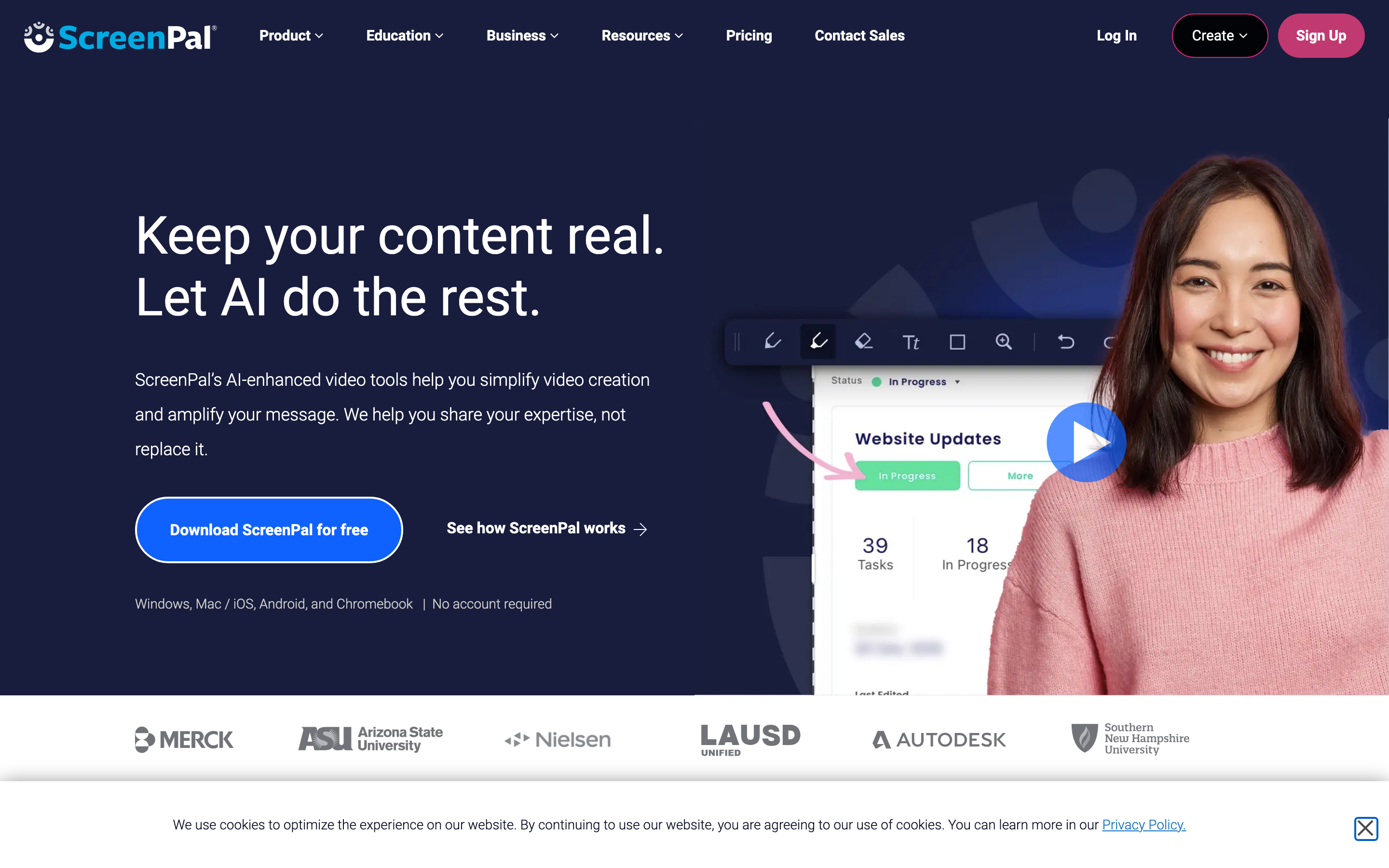
ScreenPal combines recording, editing and hosting. Free recording supports up to 15 minutes; paid Deluxe includes speech-to-text captions. Max and Business add broader AI features, including prompt-based creation and transcript editing.
The published annual equivalents are $4/user/month for Deluxe, $10 for Max and $8 for Business, with a three-user Business minimum. Check the selected plan for quizzes, polls, captions and the AI allowance your lessons need. These figures describe annual commitments.
Its AI tools include narration, transcript revisions and quiz assistance. An SDK also supports embedded recording/editing. A low recorder entry price should not be treated as the price of every training or developer feature.
6. Descript: transcript-led editing and AI creation
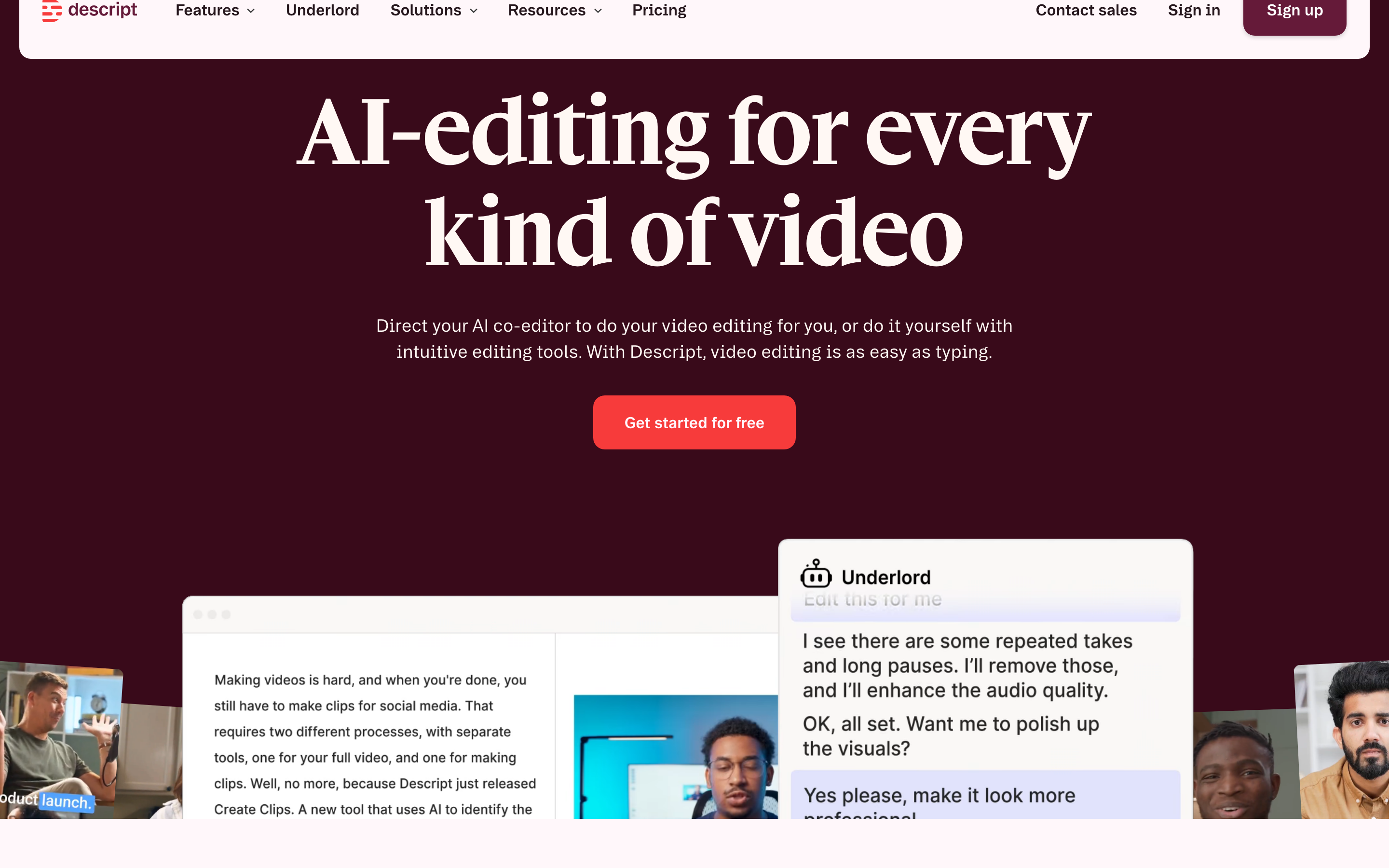
Descript links speech to an editable transcript, with scenes and timeline controls for arranging the result. Studio Sound, captions and filler-word tools suit recorded interviews, lessons and webinars.
AI Video Maker and Underlord also create videos from prompts, scripts or supported source material. A new recording is not required for every project. Paid users can use its API, MCP, CLI or Zapier workflow.
Hobbyist costs $24/user/month or $16/month equivalent annually, with ten media hours and 400 AI credits. Creator is $35 or $24 with 30 hours/800 credits; Business is $65 or $50 with 40 hours/1,500 credits. Compare both allowances for the work you expect to repeat.
7. VEED: browser editing, captions and AI creation
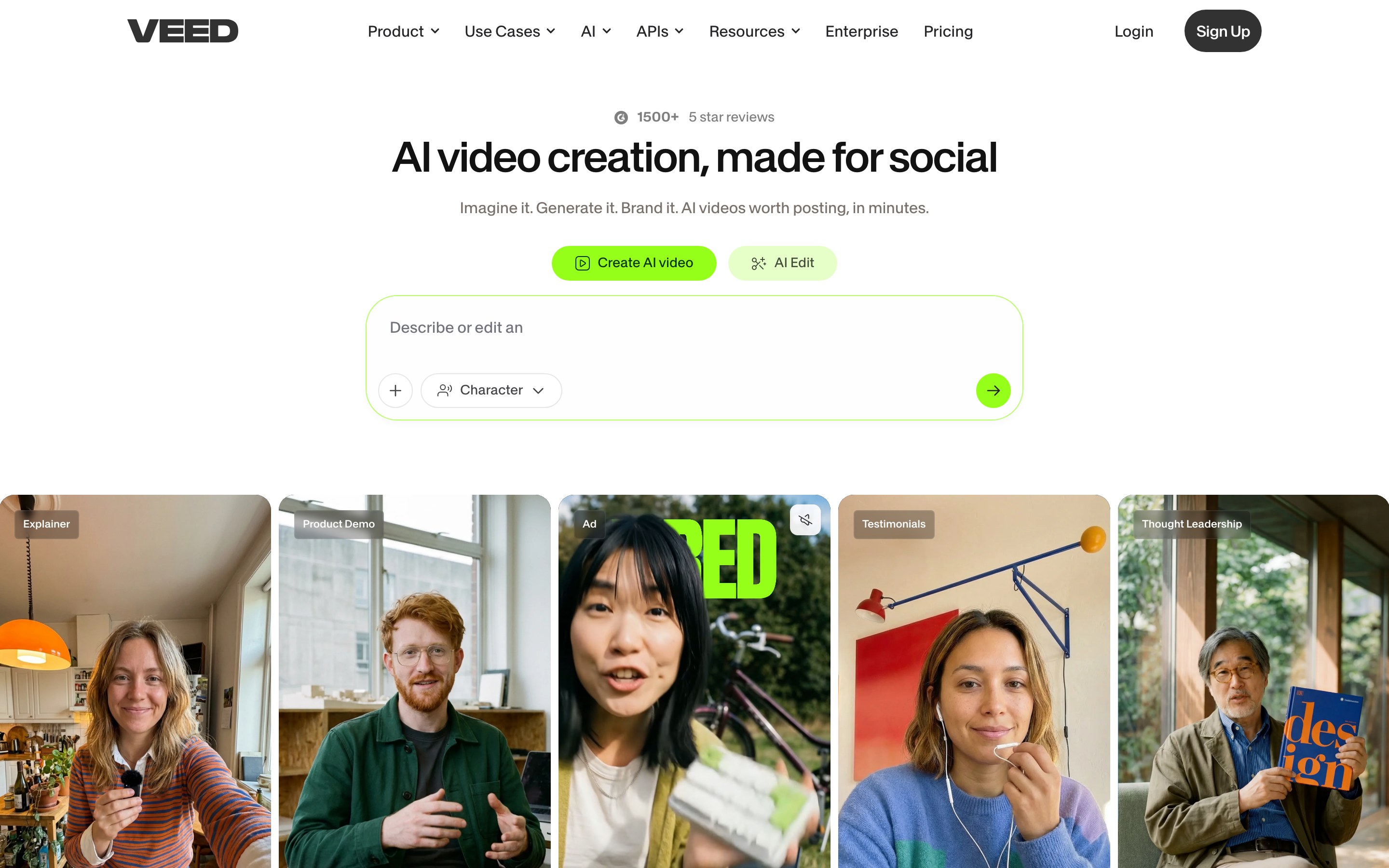
VEED combines a browser editor, recording, captions, translation and AI creation. AI Studio can draft a video and offers a script-review path; users can then continue refining the edit.
Compare current plan allowances for exports, stock, AI credits and translation. Credits and translation usage are separate measures, so the presence of a feature does not tell you how much recurring work is included.
For automation, evaluate the separately documented API and Fabric/MCP offering instead of assuming a web subscription covers every integration. Try the caption revision, framing change and export your campaign needs before moving the workflow.
Choose the workflow you need to repeat
Keep OBS when free local capture, source mixing and live scene control fit the job. Compare Streamlabs if its overlays, audience widgets, multistreaming or live automations would improve that production. A generated tutorial is a different purchase from a broadcast setup.
For recorded instruction, evaluate Camtasia’s editing controls or ScreenPal’s recording and lesson tools. For an explanation followed by teammate discussion, try Loom. For revisions to speech, compare Descript; for browser edits and captions, compare VEED.
For a new explanation from a recording, document or webpage, try ngram. You can keep OBS for capture and use the file as source material. The GitHub Actions example below starts from public documentation, so it shows source-based creation without pretending to import an OBS scene collection.
Bring useful footage into your next video
Keep the editable original in the recording or editing app. Export the relevant video using your current account’s download permissions, check playback and upload the file to ngram. Add the audience, key steps and requested next action. The file supplies footage for the new explanation; it does not carry the original timeline or hosting settings.
For an OBS recording, its remux command can prepare an MP4 container when needed. For a documentation page, paste the public URL; for a PDF, upload the file. Review the proposed plan and the result against the source before sharing. When the source changes, tell ngram what changed and ask it to revise the video.
Continue with ngram vs OBS Studio, ngram vs Camtasia and ngram vs Descript.
Frequently asked questions
Which option replaces OBS for a live stream?
Streamlabs is the live-production alternative in this shortlist. Compare the scenes, audio, overlays, streaming destinations and account requirements you need. The editing and source-to-video tools serve useful jobs before or after the live session.
Which alternative can I use without a paid subscription?
OBS Studio is free and open source. Several listed tools also have Free tiers with specific allowances; trials and personal-use licenses have different terms. ngram Free includes 1,000 credits/month, public sharing and embeds, with paid plans for MP4 downloads.
Can I use a recording and a source document together?
Bring the useful recording and supporting material to ngram with a clear brief. Specify the audience, important steps and next action. Review the plan containing the script before generation and check the resulting explanation against the sources.
Does switching tools transfer my editable project?
An exported video supplies footage. Keep the original project, source files and settings in the app where they were created. Publishing links, viewer activity and learning-system reporting need their own transfer or setup.
How does branding work in ngram?
Set up your Brand Kit and select it in the composer for the current video. Turn captions on when wanted, then approve the plan containing the script. Request a new version after changing the aspect ratio or duration.
Create your first video with ngram, explore screen recording to video, or talk to sales.