
Table of Contents
When to switch from CapCut
| If you need to… | ngram | CapCut |
|---|---|---|
| Make a narrated announcement from product material | Yes · Advantage Bring the release URL or deck directly into the brief. Check the product facts, narration and visual direction in the plan before generating. | Yes Start in Video Studio with a script, prompt or uploaded reference. Shape the storyboard and direct the scenes before refining the cut. |
| Repeat a branded product-video format | Yes · Advantage Select a Brand Kit for visual direction and tone. Reuse opening and closing designs on Premium or Ultimate. | Yes CapCut Teams lists a Brand Kit. Build around that kit and the team’s chosen templates, media and editing settings. |
| Build a social cut from mobile footage and templates | Partial Bring the footage into ngram and ask for a new cut in a vertical format with captions and on-screen text. | Yes · Advantage Edit the footage in CapCut’s mobile app. Apply a social template, effects, captions and timing controls for the target feed. |
For the full workflow and plan differences, see ngram vs CapCut.
What CapCut offers today
CapCut Video Studio turns a brief, script or uploaded reference into a storyboard and generated scenes on the web. Adjust the roles, narration, music and text before refining the cut. The mobile app has a separate script-to-video path and gives you direct access to templates and effects.
Templates, effects, captions and direct editing support recurring social videos. Current AI planning means the choice is not simply manual editing versus generated video. Inspect the actual output and revision controls for the formats you publish.
The CapCut x Codex workflow documents connected creation and editing, with regional availability. It should not be treated as a universal REST API or assumed available to every account.
| Plan | Billing reference | Scope |
|---|---|---|
| CapCut paid plan | Check current regional/platform checkout | Selected features, device, account and renewal offer |
CapCut’s pricing guidance directs buyers to checkout because prices vary by region and platform. Use the selected renewal amount instead of an old universal Pro rate.
Alternatives at a glance
| Tool | Useful starting point | Price reference |
|---|---|---|
| ngram | Source-based business video with a reusable brief and plan approval | Free; Basic $29/month or $278.40/year |
| DaVinci Resolve | Editing, color, effects and audio post-production | Free; Studio $295 |
| VEED | Browser editing and AI-assisted production | Check current regional offer |
| Clipchamp | Microsoft editing and eligible workplace creation | $9.99/month or $99.99/year |
| InShot | Mobile editing with captions, layers and audio tools | $4.99/month; $19.99/year; $49.99 lifetime |
| Canva Video | Video inside a shared design workflow | $15/user/month; $120/user/year |
| Descript | Transcript-linked editing and AI creation | $24/user/month; $16/month equivalent annually |
| Filmora | Desktop editing and AI story creation | Check platform, regional price and license. |
Annual equivalents require annual payment. Compare commercial rights, models, seats and the cost of new generations; credit totals are not equivalent units of finished video.
ngram: turn a release page into a product announcement
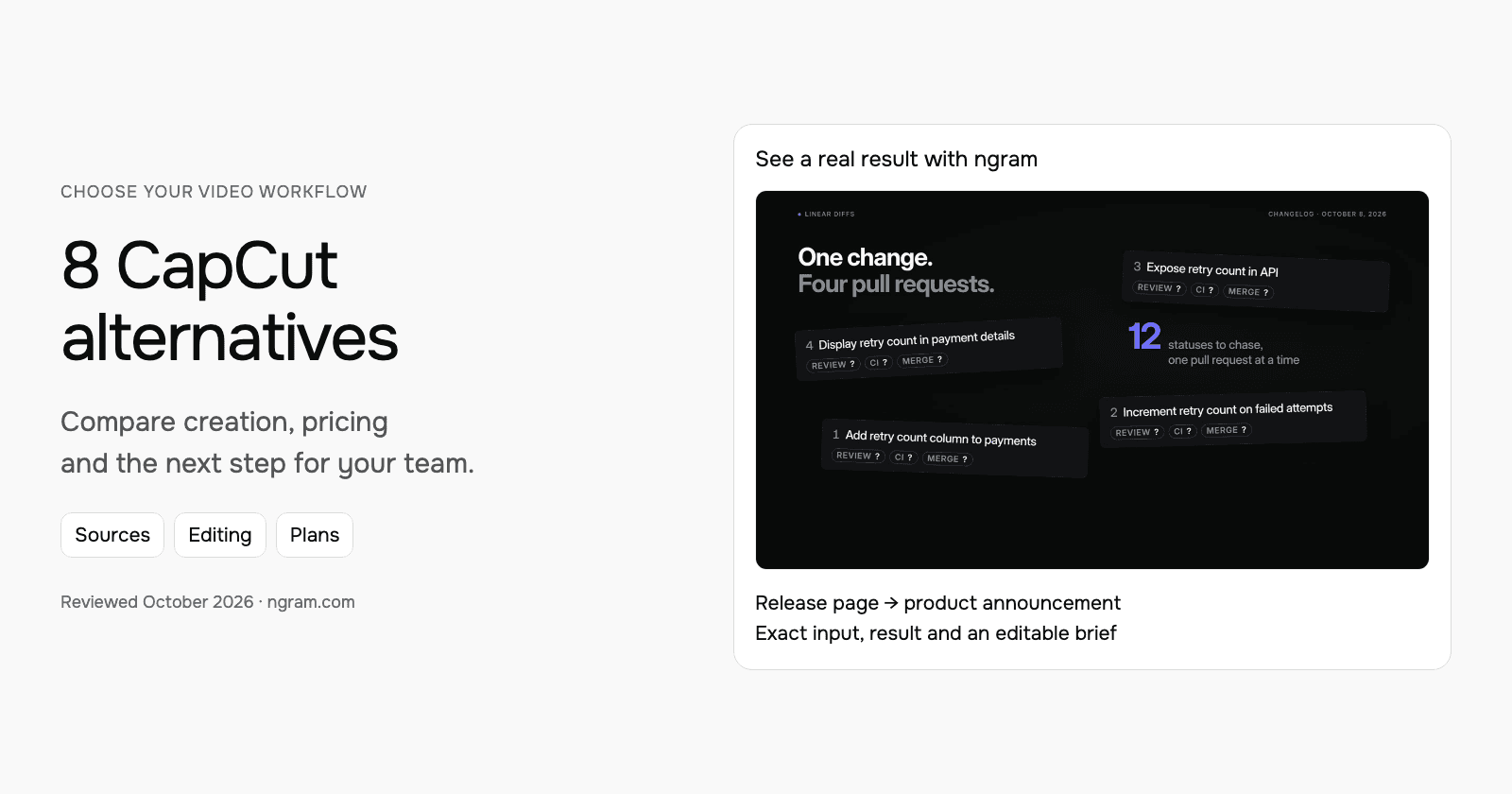
The Linear Diffs announcement below starts with the public release page. It shows the source, brief, narration and finished scenes so you can see how ngram turns a product change into a video for customers.
From this input to this video
An announcement using Linear’s October 8 release and actual product imagery to show the workflow.
Prompt
Create a 30-second feature announcement video for Linear, a product development platform for engineering teams reviewing stacked code changes. Use this release source: https://linear.app/changelog/2026-10-08-stacked-pull-requests. The new feature is stacked pull requests in Linear Diffs: the October 8, 2026 release shows every pull request in a stack with its review, CI and merge status. Open on the problem users had before: following the status of related pull requests across a stack. Show how stacked pull requests in Linear Diffs solves it — use motion graphics over the real product UI or a provided URL screenshot; do not invent fake screens. Tone: clear and practical. End on the product logo with the line Explore stacked pull requests in Linear Diffs. Channel: LinkedIn in landscape 16:9. Voiceover language: English; if no voiceover, use on-screen captions and light background music.
Selected style
Editorial
Read the video transcript
Stacked pull requests keep big changes small. But following a stack meant jumping between pull requests, checking each review, each CI run and each merge on its own. Now Linear Diffs shows the whole stack in one place. See where you are, move through every pull request, and read review, CI and merge status at a glance. Related PRs are grouped into a single row in Reviews, with their issue and project context. Explore stacked pull requests in Linear Diffs.
Make a feature announcement from the release source
See an actual announcement for Linear Diffs, made from its public release page and a filled brief. Adapt the same starting point for your next product update.
Bring the release
Paste the release page or bring your approved notes. Upload a Canva MP4 or PDF when you want to use exported material.
Adapt the brief
Fill in the product, audience, change and next step. Choose a style and aspect ratio; attach your files and select your Brand Kit in ngram.
Approve and refine
Review the plan containing the script and approve generation. Ask for changes or another version after inspecting the result.
Make it yours
Fill in your details here, or continue and finish your brief in ngram.
Video generation uses credits. Review your estimate in ngram. MP4 downloads require Basic or higher.
How credits workAdapt the brief with your release source, audience, key change and call to action. Choose the style, duration and aspect ratio; select your configured Brand Kit and turn captions on when wanted. Approve the plan containing the script, then review the result and request changes through chat or use the timeline.
ngram pricing includes 1,000 credits/month on Free. Basic costs $29/month with monthly billing and includes 3,000 credits per cycle; annual billing is $23.20/month equivalent with 36,000 credits supplied upfront. The base rate for premium AI video generation is 10 credits per second, with a cheaper model at 3. Share publicly or embed on Free; use a paid plan for MP4 downloads and Basic or above for unlisted links.
DaVinci Resolve: editing, color, effects and audio post-production
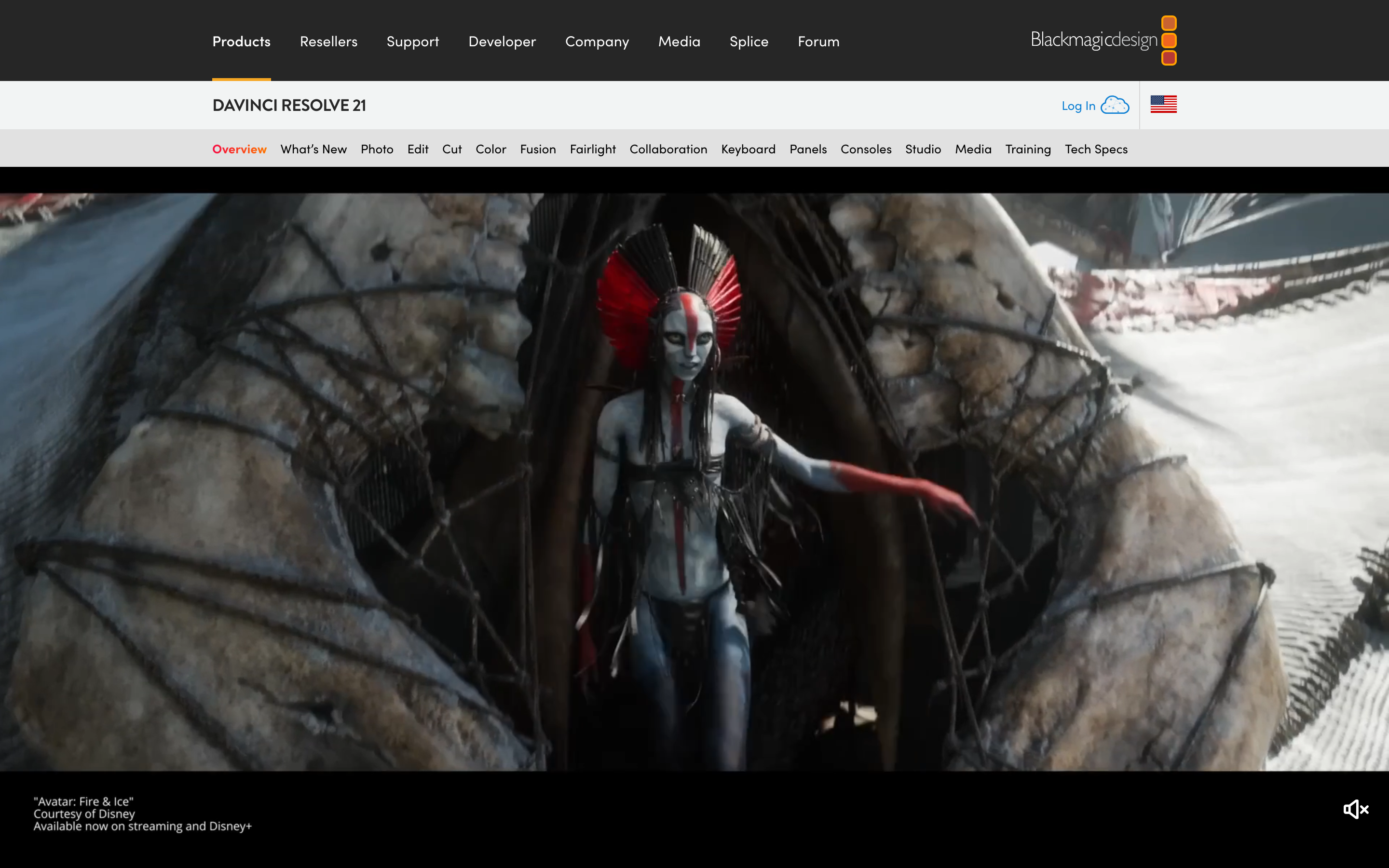
DaVinci Resolve combines editing, color, Fusion effects and Fairlight audio. The current version also includes a photo workflow. It is worth evaluating when the work extends from a screen tutorial into detailed finishing and post-production.
The Free version supports virtually all 8-bit formats up to UHD 3840×2160 at 60 fps and includes collaboration. Studio, listed at $295, adds Neural Engine tools, text-based editing, Magic Mask, more effects and higher-format capabilities.
Check the actual footage, operating system, hardware and delivery format before choosing. A Studio software purchase and cloud collaboration services are separate decisions. Keep the source project and export the finished footage when another workflow needs the result.
| Plan | Billing reference | Scope |
|---|---|---|
| DaVinci Resolve | Free; Studio $295 | Check required license, platform and AI usage |
Compare the required edition, licensed use and any separate media or cloud charges.
VEED: browser editing and AI-assisted production
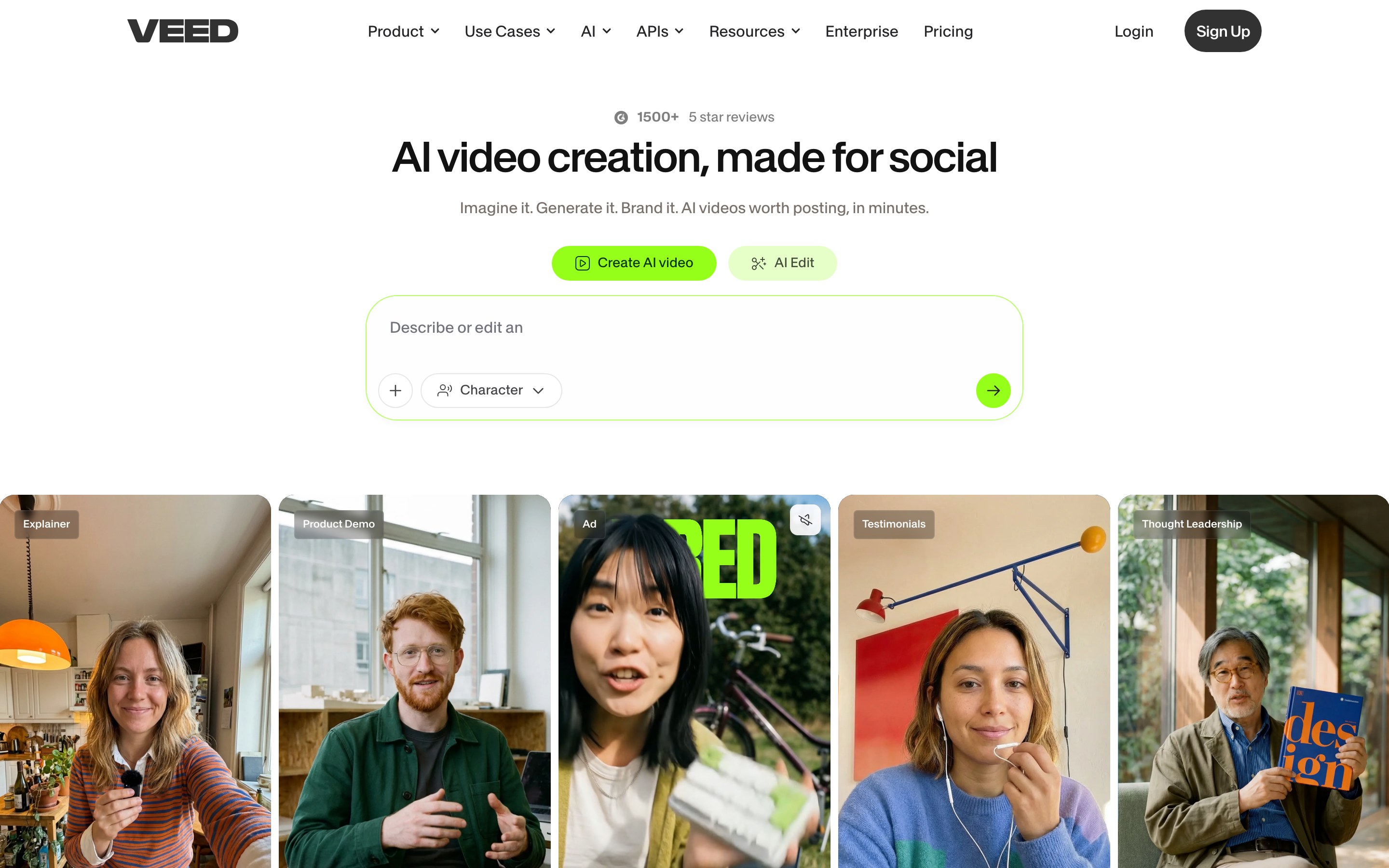
VEED combines browser editing, captions, recording and AI creation. AI Studio includes script review and generated scenes, so evaluate it for a new video as well as post-production on existing footage.
Use its current pricing for the required exports, brand controls, collaboration and AI allowance. The public page did not expose a reliable fixed price in this review, so this shortlist does not repeat an older entry price.
VEED also has developer API/MCP offerings, with Fabric as a separate generation product. A browser-editor subscription should not be assumed to include every developer operation. Keep the original editing project when exporting footage for another creation tool.
| Plan | Billing reference | Scope |
|---|---|---|
| VEED editor | Check current regional offer | Plan-specific exports, collaboration and AI usage |
Compare the actual editor plan and separate developer product when relevant.
Clipchamp: microsoft editing and eligible workplace creation
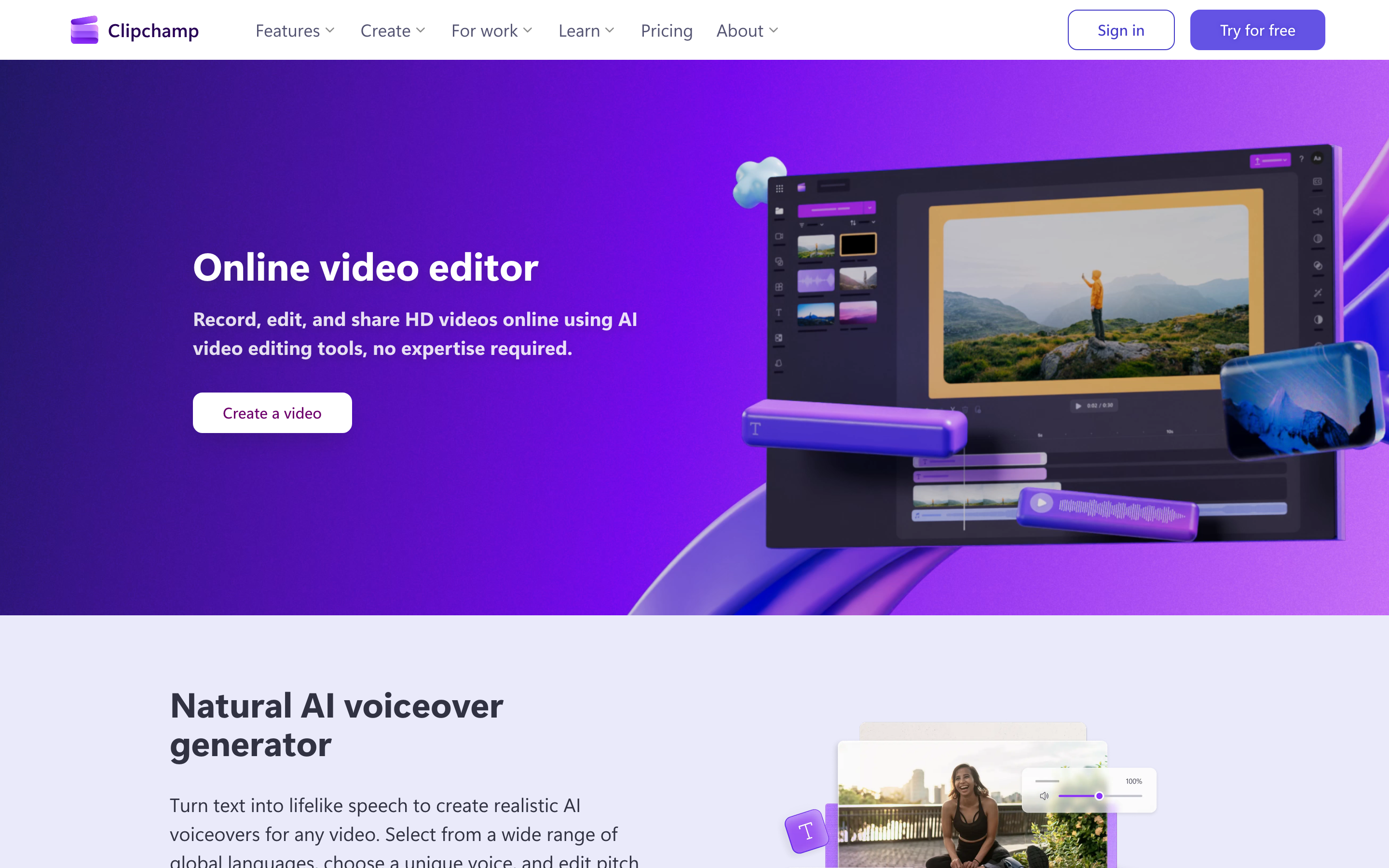
Clipchamp offers watermark-free 1080p exports on personal Free, with screen/camera recording, subtitles, voiceover and silence removal. Microsoft 365 Personal and Family add premium stock, 4K and a Brand Kit.
Copilot video creation uses a prompt or PowerPoint in eligible work accounts. Microsoft’s specific guide requires a commercial Entra ID account, a Microsoft 365 plan, Copilot Chat access and Clipchamp enabled by the organization. Personal editor access does not establish that entitlement.
Use the supported desktop browser or Windows app for the editor. The iOS app was discontinued in June 2026. Evaluate the account and creation workflow your team uses, then test the recurring text, narration or timing change.
| Plan | Billing reference | Scope |
|---|---|---|
| Microsoft 365 Personal, US | $9.99/month or $99.99/year | Consumer subscription including premium Clipchamp features |
| Microsoft 365 Family, US | $12.99/month or $129.99/year | Consumer family bundle; workplace eligibility is separate |
These consumer bundles do not establish work-account Copilot eligibility. Confirm the organization’s configuration for AI creation.
InShot: mobile editing with captions, layers and audio tools
InShot is a mobile video and photo editor. Its current iOS listing includes trimming, layered video, keyframes, tracking, captions, bilingual subtitles and AI speech.
AI Cut removes silences and filler words; voice enhancement and background removal support cleanup. The listing supports 4K/60 fps output. Evaluate the same clip and caption correction on the device you use.
The US iOS listing offers Pro at $4.99/month, $19.99/year or $49.99 lifetime. Those are store-specific prices; inspect the selected device and current purchase terms.
| Plan | Billing reference | Scope |
|---|---|---|
| InShot Pro, US iOS | $4.99/month; $19.99/year; $49.99 lifetime | Store-specific purchase options |
Compare the app-store offer and required features; prices and access can differ across platforms.
Canva Video: video inside a shared design workflow
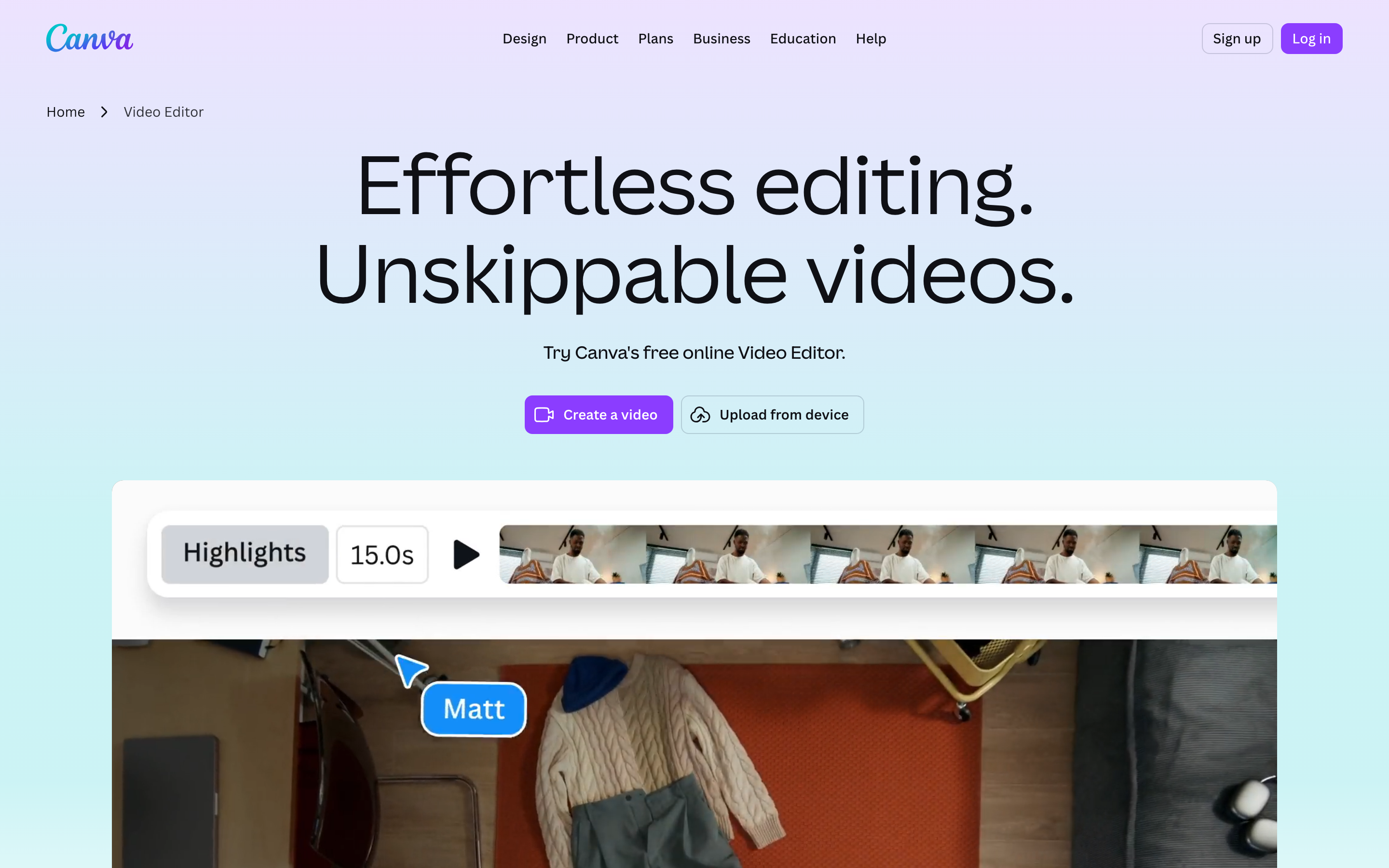
Canva Video combines video editing with design assets, layouts and collaboration. Its AI creation tools can help generate and revise material, so choose it for the design workflow and controls rather than an assumption that all assembly is manual.
Canva pricing showed US Pro at $15/user/month or $120/year and Business at $21 or $210/year. Pro includes five Brand Kits. Compare the current AI allowance and team controls in the plan you will use.
Canva offers developer integrations, including Connect APIs and MCP. Keep the design and its source assets in Canva when you export a video for reuse; the export gives ngram footage for a new explanation, not the original editable design.
| Plan | Billing reference | Scope |
|---|---|---|
| Canva Pro, US | $15/user/month; $120/user/year | Design subscription; five Brand Kits |
The software bundle and AI allowance differ from dedicated video-generation credits.
Descript: transcript-linked editing and AI creation
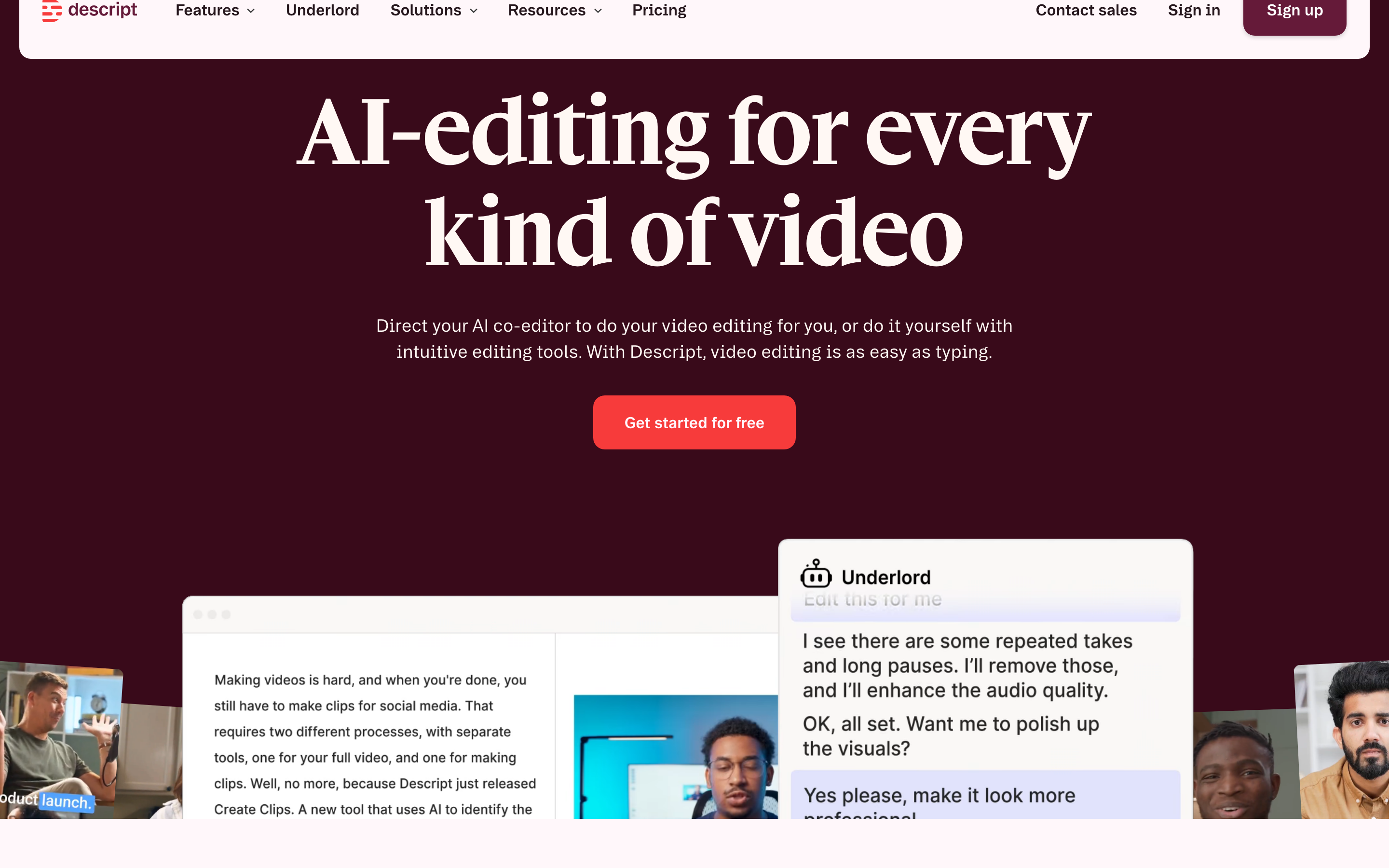
Descript links spoken recordings to a transcript, so word edits change the associated media. Scene and timeline controls support the visual edit. This fits recurring work on interviews, webinars and narrated lessons.
AI Video Maker and Underlord also create from prompts, scripts and footage, with chat revisions and generated media. It is not restricted to editing a recording you made first. Paste exact source text when the creation workflow needs a specific page; web search is a different input path.
The developer offering includes HTTP, MCP, CLI and Zapier for paying users, drawing from their plan allowances. Business includes Brand Studio; check the account and seat needs for your team.
| Plan | Billing reference | Scope |
|---|---|---|
| Descript Hobbyist | $24/user/month; $16/month equivalent annually | 10 media hours and 400 AI credits/month |
| Descript Creator | $35/user/month; $24/month equivalent annually | 30 media hours and 800 AI credits/month |
| Descript Business | $65/user/month; $50/month equivalent annually | 40 media hours and 1,500 AI credits/month |
Media time and AI credits cover different work. Compare the editing and generation operations you expect to repeat. Annual equivalents require an annual commitment.
Filmora: desktop editing and AI story creation
Filmora combines recording, timeline editing, tracking, keyframes, effects and audio controls. Its Idea to Video workflow lets you review a storyboard before generating; AI Mate adds conversational actions and creation.
The USD Windows individual offer lists Basic $9.99/month, Advanced $29.99/year with 1,000 AI credits/month, and Perpetual $49.99 once for Filmora 16 with 1,000 one-time credits. A separate Creative Assets trial was selected, renewing at $9.99/month after seven days. Confirm the current offer and renewal.
Wondershare directs company work to its Team & Business plans. Compare that license and asset access for the intended use. Individual pricing, a version-specific purchase and monthly generation credits cover different parts of the workflow.
| Plan | Billing reference | Scope |
|---|---|---|
| Filmora | Individual Windows: $9.99/month; annual offer $29.99 | Check required license, platform and AI usage |
Compare the required edition, licensed use and any separate media or cloud charges.
Choose by the work you repeat
For detailed desktop finishing, compare DaVinci Resolve or the appropriately licensed Filmora edition. For mobile edits, inspect InShot on your device. Keep CapCut when its available app, effects and AI creation tools fit your recurring social work.
For browser captions and creation, compare VEED. For Microsoft-based work, check Clipchamp eligibility. For brand design across formats, compare Canva Video; for transcript-driven media changes, inspect Descript.
For a product update from a real release page, try ngram’s Linear brief. Compare source accuracy and the next revision you expect to make before standardizing on any editor.
Prepare a realistic comparison
Use the same source material, message and final placement. Review the product facts, interface details, speech, captions and call to action. Try one likely revision, such as updating a screen or changing a sentence, before estimating the recurring work.
To use existing footage in ngram, export a video you have permission to reuse and upload it as source material. Keep the editable original in its source app. When your source changes, tell ngram what changed and request a revision. To make another placement, request the next aspect ratio and length after reviewing the first version; preserve a downloaded copy when you need the earlier result alongside the latest public video.
Continue with ngram vs CapCut, the feature-announcement template, URL-to-video conversion or product-demo workflows.
Frequently asked questions
Which CapCut alternative should I choose?
For detailed desktop finishing, compare DaVinci Resolve or the appropriately licensed Filmora edition. For mobile edits, inspect InShot on your device. Keep CapCut when its available app, effects and AI creation tools fit your recurring social work. For browser captions and creation, compare VEED. For Microsoft-based work, check Clipchamp eligibility. For brand design across formats, compare Canva Video; for transcript-driven media changes, inspect Descript.
How do I compare generation costs?
Compare the selected model, final duration, resolution, audio, likely revisions and commercial-use plan. Read renewal amounts and annual commitments separately. Credit totals across vendors are not interchangeable.
Can I use existing footage with ngram?
Yes. Export authorized footage and upload the video as source material. Add the new message and audience, then approve the plan containing the script. Keep the editable original in its source tool.
Can I create another aspect ratio from the same brief?
After reviewing the first ngram video, ask for another version and select its aspect ratio and length. Preserve a downloaded copy if both versions need to stay available; the public link shows the latest version.
Can I share the ngram result for free?
Free includes 1,000 credits/month with public sharing and embeds. Paid plans enable MP4 downloads; unlisted links start with Basic.