
A release is ready, and you have a screen recording of the new feature. The capture shows the right actions, but it also includes a false start and a long wait for a page to load. A customer needs the useful part: what changed, how to use it and what happens next.
ngram can use that recording as source footage, build an explanation around it and help you refine the result through chat or the timeline editor. Your brief tells ngram what to keep, what to cut and how the finished demo should help its viewer.
Consider an example release: a support team can now assign an incoming ticket to a queue. The walkthrough in this article is a planning example you can adapt to your own recording. The goal is a customer-facing demo that shows the assignment and the resulting queue, with enough time to read each important control.
Before starting, sign in with available credits and prepare a recording you are allowed to use. Use safe demo data and check the capture for private details. Plan for review and revisions as well as generation. MP4 downloads require a paid plan; public watch links are available on every plan. Editing a finished premium-model video requires Basic or higher, while Free accounts can edit ngram-flash videos with available credits.
Step 1. Decide what the recording must prove
Write the viewer’s task before shortening the footage. For the ticket example, the task is to assign an incoming ticket to the correct queue and confirm that the assignment saved. A tour of every inbox setting would make that action harder to follow.
Watch your original recording and note the useful moments. Keep the starting state, the action and the visible result. A pause can be shortened, but the viewer still needs to understand where the next screen came from. If you cut away the confirmation, a faster demo can become a less useful one.
Decide whether to preserve the original explanation or replace it with new narration. Keeping source speech is useful when the speaker already explains the action clearly. New narration can help when the recording is silent or its explanation needs a different emphasis. State that choice in the brief so the output has one intended audio treatment.
Step 2. Bring the recording and its approved facts
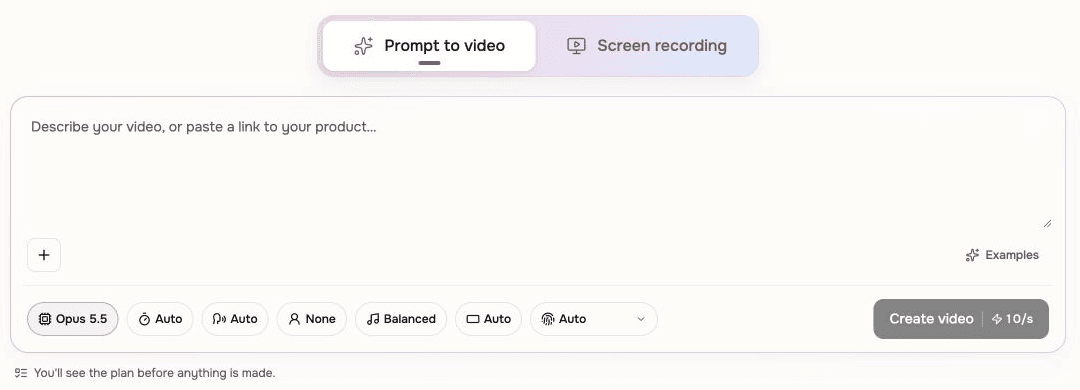
Open Home in ngram and choose Screen recording to upload or record the walkthrough. If you need a new capture, the Screen Recorder guide explains capture permissions and the handoff into Studio. Play the source before asking ngram to work on it.
You can also attach an existing recording to a brief or conversation. Wait until processing finishes and check that the intended file is attached. The sources and attachments guide explains how to check a file and assign its role.
Give the recording a clear filename, such as ticket-queue-demo.mp4. If release notes provide the approved wording, name them as the factual source and the recording as the product footage. That distinction matters when a screen label is abbreviated but the customer-facing feature name needs to be written in full.
If an essential action is missing from the capture, record that action before continuing. Ask ngram to use the real product footage for the walkthrough and reserve supporting graphics for explanations around it.
Step 3. Describe the cut you want
Ask for a result you can inspect. For this example, the brief might read:
Create a customer-facing walkthrough from ticket-queue-demo.mp4. The audience is support agents learning the new queue assignment. Show opening a ticket, choosing its destination queue and confirming the saved assignment. Use the supplied release notes for product claims.

Keep the real product screens and the original explanation of those actions. Remove the opening false start and shorten the long loading pause. Hold the queue selector and saved result long enough to read. Use a close view or a label where it helps explain the action.

Open with the task: assign an incoming ticket to the right queue. End by asking the viewer to try it in their own workspace. Aim for a 60–90 second widescreen demo, with the procedure remaining clear. Review the proposed structure before producing the video when a plan is offered.
Replace the filename and actions with your own. Add source timestamps when a recording has several similar passages. “Remove the failed attempt at 00:18 and keep the successful assignment at 00:42” gives a clearer editing instruction than “make it professional.” The times are examples, so use the moments in your file.
Review the available model, length, voice and format settings and the total credit estimate before starting. With a model that offers a plan, check its script and production details before choosing Approve plan. ngram-flash starts production directly, so review its finished preview before requesting further changes. Generation and revisions can consume credits.
Step 4. Choose the branding and review the explanation
Select the saved Brand Kit you want to use for this video. Creating or changing a kit requires Premium or Ultimate; teammates can use a team kit. The Brand Kit guide explains setup and reuse. Choose any desired intro and outro slides separately: both selections begin Off.
For the ticket demo, get to the product action promptly. A closing card can carry the next step after the viewer sees the saved assignment. Check that a branded card or added graphic has not displaced the action the customer came to learn.
Play the preview with sound. Check that source speech still matches the footage after a cut or a graphic insert. If a line has been replaced, listen for product-name pronunciation and confirm that it describes the screen currently visible.
Enable captions when you want them included; they begin Off. Read them against the spoken explanation, particularly feature names and queue names. Then watch without sound to check that the important actions remain understandable and that text does not cover the control being demonstrated.
ngram can add camera movement, labels and callouts to support a recording. Review those choices against the viewer’s task. For the assignment step, a closer view should keep both the queue choice and its relevant context legible. Give a specific revision if a zoom hides the confirmation or a label covers the button.
Step 5. Refine, share and check the delivered version
Request a targeted correction in the same conversation. For example: “At the queue selector, hold the screen longer so the queue names can be read. Keep the opening and the final confirmation unchanged.” The revision guide explains chat feedback and annotations.
When you need to align scene timing or adjust a layer directly, open the full video editor in a desktop browser. Save your changes, wait for the updated preview and replay the affected section and its neighboring scenes. A saved draft still needs a finished preview before delivery.
Prepare another channel cut separately when its framing or message needs to change. A narrow vertical crop may hide a menu that fits comfortably in the widescreen version. Review the action and captions in the new format rather than treating a change of shape as the final step.
Share a public watch link on any plan, or download the finished MP4 on a paid plan. Wait for download preparation to finish, then open the file you will actually upload. For an email, a linked thumbnail can take the reader to the watch page; check that link from the recipient’s point of view.
Before publishing the ticket demo, make these checks:
- The customer can see where to start, how to choose a queue and how to confirm the result.
- Cuts preserve the action order; zooms and labels keep the relevant controls readable.
- Narration and enabled captions use the approved feature names and match the footage.
- The delivered link or MP4 plays correctly and ends with the intended next step.
Keep the next release connected to the right source
When the queue workflow changes, reopen the existing conversation and say which action or wording needs to change. Supply the updated recording or approved text and name what should stay. Review the revised sequence before replacing the customer-facing version.
A good demo gives the viewer enough information to repeat the task. Start with one recording and one audience, ask ngram for a specific explanation, and judge the finished cut by whether the viewer can follow that action through to its result.