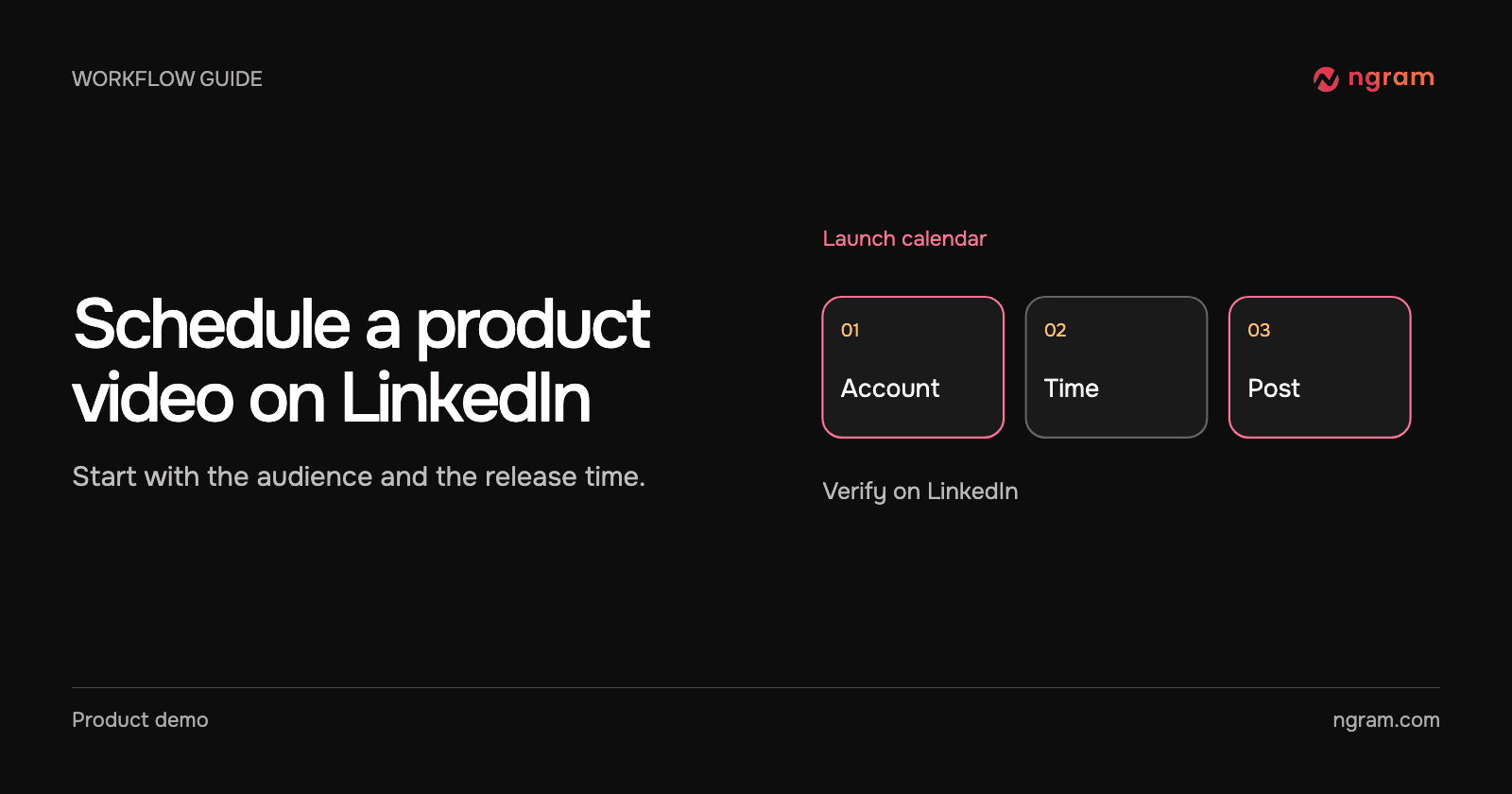

A release goes live Tuesday at ten. The product marketer has the final video on Monday, but publishing it now would invite people to try a feature they cannot use yet. Scheduling makes sense once the release time and the account that will announce it are settled.
Start from the final cut
Play the ending, check the first frame and read the caption with the sound off. A viewer seeing the post out of context needs to know what changed and who can use it. If the release is still waiting on a rollout decision, keep the post as a draft. See the LinkedIn integration for the connection and publishing flow.
Pick the account before picking the time
Open Share beside the finished video, select LinkedIn and connect or choose the intended account. Read the destination back to yourself. A personal profile and a launch account can have very different audiences. If the expected destination is missing, stop and check the connection; do not borrow another identity just to fill the slot.
Write the first line for the reader: “Account admins can now choose the invitation role before they send.” Check that the video actually shows that change. Choose the date and time and confirm the displayed time zone against the release calendar. Save the scheduled item and reopen it to check the destination, attachment and time together.
Verify the post where people will see it
After the scheduled time, open the intended LinkedIn destination, find the post and play it. Check the opening line, attachment and audio or captions. Keep the post link with the launch brief. A scheduled entry tells you what was planned; the destination tells you what went live.
If the video is missing, inspect the calendar item and connected account before retrying. Look for a post on LinkedIn first to avoid publishing twice. If the release moves, reschedule before the slot. If only a reviewer should see the video, use a review link instead. A changelog video can wait until the change is available to its intended users.