
A product teaser video has one hard job: make the right person curious without turning a short reveal into a feature tour. The usual failure starts before editing. A founder pastes one vague sentence into ChatGPT, the model fills the gaps, and the finished clip looks polished but misses the product, audience, or launch date.
The better workflow keeps the launch context in ChatGPT and uses ngram as the AI video creation tool behind the conversation. You define the reveal, approve the prepared request, follow the render, and inspect the final cut. That gives you one conversational thread for the brief without pretending that a one-line prompt is enough production direction.
OpenAI currently exposes full MCP actions through custom apps in eligible ChatGPT web workspaces. Its developer-mode and MCP apps guide says create/modify actions require Business, Enterprise, or Edu on ChatGPT web, with developer mode and workspace app access. Pro supports read/fetch MCP actions only, so it cannot start ngram's create-video tool.
This guide stays on creation. It covers connection, prompt structure, approval, rendering, review, and fixes when the first request is not ready.
What makes a product teaser video worth rendering
A product teaser video is a short, curiosity-led preview that introduces one problem, one reveal, and one next action without explaining the full product. A strong brief fixes the audience, proof, duration, and CTA before rendering, so every scene earns its place and the final cut can be reviewed against explicit decisions.
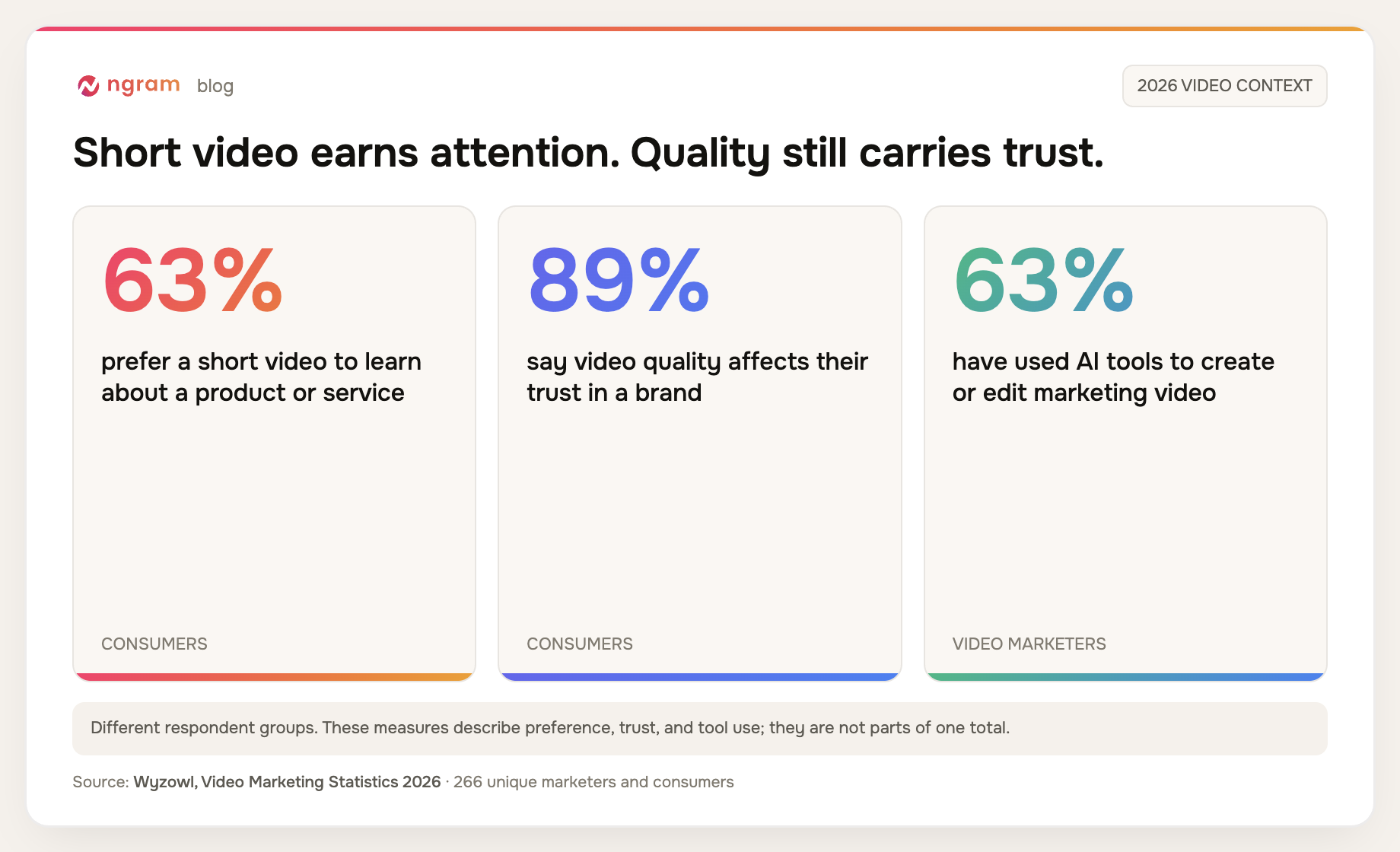
The short format is not permission to be vague. Wyzowl's 2026 video marketing survey covered 266 unique marketers and consumers. It found that 63% of people prefer a short video when learning about a product or service, 89% say video quality affects trust in a brand, and 63% of video marketers have used AI tools to create or edit marketing video. Together, those findings make the case for a fast workflow with a real quality gate.
A repeatable product teaser video brief matters for teams as much as it does for one founder. In its survey of 980 B2B marketers, Content Marketing Institute found that 45% lacked a scalable content creation model, while 58% rated video the most effective content type. A structured prompt is a small production system: it keeps the launch logic stable when you are creating AI videos repeatedly.
Prerequisites before you create video with ChatGPT
Get the connection and launch inputs straight before you ask ChatGPT to create anything. This takes a few minutes and prevents a much longer wrong render.
- ChatGPT Business, Enterprise, or Edu on the web app, with developer mode and the ngram custom app enabled by a workspace admin or owner. Pro's read/fetch-only MCP access cannot start a video render.
- ngram connected and authenticated inside ChatGPT. The ngram MCP connection guide covers the current setup path. ChatGPT connector users do not need to create or paste an external ngram API key.
- One source of truth, such as approved launch notes, a product page URL, or a concise feature brief.
- The exact audience, reveal, proof moment, launch date, CTA, duration, and claims that are off-limits.
- A person who will watch the final cut and compare it with the approved brief.
How to create a product teaser video from ChatGPT
Step 1: Connect ngram and finish authentication
In ChatGPT web, have a workspace admin or owner enable developer mode and create or publish the ngram custom app from Workspace Settings > Apps > Create. Enter https://mcp.ngram.com, scan the tools, complete connector authentication, then select ngram in a new chat. You are done when ChatGPT can see ngram's video tools in the active conversation.
Step 2: Give ChatGPT a render-ready teaser brief
Start with the decision fields, not adjectives. Name the audience, problem, reveal, proof, length, visual direction, date or CTA, and claim limits. ngram's AI product video maker uses that suspense-first input shape for teasers. You are done when another teammate can read the brief and predict what the first frame, first reveal, and closing card should accomplish.
Reusable ChatGPT product teaser brief template
A product teaser video prompt is ready when ChatGPT can restate it without inventing details. Replace the bracketed fields, then keep one outcome and one CTA.
Prepare an ngram brief for a product teaser video.

Source of truth:
- Product page or launch notes: [URL or approved text]
- Product and reveal: [what is launching, without a feature dump]
- Audience: [one specific viewer]
- Pain or desired outcome: [one sentence]
- Proof to show: [one product moment, screenshot detail, or verified claim]

Teaser direction:
- Target length: [15 or 20 seconds]
- Opening hook: [question, tension, or surprising outcome]
- What to hint at: [one useful detail]
- What to hold back: [the detail reserved for the full reveal]
- Visual direction: [motion graphics, product UI, typography, pace]
- Tone: [direct, premium, playful, technical, calm]
- Launch date or release marker: [exact approved text]
- CTA: [one next action]

Guardrails:
- Use only claims supported by the source.
- Do not invent customer names, metrics, release dates, or product behavior.
- Keep one audience, one reveal, and one CTA.

Restate the brief, show the prepared ngram settings, then stop and ask for my explicit approval before calling the create-video tool.
The prompt gives ngram's video script generator enough structure to plan a hook, reveal, scene timing, and closing action from approved material. It also tells ChatGPT to pause before the expensive step.
Step 3: Check the prepared settings
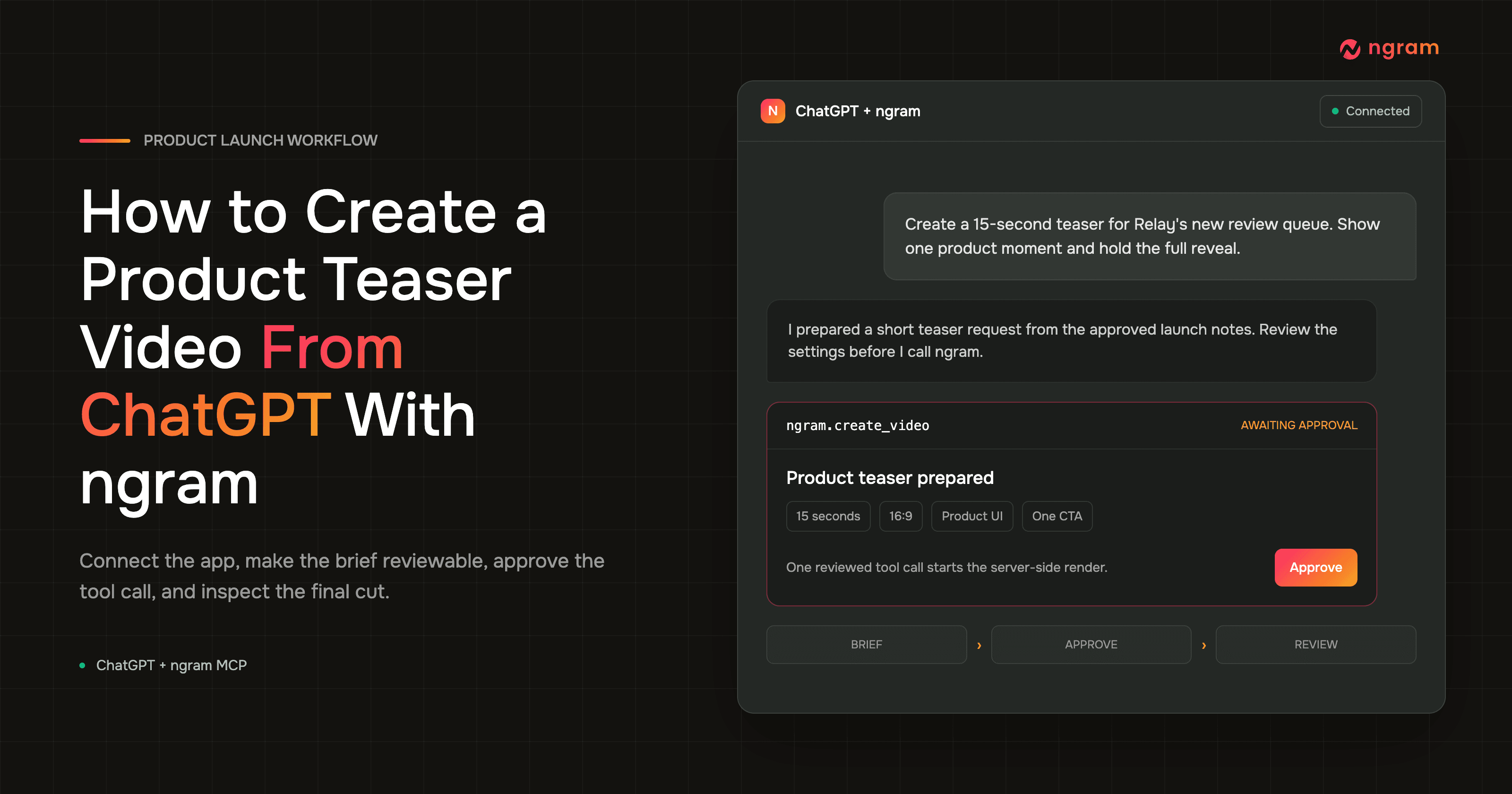
Read what ChatGPT prepared before it calls ngram. Confirm the duration, aspect ratio, animation mode, art direction, voice, and video mode. If any setting conflicts with the brief, correct it in the thread. You are done when the settings describe a short teaser, not a default explainer or a broad product launch video.
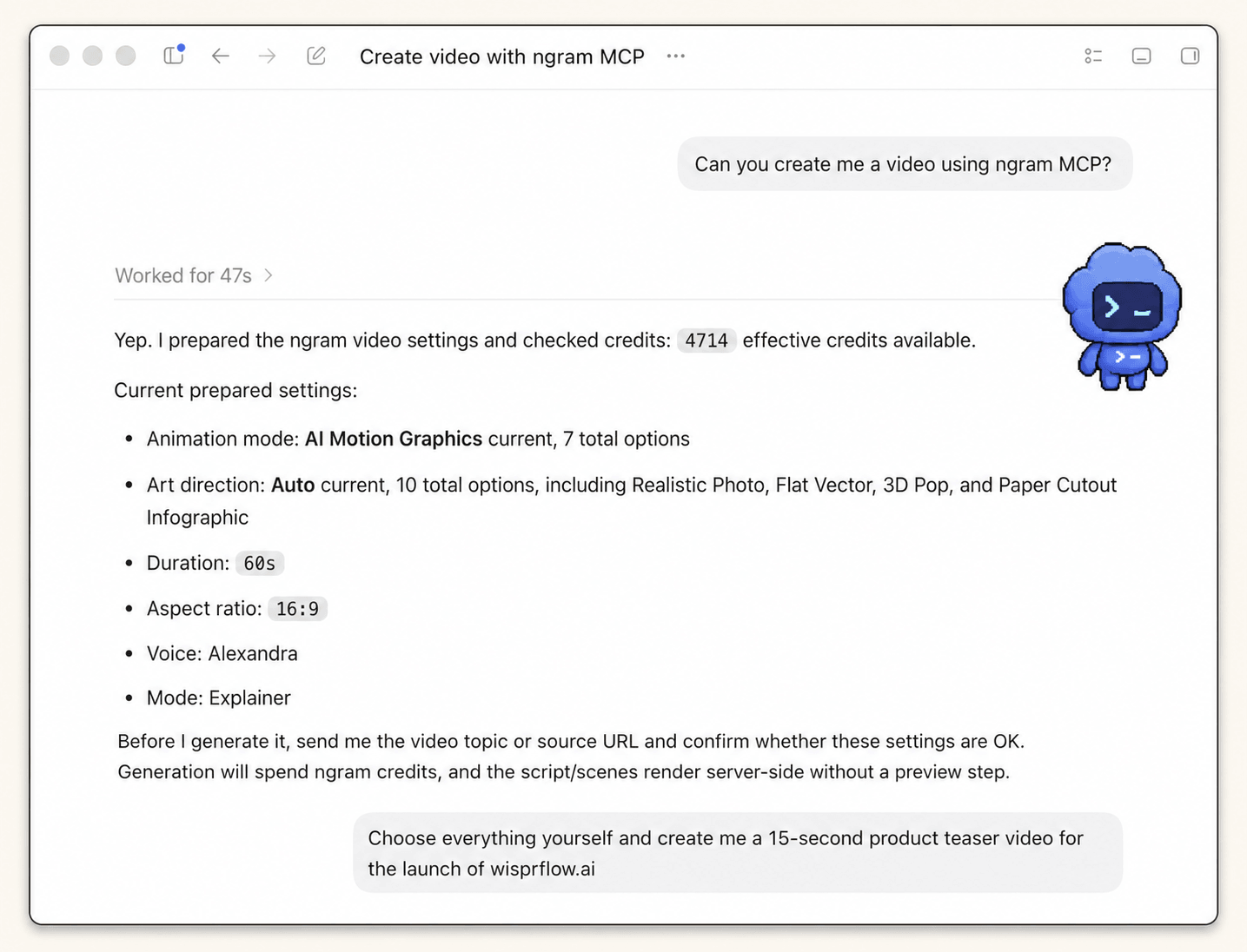
Real workflow proof: this is a Codex MCP run, not the ChatGPT connector UI. The agent first prepared a 60-second explainer, then the user narrowed the request to a 15-second product teaser. That is why the shared ngram settings check belongs before approval.
Step 4: Approve the ngram tool call
ChatGPT should present the prepared teaser and ask for explicit confirmation before ngram spends credits and renders. Review the source, format, direction, narrative, voice, and rendering mode one last time. OpenAI notes in its MCP apps guidance that ChatGPT can ask for confirmation based on app permissions and action context. You are done when the tool call reflects your brief and you have deliberately approved it.
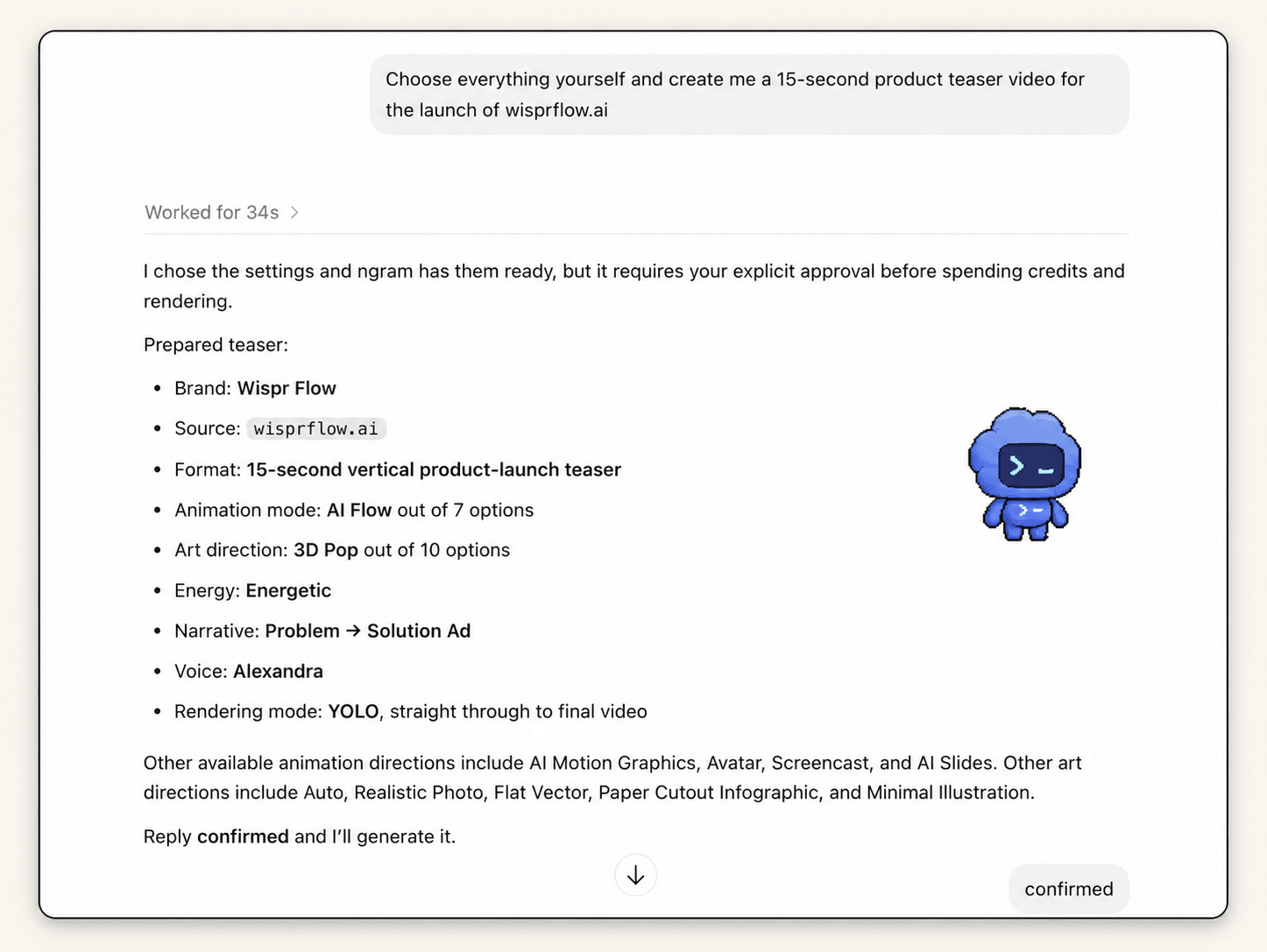
Real workflow proof: the prepared teaser is visible before the user confirms. This is the last low-cost point to catch a wrong duration, tone, narrative, or product source.
Step 5: Follow render progress without duplicating the job
After approval, ngram renders the product teaser video server-side. A scene-based teaser can take around 15-20 minutes depending on complexity. ChatGPT can report the job status, and you can open the ngram app to monitor progress without waiting in the conversation. Do not start a second render just because the final link is not immediate. You are done when the current job reaches a completed or failed state.
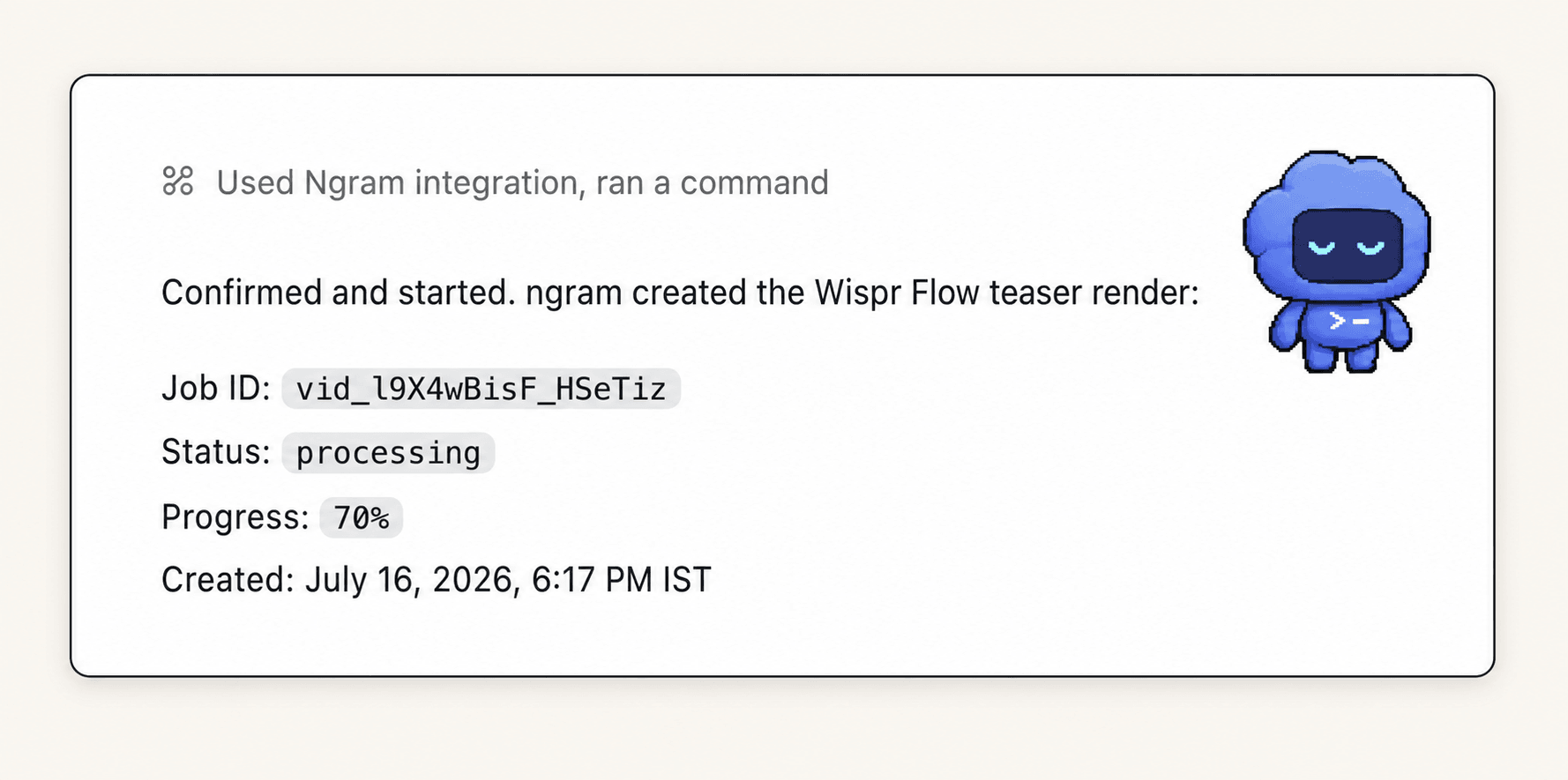
Real workflow proof: this Codex MCP result shows the approved teaser job processing at 70% at capture time. It demonstrates the ngram status flow shared with ChatGPT. Progress is a job state, not a reason to submit a duplicate request.
Step 6: Open the final link and review in ngram
When rendering finishes, the final link returns to ChatGPT. Watch the full cut, then compare it with the approved brief. Check the first beat, product truth, reveal timing, exact date, closing CTA, captions, and any visible UI. If one scene is wrong, request a targeted change instead of throwing away the whole brief. You are done when the final cut passes the same criteria you approved before rendering.
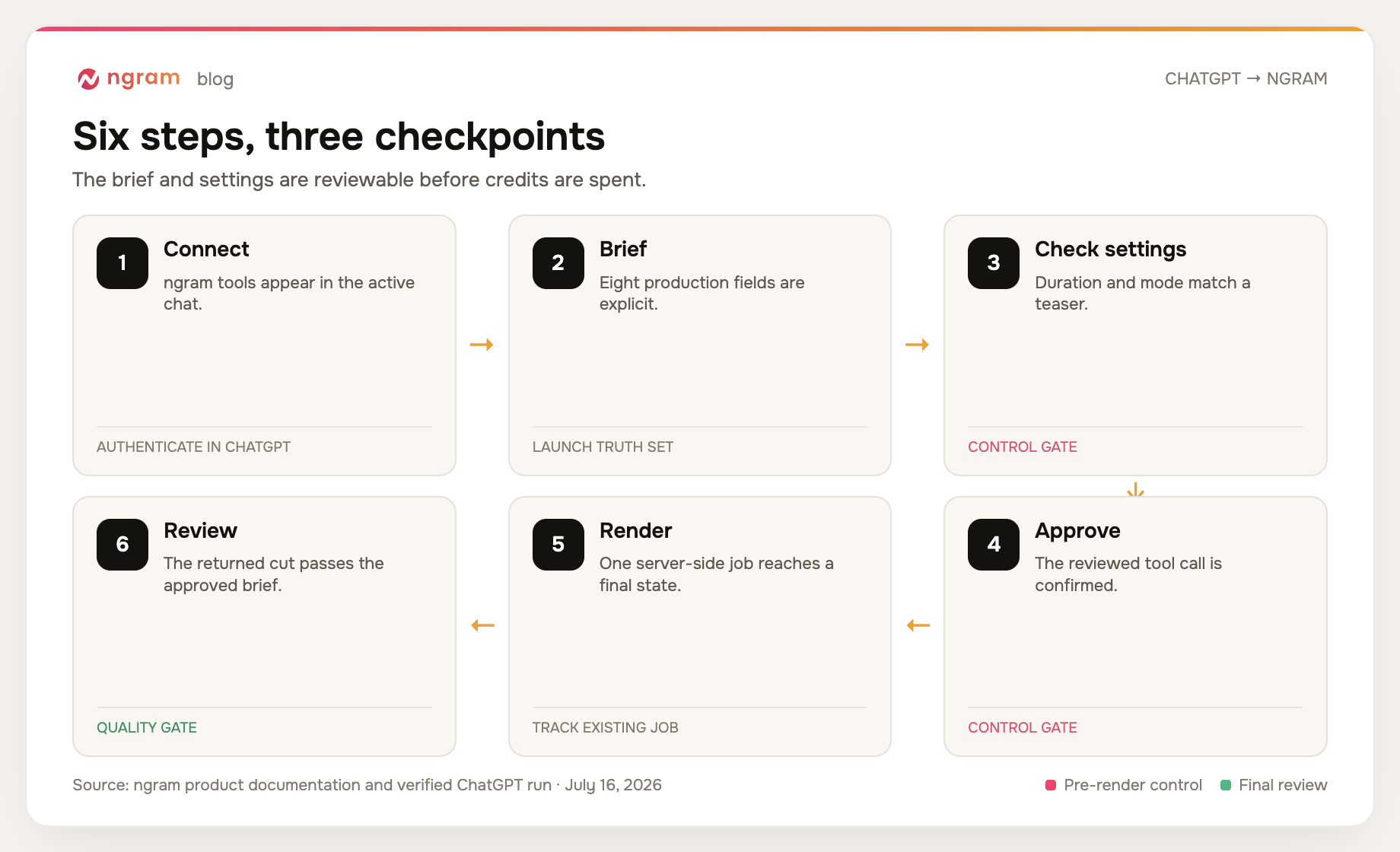
We audited three teaser prompts against eight production fields
A prompt can sound decisive while leaving ChatGPT to guess almost everything. We scored three prompt shapes against eight fields a reviewer needs before approval: product and reveal, audience, pain or outcome, proof source, length, visual direction, CTA or date, and guardrails or reviewer.
The generic request covered 1 of 8 fields. A directional request that added a feature, audience, outcome, and duration covered 4 of 8. The review-ready product teaser video brief covered all 8. Completeness does not guarantee a good video, but it exposes which decisions are still being delegated to the model.
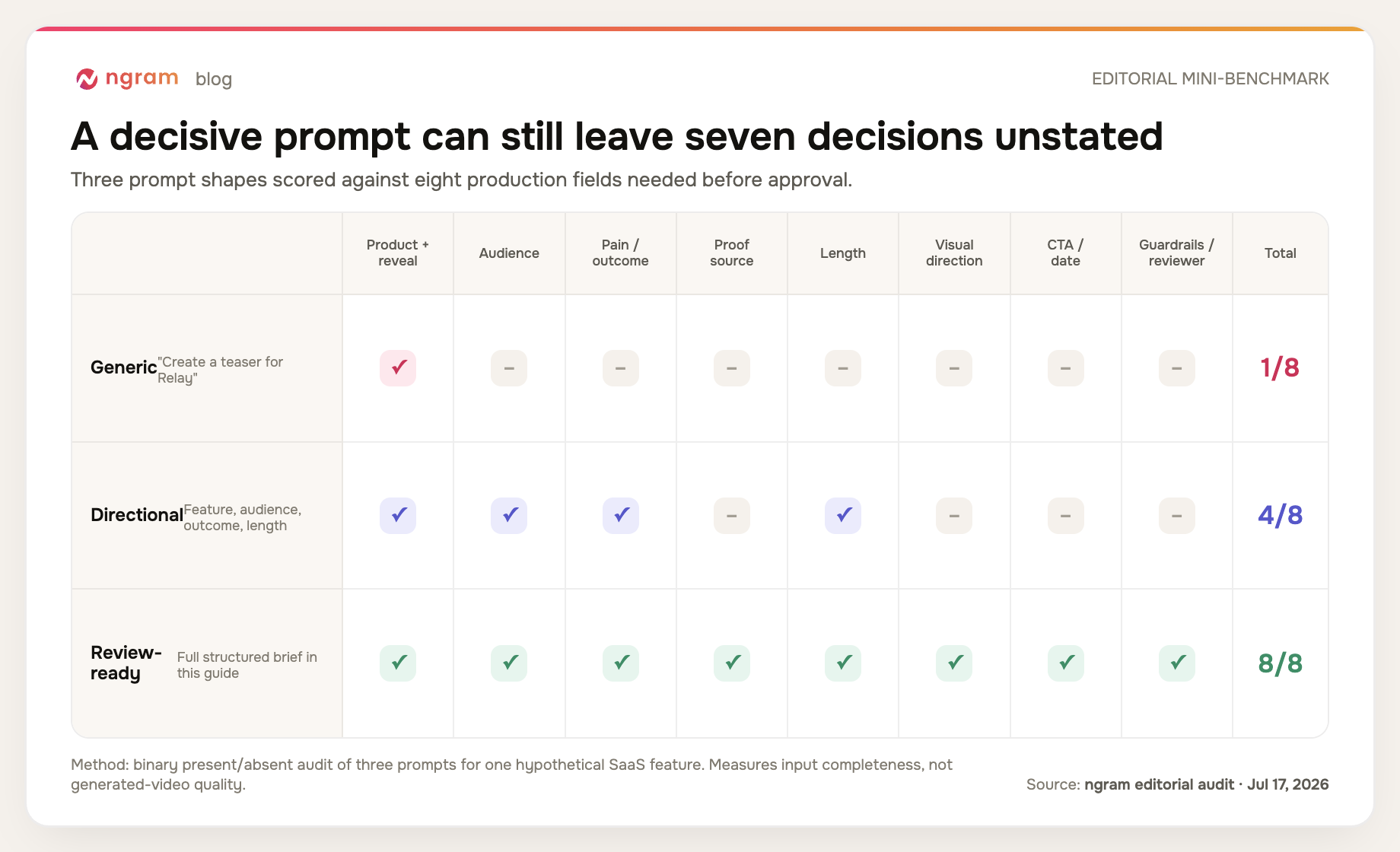
Methodology: ngram editorial audit conducted July 17, 2026. We wrote three increasingly complete prompt shapes for one hypothetical SaaS feature and marked each field present or absent using a binary rubric. The audit measures input completeness only. It does not score generated video quality or compare video models.
Product teaser video QA checklist
Run this check twice: once on the prepared tool request and once on the finished cut. The first pass protects the render. The second protects the product story.
- Audience: one viewer is named, and the language sounds like that viewer.
- Hook: the opening beat creates tension or curiosity without a slow logo-first intro.
- Reveal: the teaser hints at one product change instead of summarizing the full roadmap.
- Proof: every visible screen, claim, and outcome comes from approved source material.
- Pacing: the planned duration and the actual cut stay short enough to preserve suspense.
- Text and audio: captions are readable, names are pronounced correctly, and music does not overpower the message.
- Date and CTA: exact wording matches the approved brief and appears long enough to read.
- Final link: the returned video opens, plays through, and matches the job you approved.
For a product teaser video that is one asset inside a larger experiment, the growth campaign video workflow gives the brief a clearer audience and outcome. Keep that context in the prompt, but do not ask one teaser to carry every campaign message.
Product teaser video failure modes and fixes
ngram does not appear in ChatGPT
Confirm you are using ChatGPT web on Business, Enterprise, or Edu, that a workspace admin or owner enabled developer mode and published the ngram app, and that ngram is active in this conversation. Pro's read/fetch-only MCP access cannot call create-video.
ChatGPT asks for an external ngram API key
Stop and check the connection path. The ChatGPT connector flow authenticates inside its own UI. Self-service bearer keys created in Account & Settings → API Keys are for header-capable custom MCP clients, not the normal ChatGPT connection described here.
The prepared mode or duration is wrong
Correct the settings before approval. Restate the target length, teaser mode, reveal, and visual direction in one short message. The real run above moved from a prepared 60-second explainer to a 15-second teaser after the user clarified the request.
The render looks stuck
Give the existing server-side job time to finish. Check its status in ChatGPT or open the ngram app. Start another job only after the first reports failure or you deliberately changed the brief, otherwise you can spend credits on duplicates.
The video looks good but says the wrong thing
Return to the source and identify the specific unsupported line, screen, or implication. Replace it with approved proof and request a targeted revision. Style cannot rescue a claim that the product team cannot defend.
Frequently asked questions
Can ChatGPT create a video?
Yes, when full MCP actions are available in ChatGPT web on Business, Enterprise, or Edu and the ngram custom app is enabled. ChatGPT holds the brief and approval conversation, while ngram renders and returns the final link. Pro's read/fetch-only MCP access cannot start the render.
Do I need an ngram API key for ChatGPT?
No. The ngram connector flow for ChatGPT completes authentication inside the connector UI, so you do not need to create or paste an external ngram API key. Header-capable custom MCP clients can use a self-service bearer key created in Account & Settings → API Keys, separately from ChatGPT connector authentication.
How long should a product teaser video be?
Start with 15-30 seconds for one reveal and one CTA. Zelios's SaaS product teaser guide recommends separate 15-30 second teasers that focus on one idea. If the script needs several product features or a full explanation, the format has drifted from teaser toward demo or explainer.
How long does ngram rendering take from ChatGPT?
A scene-based render can take around 15-20 minutes depending on complexity. The work continues server-side, so you can follow status in ChatGPT or monitor it in the ngram app. The final link returns to the conversation when the job completes.
What should I include in a ChatGPT product teaser prompt?
Include the product and reveal, audience, pain or outcome, proof source, length, visual direction, CTA or date, and claim guardrails. Ask ChatGPT to restate those fields and show the prepared ngram settings before it requests approval.
Can I monitor the render outside ChatGPT?
Yes. Open the ngram app to monitor the active job while the server-side render continues. You do not need to keep waiting in the ChatGPT conversation, and the final video link can still return there when the job finishes.
What if only one scene is wrong?
Describe the exact scene, the incorrect element, and the approved replacement. A targeted revision preserves the useful parts of the cut and keeps the original brief intact. Rebuild the whole video only when the audience, reveal, or core narrative has changed.
The direct answer
Connect ngram in ChatGPT, authenticate inside the connector, give it a structured teaser brief, check the prepared settings, and approve the tool call only when the request matches the launch truth. Let the existing job render server-side, open the returned link, and review the cut against the same audience, proof, timing, date, and CTA you approved.
The shortest prompt is rarely the fastest route to a usable teaser. Make the decisions visible before rendering, and ChatGPT becomes a useful control surface instead of a place where production gaps get hidden.