
A Product Hunt video can fail even when the product is good. The cut opens with a feature list, races through menus, and ends before the viewer sees the result. A launch visitor still has to guess what the product does.
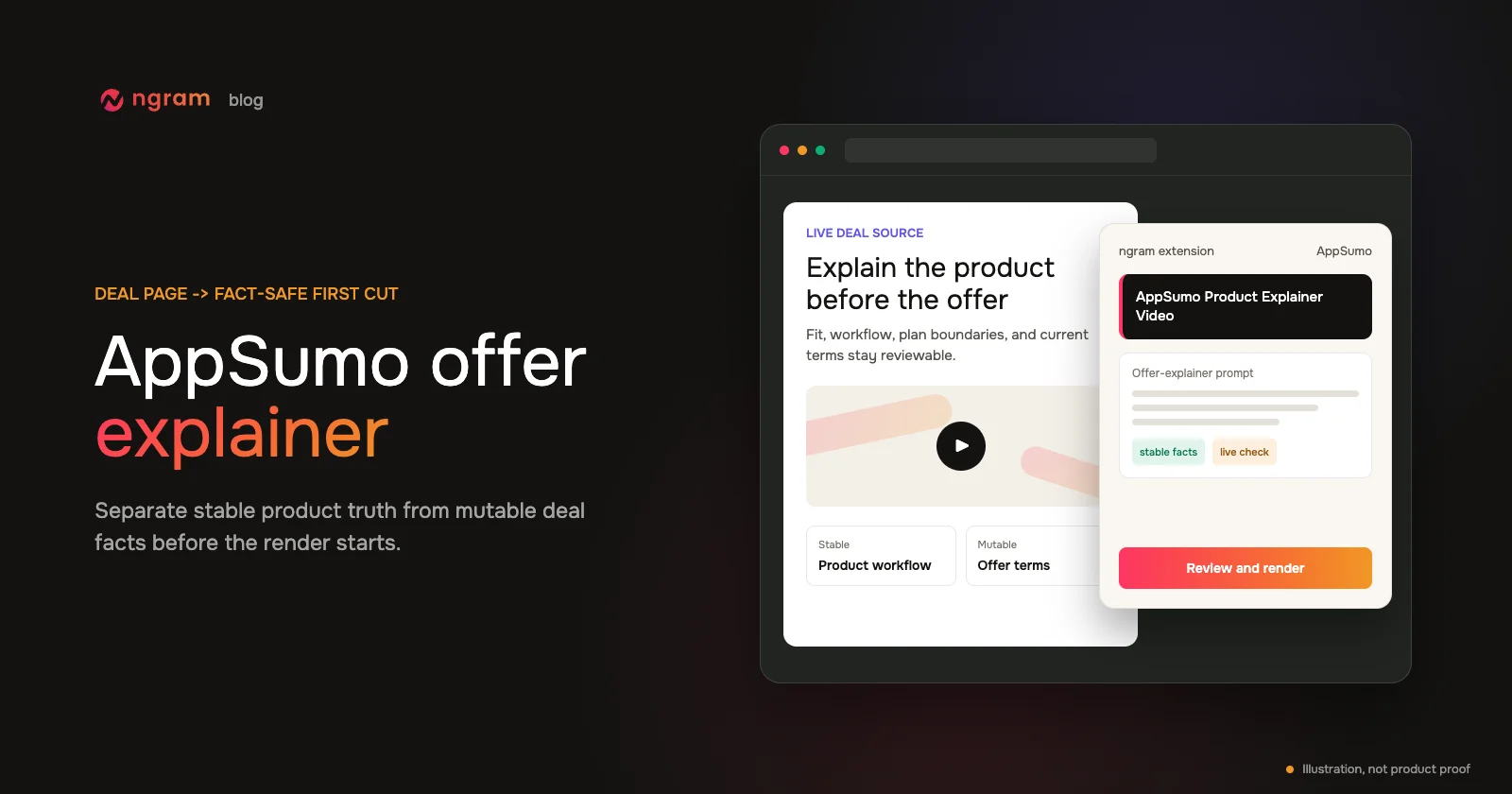
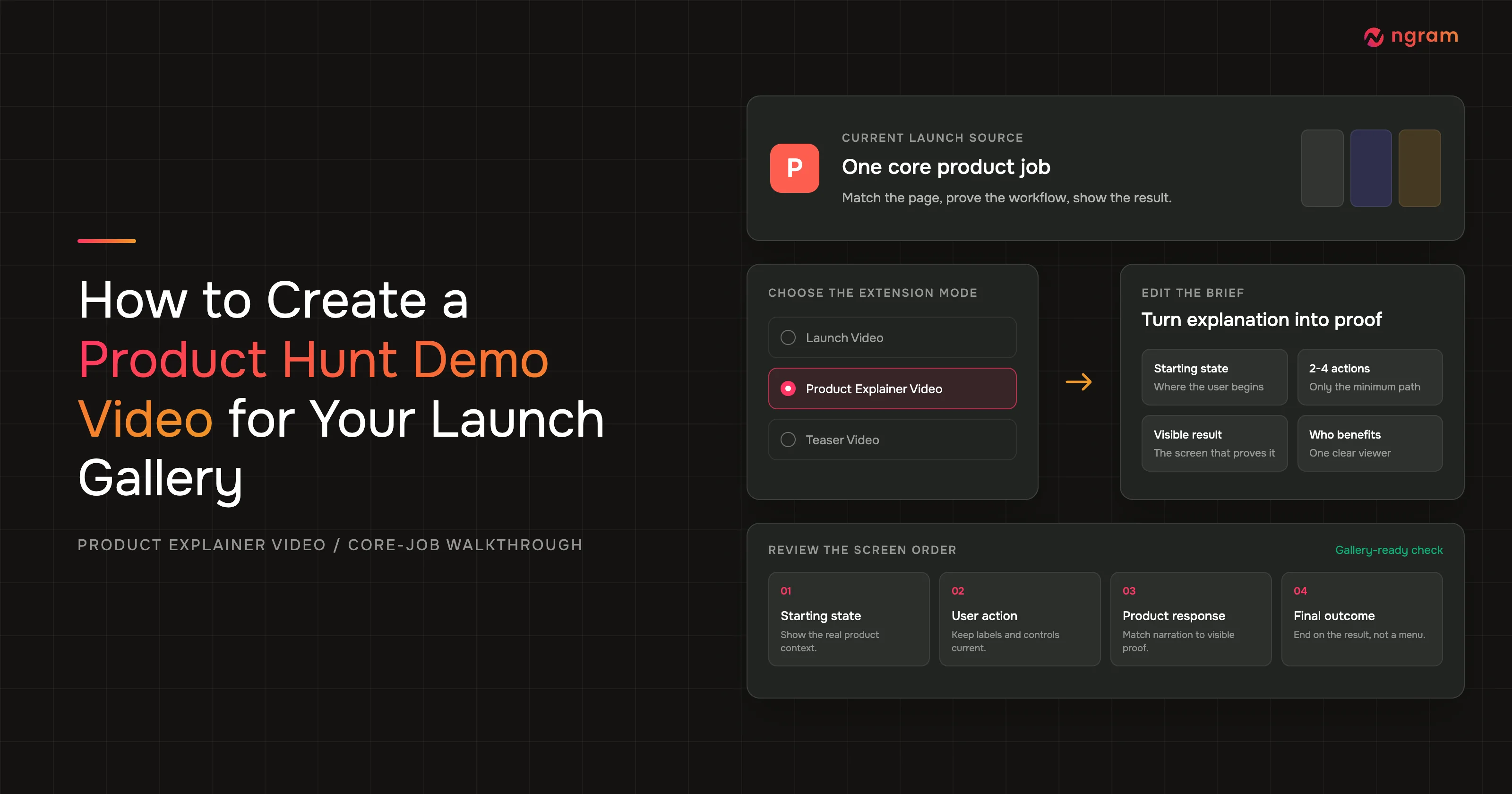
The approved ngram extension proof does not show a Product Demo mode. The honest workflow is to select Product Explainer Video, then edit the brief into a compact product walkthrough. For a Product Hunt video, that change matters because an explainer can describe a category, while a demo has to prove one real job on current screens.
By the end of this guide, you will have a reviewed Product Hunt video with a clear starting state, 2-4 actions, a visible outcome, and a named viewer. The workflow stops at creation approval. It does not cover Product Hunt submission, scheduling, or destination setup.
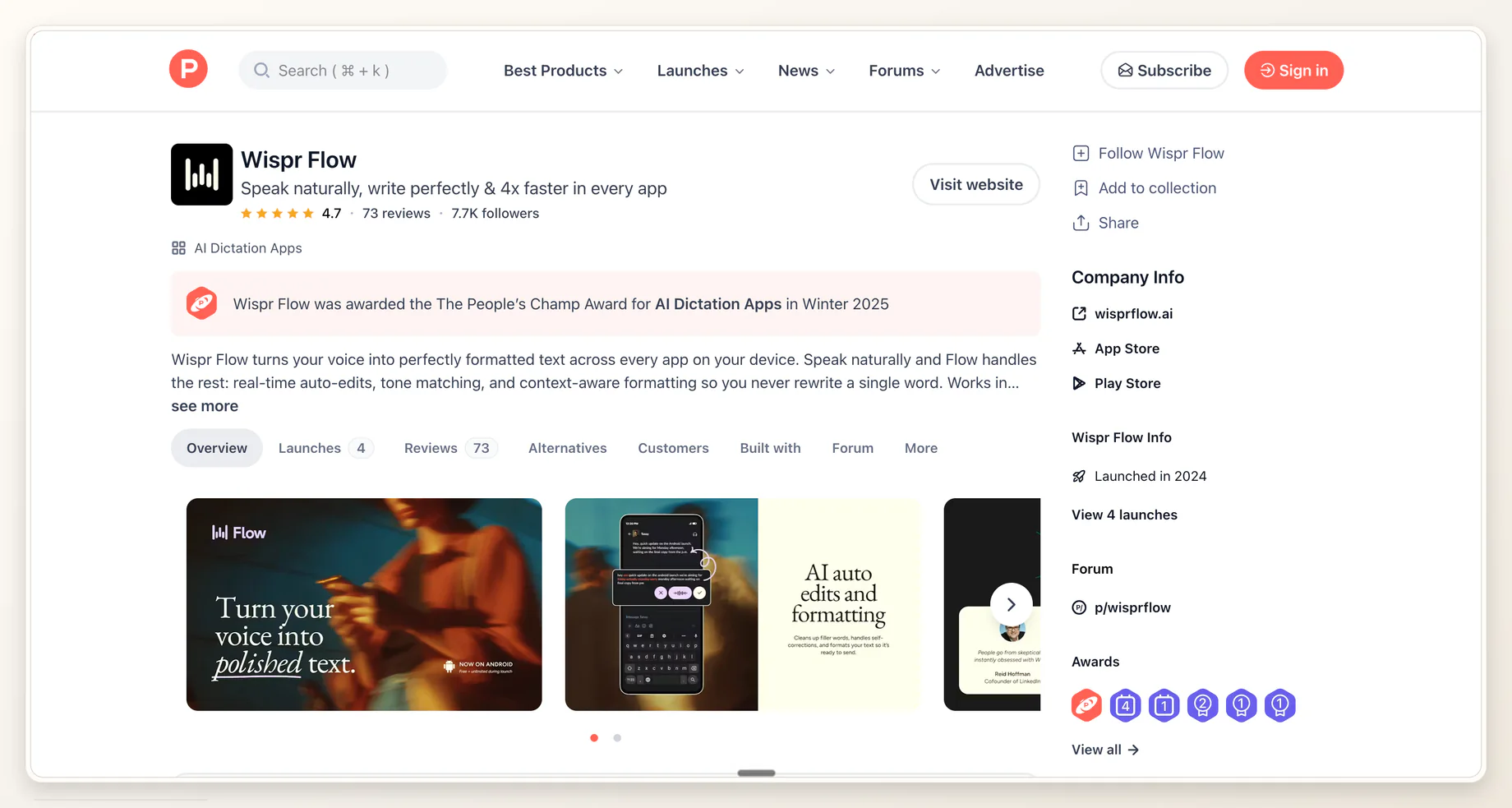
Approved source-page proof: this Product Hunt page shows the product name, tagline, description, and gallery context a reviewer can compare with the walkthrough. The exact extension-mode proof appears in step 3.
What a Product Hunt video must prove
A Product Hunt video is a compact walkthrough that proves one core product job with current interface details. It should establish the starting state, show only the actions needed to reach a visible result, and explain who benefits. For this workflow, Product Explainer Video is the starting mode, not a Product Demo mode.
Product Hunt's current posting guide asks for a direct product URL, recommends 1270x760 gallery images, and requires at least 2 images before the gallery is viewable. For a Product Hunt video, it accepts full YouTube URLs and lists supported interactive story or demo providers in a separate field. Source: Product Hunt, How to post a product.
The product also needs to be real enough to inspect. Product Hunt says it prioritizes fully launched products. It may occasionally allow a pre-launch product when the page contains clear, detailed information such as a thorough walkthrough video or demo, but a page that only collects email addresses is not eligible for the homepage. Source: Product Hunt, Can I submit an unreleased product?
Its March 2026 featuring guidance says featured products must be live and evaluates whether a launch is useful, novel, well crafted, or creative. A demo cannot guarantee featuring, but it can give the reviewer current evidence for usefulness and craft. Source: Product Hunt Featuring Guidelines.
Wyzowl's 2026 survey gathered 266 responses in late 2025. It found that 91% of businesses use video, 39% of video marketers have created product demos, 93% say video increased product or service understanding, 71% believe 30 seconds to 2 minutes is the most effective length, 63% of consumers prefer a short video for learning about a product or service, and 89% say video quality affects brand trust. Source: Wyzowl Video Marketing Statistics 2026.
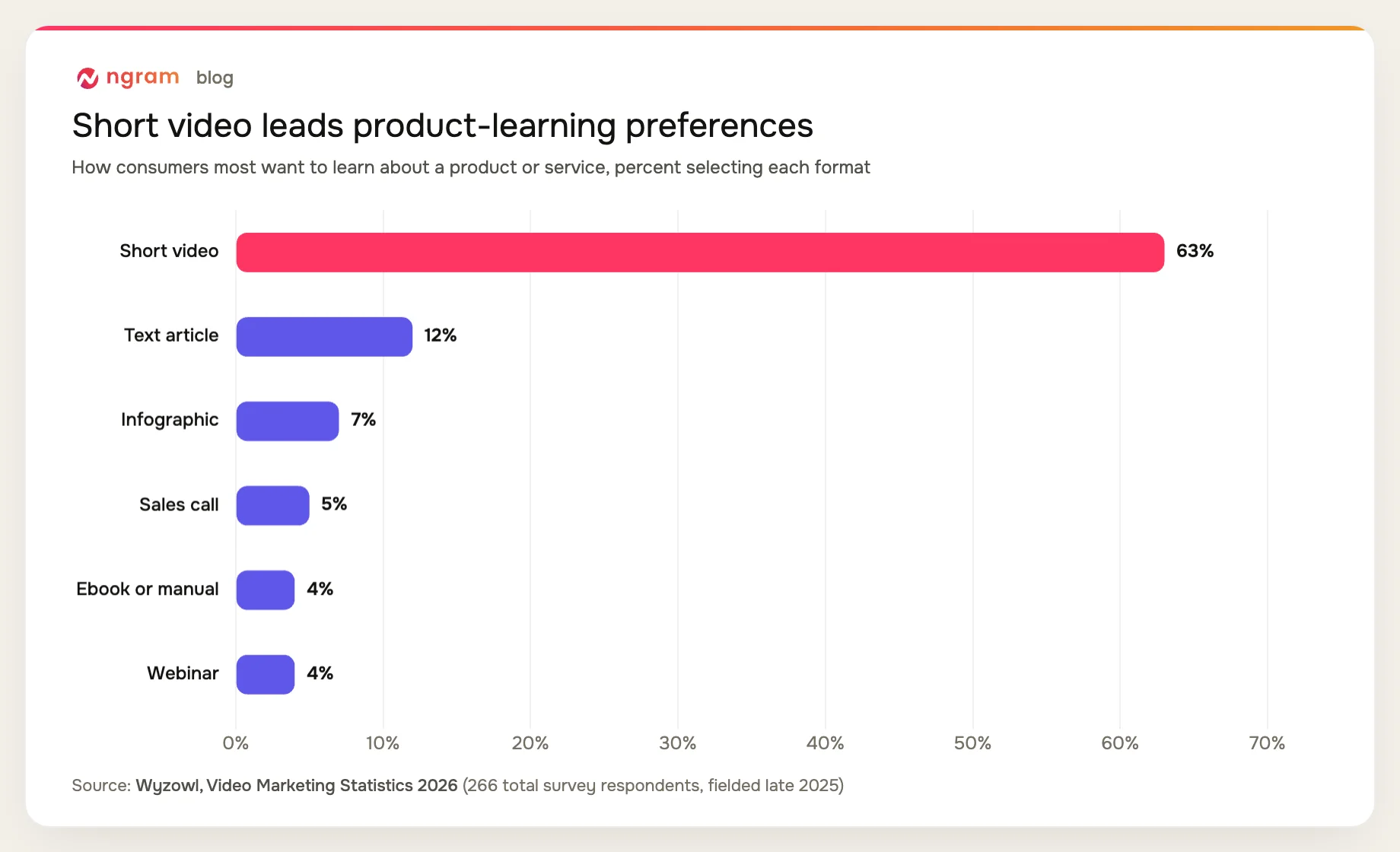
The chart does not set a mandatory runtime. It explains why a tight Product Hunt video deserves a place beside static gallery media: viewers can see the job and result without reconstructing the workflow from six screenshots. For the wider launch story beyond the walkthrough, use the Product Hunt launch video workflow.
Product Hunt gallery video or interactive demo?
Product Hunt treats these as separate media choices. A Product Hunt video is a linked video that plays as part of the media set. An interactive story or demo comes from one of the providers Product Hunt currently supports and lets a visitor click through an experience. This article creates the compact video asset; it does not create or configure the interactive format.
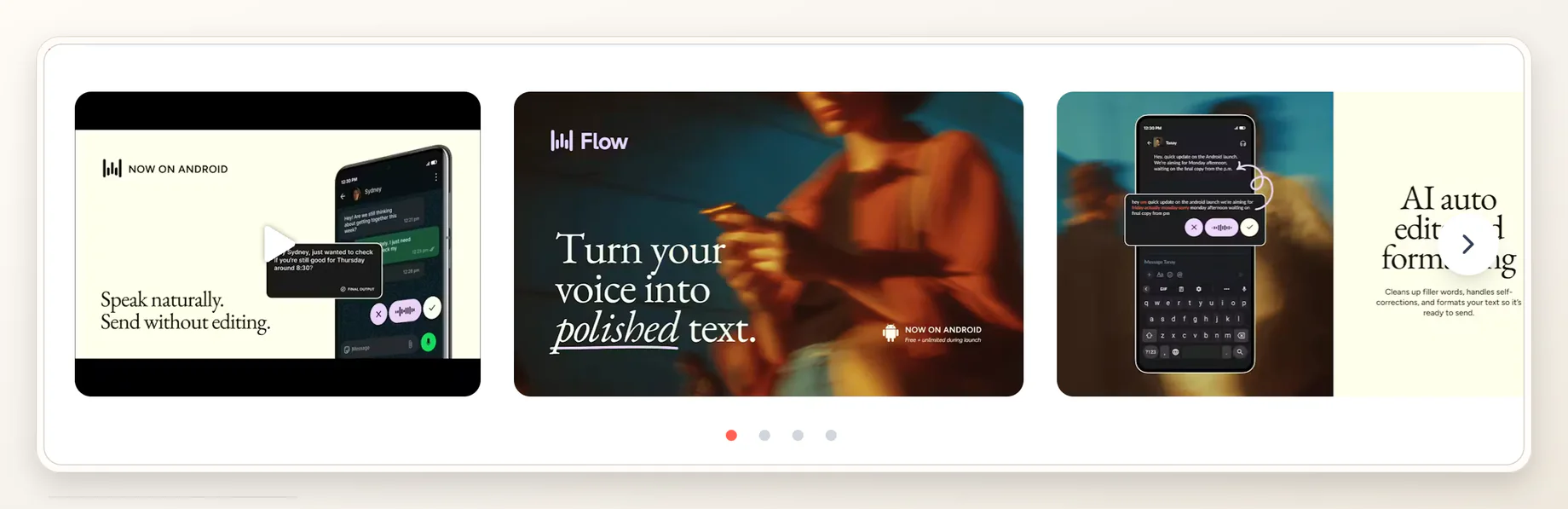
Approved gallery-context proof: the media rail gives the Product Hunt demo video a specific viewing context. This screenshot does not show submission controls or prove how a destination is configured.
Choose the demo treatment when the core question is, 'Can I see the product do the job?' Choose a broader announcement treatment when the core question is, 'Why is this launch worth attention now?' The latter belongs in the separate guide to creating a Product Hunt launch video from a product page.
Prerequisites and the finished outcome
Start with the pages a Product Hunt visitor can inspect before you brief the Product Hunt video. If your strongest source is the linked product page, the product page to video workflow explains how to turn that URL into source context before you narrow the story for Product Hunt.
- A current Product Hunt page or draft plus the linked product page. Resolve contradictory names, claims, screenshots, and results before briefing the video.
- One core job the viewer can understand without a sales call. Write it as a user action and outcome, not a product category.
- A minimum path of 2-4 actions. Each action needs a current screen, control, or visible state.
- The real starting state and final result. These two frames keep the product demonstration video from becoming a feature reel.
- A reviewer who knows the current UI and can reject unsupported claims before the cut is approved.
- The ngram Chrome extension installed and available on the Product Hunt page.
The finished Product Hunt video starts on a recognizable state, moves through the minimum actions, and ends on proof. It is compact enough for a launch gallery and specific enough to stand alone. If you need a separate prompt-first route, the AI product demo video maker covers the broader demo workflow.
How to create a Product Hunt video with Product Explainer Video
The six steps below follow what you can verify on screen. Every step ends with a concrete done state, so the demo brief cannot drift into a generic product launch video.
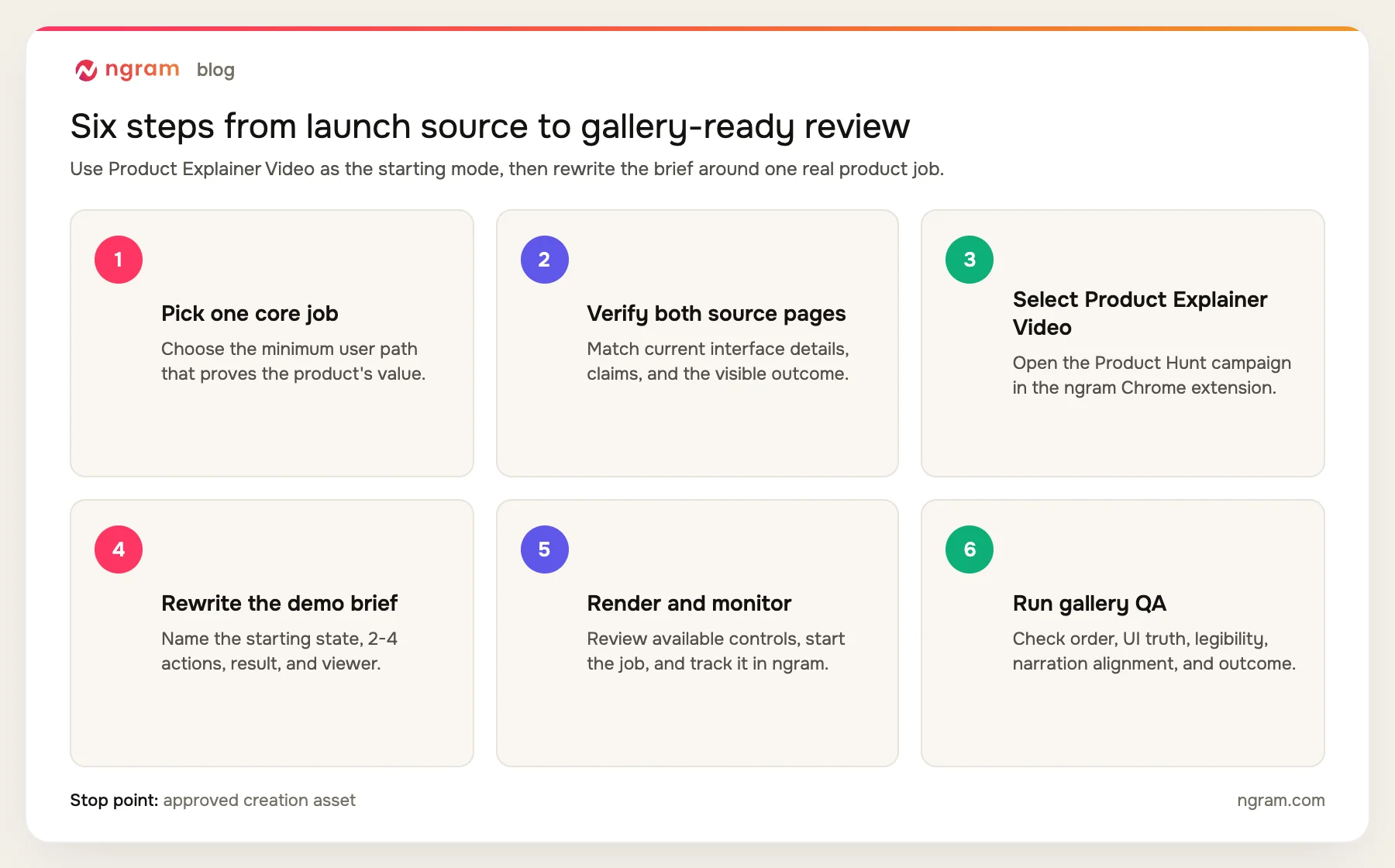
Step 1: Pick one core job and the minimum path
Write one sentence with an actor, action, and visible result: 'A founder imports customer feedback, groups repeated requests, and sees the top theme.' Then remove every screen that is not required to prove that result. The Product Hunt video is narrow enough when a viewer can repeat the job after one watch.
Done looks like a four-line map: starting state, 2-4 actions, result, and beneficiary. Save secondary features for another asset.
Step 2: Verify the Product Hunt page and linked product page
Read the Product Hunt name, tagline, description, gallery, and current product link. Then repeat the check on the product page. Record the exact labels for every screen you plan to show and the exact wording of the outcome. If a page is stale, update the source or remove that scene from the brief.
Done means the two pages agree on the product name, core promise, workflow, and visible result.
Step 3: Open the extension and select Product Explainer Video
Open the Product Hunt page in Chrome, load the ngram extension, and choose Product Explainer Video from the Product Hunt campaign choices. Do not rename it Product Demo mode in your notes or review record. The selected option is an explainer starting point that you will narrow in the next step.
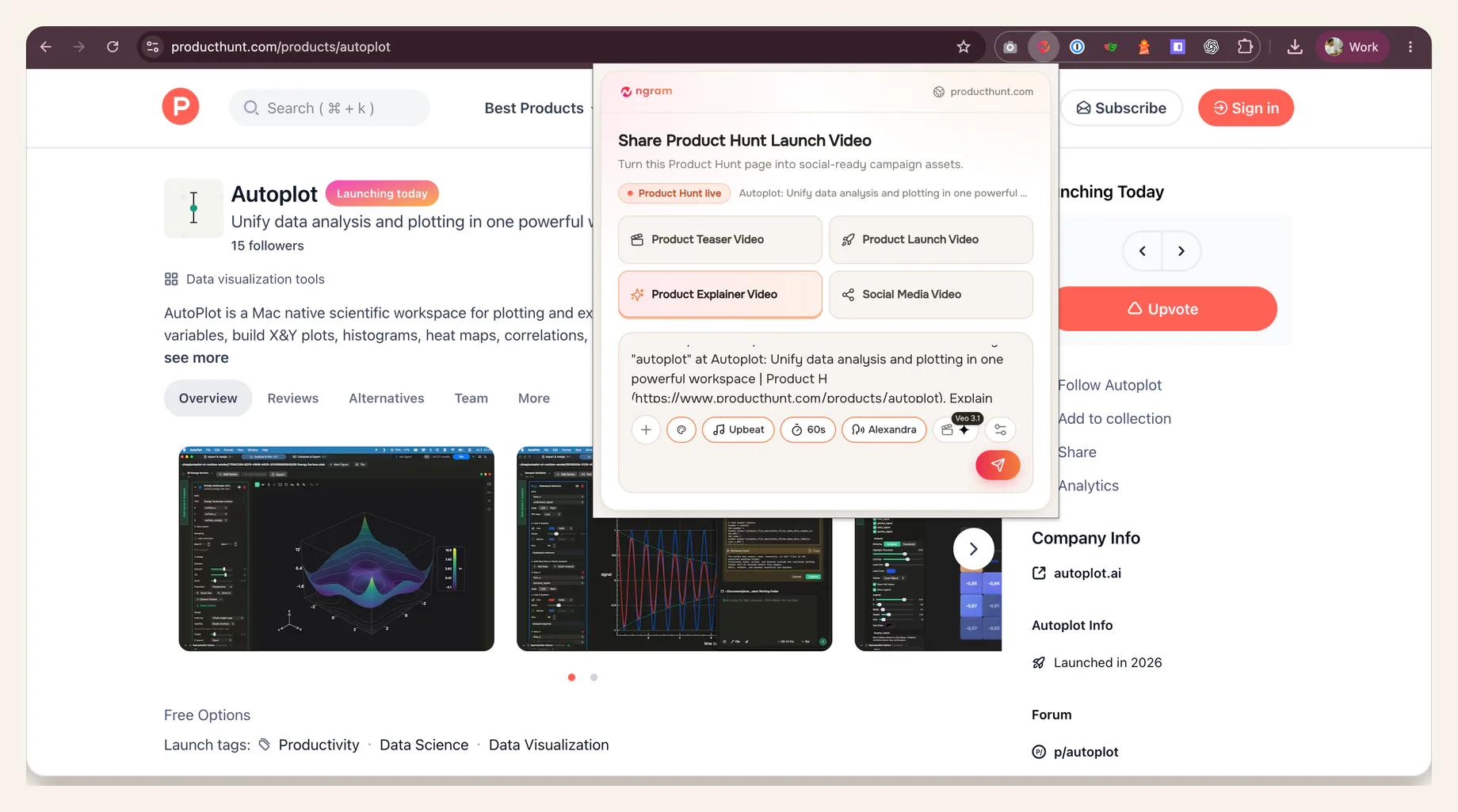
Verified proof: Product Explainer Video is selected on a live Product Hunt page. This is the shared starting mode used for the demo-focused brief in the next step.
Done means Product Explainer Video is selected and the editable brief is visible before you continue.
Step 4: Replace general explainer language with a demo brief
Paste or adapt this prompt in the editable brief. It tells the product demo video generator where its evidence boundary ends.
Create a compact Product Hunt demo video for the launch gallery.

Starting mode: Product Explainer Video. Rewrite the output as a product walkthrough, not a category explainer or launch announcement.

Viewer: [specific Product Hunt visitor or user role]
Core job: [one task the viewer needs to understand]
Source of truth: [Product Hunt page URL] and [linked product page URL]
Starting state: [the first real screen or state]

Minimum user path:
1. [User action] -> show [current screen, control, or state]
2. [User action] -> show [visible product response]
3. [User action] -> show [current screen, control, or state]
4. [Optional user action] -> show [visible product response]

Visible result: [the final state that proves the job is complete]
Who benefits: [role] because [specific outcome]
Narration: describe only what the viewer can verify on screen.
Text: keep labels and captions readable at gallery size.

Do not invent screens, buttons, metrics, or integrations absent from the source. Do not add publishing, scheduling, submission, or destination instructions. Return the editable brief and proposed screen order for review before rendering.
Done means every narration claim has a named source screen, and the last product scene shows the promised result.
Step 5: Review available controls, start the render, and monitor it in ngram
Review the controls the extension currently exposes and confirm the edited brief before starting. Do not assume a fixed set of options beyond what is visible in your session. Once the job starts, monitor it in ngram. Render time varies with scene count and complexity, so use the project status rather than a promised completion time.
Done means the render is complete and the preview is available for source-to-screen review.
Step 6: Check gallery readiness against the source
Watch the cut once for sequence and once for detail. On the first pass, ask whether the starting state, actions, and result appear in the same order as real use. On the second, pause on each screen to check UI accuracy, readable text, and whether the narration claim is visible at that moment.
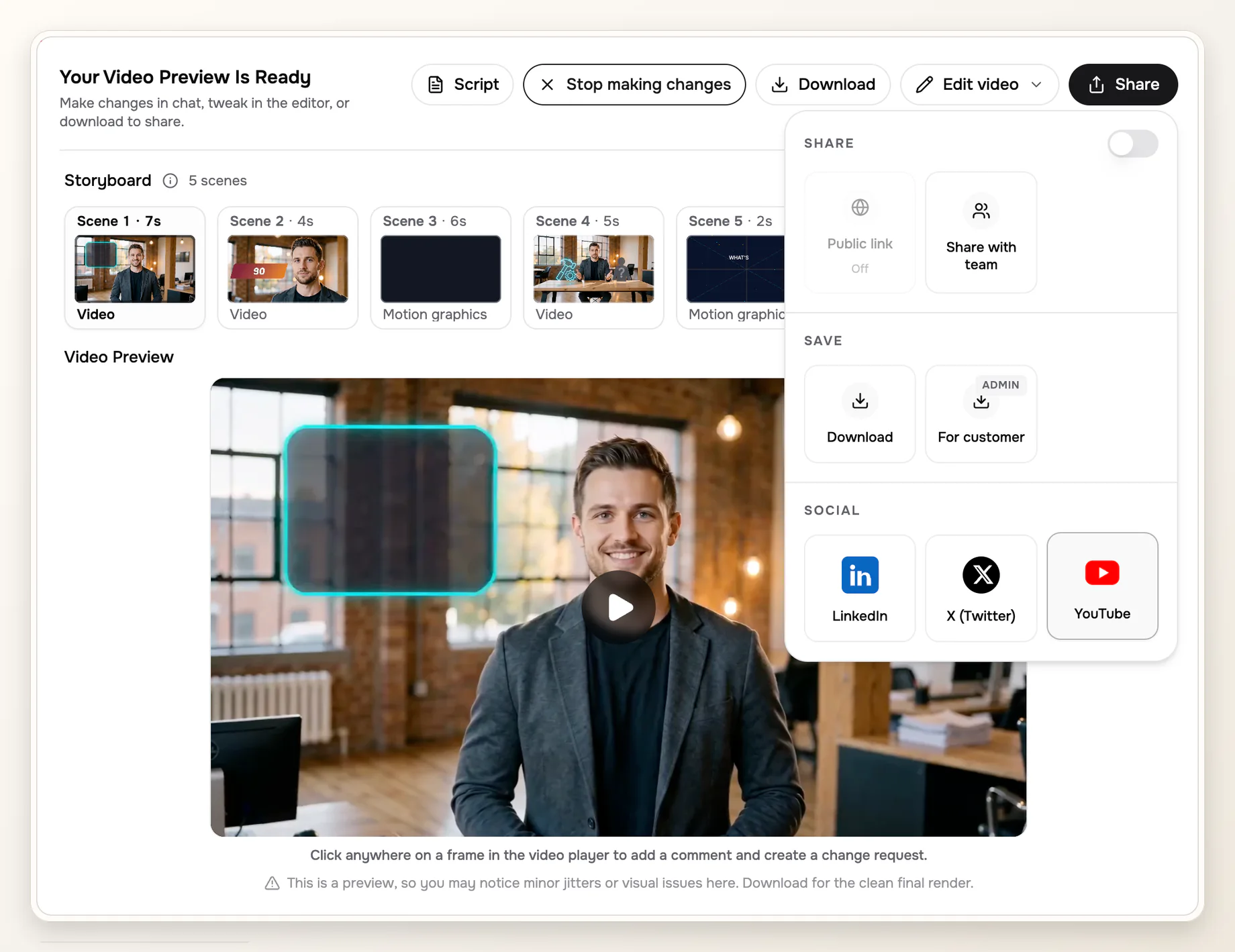
Approved proof of the shared ngram review surface only: the visible sample video is not the Product Hunt demo created in this guide, and this screenshot does not prove Product Explainer Video selection or the edited walkthrough prompt.
Done means the reviewer can mark all six checks as pass or return scene-specific changes.
Our six-check source-to-screen audit
Methodology: in July 2026, we compared Product Hunt's current posting and featuring guidance with the four approved proof assets for this article. We then mapped each source claim to six review checks. This is an editorial audit of one representative proof set, not a performance benchmark.
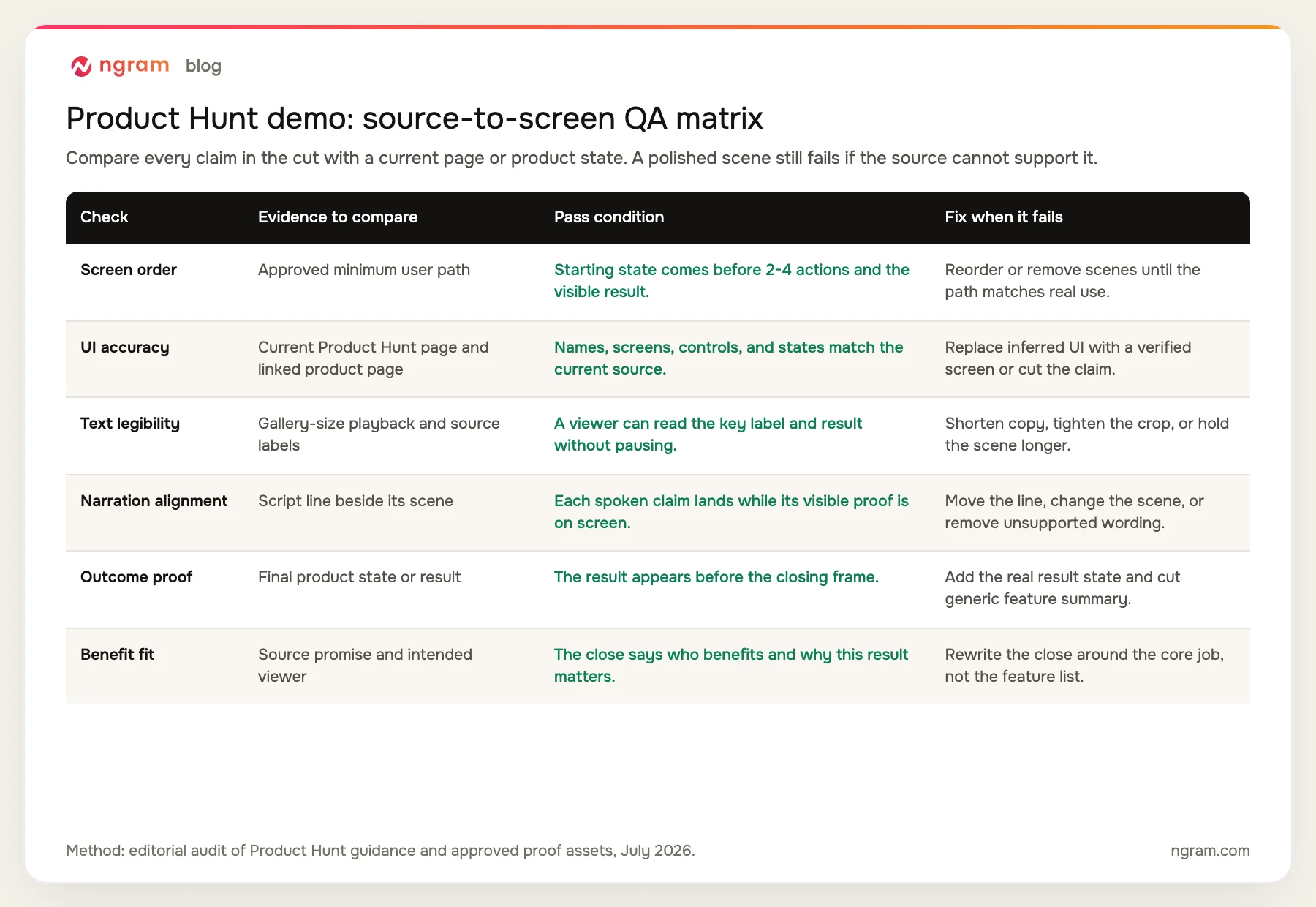
The matrix makes review falsifiable. 'Looks good' is not a pass condition. A reviewer either finds the screen in the current source, reads the key label, and sees the outcome, or sends the scene back with a precise fix.
Monitor the render and hand off review
Keep monitoring inside ngram until the preview is ready. A larger scene count or more complex assets can take longer. Do not promise a fixed render time, trigger duplicate jobs because the first one is still processing, or assume failed checks will rerender automatically.
The review handoff should be small enough to act on. Give the reviewer the source-page version, core job, six-check results, and scene-specific requests. Keep submission and destination details out of this handoff.
Review status: [Approved / Changes requested]
Source pages checked: [Product Hunt URL + date] / [product page URL + date]
Core job: [one user task and outcome]

Screen order: [Pass / scene-specific change]
UI accuracy: [Pass / scene-specific change]
Text legibility: [Pass / scene-specific change]
Narration alignment: [Pass / scene-specific change]
Outcome proof: [Pass / scene-specific change]
Benefit fit: [Pass / scene-specific change]

Reviewer: [name]
Next review owner: [name]
Scope: creation approval only; no submission or publishing instructions.
When a check fails, request one observable change: 'Scene 3 says export but shows settings; replace it with the real result screen.' Review the affected scene and the transition on either side after the edit.
Product Hunt video QA checklist
- Mode name: the review record says Product Explainer Video, not Product Demo mode.
- Core job: the cut proves one user task instead of summarizing the whole product.
- Screen order: starting state, actions, product responses, and visible result follow real use.
- UI accuracy: every product name, screen, button, label, metric, and integration exists in the current source.
- Text legibility: the important label and final result are readable at gallery size.
- Narration alignment: each claim is heard while its evidence is visible.
- Outcome proof: the last product scene shows the result before the close.
- Review scope: the handoff contains creation feedback only, with no scheduling or destination instructions.
Common failure modes and fixes
The cut explains the category instead of showing the job
Replace broad claims with the task-to-result sequence. The first product scene should establish the real starting state, not define the market.
The brief invents a screen, button, metric, or integration
Delete the unsupported claim or replace it with a current source asset. Do not keep a plausible mock screen because it looks cleaner than the real interface.
The walkthrough feels like documentation
Remove menus and settings that do not change the outcome. A launch gallery video needs the shortest coherent path, not coverage of every available option.
The UI text is too small
Tighten the crop, reduce on-screen copy, and hold the important state long enough to read. Never solve legibility by adding a second paragraph over the product screen.
The narration and screen disagree
Move the narration line to the scene that proves it or change the line. A claim heard before its evidence makes the Product Hunt video feel less credible.
The video ends on a feature summary
Put the visible result before the closing frame and name who benefits. The viewer should leave with proof of the job, not a memory of four feature names.
FAQ
Does ngram have a Product Demo mode for Product Hunt?
Not in the approved proof for this article. Select Product Explainer Video in the Product Hunt campaign, then edit the brief into a product walkthrough. Keep the original mode name in your review notes.
What is the difference between a Product Hunt gallery video and an interactive demo?
Product Hunt lists them as separate media types. The gallery video is a linked video asset, while the interactive story or demo comes from a supported interactive provider. This workflow creates and reviews the video only.
How long should a Product Hunt demo video be?
Use the shortest runtime that proves the core job without making labels unreadable. Product Hunt does not publish an ideal runtime in the sources used here. Scene count and product complexity should determine the final cut.
How many actions should the walkthrough show?
Use 2-4 user actions for this workflow. That is an editorial constraint, not a Product Hunt platform limit. Add another action only when the viewer cannot understand the result without it.
Can the brief fill in missing product details?
No. Missing screens, buttons, metrics, and integrations are evidence gaps. Supply a current source or remove the claim before rendering.
Where do I monitor the render?
Monitor the job in ngram after the extension sends it. Render time varies with scene count and complexity, so wait for the current project status rather than planning around a fixed promise.
When is the video ready for the launch gallery?
It is ready for creation handoff when a reviewer passes screen order, UI accuracy, text legibility, narration alignment, outcome proof, and benefit fit. Gallery submission and destination checks happen outside this guide.