
The usual Product Hunt launch video problem is not blank-page creativity. It is that the launch page, product page, maker comment, screenshots, and CTA are already scattered across multiple places, and the video is still missing the night before launch.
That is why the product page is a useful starting point. A good Product Hunt video should not invent a new pitch. It should compress the launch promise, audience, proof, and next step into a short product launch video that matches what the viewer sees on the page.
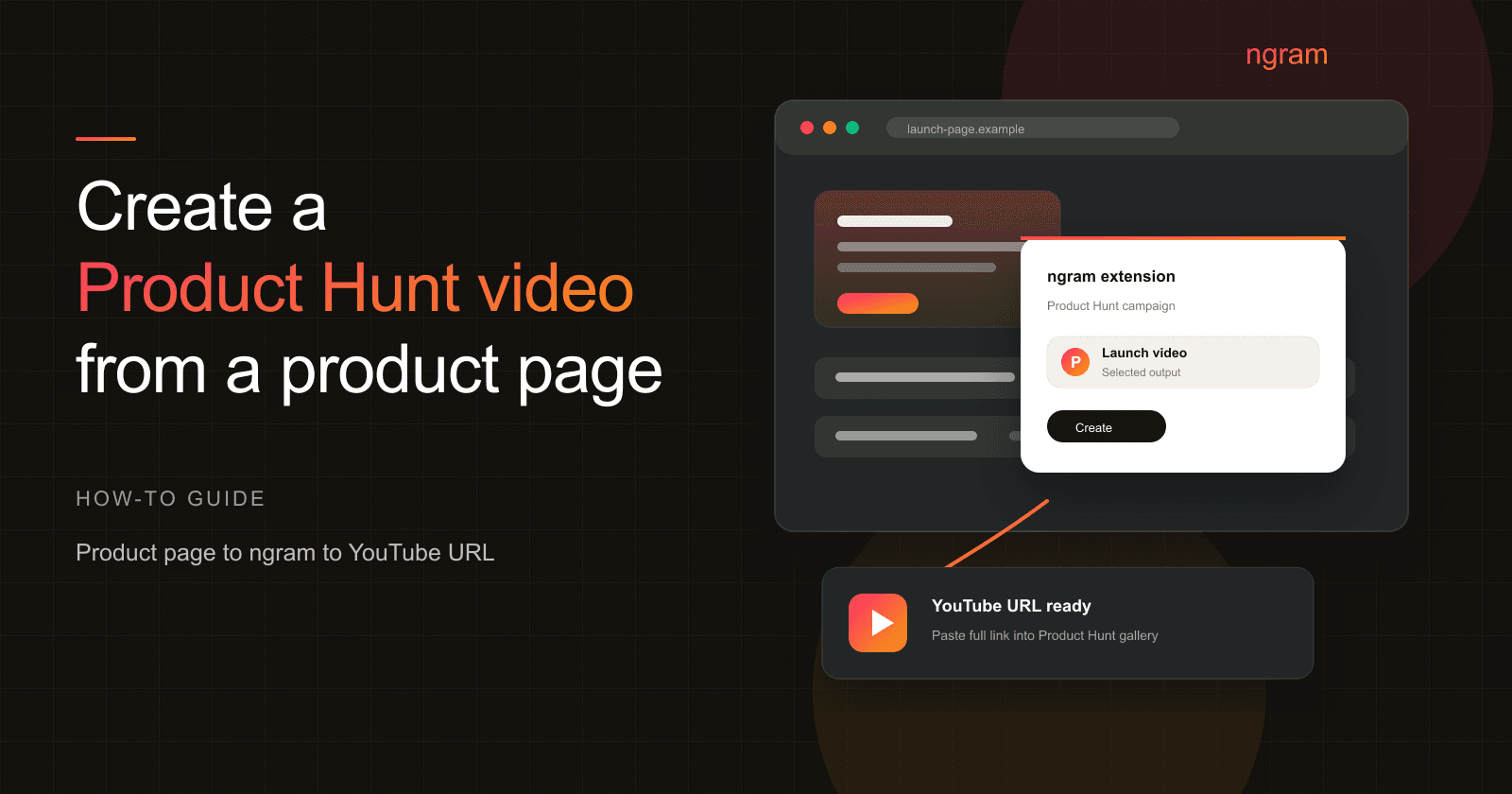
This guide shows the Product Hunt source-page workflow supported by the ngram Chrome extension. You will open the Product Hunt page, product page, or launch page, use Product Hunt campaign mode, choose launch video, review the extracted source fields, send the project into ngram, then check the script, storyboard, video, and launch-ready cut.
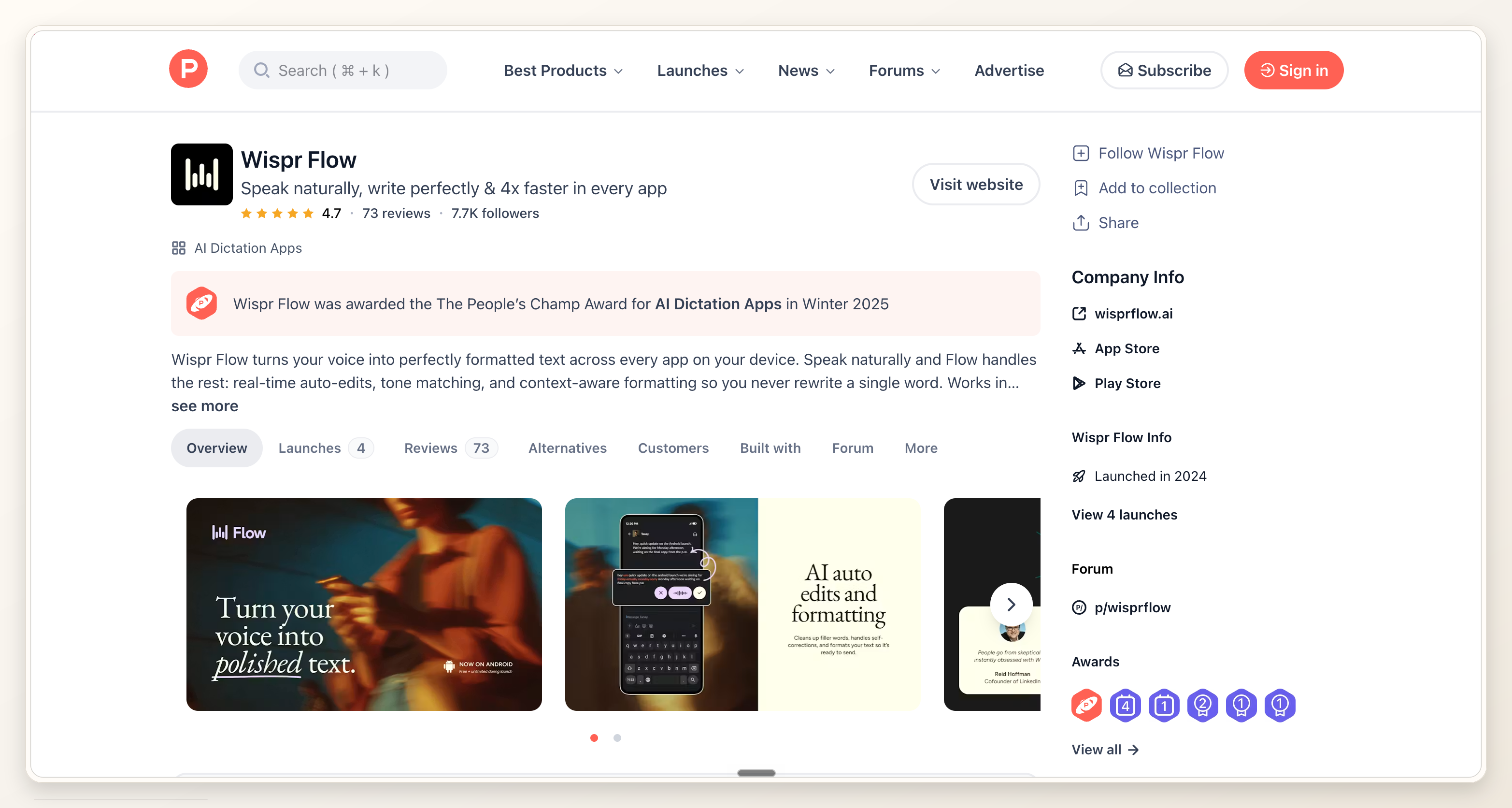
Why the Product Hunt video matters
Product Hunt is built for scanning. Product Hunt says its community includes early adopters, makers, tech people, entrepreneurs, investors, and people who like trying new products. It also says people launch to reach product lovers, get feedback, collect social proof, find customers, and sometimes find funding or hiring leads. Source: Product Hunt launch guide.
The video is one of the few assets that can make a scanner understand the product before they read the full description. Product Hunt's posting help recommends 1270x760 gallery images, requires 2+ gallery images before the gallery is viewable, and supports only YouTube links for videos. Source: Product Hunt help.
The broader video data points in the same direction. Wyzowl's 2026 survey of 266 respondents found that 91% of businesses use video as a marketing tool, 71% of people believe videos between 30 seconds and 2 minutes are most effective, 93% of video marketers say video has increased understanding of their product or service, 63% of consumers prefer a short video when learning about a product or service, and 89% say video quality affects trust in a brand. Source: Wyzowl Video Marketing Statistics 2026.
| Launch signal | Data point | Source | Practical video decision |
|---|---|---|---|
| Product Hunt gallery | 1270x760 recommended gallery images, 2+ images before gallery is viewable | Product Hunt Help, May 28 2025 | Make the first video frame work beside rectangular gallery assets |
| Product Hunt video field | External video link required by Product Hunt's current posting flow | Product Hunt Help, May 28 2025 | Keep the approved final video URL ready for the launch checklist |
| Ideal video length | 71% say 30 seconds to 2 minutes is most effective | Wyzowl 2026 | Keep the Product Hunt launch video around 45 to 75 seconds unless the product is unusually complex |
| Product understanding | 93% of video marketers say video increased user understanding | Wyzowl 2026 | Show the product early instead of opening with company backstory |
| Trust | 89% of consumers say video quality affects brand trust | Wyzowl 2026 | Check captions, crop, thumbnail frame, and first scene before submitting |
Prerequisites
Before you generate the Product Hunt launch video, collect the launch source and remove contradictions. The extension can move faster when the page already says the right thing.
- A public Product Hunt draft, Product Hunt product page, product page, or launch page that carries the current positioning.
- A short launch promise: what changed, who it is for, and what outcome the viewer should remember.
- Proof the video can show: product UI, Product Hunt gallery image, product screenshot, launch page claim, customer quote, metric, or demo moment.
- A launch-safe CTA. Product Hunt says you can share the launch link, but should not directly ask people to upvote. Ask viewers to visit, try the product, comment, or leave feedback.
- A YouTube account if the video will sit inside the Product Hunt gallery. Product Hunt requires a YouTube URL for product videos.
Step 1: Open the source page and confirm the launch story
Start on the page the launch audience will actually inspect. If the Product Hunt draft is ready, open that. If the draft is not public yet, open the product page or special launch page that your Product Hunt primary URL will use.
Check four fields before you open ngram: promise, audience, proof, and CTA. The promise is the one sentence the viewer should remember. The audience is who the product is for. The proof is what the video can show on screen. The CTA is the action you can ask for without violating Product Hunt's no-direct-upvote rule.
If you are starting from a plain URL instead of Product Hunt campaign mode, the URL to Video workflow is the broader page-to-video entry point. For this article, keep using the Product Hunt campaign path because the intent is a Product Hunt video.
Step 2: Open Product Hunt campaign mode in the Chrome extension
ngram's Chrome extension has live Product Hunt campaign mode. Open the extension from the Product Hunt page or the source product page, choose Product Hunt campaign mode, then choose launch video as the output.
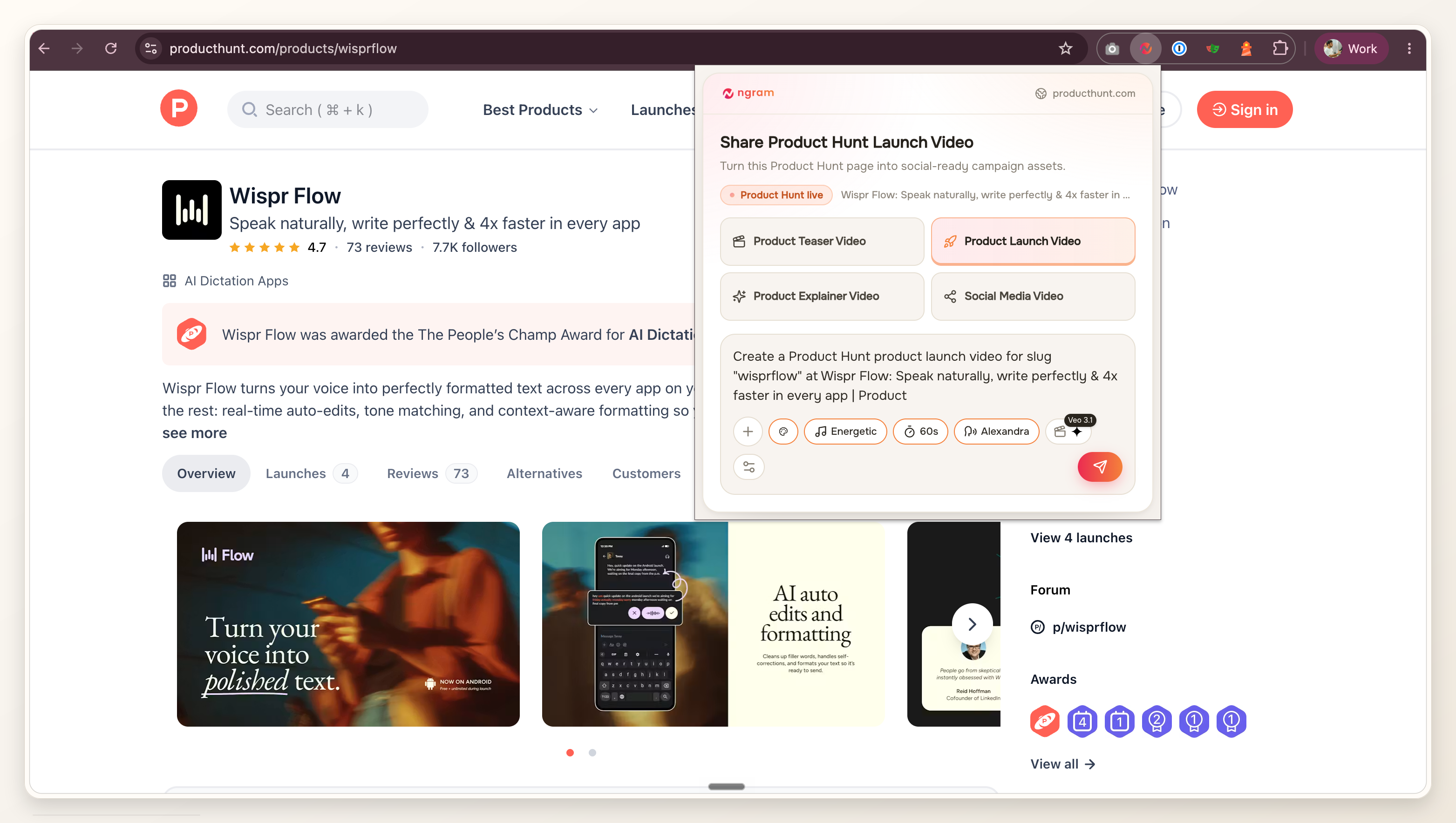
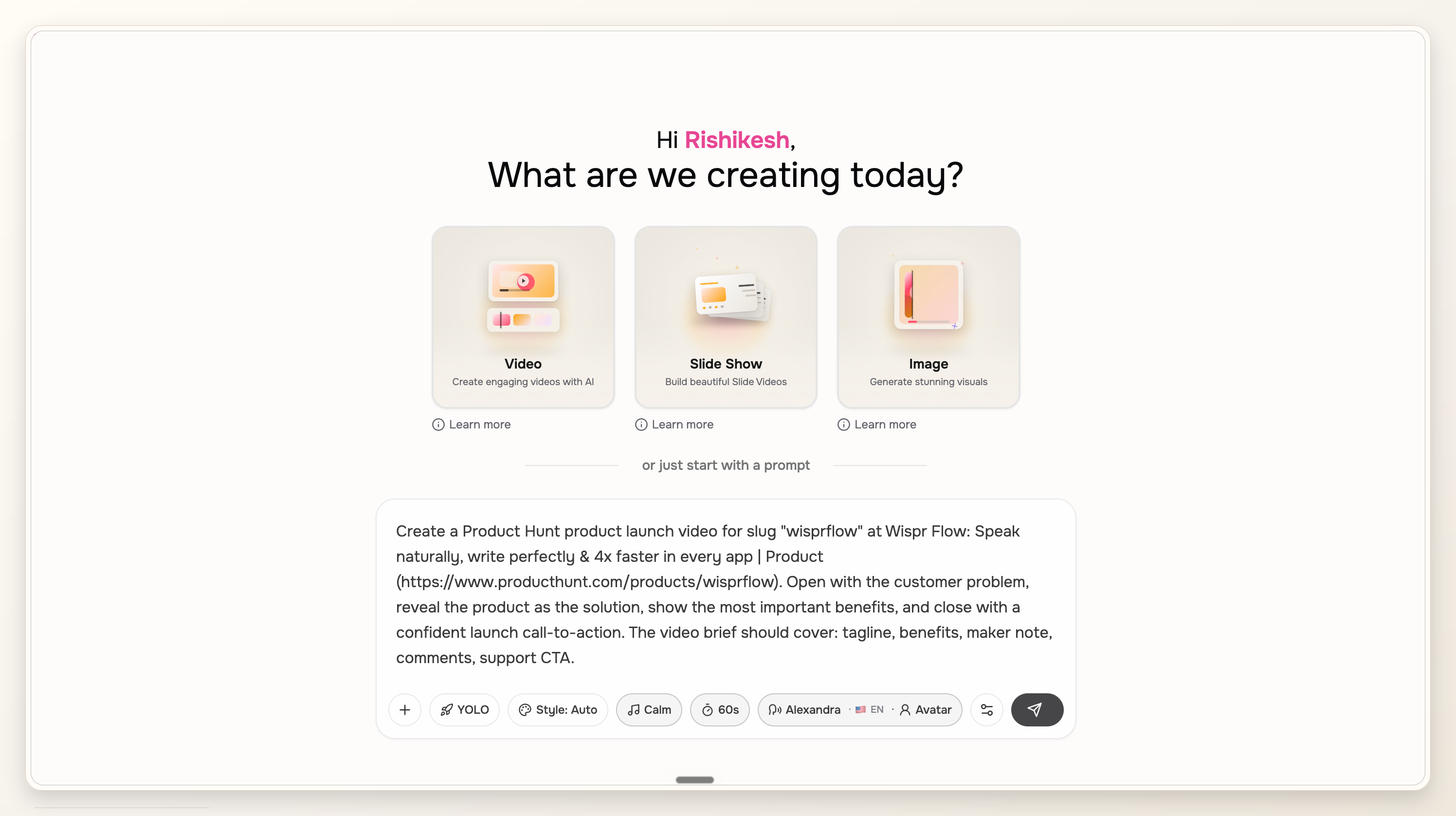
Use one direct instruction. Example: Create a 60-second Product Hunt launch video from this page. Open with the user problem, show the product solving it, mention one differentiator, and close by inviting viewers to try it and leave feedback on Product Hunt.
Step 3: Review the extracted source fields
Before sending anything to the editor, review the source fields that matter for the launch video. Do not treat extracted copy as final just because it came from the page. Product Hunt launches often have compressed taglines, partial pricing language, or screenshots that need more context.
- Confirm the product name and launch tagline.
- Rewrite the audience if the page says something broad like teams, creators, or builders.
- Select one proof point the video can show visually.
- Remove claims that will not appear in the Product Hunt page, source page, or product UI.
- Set the CTA to visit, try, comment, or give feedback rather than asking for an upvote.
Step 4: Send to ngram and review the script
Send the reviewed source fields to ngram. The first useful artifact is not the rendered video. It is the launch script and storyboard, because that is where you catch weak framing before it becomes a finished cut.
In ngram's Product Hunt launch video maker, keep the structure simple: problem, product proof, differentiator, and launch-safe CTA. A Product Hunt launch video should feel like a guided first look, not a founder pitch deck.
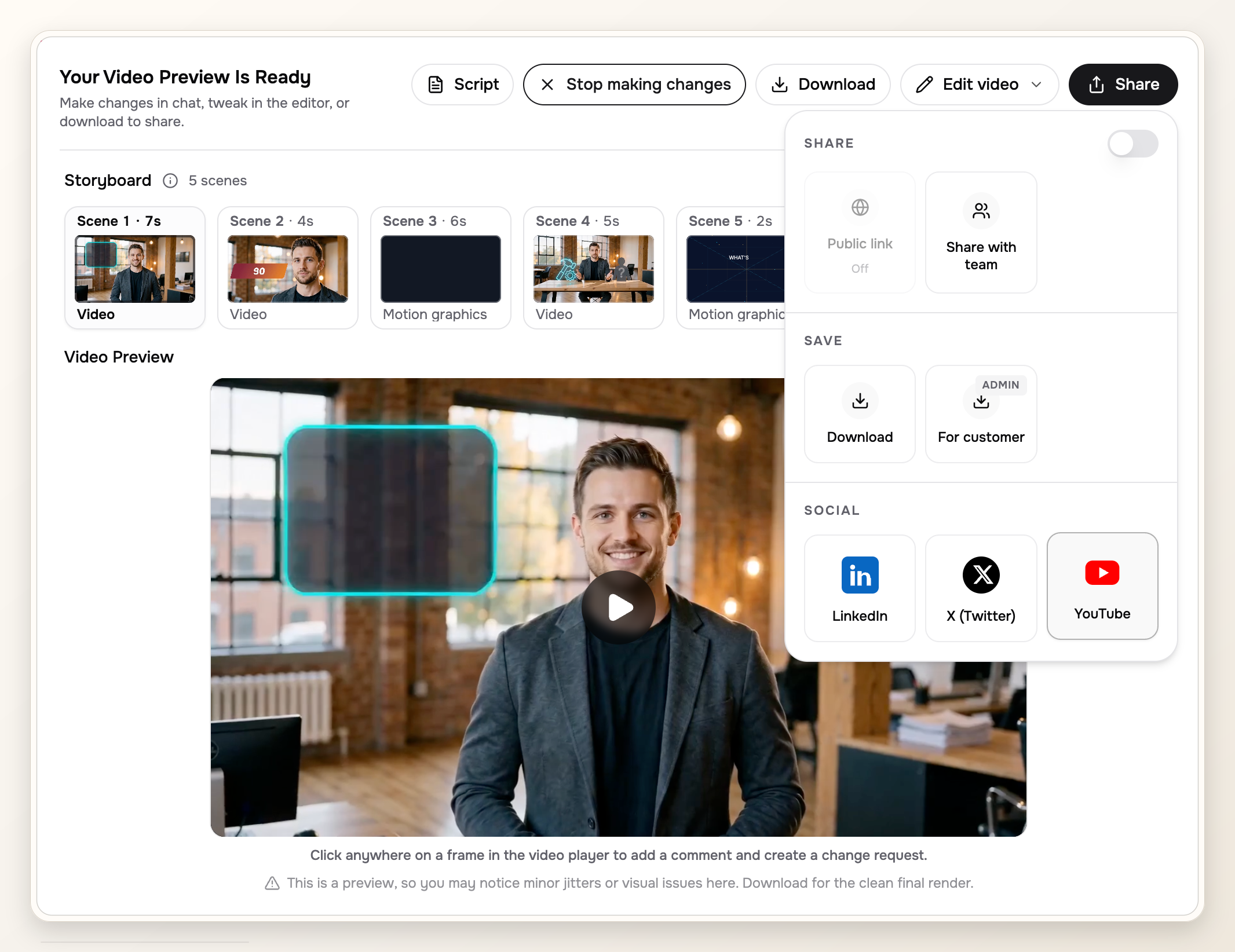
- Scene 1 names the user outcome and shows product context quickly.
- Scene 2 shows the product page, Product Hunt gallery image, product UI, or a real screenshot.
- The middle proves one claim with page copy, screenshot context, or a short workflow.
- The final scene repeats the launch action without asking directly for an upvote.
Step 5: Review the storyboard and video draft
Watch the draft as if you found it in the Product Hunt gallery with no context. The first frame should make the product category clear. The first sentence should explain the user problem. The first product shot should arrive early enough that the launch feels real.
Look at the caption line breaks and crop. Product Hunt visitors may see the video small, muted, or beside gallery images, so every text line should survive a quick scan.
Step 6: Review the final cut and launch handoff
When the video is approved, export the launch cut or hand the final video URL to the launch owner. Keep this as a creation workflow: the ngram output should be checked for message accuracy, source proof, crop, captions, and CTA before anyone handles Product Hunt submission details.
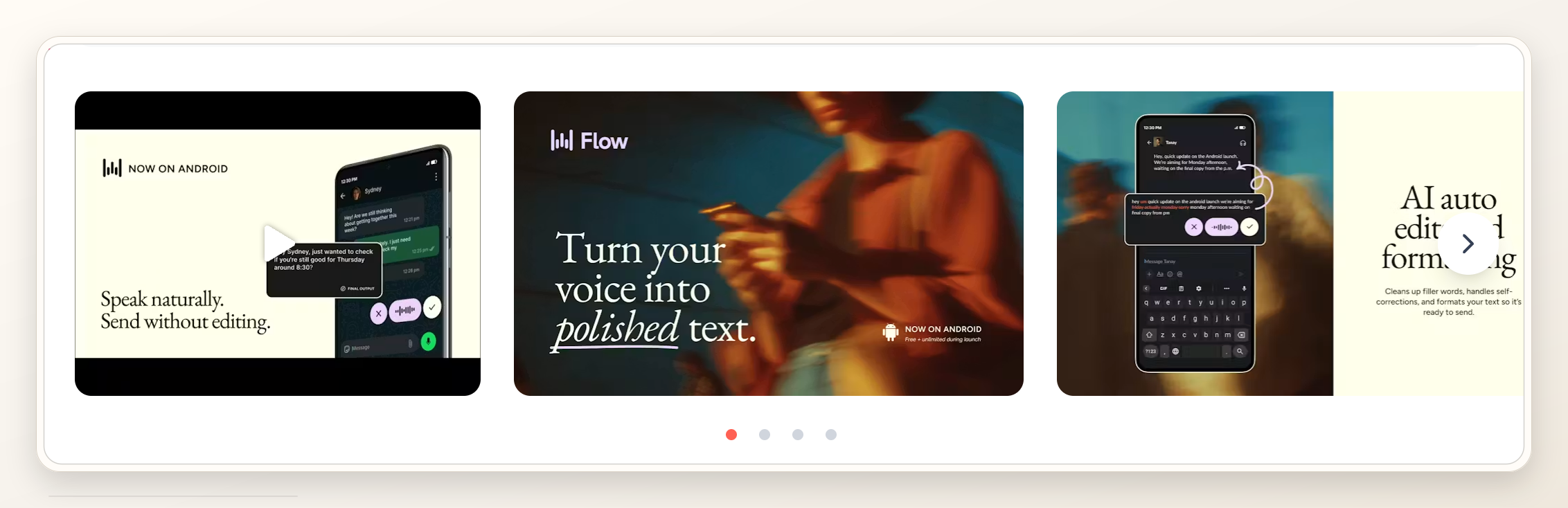
After the final handoff is ready, preview the Product Hunt draft. Check that the video placement works with the gallery, the thumbnail crop does not fight the first gallery image, and the first line matches the Product Hunt tagline.
QA checklist
- The first frame shows either the product, the outcome, or the launch page promise.
- The first sentence explains who the product helps and what changes for them.
- The video proves one claim with page copy, UI, screenshot, or a short workflow.
- The CTA asks people to visit, try, comment, or share feedback, not directly upvote.
- Captions are readable at gallery size and do not cover the product proof.
- The Product Hunt gallery thumbnail works beside the 1270x760 gallery images.
- The YouTube URL is full length, public or unlisted, and tested inside the Product Hunt draft.
When to make more than one cut
One Product Hunt video is enough for the gallery, but most launch teams need at least one more version for launch-week distribution. Keep the same source page and message, then change length, aspect ratio, and CTA for each channel.
For the broader launch asset workflow, use the Product Hunt launch video use case. It covers the surrounding assets, while this post stays focused on making the source-page Product Hunt video.
Frequently asked questions
Can Product Hunt host my launch video directly?
Product Hunt's posting help currently says product videos use YouTube links. Treat that as a Product Hunt submission requirement after the ngram video is approved, not as the core creation workflow.
Should the Product Hunt launch video ask for upvotes?
No. Product Hunt's launch guide says the rule is not to ask people directly to upvote. Use language like visit the launch, try the product, leave feedback, or join the discussion.
How long should a Product Hunt video be?
Aim for about 45 to 75 seconds for most launches. Wyzowl's 2026 survey found that 71% of people believe 30 seconds to 2 minutes is the most effective video length, and Product Hunt visitors already have the tagline, gallery, comments, and product link around the video.
Should I use my homepage or a special launch page?
Use the page Product Hunt visitors will actually see. Product Hunt's posting help says the primary URL should be a direct product page, not a press page or blog post. If your launch page has the sharper promise, start there.
What proof should the video show?
Show proof that a launch scanner can understand quickly: the product UI, a real workflow, a before-and-after state, a screenshot from the product page, or the launch promise paired with the actual screen it describes.
Does the ngram Chrome extension submit my Product Hunt post?
No. Use the extension's Product Hunt campaign mode to create the launch video from the source page. You still review the video in ngram and handle Product Hunt submission details yourself.