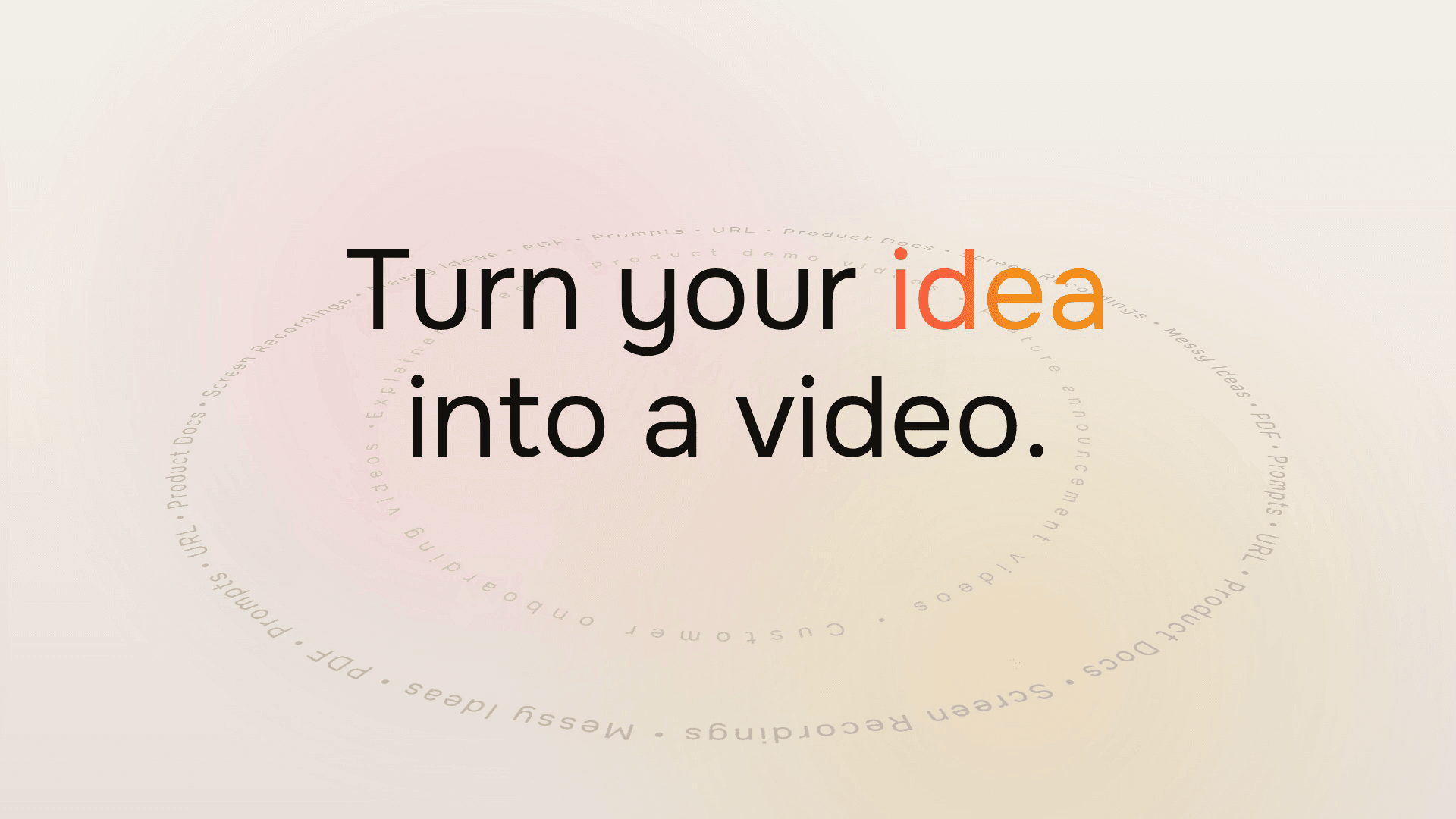

ngram V2 is live. Describe the video you want to make and bring the material behind it. The new ngram develops the script and produces a video from the direction you approve.
A product launch can become a short film built around one idea. A lesson can move inside a diagram to explain what is happening. We're introducing V2 with finished videos so you can see what those different stories look like.
A 20-second V2 sample: an idea takes shape through typography, motion, and a closing invitation. The on-screen interface is part of the video artwork, not a recording of Studio.
See what you can create with ngram V2
Give your launch a story people can watch
The launch film above uses moving type and a small set of recurring shapes to show an idea becoming a video. It is a compact way to introduce a product: one promise, a visual progression, and an invitation at the end.
For your own launch, begin with the reason someone would care. Tell ngram who the video is for and what you want them to take away. Include the product facts and visual material that belong in the story.
Create a short launch video for a tool that turns a written idea into a video. Show the progression from an initial thought to a clear story, and close by inviting the viewer to try their own idea. Keep the message readable without relying on narration.
This is a suggested brief to adapt, rather than the recorded prompt behind the sample.
Make an explanation visible
This 47-second educational example starts in a classroom, then moves into a plant-stem cross-section with labels and directional arrows. The change in scale lets the video explain a process that would be hard to see in the wider view.
A process video has a different job from a launch teaser. It needs to show what happens and in what order. The other V2 examples include a warehouse receiving sequence and a doodle-style alarm escalation, each with a visual approach suited to its subject.
Watch five V2 examples and adapt their briefs
Start with the video you need
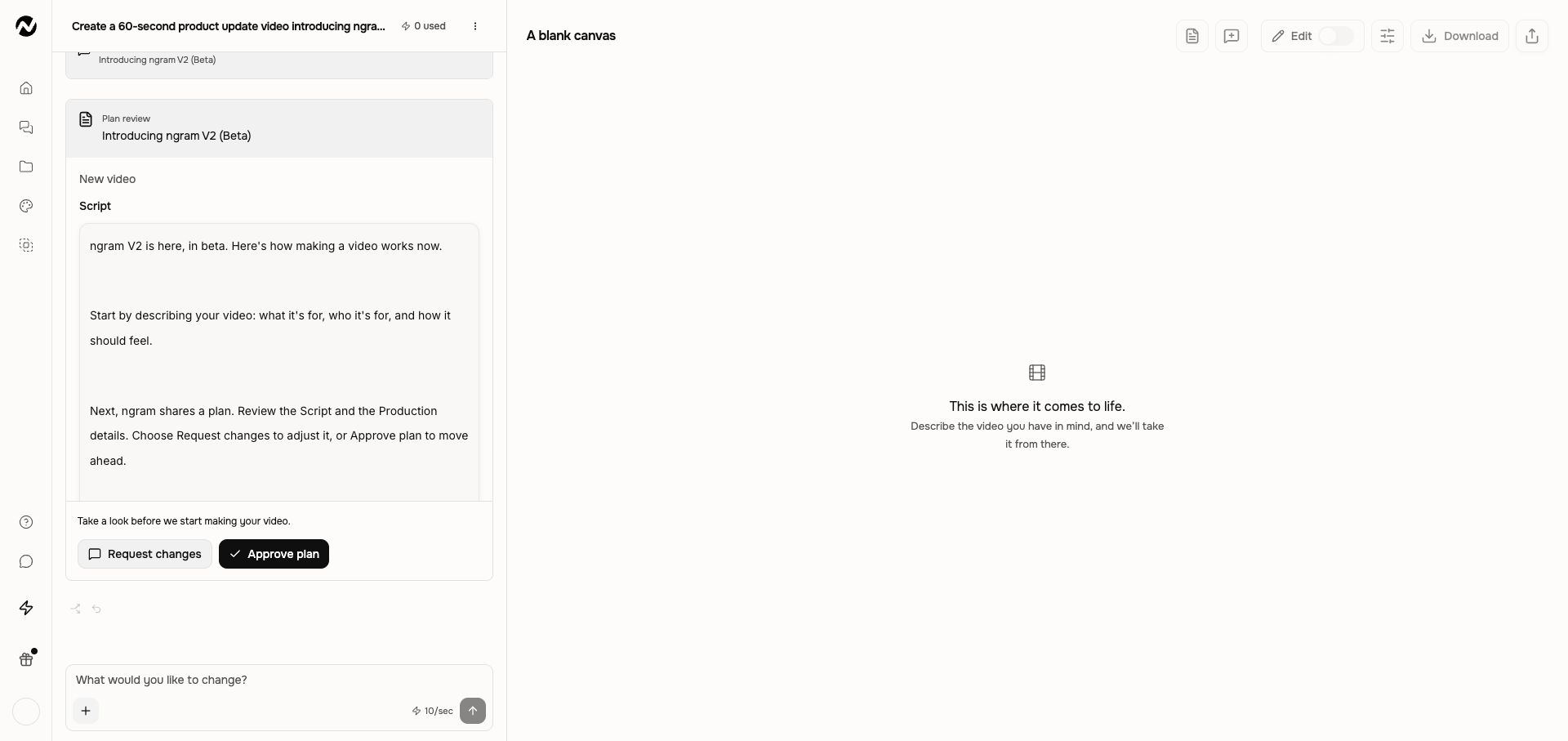
Open ngram and choose V2 on Home. Describe the audience, the message, and where you want to use the video. Add source material and choose the duration and aspect ratio before selecting Create video.
ngram proposes Script and Production details. Once you approve the plan, it produces the video. Watch the preview and download the finished MP4; a playable preview can arrive before the download finishes preparing.
Follow the first-video walkthrough
Adjust the direction when you need to
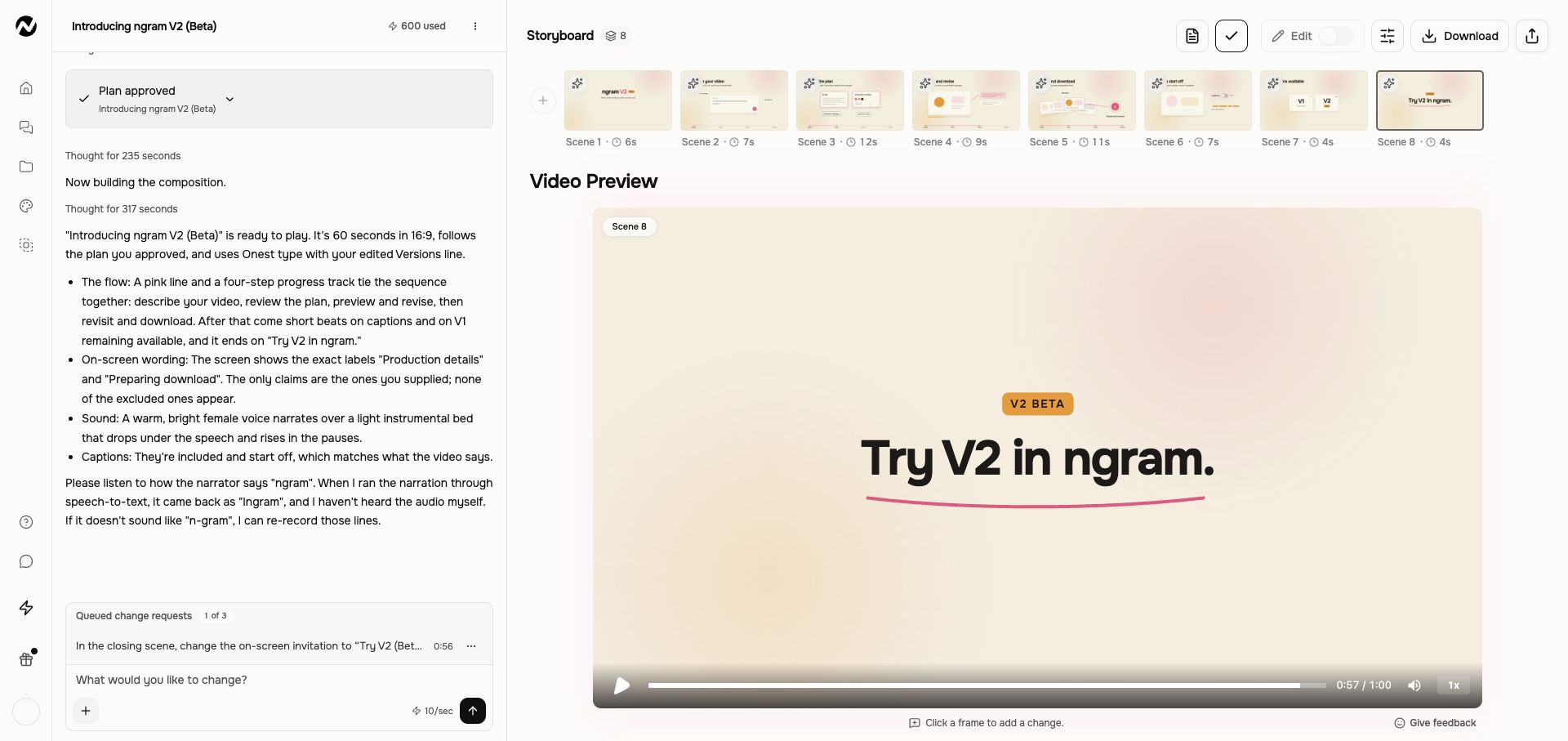
You can change the proposed plan before production or ask for an adjustment after watching the video. Use chat for a request, or Make changes to point to a moment in the preview. Versions keeps earlier outputs available to view and download.
Find the steps for revising a video
Your existing work stays available
V2 is the default for accounts that have not chosen V1. You'll see a Beta label in the experience switch. Existing V1 conversations remain available in their original workflow, and you can switch between experiences on Home. Some tool and template entry points still open V1.
Make your next idea a video
Choose something you already need to explain. Bring the brief to V2, or open the Made with V2 gallery on Home for a starting idea.