

Compare Colossyan’s Cora and course workflow with HeyGen’s Video Agent, avatars and translation. Both now support planning, broader visual production and learning delivery. Match the required SCORM tier, authoring controls and usage model to your recurring video.
Colossyan vs HeyGen at a glance
| Question | Colossyan | HeyGen |
|---|---|---|
| Creation | Cora approach and scene-plan approval | Video Agent Chat Mode or Autopilot |
| Editing | Script, scene, avatar and visual revisions | Chat revisions and Edit a Copy in AI Studio |
| Learning delivery | Professional streaming SCORM; Enterprise self-contained SCORM | Business SCORM/LMS and interactive features |
| Branding | Brand Kits in current plans | Creator and Pro include Brand Kit |
| Connected workflows | Video API with plan-specific allowance | REST, CLI and MCP; API pricing separate |
Colossyan: Plan the video and build the course
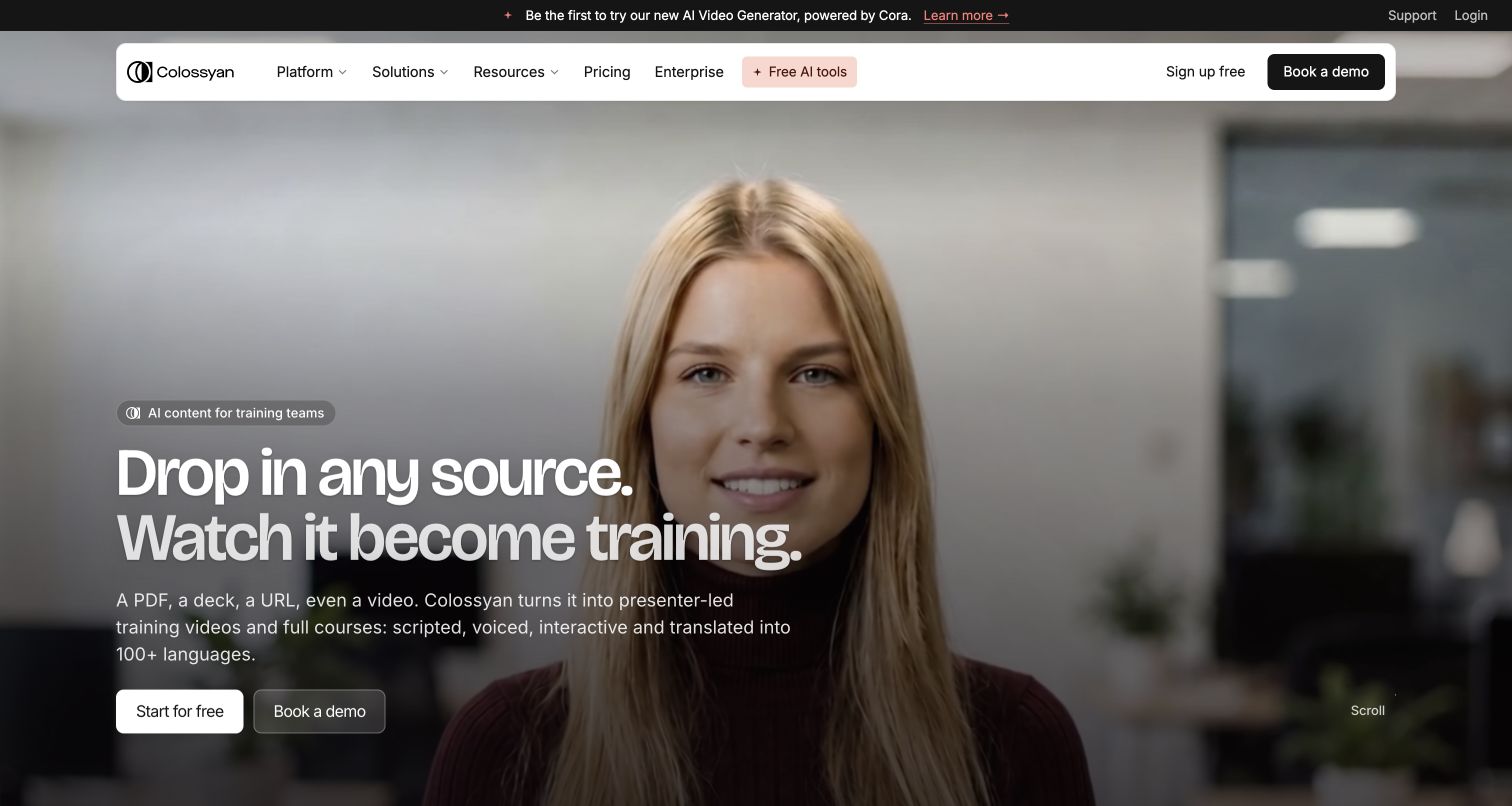
Colossyan’s Cora reads your source, proposes an approach and prepares an editable scene plan. You approve before rendering. Documents, slides, public URLs and scripts can start the process. Planning and source-based creation are central to its current product.
Video sits inside a larger training workflow, with course authoring, learning interactions, localization and SCORM delivery. Current Professional pricing includes five streaming SCORM exports/month; Enterprise also offers self-contained packages. Match that delivery type to the learning platform and course you need.
Brand Kits and course creation appear in current plans, with separate allowances for generation, translation and interactive videos. Cora does not automatically build the interactive elements described on its feature page; add those in the editor after preparing the plan.
HeyGen: Create, revise and translate with Video Agent
HeyGen Video Agent accepts uploaded documents, images and video. Chat Mode offers plan review; Autopilot is a different creation path. You can revise through chat or edit a copy in AI Studio. It is broader than a presenter reading text.
Its July release describes HyperFrames motion graphics and website/Figma-based workflows. Avatar and translation features remain useful reasons to evaluate HeyGen, but source-based creation and planning are no longer distinctions that belong only to another tool.
Current pricing includes Brand Kit on Creator and Pro, with SCORM/LMS and interactive features listed on Business. Its developer platform covers REST, CLI and MCP operations; API pricing is separate from the web subscription.
Compare the lesson you need to maintain
For customer training, try the same approved script and source screenshots. Compare the point at which you approve the plan, change an instruction and add an interaction. Review the resulting lesson in the intended player or learning platform.
Colossyan Professional lists streaming SCORM; HeyGen lists SCORM/LMS and interactivity on Business. A blanket claim that HeyGen has no course delivery would be stale. For an automated creation workflow, compare the actual API operation and separate pricing rather than the presence of an integration logo.
For a presenter-led version, compare the voice and delivery using the same script and target language. Product documentation establishes features and plan access; it does not establish which avatar your audience will find most convincing.
Pricing and recurring usage
| Plan | Billing checked | Scope |
|---|---|---|
| Colossyan Professional | $89/month; $59/month equivalent annually | One editor; monthly 30 NEO + 10 NEO 2 minutes; five streaming SCORM exports/month |
| HeyGen Creator | $29/month | 600 monthly credits; videos up to 30 minutes; 1080p |
| HeyGen Pro, entry allowance | $49/month | 1,000 monthly credits; 4K |
| HeyGen Business | $149/month; additional seats $20/month | 1,500 shared credits; learning and collaboration features |
| ngram Basic | $29/month; $23.20/month equivalent annually | 3,000 credits per monthly cycle; 36,000 upfront annually |
Professional extra editors cost $45/month or $30/month equivalent annually, with up to three editors. Annual video minutes arrive upfront; unused monthly minutes do not roll over. NEO and NEO 2 are separate allowances. Unlimited downloads do not mean unlimited generation.
HeyGen Free allows three videos/month of up to one minute. Monthly unused web credits roll over one additional cycle; annual credits follow the annual renewal terms. Model and operation determine usage, so use the current generation estimate rather than a single per-minute conversion. API allowance and pricing are separate.
ngram pricing includes 1,000 credits/month on Free. Basic costs $29/month with monthly billing and includes 3,000 credits per cycle; annual billing is $23.20/month equivalent with 36,000 credits supplied upfront. The base rate for premium AI video generation is 10 credits per second, with a cheaper model at 3. Share publicly or embed on Free; use a paid plan for MP4 downloads and Basic or above for unlisted links.
Watch a real script become a training video
The ngram example uses a script based on public NIST phishing guidance and a whiteboard treatment. Inspect its exact input, settings, transcript and result, then adapt the brief for your own lesson. It demonstrates ngram creation from a script; it is not an imported Colossyan or HeyGen project or a test of their output.
From this input to this video
A script based on NIST’s published guidance becomes a whiteboard training video with captions.
Prompt
Create a 45-second animated cybersecurity training video that teaches recognizing and reporting phishing using NIST’s small-business guidance at https://www.nist.gov/itl/smallbusinesscyber/guidance-topic/phishing to small-business employees. Use my script verbatim for the voiceover — do not rewrite it: An urgent message can make a risky click feel necessary. Phishing impersonates a trusted sender to steal information or deliver harmful software. Pause when a message asks for a password, a payment, a download or immediate action. Check the sender, and verify the request through a contact method you already trust. Do not use the message’s own link or phone number to verify it. Report suspicious messages using your organization’s process. If you already clicked, tell your security contact promptly. Pause, verify and report. Read NIST’s phishing guidance and learn your team’s reporting process. Explain the idea with the warning signs and verification steps in the NIST guidance and reinforce each key term with clear on-screen labels. Visual style: whiteboard. Tone: calm and practical. Open with a short real-world hook, walk through the concept step by step, then close on a one-line recap and this call to action: Read NIST’s phishing guidance and learn your team’s reporting process. Add captions for muted playback.
Selected style
Whiteboard
Read the video transcript
An urgent message can make a risky click feel necessary. Phishing impersonates a trusted sender to steal information or deliver harmful software. Pause when a message asks for a password, a payment, a download or immediate action. Check the sender, and verify the request through a contact method you already trust. Do not use the message’s own link or phone number to verify it. Report suspicious messages using your organization’s process. If you already clicked, tell your security contact promptly. Pause, verify and report. Read NIST’s phishing guidance and learn your team’s reporting process.
Create a lesson from your approved script
The example uses a script based on public NIST guidance. Replace its subject and wording with the lesson your team needs, then choose how it should look.
Prepare the lesson
Use an approved script and source material. Export slides or documents you want to include as a supported upload, such as PowerPoint or PDF.
Set the direction
Fill in the audience, topic, script and call to action below. Select a style, then attach your materials and choose your Brand Kit in ngram.
Review and deliver
Approve the plan containing the script. After generation, review the result, request changes and share it. On a paid plan, download the MP4 for your learning platform.
Make it yours
Fill in your details here, or continue and finish your brief in ngram.
Video generation uses credits. Review your estimate in ngram. MP4 downloads require Basic or higher.
How credits workBring your approved material into ngram
Start with a script, public page, uploaded PDF or PowerPoint. For existing footage, use the source tool’s download controls and your account’s export permissions to save an authorized MP4, then upload it with a brief for the new audience. Keep the original editable project and interactive course in their authoring tool.
Choose the style, aspect ratio and duration. Select your configured Brand Kit in the composer and enable captions when wanted. Approve the plan containing the script, then request revisions or use the timeline. Download the finished MP4 on a paid plan and add it to your learning platform.
After updating the original policy or document, tell ngram what changed and ask it to revise the lesson. For a different format, choose the new duration or aspect ratio and request another version. Review each result before replacing the published video.
Explore the security training template, PowerPoint to video, PDF to video or training-video use case. See ngram vs Colossyan and ngram vs HeyGen for direct comparisons.
Frequently asked questions
Can HeyGen create motion graphics and review a plan?
Yes. Video Agent Chat Mode supports plan review, and its current release notes describe HyperFrames motion graphics. Colossyan also plans through Cora; compare the controls and delivery you need.
Can I reuse an exported video in ngram?
Yes. Upload an authorized MP4 as source footage and describe the new audience and lesson. Keep the original editable project separately; exporting footage does not transfer its scene structure, quiz logic or review history.
Does the example compare avatar quality?
No. It is a real whiteboard lesson made in ngram from a NIST-based script. The exact prompt and result help you judge that workflow. To compare presenters, evaluate the actual script, voice and language you need in each product.
Can I share the ngram result on Free?
Free includes 1,000 credits per month and supports public sharing and website embeds. Use a paid plan for MP4 downloads; unlisted links start with Basic.
How should I choose for a learning platform?
Check whether the deliverable is a video file, a streaming course or a self-contained course package. Verify the required plan, tracking and update process with your platform. For ngram, download the MP4 on a paid plan and add it to the learning platform.
Sources and review
Reviewed October 17, 2026 using official product, pricing, help and developer documentation. This is a workflow comparison, not a scored output benchmark or a timed competitor test. Pricing depends on the stated billing, region and plan.
Colossyan creation · Colossyan pricing · HeyGen pricing · HeyGen Video Agent · HeyGen July release · HeyGen developer tools · ngram pricing
Choose your next step
Compare Colossyan’s Cora and course workflow with HeyGen’s Video Agent, avatars and translation. Both now support planning, broader visual production and learning delivery. Match the required SCORM tier, authoring controls and usage model to your recurring video.
Adapt the brief above to [create your first video with ngram](#create), or talk to sales about your team’s workflow.