Recurring scheduling links in Notion Calendar | made with ngram

About the video
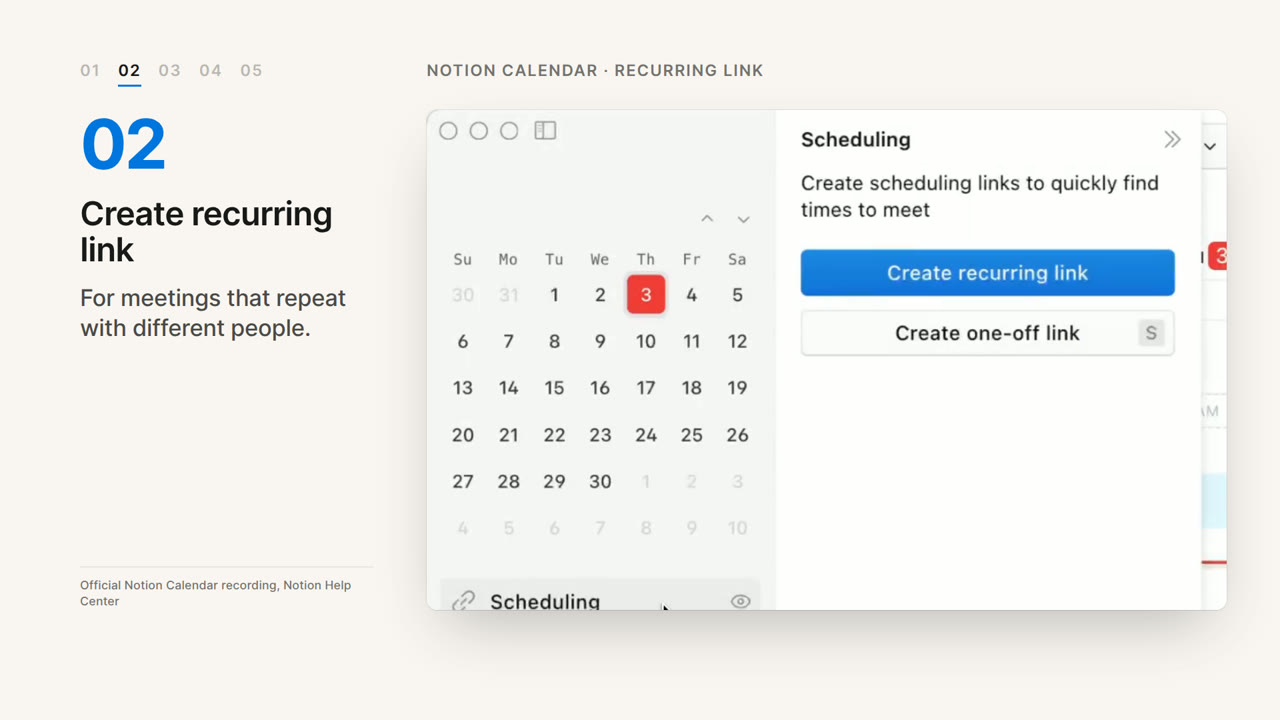
This video was created by ngram to show how to set up recurring scheduling links in Notion Calendar for meetings that happen often with different people, such as user interviews. The video walks through the full workflow step by step: opening the Scheduling panel from the left sidebar or using the S keyboard shortcut, then clicking Create Recurring Link. It demonstrates adding available time ranges for each day, including using the plus icon to add a second time range per day. Next, it covers setting meeting details such as the name, duration, optional location, phone call option, booking window, and description. Finally, it shows clicking Create, opening the three-dot menu, and selecting Copy Scheduling Link to share it, so invitees can pick a time that automatically appears on the calendar. The video closes with a prompt to try Scheduling in Notion Calendar. ngram created the video using HTML and CSS motion graphics in a 16:9 aspect ratio, structured into clear sequential scenes covering context, opening scheduling, creating the recurring link, adding available times, setting meeting details, and creating and sharing the link, paired with narrated captions that guide viewers through each on-screen action.
- #Notion Calendar
- #scheduling links
- #recurring meetings
- #calendar tutorial
- #productivity tool
- #user interviews