
Compare ngram and Clueso on the instructions your viewer must follow, the source screens and the update process. This walkthrough uses GitHub’s public Actions quickstart to show a real documentation-based ngram tutorial. It is a separate job from recording an employee’s existing walkthrough.
Teach one complete task
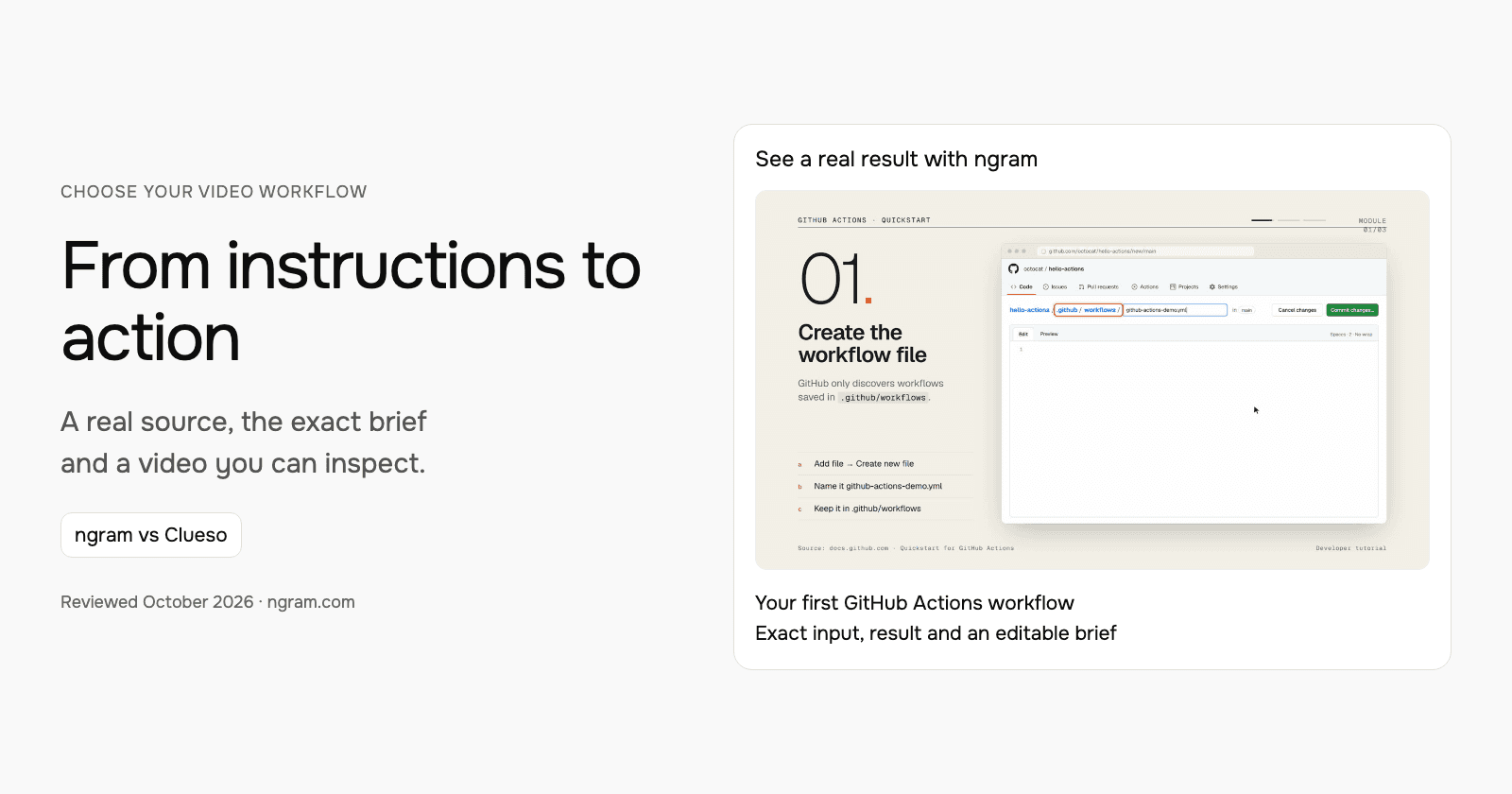
The GitHub example has three modules: create a workflow file, commit the quickstart YAML, and inspect its run logs. The source is a documentation page. That matters when judging the result: it demonstrates a tutorial built from instructions, not an imported Clueso recording or a recording of an ngram employee performing the task.
| Decision | In this example |
|---|---|
| Starting state | A repository where Actions is enabled. |
| Module one | Create the workflow file in .github/workflows. |
| Module two | Copy the quickstart YAML and commit it. |
| Module three | Open Actions, choose the run and inspect job/step logs. |
| Completion | The viewer can find what ran and where to debug. |
Watch the actual input become a video
The 55-second result explains why the file location matters, connects the commit to the push trigger, and points the viewer to job and step logs. Those details make the lesson more useful than a broad “automate your work” introduction. Inspect the actual frames and transcript below alongside the quickstart.
From this input to this video
GitHub’s quickstart becomes an illustrated walkthrough of creating a workflow and finding its run logs.
Create a 60-second role-based tutorial video for GitHub Actions (https://docs.github.com/en/actions/get-started/quickstart). The audience is developer users. Cover these modules in order: create the workflow file shown in GitHub’s quickstart in a repository where Actions is enabled; copy the quickstart workflow and commit it; open the Actions tab, select the workflow run, then inspect the job and step logs. For each module, show the UI step on screen, narrate what the developer does and why it matters, then move to the next. Tone: clear, practical and encouraging. End with a brief summary screen listing all modules covered and the line: Create your first workflow with GitHub Actions. Voiceover language: English; apply the brand kit if one is set.
Read the exact input
Prompt
Create a 60-second role-based tutorial video for GitHub Actions (https://docs.github.com/en/actions/get-started/quickstart). The audience is developer users. Cover these modules in order: create the workflow file shown in GitHub’s quickstart in a repository where Actions is enabled; copy the quickstart workflow and commit it; open the Actions tab, select the workflow run, then inspect the job and step logs. For each module, show the UI step on screen, narrate what the developer does and why it matters, then move to the next. Tone: clear, practical and encouraging. End with a brief summary screen listing all modules covered and the line: Create your first workflow with GitHub Actions. Voiceover language: English; apply the brand kit if one is set.
Selected style
Editorial
Source material
Read the video transcript
Let's run your first GitHub Actions workflow. Three short modules, and you're done. In a repository where Actions is enabled, click Add file, then Create new file. Name it dot github, slash workflows, slash github-actions-demo dot yml. GitHub only discovers workflows saved in that folder. Next, copy the quickstart YAML into the file. It runs on every push, on an Ubuntu runner, and echoes a few details about your repository. Click Commit changes. That commit is a push, so your workflow starts right away. Now open the Actions tab. Select GitHub Actions Demo, then click the run your commit triggered. Choose the Explore-GitHub-Actions job and expand any step to read its log. This is exactly what ran, and where you'll debug later. Create, commit, inspect. Create your first workflow with GitHub Actions.
Turn product instructions into a tutorial
See a real GitHub Actions tutorial made from its public quickstart. For your own video, use the relevant documentation and any exported recording that helps explain the steps.
Bring the instructions
Use a public documentation page or upload a PDF. If you have useful footage, download an authorized MP4 from Clueso and upload it to ngram.
Adapt the brief
Add your product, audience and exact steps below. Attach your files and select your Brand Kit in ngram.
Approve the plan
Review the plan containing the script and approve generation. Ask for revisions when the instructions or audience change.
Make it yours
Fill in your details here, or continue and finish your brief in ngram.
Where each workflow fits
Clueso supports current agent and source-based creation as well as recording workflows. Its software-training skill accepts a steps list, SOP document or rough recording. Its recording-first guidance is useful when the exact clicks and on-screen state are the source of truth.
Choose ngram when a source page and role-specific brief should become a new narrated tutorial with a reviewed plan. Compare Clueso when its capture, documentation and publishing workflow fits the team’s help-center process. Both deserve evaluation on the actual steps and revisions, rather than an assumption that only one accepts written material.
Prepare your own version
Specify the viewer’s role and starting state. List the modules in order and give the current documentation URL. Add approved screenshots or an exported recording when an account-specific screen matters. Before approval, check the plan for navigation labels, prerequisites and the final success state.
Use the editable brief above to fill in your own source and details. Choose the style, length and aspect ratio. In ngram, attach your files, select your configured Brand Kit and enable captions when wanted. Approve the plan containing the script, then inspect the video and request revisions through chat or the timeline.
Make the next update useful
When a menu or setting moves, provide the current screen and ask ngram to replace the affected step. Replay the transition into and out of that step: a correct label can still leave the tutorial confusing if the previous scene opens a different screen. Keep the help article and embedded video pointed at the same current instructions.
Budget and delivery
ngram Free includes 1,000 credits/month and supports public sharing and embeds. Premium AI video generation uses 10 credits per second; a cheaper model uses 3 credits per second. At the premium rate, a 30-second generation uses 300 credits. Check the chosen model and available credits before creating your version.
Use a paid plan to download an MP4. Unlisted video links start with Basic. Compare the other product’s current billing term, seats and usage unit against your complete job, including the revisions and publishing method you need. See ngram pricing and the full comparison for the broader buying decision.
Frequently asked questions
What should the viewer be able to do afterward?
Create the workflow from GitHub’s quickstart, commit it and find the resulting job and step logs. The source and submitted brief show that complete sequence.
Should I start with documentation or a recording?
Use documentation for an approved sequence and a recording when the actual account state or clicks are essential. Supply both when each contributes something the viewer needs.
Continue with your own material
Start with the editable template, explore source-to-video workflows, or talk to sales about a team workflow.
Sources and scope
Product information reviewed October 18, 2026. The embedded result was created with ngram from the exact input shown. Competitor descriptions use official sources; this article does not claim a timed or scored test of competing outputs.
Clueso video and export workflow
Source for the demonstrated example