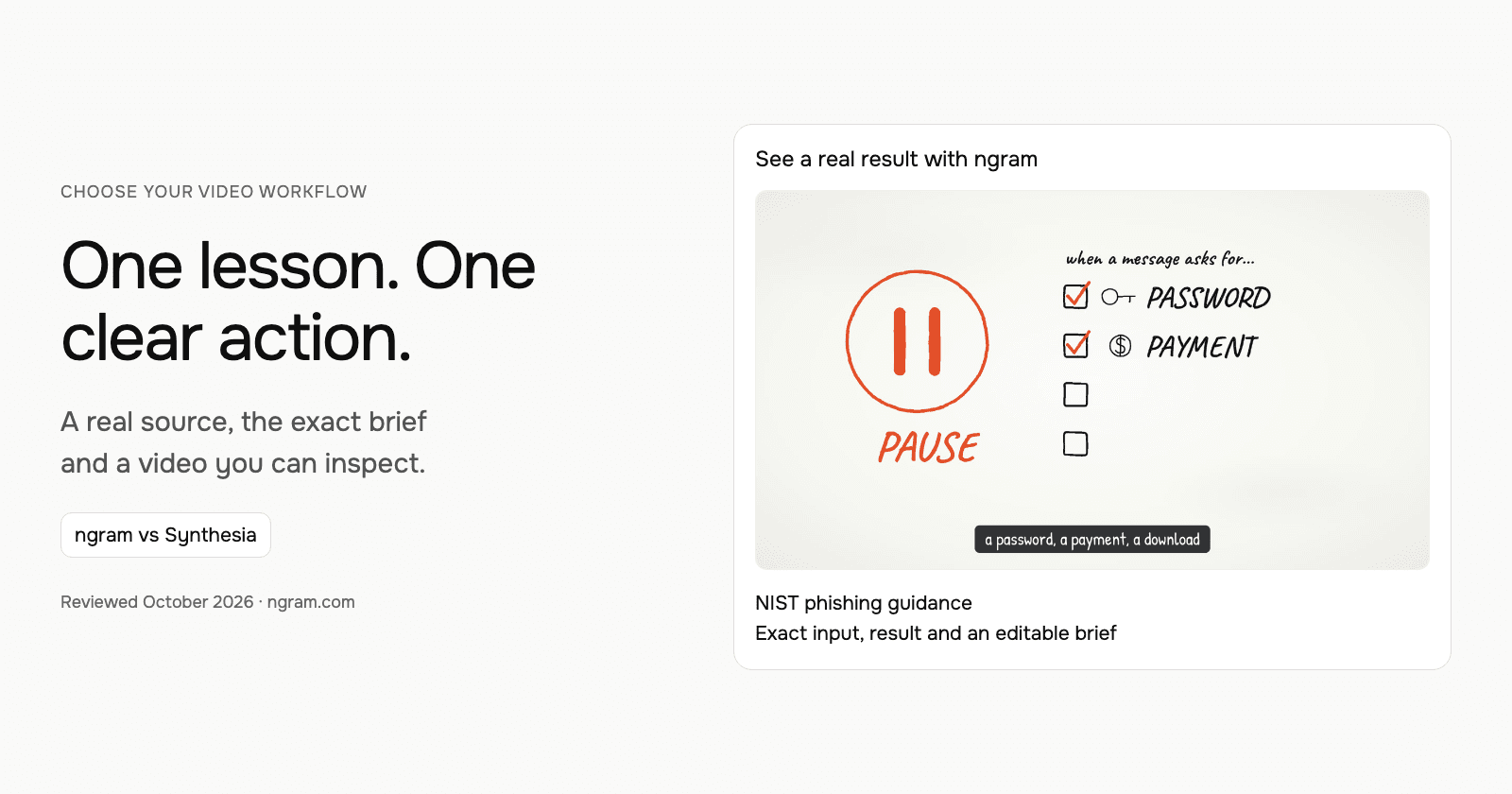

Compare ngram and Synthesia around the lesson you need to deliver: the source wording, visual explanation and learning-platform handoff. This example turns a NIST-based phishing script into a 45-second whiteboard lesson, with the actual input and result available to inspect.
Choose the behavior before choosing the presenter
The lesson asks small-business employees to pause, verify and report. Its source is NIST’s phishing guidance. The brief supplies a complete script rather than asking the generator to invent a security policy. That leaves the video to explain the approved message through narration, labels and visual examples.
| Decision | In this example |
|---|---|
| Trigger | An urgent message asks for a password, payment or download. |
| Decision | Verify through a contact method already trusted. |
| Action | Report through the organization’s process. |
| Visual treatment | Whiteboard explanation with on-screen terms. |
| Delivery | 45-second lesson with captions requested in the brief. |
Watch the actual input become a video
The generated transcript retains the supplied script’s sequence: urgency, impersonation, warning signs, independent verification, reporting and a short recap. The close sends viewers to NIST’s guidance and their own reporting process. This makes the video a starting lesson that a company can adapt to its actual internal policy.
From this input to this video
A script based on NIST’s published guidance becomes a whiteboard training video with captions.
Create a 45-second animated cybersecurity training video that teaches recognizing and reporting phishing using NIST’s small-business guidance at https://www.nist.gov/itl/smallbusinesscyber/guidance-topic/phishing to small-business employees. Use my script verbatim for the voiceover — do not rewrite it: An urgent message can make a risky click feel necessary. Phishing impersonates a trusted sender to steal information or deliver harmful software. Pause when a message asks for a password, a payment, a download or immediate action. Check the sender, and verify the request through a contact method you already trust. Do not use the message’s own link or phone number to verify it. Report suspicious messages using your organization’s process. If you already clicked, tell your security contact promptly. Pause, verify and report. Read NIST’s phishing guidance and learn your team’s reporting process. Explain the idea with the warning signs and verification steps in the NIST guidance and reinforce each key term with clear on-screen labels. Visual style: whiteboard. Tone: calm and practical. Open with a short real-world hook, walk through the concept step by step, then close on a one-line recap and this call to action: Read NIST’s phishing guidance and learn your team’s reporting process. Add captions for muted playback.
Read the exact input
Prompt
Create a 45-second animated cybersecurity training video that teaches recognizing and reporting phishing using NIST’s small-business guidance at https://www.nist.gov/itl/smallbusinesscyber/guidance-topic/phishing to small-business employees. Use my script verbatim for the voiceover — do not rewrite it: An urgent message can make a risky click feel necessary. Phishing impersonates a trusted sender to steal information or deliver harmful software. Pause when a message asks for a password, a payment, a download or immediate action. Check the sender, and verify the request through a contact method you already trust. Do not use the message’s own link or phone number to verify it. Report suspicious messages using your organization’s process. If you already clicked, tell your security contact promptly. Pause, verify and report. Read NIST’s phishing guidance and learn your team’s reporting process. Explain the idea with the warning signs and verification steps in the NIST guidance and reinforce each key term with clear on-screen labels. Visual style: whiteboard. Tone: calm and practical. Open with a short real-world hook, walk through the concept step by step, then close on a one-line recap and this call to action: Read NIST’s phishing guidance and learn your team’s reporting process. Add captions for muted playback.
Selected style
Whiteboard
Read the video transcript
An urgent message can make a risky click feel necessary. Phishing impersonates a trusted sender to steal information or deliver harmful software. Pause when a message asks for a password, a payment, a download or immediate action. Check the sender, and verify the request through a contact method you already trust. Do not use the message’s own link or phone number to verify it. Report suspicious messages using your organization’s process. If you already clicked, tell your security contact promptly. Pause, verify and report. Read NIST’s phishing guidance and learn your team’s reporting process.
Create a lesson from your approved script
The example uses a script based on public NIST guidance. Replace its subject and wording with the lesson your team needs, then choose how it should look.
Prepare the lesson
Use an approved script and source material. Export slides or documents you want to include as a supported upload, such as PowerPoint or PDF.
Set the direction
Fill in the audience, topic, script and call to action below. Select a style, then attach your materials and choose your Brand Kit in ngram.
Review and deliver
Approve the plan containing the script. After generation, review the result, request changes and share it. On a paid plan, download the MP4 for your learning platform.
Make it yours
Fill in your details here, or continue and finish your brief in ngram.
Where each workflow fits
Synthesia Assistant also starts from source material and develops an outline before creation, with an editable canvas afterward. Compare it when presenter delivery, localization, course interactions or a learning-system package are part of the requirement. Verify those delivery features on the selected plan.
Choose ngram for a source-based lesson whose visual treatment can vary between whiteboard, motion graphics and other available styles. Keep the approved wording in the brief, review it in the plan, and use the video as the teaching asset. For learning-platform delivery, download its MP4 on a paid plan and add it to your course.
Prepare your own version
Replace the public script with your approved lesson and name the audience. Add the actual reporting channel or internal policy reference when appropriate. Request captions explicitly, then choose the style and settings. If a presenter is essential, choose a presenter style and compatible generation option in the composer.
Use the editable brief above to fill in your own source and details. Choose the style, length and aspect ratio. In ngram, attach your files, select your configured Brand Kit and enable captions when wanted. Approve the plan containing the script, then inspect the video and request revisions through chat or the timeline.
Make the next update useful
When the reporting process changes, provide the new wording and ask ngram to update the closing instruction. Check the narration, captions and on-screen call to action together. Keep the lesson’s earlier examples when they still teach the same behavior.
Budget and delivery
ngram Free includes 1,000 credits/month and supports public sharing and embeds. Premium AI video generation uses 10 credits per second; a cheaper model uses 3 credits per second. At the premium rate, a 30-second generation uses 300 credits. Check the chosen model and available credits before creating your version.
Use a paid plan to download an MP4. Unlisted video links start with Basic. Compare the other product’s current billing term, seats and usage unit against your complete job, including the revisions and publishing method you need. See ngram pricing and the full comparison for the broader buying decision.
Frequently asked questions
Is the example a SCORM course?
It is a video lesson. Download the MP4 on a paid ngram plan and add it to your learning platform. Compare Synthesia’s plan-specific course-package features when that deliverable is required.
Why does this example have captions?
The actual template prompt asks for captions. You can enable captions for your own video when they suit the audience and placement.
Continue with your own material
Start with the editable template, explore source-to-video workflows, or talk to sales about a team workflow.
Sources and scope
Product information reviewed October 18, 2026. The embedded result was created with ngram from the exact input shown. Competitor descriptions use official sources; this article does not claim a timed or scored test of competing outputs.