

Search "Canva Video vs Wave.video" and you find two browser-based video tools that both promise polished social and marketing clips without a desktop editor. Look closer and they aim at different jobs. Canva Video is the video side of Canva's all-in-one design suite: a free, multi-track timeline editor with a 1.6 million-plus template library, Magic Video, and AI generation, sitting next to the graphics, decks, and posts your team already makes there.
Wave.video is a five-product video-marketing suite: an online editor, a live streaming studio, a recorder, a thumbnail maker, and ad-free hosting, bundled around a 200 million-asset stock library. This guide compares Canva Video vs Wave.video across the things that decide the purchase: editing model, AI features, stock and assets, streaming and hosting, pricing, and ease of use.
It also shows where a third option, ngram, beats both when your real job is a finished, planned business video built from a doc, URL, deck, or screen recording.
Both tools are genuinely good at what they do. Canva Video rewards teams who design first and want video in the same place. Wave.video rewards marketers who broadcast, edit, and host in roughly equal measure and want one subscription for all of it. The honest answer to "which is better" is "for which job," so we pick a winner per dimension instead of crowning one overall.
Canva Video vs Wave.video at a glance
Here is the short version before the deep dive. ngram sits in the table because for many teams comparing these two, the better question is whether you need an editor and asset library at all, or a system that plans and builds the whole video for you.
| Tool | Best for | Starting price | Main distinction |
|---|---|---|---|
| ngram | Teams turning a doc, URL, deck, or recording into a finished, on-brand business video | Free, paid from $29/mo | Plans the whole video from your source, not just assembles clips |
| Canva Video | Creators and SMB teams already in Canva who want a design-led video editor | Free, Canva Pro from $15/mo ($120/yr) | Multi-track timeline plus 1.6M templates inside a full design suite |
| Wave.video | Marketers who edit, live stream, and host video in one suite | Free, Streamer from $16/mo, Creator $24/mo | Editor plus live streaming, hosting, and a 200M stock library |
Editing model and control
This is the first real split between the two, and it shapes everything downstream. Both give you a real timeline, so the difference is less about raw control and more about the surrounding workflow.
Canva Video runs on a multi-track timeline in its Video Editor 2.0, which launched in October 2025. You stack video, text, audio, and graphics tracks, trim with frame-level control, and arrange elements with the same drag-and-drop precision Canva uses for design. Because the editor sits inside the design suite, you can pull any element, template, or brand asset straight onto the canvas. The trade-off is that you are still laying out scenes by hand, deciding the structure yourself before the polish starts.
Wave.video gives you an online editor built for marketing video, with auto-resize across 30-plus aspect ratios and a large template gallery, so the same project can become a square ad, a vertical reel, and a wide YouTube cut. It is capable, but it is the one place buyers raise a flag: recent G2 and Capterra reviews report lag, freezing, and crashes during editing, with some users describing repeated crashes in a single session.
For light edits this rarely shows up, but for heavy timelines it is worth knowing before you commit.
Winner: Canva Video for a more polished, stable editing canvas, Wave.video for fast multi-format resizing across the marketing suite. Pick based on whether design-grade layout or quick channel reformatting matters more.
Worth noting for both: you still arrive with the raw material and assemble it yourself, scene by scene. Neither tool reads a product doc, a landing page, or a screen recording and proposes the video for you. That gap is where ngram fits, and we cover it below.
AI features
Both tools have added AI, but at very different depths.
Canva Video leans hard on AI. Magic Video takes your clips plus a short prompt and drafts a short-form edit, a built-in AI video generator (powered by Google's Veo 3) fills footage gaps, captions are one click, and an AI voice generator handles narration.
The catch is the allowance: the AI video generator produces clips up to 8 seconds, from English text prompts only, and even paid plans land around five clip generations a month, with AI usage metered through a shared monthly credit pool. So the AI is broad but capped, best for short snippets rather than a full video.
Wave.video keeps AI lighter and more utilitarian: auto-captions you can style, text-to-speech voiceover, and AI helpers for scripts and resizing. Reviewers describe its AI tools as less advanced than dedicated AI video apps, which is fair. The AI here speeds up captioning and reformatting rather than generating new footage.
Winner: Canva Video, clearly, for breadth and depth of AI, with the caveat that its generation is short and capped. Wave.video's AI is a helpful accelerator for captions and formatting rather than a generation engine.
A caveat for both: their AI speeds up editing tasks, but you still drive the structure. ngram inverts that. Its agentic chat plans the script, storyboard, scenes, captions, and call to action from your source first, then you review the plan before anything renders.
Stock, templates, and assets
Finished videos live or die on the assets around your footage, and both tools invest heavily here, from different angles.
Canva Video draws on the entire Canva ecosystem: a 1.6 million-plus template library, plus stock photos, stock footage, fonts, graphics, and brand assets shared with the rest of your Canva account. If your team already designs decks and social posts in Canva, the video editor inherits all of it, and you rarely start from a blank canvas for a quick social clip.
Wave.video counters with raw scale on stock media: a 200 million-asset library of clips, images, and audio tracks on its Creator and Business plans, plus a dedicated free thumbnail maker and a wide template gallery. For a marketer who needs a specific b-roll shot or a licensed track on demand, that catalog is hard to beat. Note that the entry Streamer plan limits the library to 2 million assets; the full 200 million unlocks on Creator and Business.
Winner: Wave.video for the largest licensed stock catalog and a free thumbnail maker, Canva Video for design templates and a shared brand-asset library. More choice is not always better if you just want to ship.
Live streaming and hosting
This dimension is where the two tools stop overlapping, and it is the clearest reason to pick one over the other.
Wave.video is built for it. The live streaming studio multistreams to several channels at once, with scenes, guest roles, and broadcasts up to four hours, and the hosting side is a fuller content management system: ad-free embeds, landing pages, customizable players, storage tiers, and viewer analytics. If broadcasting and hosting are part of your weekly job, this is a genuine differentiator, not a checkbox.
Canva Video does not do live streaming or run a hosting CMS. It is a design-and-edit tool, so you export and publish your clip elsewhere. That is not a flaw, it is a different scope, but if you came looking for streaming or ad-free hosting, Canva Video simply is not the tool.
Winner: Wave.video, decisively, for anyone who streams live or needs ad-free hosting. Canva Video is not competing on this dimension at all.
Pricing and value
Pricing is where the two feel most different, because they package value in different ways. Canva bundles video into one Canva Pro subscription that also covers design. Wave.video sells tiers around streaming, the stock library, and editing length.
Canva Video is free to use as part of Canva, with premium templates, stock, and the heavier AI features gated behind Canva Pro. Canva Pro is $15 per month, or $120 per year, and covers the entire design suite, not just video, with a shared monthly AI credit pool across video, image, and copy. Teams is $10 per seat per month with a three-seat minimum, so $30 per month at the floor after Canva moved to per-seat billing.
Wave.video has a free plan, but free editing is capped at 15 seconds with a watermark, which is tight for real marketing video. Paid tiers start at Streamer ($16 per month, focused on streaming with the stock library limited to 2 million assets), then Creator ($24 per month) and Business ($48 per month) unlock the full 200 million-asset library and longer videos. The entry price looks cheap, but the plan that actually gives you the full editing suite is Creator or Business.
Here is how the entry paid plans compare in US dollars per month:
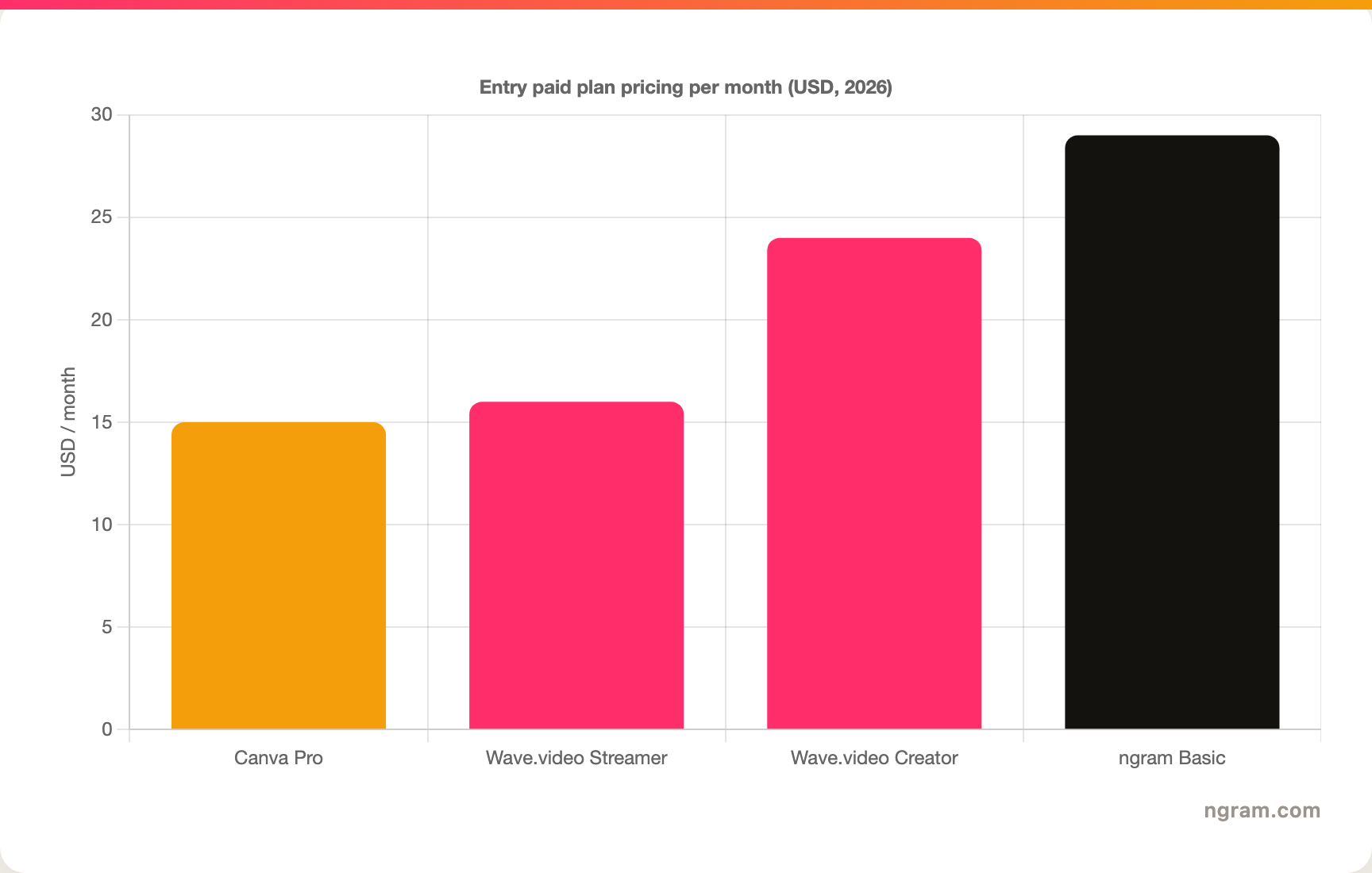
The headline numbers look close, but read the fine print. Canva Pro at $15 per month is the cheapest entry and bundles the whole design suite, though its AI generation is capped. Wave.video Streamer at $16 per month is built around streaming and limits the stock library; the editing-heavy plan is Creator at $24 or Business at $48.
ngram is $29 per month (or $23.20 per month billed annually) and includes 3,000 credits a month on a credit model shared across video generation, editing, and exports. Match the unit to your actual volume before you decide.
Winner: Canva Video for the lowest entry price and design plus video in one, Wave.video for streaming-plus-editing value, ngram for the most source-to-finished video per credit.
Ease of use and time to first video
Both tools are approachable, but they ask different things of you.
Canva Video has the gentler curve for most teams because almost everyone already knows Canva, so the video editor feels familiar from the first click. Templates and Magic Video shorten the first draft, and the design-led layout is forgiving. The ceiling is the AI cap and the lack of streaming or hosting, not the learning curve.
Wave.video asks a little more upfront because you are learning a five-product suite, and the editing reliability reports mean some sessions feel slower than they should. Once you are set up, the breadth pays off, but the first hour is busier than Canva's, especially if you are wiring up streaming or hosting.
Winner: Canva Video for the fastest, most familiar first video, Wave.video for breadth once you invest the setup time.
The shared limitation is the same for both: you are the one deciding what the video should say and how it should flow. Teams whose source is a release doc, a landing page, a slide deck, or a screen recording still have to turn that into a structured video by hand before either tool helps. That is the clearest reason buyers comparing Canva Video vs Wave.video end up looking at a third option.
1. ngram, the better third option for its slice
Watch how ngram turns an idea into a finished video:
ngram does the same end job as Canva Video and Wave.video, producing a polished social or marketing video, and then changes how you get there. Instead of laying clips out on a timeline or wiring up an editing suite, you give ngram a prompt, a PDF, a URL, a deck, a screenshot, a screen recording, or raw footage, and its agentic chat plans the script, storyboard, scenes, captions, and call to action for you to review before anything renders.
That plan-first workflow is the difference. For the marketing, sales, product, and support teams who make up a large share of "Canva Video vs Wave.video" searches, the real job is rarely "assemble these clips." It is a launch video, a product demo, an onboarding walkthrough, or a social cut built from material you already have, with screen-recording polish, callouts, captions, and branding handled for you.
What makes ngram different
- Source-aware inputs - Start from a prompt, PDF, URL, screenshot, screen recording, raw video, deck, or Shopify product, not a blank canvas or a template gallery.
- Plan before render - Review the script and storyboard in chat, fix direction early, then generate, instead of re-cutting a timeline.
- Screen-recording polish - Capture a screen recording, then get automatic cursor smoothing, click emphasis, dead-air trimming, smart zooms, product callouts, and step labels.
- Brand kits - Logos, colors, fonts, and approved or blocked phrases applied automatically to every video.
- Voice and localization - AI voiceover, translated script, captions, and on-screen text, plus multilingual voiceover and re-lip-sync for talking heads.
- MP4 export - Finished videos export as MP4; separate media tools can derive GIF, WebM, PNG, or JPG from supplied media, with up to 4K output on higher plans.
Where ngram is honest about its limits
ngram provides hosted video pages and embeds but has no generally available owner analytics surface, so analytics-heavy buyers should confirm needs first. It is not a live streaming tool, so if multistreaming or broadcasting is central to your work, Wave.video stays the pick.
ngram hosts and embeds finished videos through hosted pages and an embeddable player, but it is not a full hosting CMS with storage tiers the way Wave.video is. And if you mostly live inside Canva for graphics, decks, and quick social clips, Canva Video keeps everything in one design suite.
Who ngram is best for
ngram fits product marketing, growth, sales, customer success, support, and training teams that turn business material into polished video repeatedly. For current plans and credits, check ngram pricing rather than stale screenshots, and for the direct head-to-heads see the ngram vs Canva Video comparison and the ngram vs Wave.video comparison. If your job is turning a page into a hero clip, ngram turns a URL into a video, and you can spin the same source into native social media clips for each channel.
Ready to try ngram? Create your first video from a prompt, doc, URL, deck, screenshot, or recording. Start free
2. Canva Video
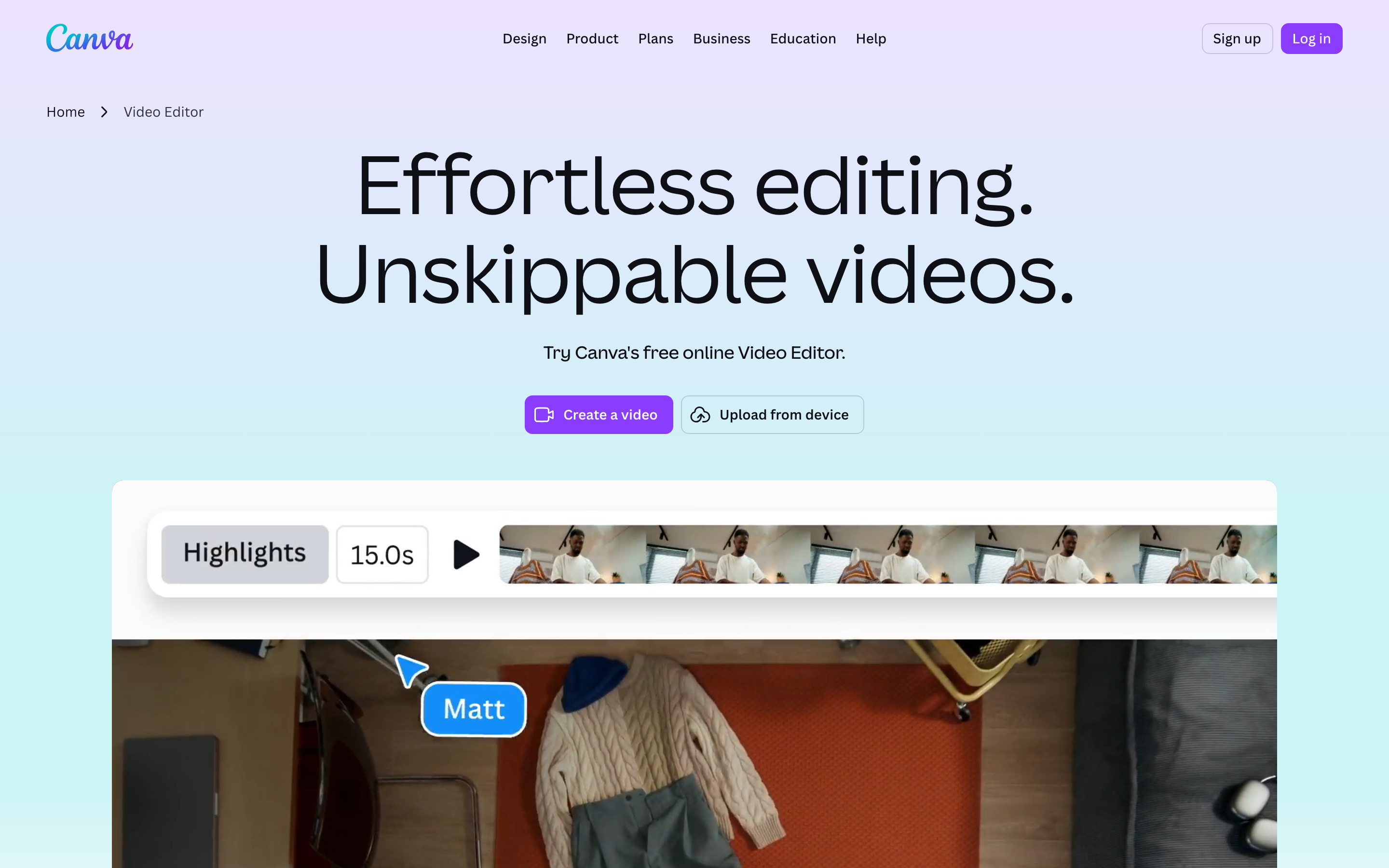
Canva Video is best for creators and SMB teams who want a flexible, design-led editor inside the wider Canva suite. Public details were checked against Canva's video editor and pricing pages for this 2026 comparison.
Key features
- Multi-track timeline - Video Editor 2.0 stacks video, text, audio, and graphics with frame-level trimming and motion effects.
- Magic Video and AI generator - Drafts a short-form edit from clips plus a prompt, with a Veo 3 generator for 8-second clips from English prompts.
- One-click captions and AI voice - Auto captions you can style plus an AI voice generator with multiple voices.
- Full Canva asset library - 1.6 million-plus templates, stock photos and footage, fonts, and shared brand assets.
- Native mobile apps - Web, iOS, and Android, so you can design and edit a clip from a phone or tablet.
What users say
Buyers shortlist Canva Video when they already use Canva for design and want video in the same place, and they like the breadth of templates and the friendly editor. The trade-offs reviewers raise are the capped AI generation, footage uploaded in 4K being stored at 1080p, and a desktop-only screen recorder limited to 25 minutes with no system audio. None of those block a quick social clip, but they matter for heavier work.
Best for
Choose Canva Video when you want design-grade flexibility and a shared asset library inside one subscription, and you mostly make short social clips.
3. Wave.video
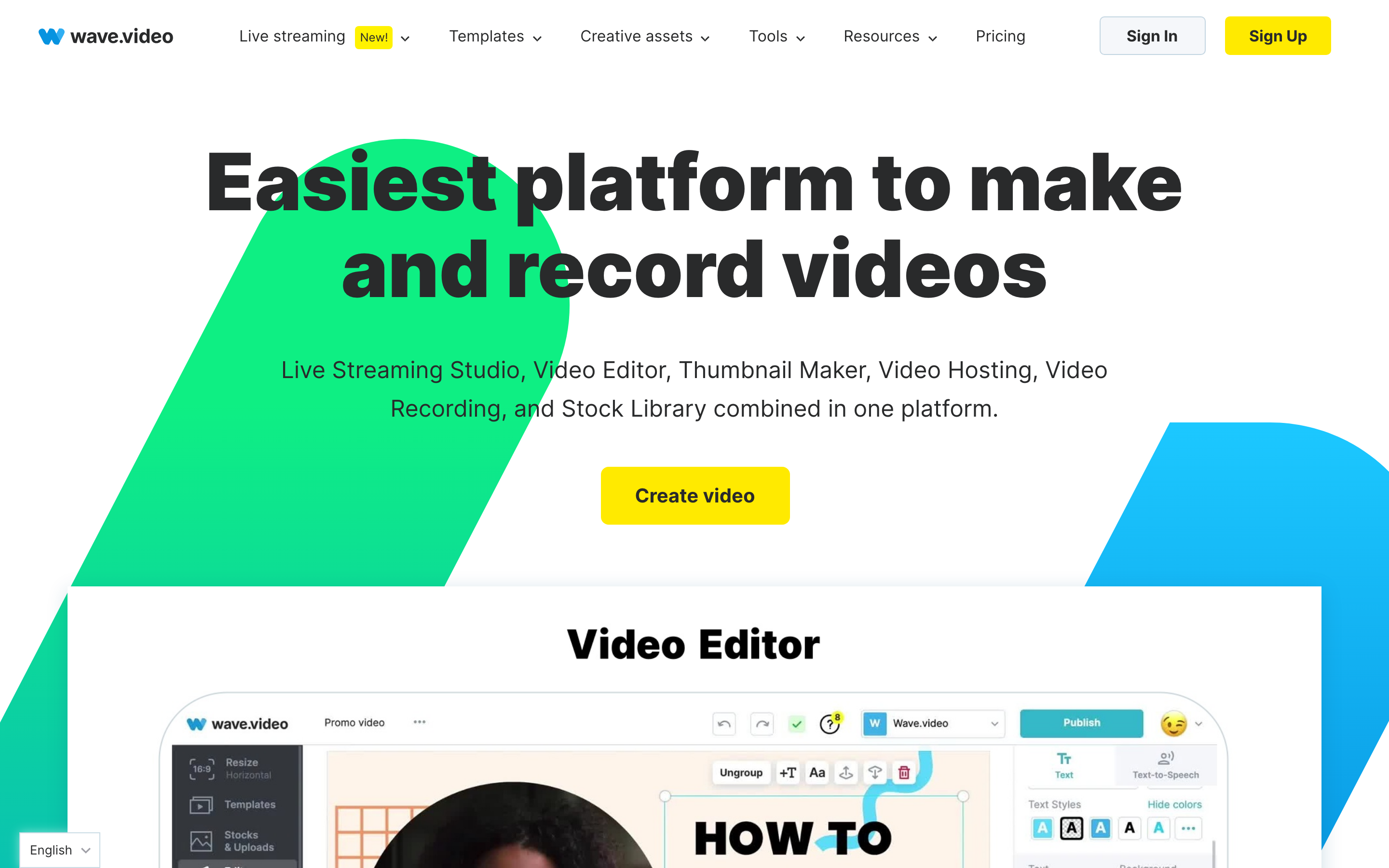
Wave.video is best for marketers who want editing, live streaming, recording, and hosting in one suite. Public details were checked against Wave.video's pricing and product pages plus recent G2 and Capterra reviews for this 2026 comparison.
Key features
- Live streaming studio - Multistream to several channels with scenes, guest roles, and broadcasts up to four hours.
- Ad-free video hosting - A hosting CMS with embeds, landing pages, customizable players, storage tiers, and viewer analytics.
- 200M-asset stock library - Clips, images, and audio on Creator and Business plans, with auto-resize across 30-plus formats.
- Free thumbnail maker - A dedicated thumbnail tool plus a wide template gallery for quick social assets.
- Recorder and auto-captions - Record screen and guests, with auto-captions you can style.
What users say
Buyers like Wave.video for putting editing, streaming, and hosting in one subscription, and for the size of the stock library. The recurring caution in recent G2 and Capterra reviews is editing reliability, with reports of lag, freezing, and crashes during heavier edits, and a free tier that caps clips at 15 seconds with a watermark. The AI tools also read as lighter than dedicated AI video apps.
Best for
Choose Wave.video when live streaming, ad-free hosting, and a huge stock library matter and you want them bundled with an editor in one place.
How we compared these tools
This is not a star rating. It is a decision-weighting model for buyers choosing between two browser-based video tools, with ngram included as the third option many of them actually need.
| Criteria | Weight | What we looked at |
|---|---|---|
| Features | 30% | Editing, streaming, hosting, source support, stock and assets, and export options |
| AI capabilities | 25% | AI generation, captions, voiceover, and planning depth |
| Ease of use | 20% | Time to a first finished video, learning curve, and editing reliability |
| Value | 20% | Public pricing, AI allowances, watermarks, and what each tier unlocks |
| Support and community | 5% | Collaboration, sharing, and team controls |
We reviewed official vendor pricing and product pages, current SERP patterns, and 2026 review-site and Reddit sentiment, and we did not use numerical star ratings because they flatten the real decision: the best tool depends on whether you want a design-led editor, an all-in-one streaming and hosting suite, or a full source-to-video workflow.
Common questions
Is Canva Video better than Wave.video?
Neither is better outright. Canva Video wins for a design-led editor, a massive template library, and deeper AI, while Wave.video wins for live streaming, ad-free hosting, and a 200 million-asset stock library. Match the tool to the job, and consider ngram if your real need is a finished video planned from a doc, URL, deck, or recording rather than clips you assemble yourself.
Is Canva Video cheaper than Wave.video?
Canva Pro at $15 per month is the lower entry cost and bundles the whole design suite, not just video. Wave.video starts at $16 per month on Streamer, but that tier is streaming-focused and limits the stock library, so the editing-heavy plan is Creator at $24 or Business at $48. For most editing buyers Canva is cheaper, though Wave.video adds streaming and hosting that Canva does not have at all.
What is the best Canva Video and Wave.video alternative?
For teams that have outgrown assembling clips, ngram is the strongest alternative because it plans and builds full videos from prompts, docs, URLs, decks, screenshots, and recordings, then adds screen-recording polish, captions, and branding. Canva Video and Wave.video remain the better picks for design-led editing and for streaming-plus-hosting respectively.
Which one handles live streaming, Canva Video or Wave.video?
Wave.video. Its live streaming studio multistreams to several channels with scenes, guest roles, and broadcasts up to four hours, and it pairs that with ad-free hosting. Canva Video does not do live streaming or run a hosting CMS at all, so if broadcasting is part of your job, Wave.video is the clear pick.
Which one should you pick?
The Canva Video vs Wave.video decision is really about your workflow, not the editor. If you want a design-led video tool inside a suite you already use, with a huge template library and the lowest entry price, pick Canva Video. If you need live streaming, ad-free hosting, and a massive stock library bundled with an editor, pick Wave.video.
If your actual job is turning a doc, URL, deck, or screen recording into a finished, on-brand video, where the structure should be planned for you instead of assembled by hand, ngram beats both for that slice. The mistake is treating every video tool as interchangeable. In 2026, workflow fit matters more than the category label.
Try ngram free, your first video in under 5 minutes. Turn a prompt, doc, URL, deck, or screen recording into a polished, on-brand video without assembling it clip by clip. Start free