

Search for "Canva Video vs Kapwing" and you find two browser-based video editors that both promise AI shortcuts, one-click captions, and a finished clip without desktop software. Look closer and they pull in different directions. Canva Video is the video module inside Canva's all-in-one design suite, a free multi-layer editor that now leans on AI helpers like Magic Video, an AI clip generator, and the AudiOMG audio suite.
Kapwing is an AI-first video platform whose homepage now leads with prompt-to-video: type a description and it drafts a full video with voiceover, visuals, subtitles, and music, backed by a collaborative online editor and a deep AI toolbox. This guide compares Canva Video vs Kapwing across the things that decide the purchase: editing model, AI features, captions and audio, pricing, and ease of use.
It also shows where a third option, ngram, beats both when your real job is a finished, planned business video built from a doc, URL, deck, or recording.
Both tools are genuinely good at what they do. Canva Video rewards design range and people already living in Canva. Kapwing rewards AI-first speed and team collaboration in the browser. The honest answer to "which is better" is "for which job," so we pick a winner per dimension instead of crowning one overall.
Canva Video vs Kapwing at a glance
Here is the short version before the deep dive. ngram sits in the table because for many teams comparing these two, the better question is whether you need a manual editor at all or a system that plans and builds the whole video from your source.
| Tool | Best for | Starting price | Main distinction |
|---|---|---|---|
| ngram | Teams turning a doc, URL, deck, or recording into a finished, on-brand business video | Free, paid from $29/mo | Plans the whole video from your source, not just edits clips |
| Canva Video | Creators and SMB teams already in Canva who want a flexible, design-led editor | Free, Canva Pro from $10/mo billed annually ($15 monthly) | Multi-layer timeline plus Magic Video AI inside a full design suite |
| Kapwing | Marketing, education, and content teams who want AI prompt-to-video plus browser editing | Free, Pro from $16/mo billed annually ($24 monthly) | AI-first prompt-to-video with collaborative online editing and dubbing |
Editing model and control
This is the first real split between the two, and it shapes everything downstream.
Canva Video gives you a true multi-layer timeline inside the wider Canva suite. You can stack video, text, audio, and graphics tracks, trim with frame-level control, add motion effects, and arrange elements with the same drag-and-drop precision Canva uses for design. Because video lives next to your decks, social posts, and brand assets, the editor inherits all of it, which is a real advantage if your team already designs in Canva.
Kapwing is also a browser editor, but it is built AI-first and collaboration-first. You can start from a text prompt and let it generate a full draft, or open the online editor and work with layers, subtitles, and audio in real time with teammates. The editor is closer to a focused video workspace than a general design suite, and features like Smart Cut for silence removal and the B-Roll Generator are aimed squarely at video production rather than graphic design.
Winner: Canva Video for design-led flexibility and asset reuse, Kapwing for AI-first drafting and real-time team editing. Pick based on whether your work lives inside a design suite or in a dedicated, collaborative video workspace.
Worth noting for both: you still arrive with the raw material and assemble it yourself, scene by scene, even when AI drafts the first pass. Neither tool reads a product doc, a landing page, or a screen recording and proposes the full structured video for you. That gap is where ngram fits, and we cover it below.
AI features
Both tools have leaned hard into AI, but they emphasize different parts of the workflow.
Canva Video centers AI on the edit. Magic Video takes your clips plus a short prompt and drafts an edit for you, a built-in AI video generator fills footage gaps with generated clips, captions are one click, and the AudiOMG audio suite handles voiceover recording, auto audio balancing, noise removal, and beat-matching. AI usage is metered through a tiered allowance and an optional AI add-on, so heavy AI months can push you into Canva Pro or an extra pass.
Kapwing centers AI on generation and language. Its homepage leads with prompt-to-video that drafts a full multimedia video, and the AI toolbox runs deep: a script generator, text-to-speech and dubbing in over 40 languages, auto-subtitles, Clean Audio noise removal, Smart Cut silence removal, a B-Roll Generator, a Clip Maker, and a Repurpose Studio for turning long videos into short clips. AI usage is governed by a monthly credit allowance that scales with the plan.
Winner: roughly even, decided by your need. Canva Video wins for AI that polishes an edit inside a design suite, while Kapwing wins for AI that generates a draft from a prompt and translates or dubs it across languages.
A caveat for both: their AI speeds up editing and drafting, but you still drive the structure. ngram inverts that. Its agentic chat plans the script, storyboard, scenes, captions, and call to action from your source first, then you review the plan before anything renders.
Captions, audio, and localization
Finished social and marketing videos live or die on captions and clean audio, and both tools invest here.
Canva Video offers one-click auto captions styled to your design, plus the AudiOMG suite for voiceover recording, noise removal, auto balancing, and beat-matching. It is a solid, design-friendly package, though its strength is captions and audio polish rather than large-scale translation.
Kapwing goes wider on language. Auto-subtitles cover long videos on paid plans, Clean Audio removes noise, and the standout is dubbing and text-to-speech in over 40 languages, which makes Kapwing a natural pick when one video needs to ship in several languages. Custom voice clones and lip sync are available on its Business plan rather than the entry tier.
Winner: Canva Video for design-matched captions and audio cleanup, Kapwing for multilingual dubbing and subtitles at scale. If localization is a core job, Kapwing has the edge here.
Both still ask you to decide what the video says and how it flows. ngram generates captions on every video by default, produces AI voiceover, and translates the script, captions, and on-screen text for localized variants, all planned from your source rather than added clip by clip after the fact.
Pricing and value
Pricing is where the two feel most different, because they package value in different ways. Canva bundles video into one Canva Pro subscription that also covers design. Kapwing sells tiers around watermark removal, export length, resolution, and AI credits.
Canva Video is free to use as part of Canva, with premium templates, stock, and the heavier AI features gated behind Canva Pro. In the US, Canva Pro for one person is $15 per month billed monthly, or $10 per month billed annually. The catch is the AI allowance: once you exceed your tiered AI usage, you may need the optional AI add-on.
Kapwing also has a free plan, but it is more limited: it adds a watermark, caps exports at 720p and one minute per video, allows 2 GB uploads, and gives 10 AI credits a month. Kapwing Pro is $24 per month billed monthly, or $16 per month billed annually ($192 per year), and removes the watermark, unlocks 4K, raises uploads to 6 GB, lifts the export length and monthly cap, and gives 1,000 AI credits. The Business plan at $50 per month billed annually adds voice clones and lip sync.
Here is how the entry paid plans compare in US dollars, on both monthly and annual billing:
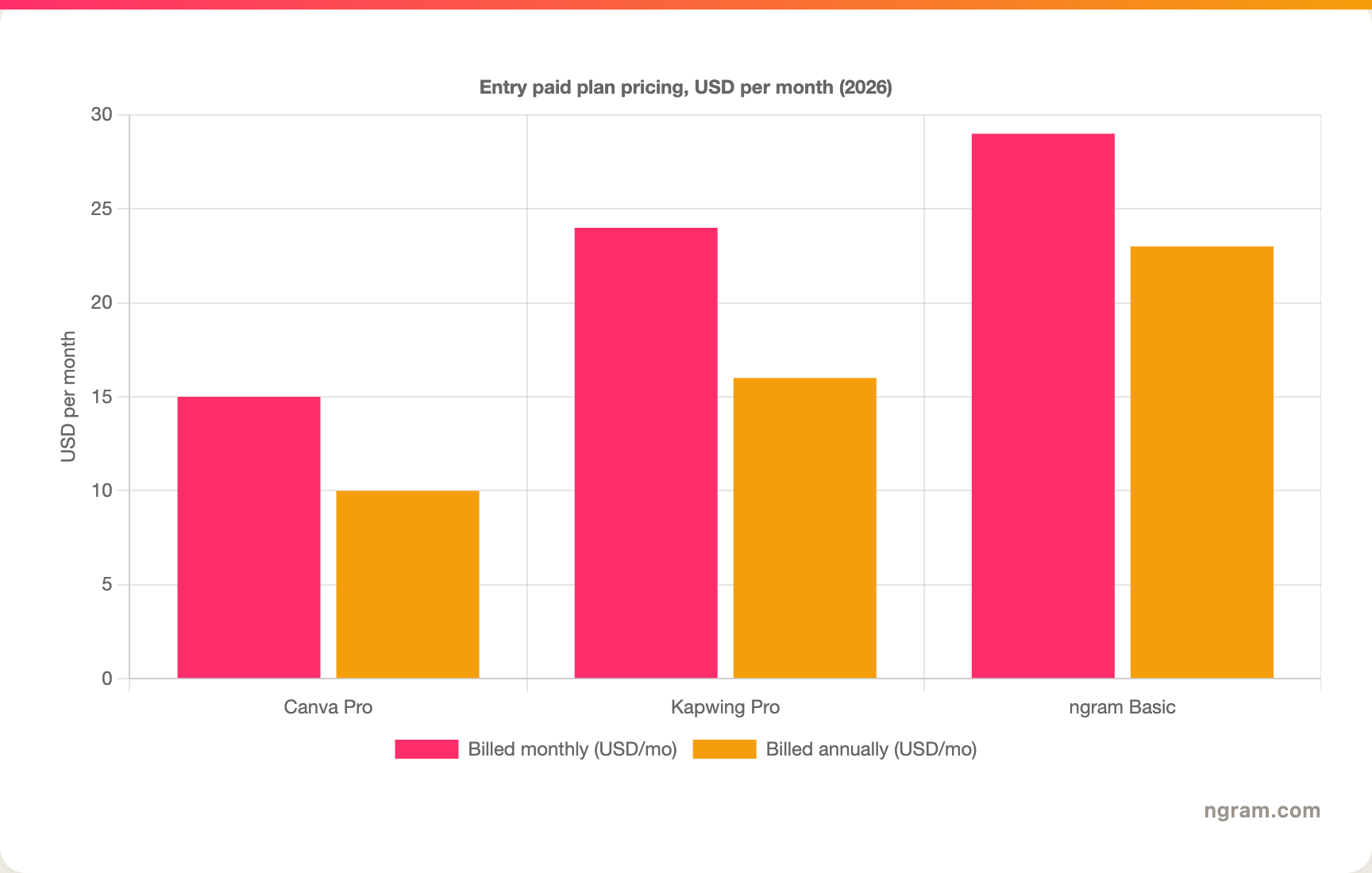
The headline numbers favor Canva on price, but read the fine print. Canva Pro is the cheapest entry at $15 per month billed monthly, or $10 per month billed annually, but it meters AI usage separately. Kapwing Pro is $24 per month billed monthly, or $16 per month billed annually, and the value there is uncapped exports, 4K, no watermark, and a large credit pool for subtitling and dubbing.
ngram's Basic plan is $29 per month billed monthly, or about $23 per month billed annually, and includes 3,000 credits a month on a credit model shared across video generation, editing, and exports. Match the unit to your actual volume before you decide.
Winner: Canva Video for the lowest entry price, Kapwing for the most generous export and AI-credit ceiling per dollar, ngram for the most source-to-finished video per credit.
Ease of use and time to first video
Both tools are browser-based and beginner-friendly, but they ask different things of you.
Canva Video is the gentler start for most people because they already know Canva. The timeline and layers offer more than a pure template tool, so there is a small learning curve, but the familiar interface and shared assets shorten it. Once you are comfortable, you can push design polish further than a focused editor allows.
Kapwing's prompt-to-video is arguably the fastest path to a rough first draft: type a prompt and it generates a video you can refine. The trade-off is that the full editor, with its deep AI toolbox, has more surface area to learn, and the generated draft usually needs cleanup before it ships. For a team that wants to collaborate in real time on that cleanup, Kapwing is built for it.
Winner: Canva Video for a familiar, design-friendly start, Kapwing for the fastest AI-generated first draft. Pick based on whether your bottleneck is the blank canvas or the polish.
The shared limitation is the same for both: you are the one deciding what the video should say and how it should flow. Teams whose source is a release doc, a landing page, a slide deck, or a screen recording still have to turn that into a structured video by hand before either tool helps. That is the clearest reason buyers comparing Canva Video vs Kapwing end up looking at a third option.
1. ngram, the better third option for its slice
Watch how ngram turns an idea into a finished video:
ngram does the same end job as Canva Video and Kapwing, producing a polished social or marketing video, and then changes how you get there. Instead of arranging layers on a timeline or refining an AI draft, you give ngram a prompt, a PDF, a URL, a deck, a screenshot, a screen recording, or raw footage, and its agentic chat plans the script, storyboard, scenes, captions, and call to action for you to review before anything renders.
That plan-first workflow is the difference. For the marketing, sales, product, and support teams who make up a large share of "Canva Video vs Kapwing" searches, the real job is rarely "edit these clips." It is a launch video, a product demo, an onboarding walkthrough, or a social cut built from material you already have, with screen-recording polish, callouts, captions, and branding handled for you. You can see how ngram turns a source into a finished video on the ngram url-to-video page.
What makes ngram different
- Source-aware inputs - Start from a prompt, PDF, URL, screenshot, screen recording, raw video, deck, or Shopify product, not a blank timeline.
- Plan before render - Review the script and storyboard in chat, fix direction early, then generate, instead of re-cutting a timeline.
- Beyond manual editing - Add screen-recording polish, smart zooms, click emphasis, dead-air trim, product callouts, motion graphics, and AI b-roll in the same video.
- Brand kits - Logos, colors, fonts, and approved or blocked phrases applied automatically to every video.
- Voice and localization - AI voiceover, translated script, captions, and on-screen text, plus multilingual voiceover and re-lip-sync for talking heads.
- MP4 export - Finished videos export as MP4; separate media tools can derive GIF, WebM, PNG, or JPG from supplied media.
Where ngram is honest about its limits
ngram provides hosted video pages and embeds but has no generally available owner analytics surface, so analytics-heavy buyers should confirm needs first. Its Public API v1 uses self-service bearer API keys, and among workflow automators Zapier and n8n are available; Make.com is Coming Soon. And if your real job is hands-on design editing, Canva Video keeps everything in one suite, while if you want AI prompt-to-video with deep dubbing and real-time collaboration, Kapwing is built for that.
Who ngram is best for
ngram fits product marketing, growth, sales, customer success, support, and training teams that turn business material into polished video repeatedly. For current plans and credits, check ngram pricing rather than stale screenshots, and for the direct head-to-heads see the ngram vs Canva Video comparison and the ngram vs Kapwing comparison.
Ready to try ngram? Create your first video from a prompt, doc, URL, deck, screenshot, or recording. Start free
2. Canva Video
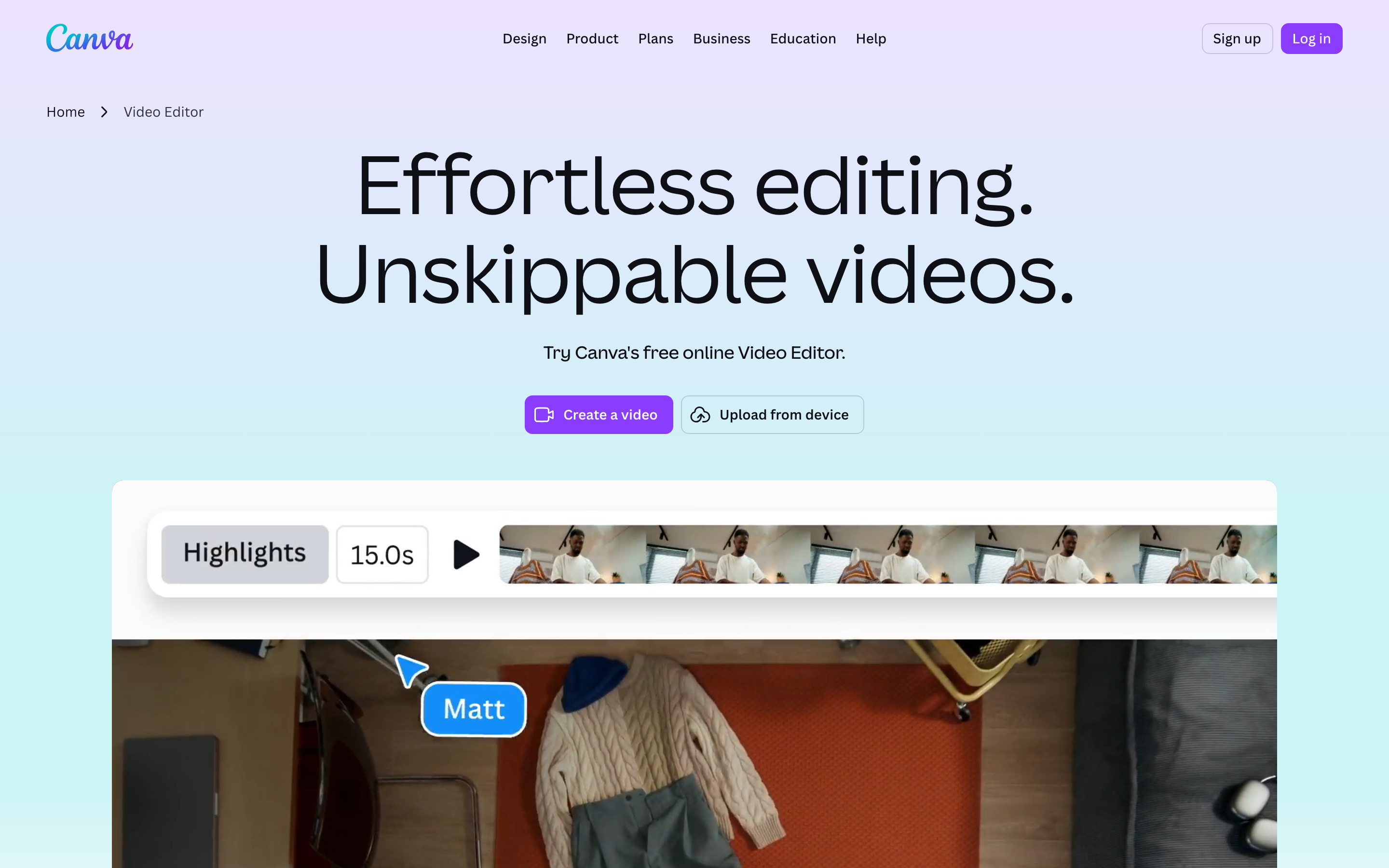
Canva Video is best for creators and SMB teams who want a flexible, design-led editor inside the wider Canva suite. Public details were checked against Canva's video editor and pricing pages for this 2026 comparison.
Key features
- Multi-layer timeline - Stack video, text, audio, and graphics with frame-level trimming and motion effects.
- Magic Video and AI generator - Drafts an edit from clips plus a prompt, and fills footage gaps with AI-generated clips.
- One-click captions and AudiOMG audio - Auto captions, voiceover recording, noise removal, auto balancing, and beat-matching.
- Full Canva asset library - Millions of templates, stock footage including Artlist Video, photos, fonts, and brand assets.
- Tiered AI allowance - AI usage metered by plan, with an optional AI add-on for heavy use.
What users say
Buyers shortlist Canva Video when they already use Canva for design and want video in the same place, and they like the breadth of templates and the design polish. The common caution is that the AI allowance can run out mid-project, and the sheer number of design options can slow down someone who just wants a quick, simple clip.
Best for
Choose Canva Video when you want design-grade flexibility, deep visual polish, and a shared asset library inside one subscription.
3. Kapwing
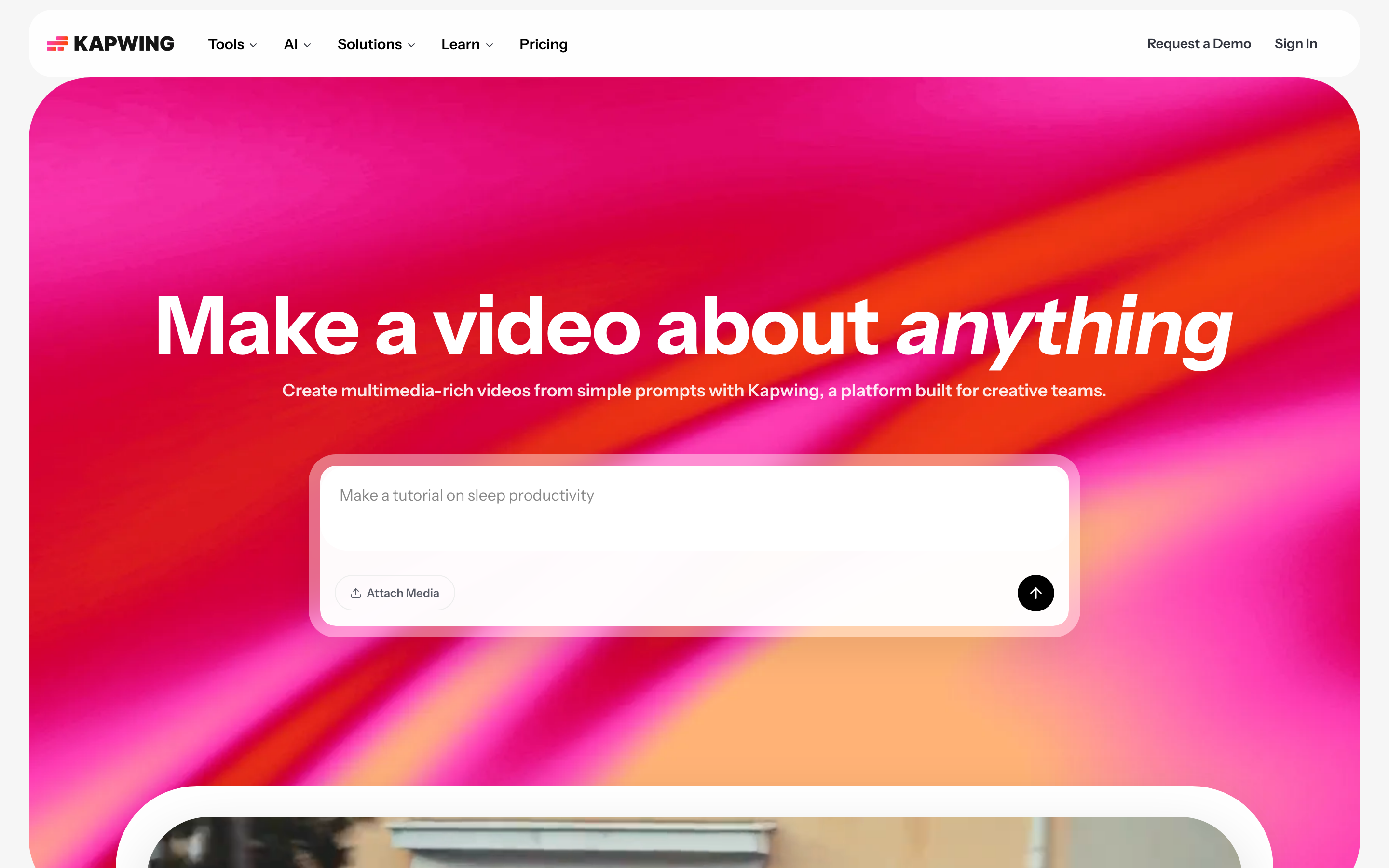
Kapwing is best for marketing, education, and content teams who want AI prompt-to-video plus a collaborative browser editor. Public details were checked against Kapwing's product and pricing pages for this 2026 comparison.
Key features
- AI prompt-to-video - Generate a full multimedia video with voiceover, visuals, subtitles, and music from a text prompt.
- Collaborative online editor - Real-time team editing in the browser with layers, subtitles, and audio.
- Deep AI toolbox - Script generator, text-to-speech and dubbing in over 40 languages, auto-subtitles, Clean Audio, Smart Cut, B-Roll Generator, and Repurpose Studio.
- Watermark-free paid exports - Pro removes the watermark and unlocks 4K, larger uploads, and uncapped exports.
- Voice clones and lip sync - Custom voice clones and lip sync on the Business plan.
What users say
Users reach for Kapwing when they want to draft a video from a prompt fast and collaborate on the cleanup with a team. They praise the dubbing and subtitle tools for multilingual work. The common caution is that the free plan is tight, with a watermark and a one-minute export cap, and that the generated draft usually needs hands-on cleanup before it ships.
Best for
Choose Kapwing when you want AI-generated first drafts, real-time team editing, and strong subtitle and dubbing tools in the browser.
How we compared these tools
This is not a star rating. It is a decision-weighting model for buyers choosing between two browser-based AI video editors, with ngram included as the third option many of them actually need.
| Criteria | Weight | What we looked at |
|---|---|---|
| AI capabilities | 30% | Prompt-to-video, magic editing, captions, voiceover, dubbing, and planning depth |
| Features | 30% | Editing control, source support, captions and audio, and export options |
| Ease of use | 20% | Time to a first finished video and learning curve |
| Value | 15% | Public pricing, AI allowances, watermarks, and what each tier unlocks |
| Collaboration | 5% | Real-time editing, sharing, and team controls |
We reviewed official vendor pricing and product pages, current SERP patterns, and 2026 review-site and forum sentiment, and we did not use numerical star ratings because they flatten the real decision: the best tool depends on whether you want design-led editing, AI prompt-to-video with collaboration, or a full source-to-video workflow.
Common questions
Is Canva Video better than Kapwing?
Neither is better outright. Canva Video wins for design-led editing, asset reuse, and the lowest entry price, while Kapwing wins for AI prompt-to-video, real-time collaboration, and multilingual dubbing and subtitles. Match the tool to the job, and consider ngram if your real need is a finished video planned from a doc, URL, deck, or recording rather than clips you assemble yourself.
Is Kapwing cheaper than Canva Video?
No, Canva Video has the lower entry cost because video is bundled into one Canva Pro subscription at $15 per month billed monthly, or $10 per month billed annually. Kapwing Pro is $24 per month billed monthly, or $16 per month billed annually, but it includes uncapped exports, 4K, no watermark, and a large AI-credit pool. Canva also meters AI usage through an allowance, so heavy AI editing can push you to an add-on, which narrows the gap depending on how much you generate.
What is the best Canva Video and Kapwing alternative?
For teams that have outgrown manual editing, ngram is the strongest alternative because it plans and builds full videos from prompts, docs, URLs, decks, screenshots, and recordings, then adds screen-recording polish, captions, and branding. Canva Video and Kapwing remain the better picks for design-led editing and AI prompt-to-video respectively.
Which is easier for a complete beginner, Canva Video or Kapwing?
Canva Video is usually easier for a beginner because most people already know the Canva interface and its shared assets. Kapwing's prompt-to-video gives the fastest rough draft, but the full editor and AI toolbox have more to learn, and the generated draft needs cleanup. Pick Canva Video for a familiar start, Kapwing for the fastest first draft.
Which one should you pick?
The Canva Video vs Kapwing decision is really about your workflow, not the AI label. If you want a flexible, design-led editor with a huge shared asset library, especially if your team already lives in Canva, pick Canva Video. If you want AI prompt-to-video, real-time collaboration, and strong dubbing and subtitle tools, pick Kapwing.
If your actual job is turning a doc, URL, deck, or screen recording into a finished, on-brand video, where the structure should be planned for you instead of assembled by hand, ngram beats both for that slice. The mistake is treating every AI video editor as interchangeable. In 2026, workflow fit matters more than the category label.
Try ngram free, your first video in under 5 minutes. Turn a prompt, doc, URL, deck, or screen recording into a polished, on-brand video without editing it clip by clip. Start free