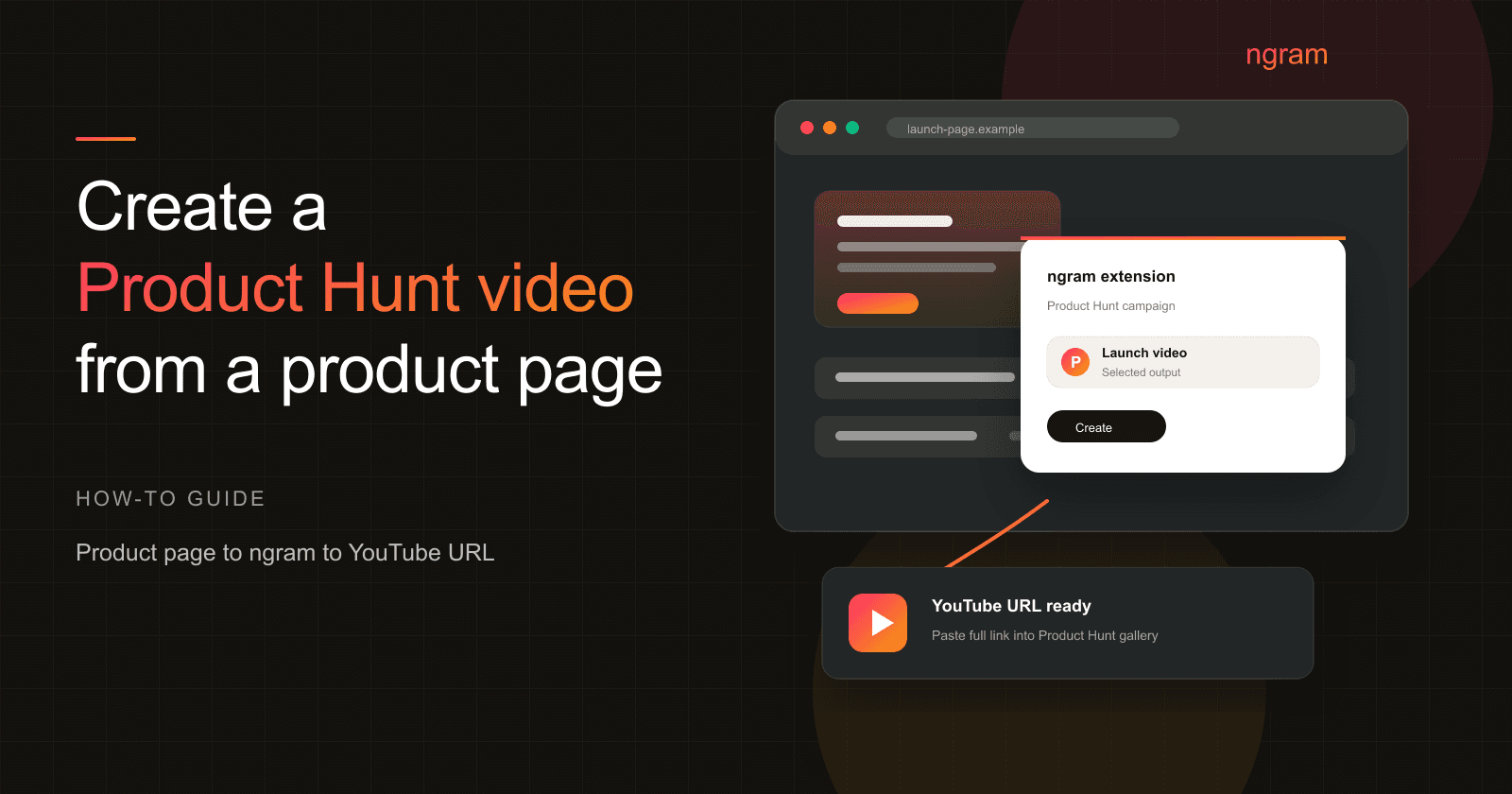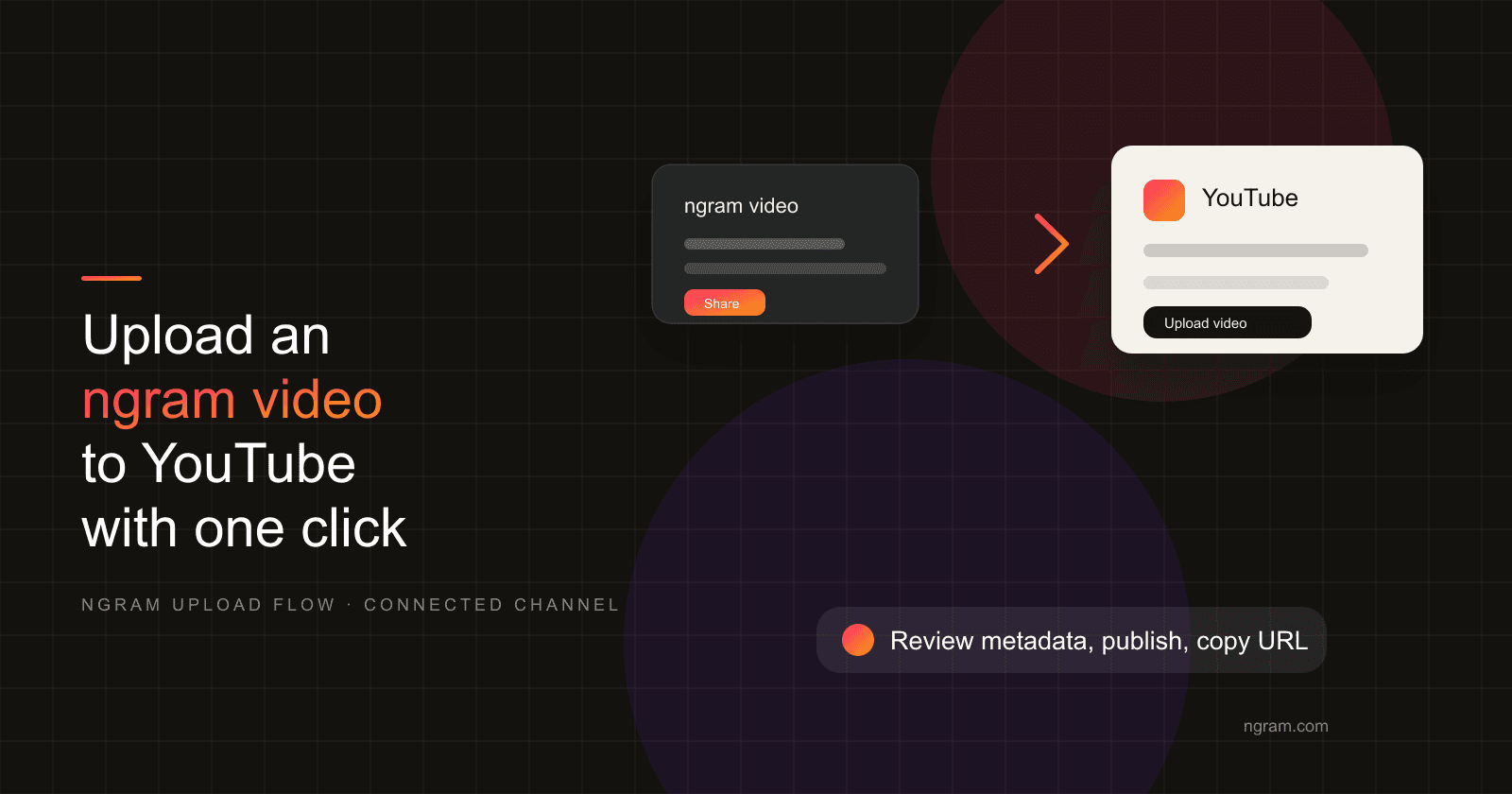

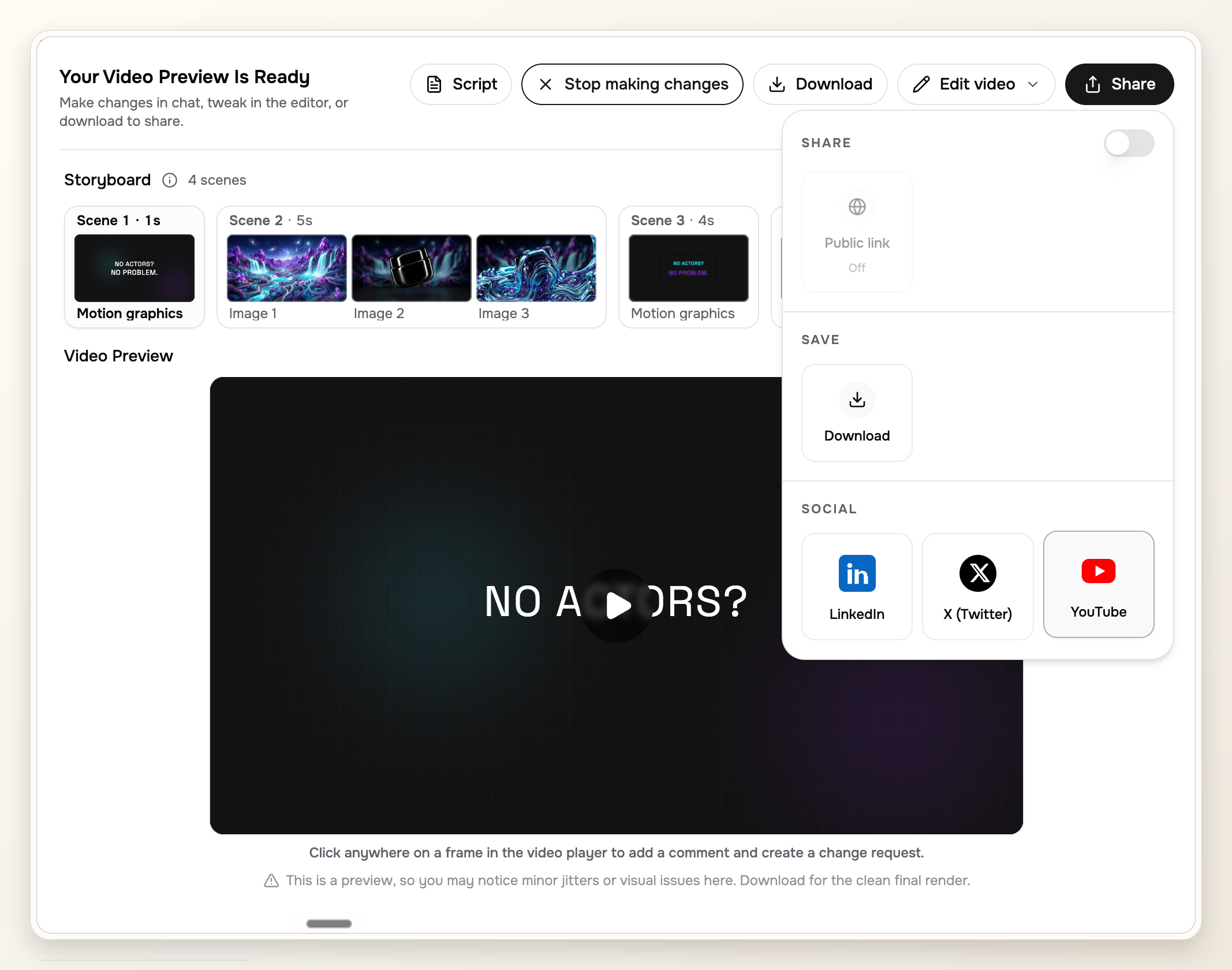
Start with a finished ngram video. The YouTube step is not a generic upload tutorial; it is the handoff from ngram's video preview to a connected YouTube channel.
The workflow is simple: open the ngram video, choose YouTube from the share menu, review the metadata and visibility, publish, then copy the final YouTube URL wherever the video needs to live.
Before you upload the ngram video
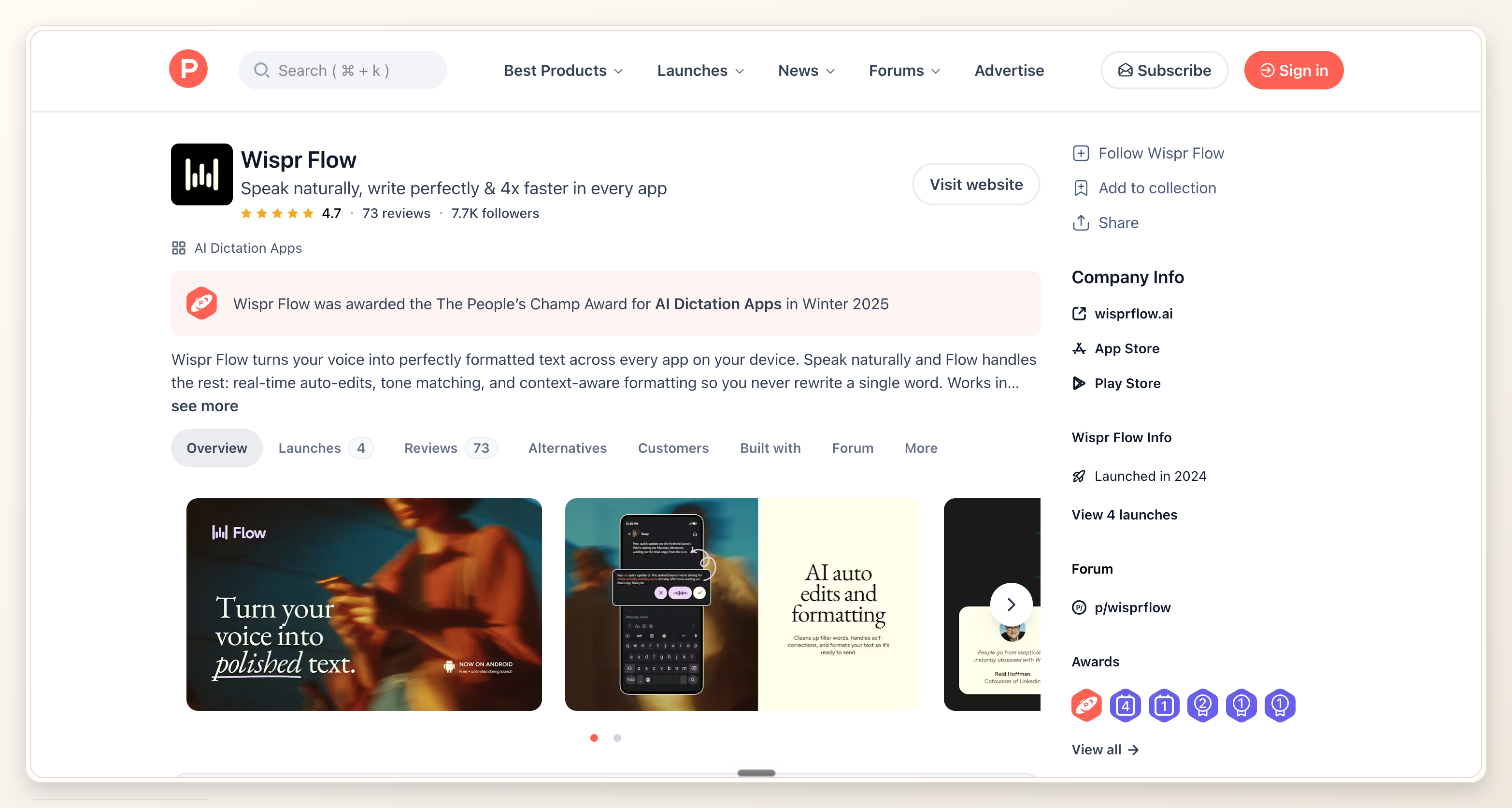
If the video is for Product Hunt, Product Hunt's posting help says videos use YouTube links, the link should be a full URL, shortened links will not load, and the video should not be private. Source: Product Hunt help on posting a product.
Before touching YouTube, check the ngram video itself. The first three seconds should name the pain, the demo should show one clear workflow, and the close should ask for the next action.
Step 1: finish the ngram video
If you still need the video, create it in ngram first. For a launch example, the Product Hunt ngram video maker can turn a product page, prompt, screenshots, PDFs, or launch context into an editable ngram video with script, visuals, voiceover, captions, brand treatment, and export formats.
Keep the output narrow. A YouTube upload from ngram should preserve the exact message the video was created for: what this is, why viewers should care, and what action they should take next.
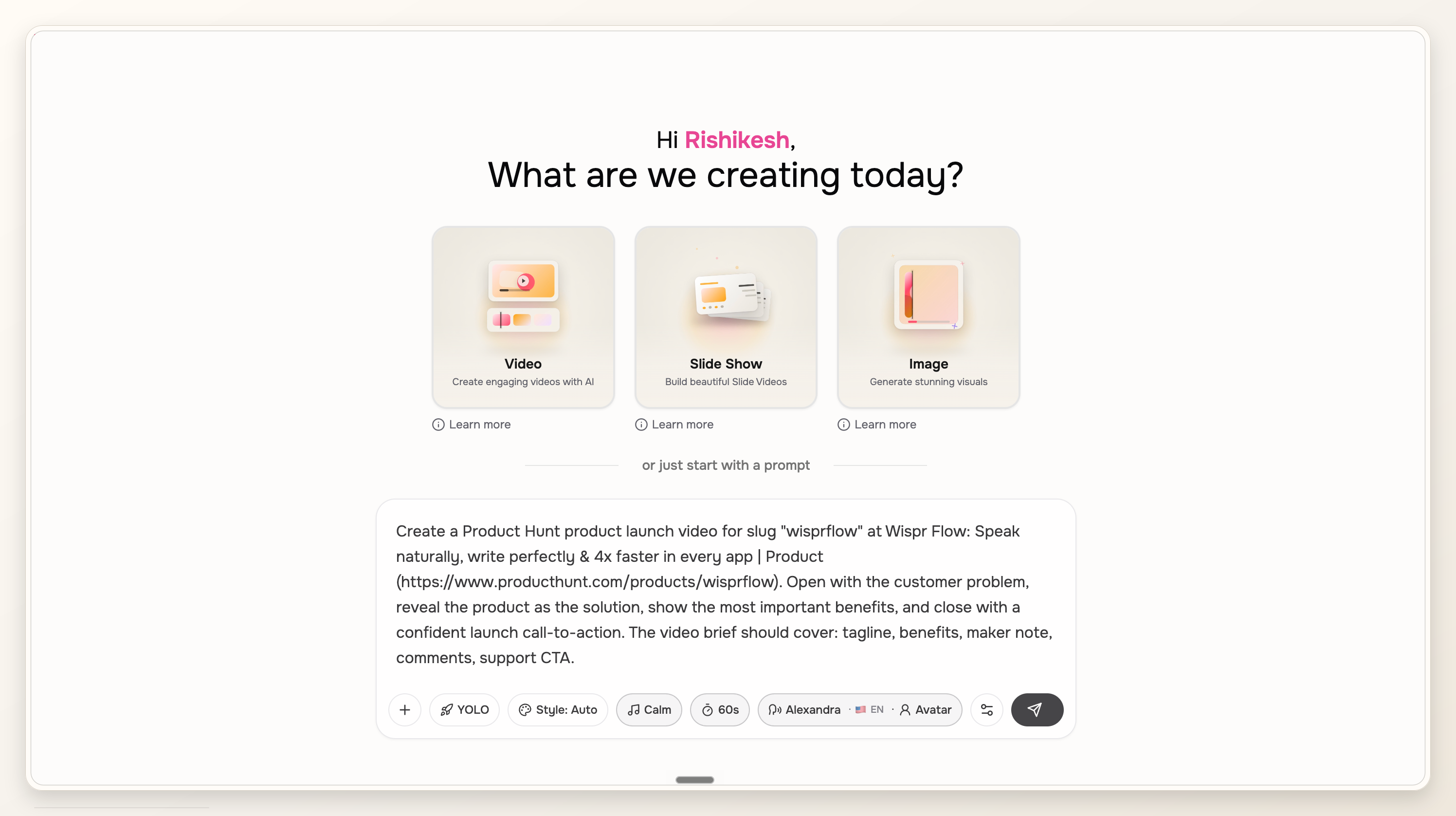
Step 2: choose the ngram YouTube upload path
Use the ngram YouTube integration when your channel is connected and the share flow is available for the project. The point is to send the finished ngram video from ngram instead of downloading the MP4 and uploading it manually.
If the connected-channel handoff is unavailable in your workspace, fall back to YouTube Studio. But the primary workflow in this post is the ngram YouTube share path shown in the screenshots.
Step 3: write YouTube metadata for the ngram video
The YouTube title should name the product or outcome the ngram video demonstrates. The description should include the destination URL, a short summary, and the call to action you want viewers to take.
YouTube's help docs list a 100-character title limit and a 5,000-character description limit. That is room for context, but ngram videos usually perform better when the copy stays direct. If you need a structured starting point, the YouTube AI video maker keeps script, thumbnail work, title, description, captions, export variants, and YouTube publishing connected in the same project.
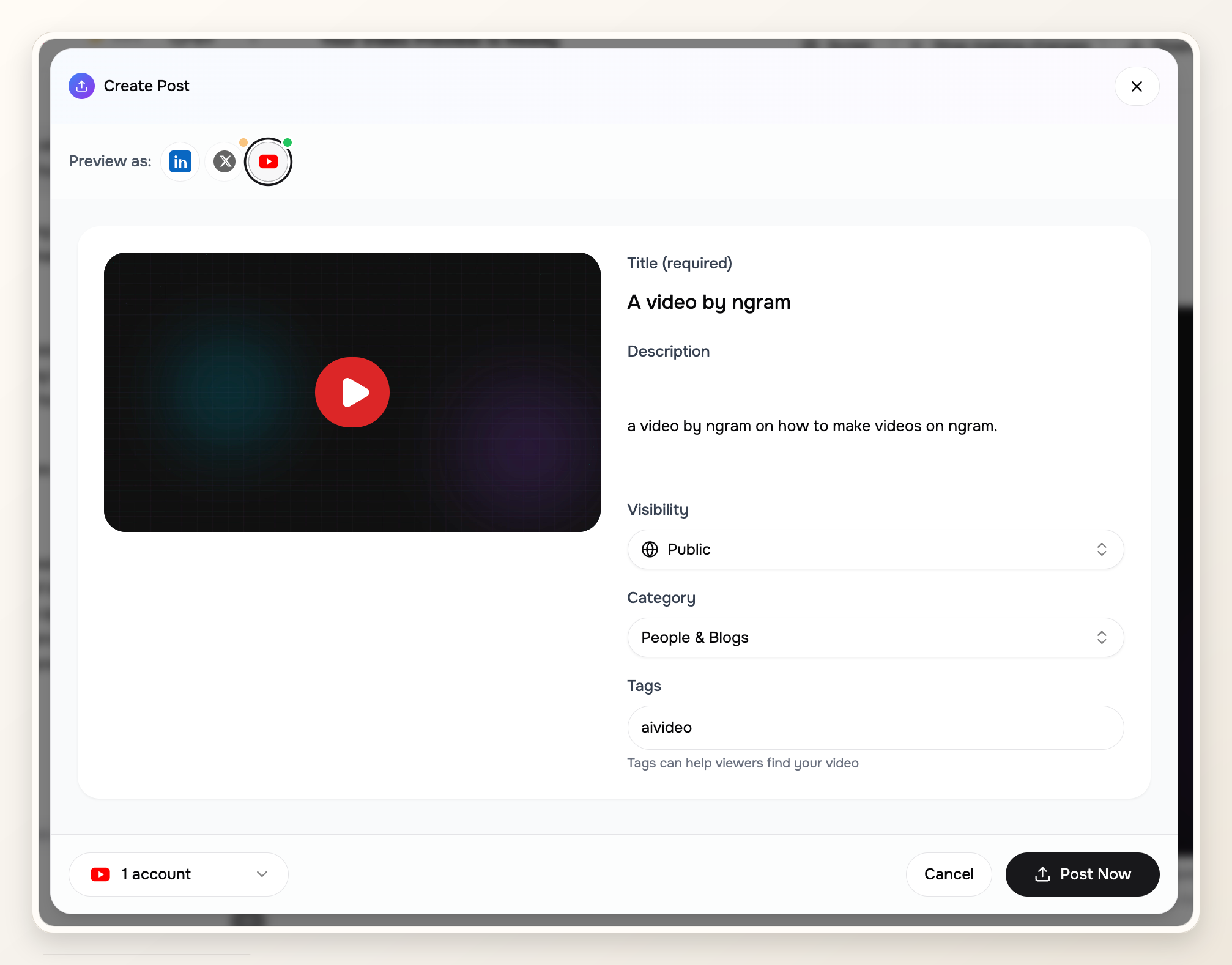
- Title: product name plus the one outcome the launch page promises.
- Description: product URL, launch date or Product Hunt URL, one short product summary, and one CTA.
- Thumbnail: a clear product frame or launch graphic, not a blank transition.
- Tags: add only useful corrections for misspellings or product naming. YouTube says title, thumbnail, and description matter more for discovery.
Step 4: choose visibility YouTube can play
For a launch that is not public yet, unlisted is usually the practical review setting because anyone with the link can watch and share it. Private is a bad fit for Product Hunt because private videos are limited to you and chosen viewers. YouTube Help on privacy settings defines Public, Unlisted, and Private.
If you plan to switch from unlisted to public later, make that a launch checklist item. Any page using the YouTube URL can only show the ngram video cleanly if the URL is accessible when viewers open it.
Step 5: copy the final YouTube URL
After upload processing reaches a playable state, open the video page and copy the full YouTube URL. Keep the same URL in launch docs, posts, and team checklists so nobody shares the wrong draft.
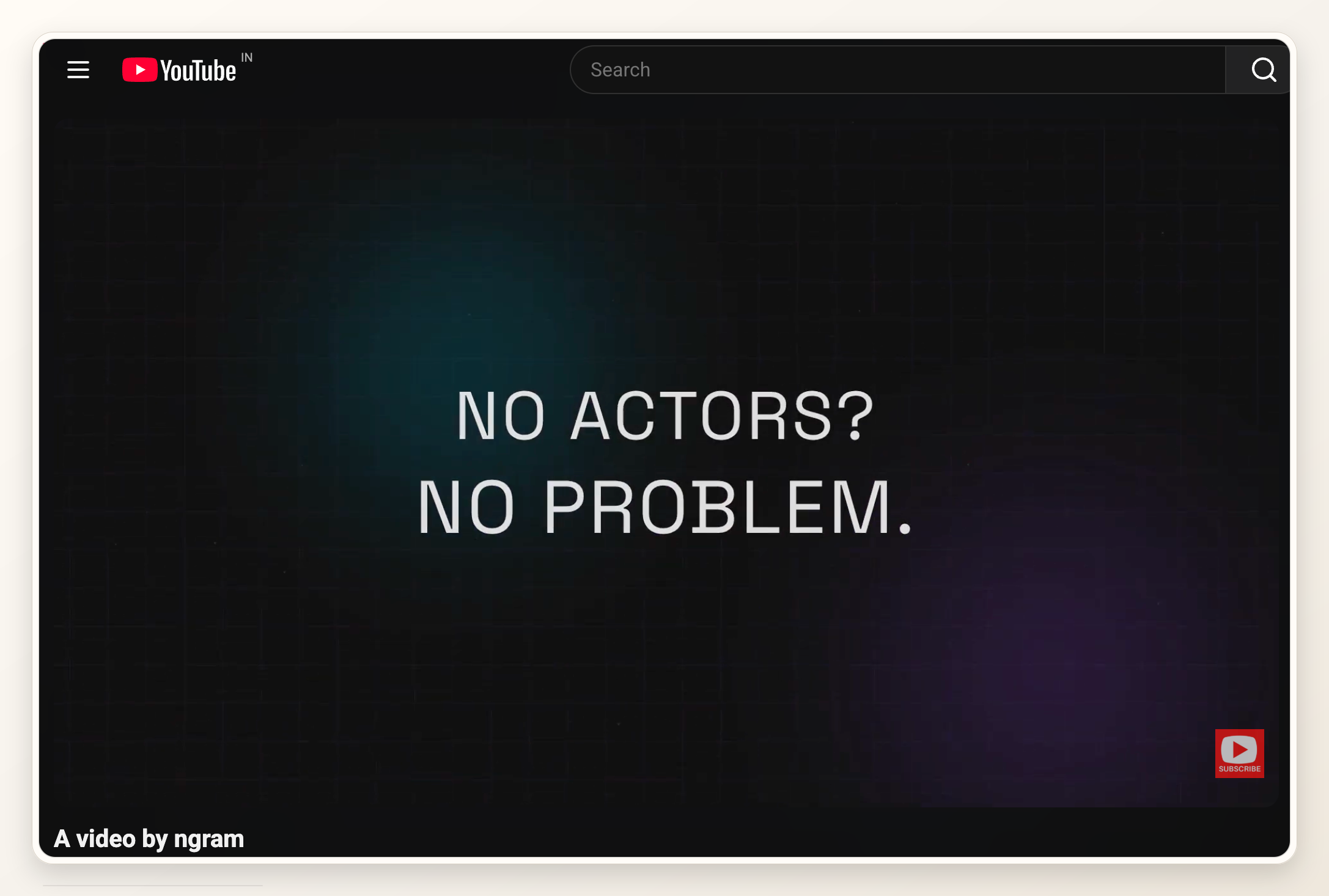
Step 6: use the YouTube URL wherever the ngram video needs to live
If this ngram video is for Product Hunt, paste the full YouTube URL into the ngram video or gallery field, then preview the launch page. If the embed does not appear, re-check visibility first.
For the broader launch workflow, use the Product Hunt ngram video use case to keep the hero cut, social teaser, captions, and launch CTA aligned.
Pre-publish QA checklist
- The ngram video title and YouTube title describe the same promise.
- The video is public or unlisted, not private.
- The YouTube URL is full length and opens in a logged-out browser window.
- The first frame works as a gallery or social preview.
- The Product Hunt gallery preview shows the video before launch day.
Common mistakes
- Making the YouTube video private, then wondering why Product Hunt cannot show it.
- Using a short YouTube link instead of the full URL Product Hunt expects.
- Writing a YouTube title that sounds like a channel episode instead of a launch asset.
- Letting the YouTube description and Product Hunt tagline make different claims.
- Skipping the logged-out playback test.
FAQ
Can I upload an ngram video to YouTube without downloading it?
Yes, when the ngram YouTube share flow is available and the channel is connected. Open the finished ngram video, choose YouTube from Share, review the metadata, and publish from the handoff.
Should my ngram video be public or unlisted on YouTube?
Public works when the launch is already live. Unlisted is useful for pre-launch review because anyone with the link can watch it, while it stays out of public search and subscriber surfaces.
How long should an ngram video be?
Keep it as short as the destination allows. For a launch-page or social handoff, 45 to 90 seconds is usually enough to show the product, name the audience, and close with the CTA.
What should the YouTube description include?
Include the product URL, the Product Hunt URL when public, one clear summary, and the CTA. Avoid keyword stuffing. YouTube says tags have limited discovery value unless they correct misspellings, so spend your time on the title, thumbnail, and description. YouTube Help on tags explains that priority.
Can I edit the title or description after upload?
Yes. YouTube's edit settings flow lets you open a video's title or thumbnail in YouTube Studio, change the settings, and save the update. YouTube Help on editing video settings documents the current path.