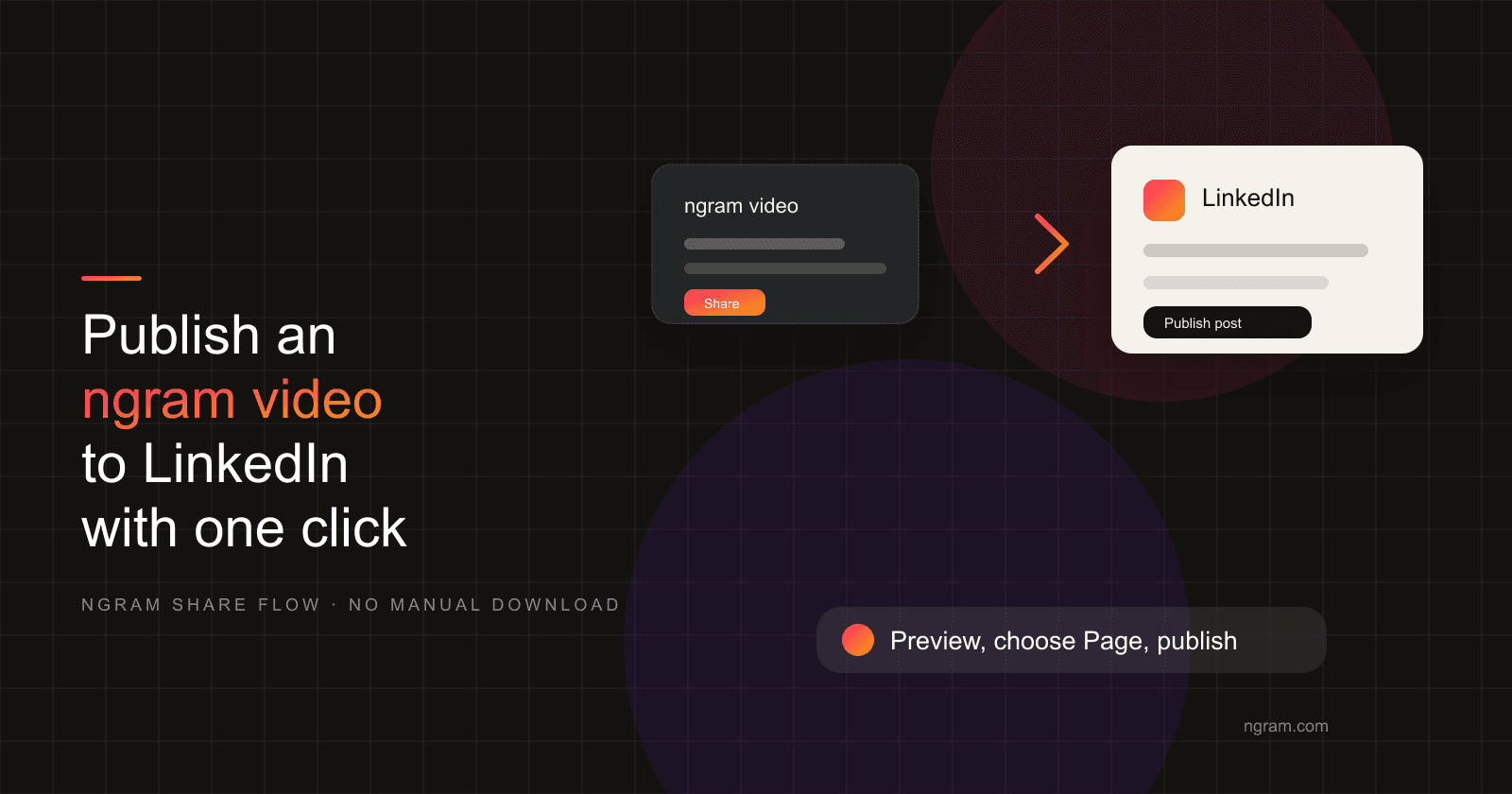

Start with a finished ngram video. The goal is not to explain every possible way to upload a video to LinkedIn; it is to use ngram's own LinkedIn handoff so the rendered video, caption, and share context stay together.
The workflow is short: open the video preview in ngram, choose LinkedIn from the share menu, confirm the connected profile or Page, review the post, and publish or schedule from the handoff.
One guardrail up front: this post is about ngram-created videos. If you have a random MP4 from another tool, use LinkedIn's upload flow instead.
Choose the LinkedIn destination before you click Share
An ngram video can be shared from a founder profile, a company Page, or a paid campaign workflow. The destination affects the post copy and the first frame, so choose it before the handoff.
Use a founder profile when replies matter. Use the company Page when the launch needs an official record. Use paid creative only when you have a separate campaign version.
- Use a founder or team member profile when the launch needs a clear point of view and replies matter.
- Use the company Page when the announcement needs official distribution, employee engagement, or a Page-owned archive.
- Use paid creative when the audience is defined by campaign targeting and the video needs to match Campaign Manager requirements.
Render the ngram video before the LinkedIn handoff
The one-click share flow should start after the video is rendered and reviewed. Check the first frame, captions, logo placement, and CTA while you are still in ngram.
In ngram, the product page to video workflow reads a product URL or pasted product copy, plans a storyboard, and creates a draft you can edit before render. Keep the first version short enough for the feed: one hook, one problem, one product moment, one CTA.
For launch-specific inputs, the AI product ngram video maker is the better starting point. It can use release notes, screenshots, PDFs, decks, prompts, or a URL as source material, then draft the launch script, storyboard, captions, and export formats.
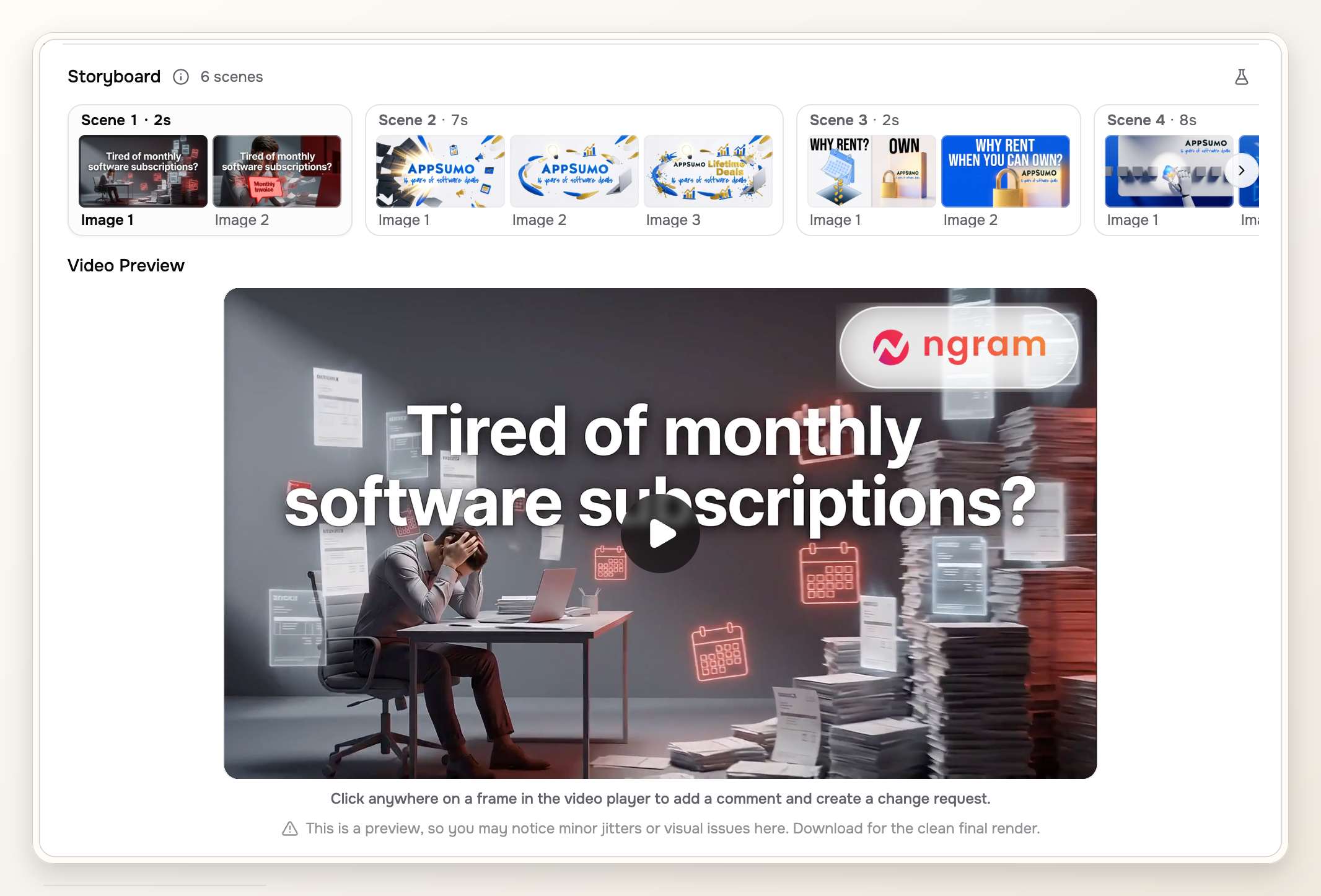
Review the first frame before you render. If the opening frame is a blank app screen, a tiny dashboard, or a logo with no reason to stop, rewrite the hook and regenerate that scene. LinkedIn users decide whether to pause while the feed is already moving.
Check LinkedIn specs before the one-click handoff
ngram handles the video creation side, but LinkedIn still controls upload limits, placement behavior, and scheduling windows. Keep the render short, captioned, and readable in the feed.
| LinkedIn workflow | What LinkedIn says | Launch video decision |
|---|---|---|
| Organic video post | LinkedIn lists a 5 GB maximum file size, 15 minute maximum duration, 256x144 to 4096x2304 resolution, 1:2.4 to 2.4:1 aspect ratio, 10 to 60 fps, and 192 Kbps to 30 Mbps bitrate. Source: Share videos on LinkedIn. | Use a short captioned MP4. Keep logo, CTA, and product labels inside the safe area. |
| LinkedIn Page or Career Page video | LinkedIn's Page video guidance lists a 5 GB maximum file size, 10 minute maximum duration, 3 second minimum duration, 256x144 to 4096x2304 resolution, and 1:2.4 to 2.4:1 aspect ratio. Source: Video specifications for LinkedIn Pages and Career Pages. | Use the Page post for official launch distribution and archive value. Keep it shorter than the limit unless the product needs a full walkthrough. |
| Video ad creative | LinkedIn Marketing Solutions lists MP4, H.264 or VP8, 75 KB to 500 MB, less than 30 fps, and 3 seconds to 30 minutes for video ads. It recommends 15 to 30 second uploads to qualify for more placements. Source: Video ads advertising specifications. | Cut a separate ad version instead of reusing a long launch demo. Lead with the strongest buyer problem. |
The main production choice is aspect ratio. A 16:9 ngram video works for desktop viewing and embedded product demos. A 4:5 or square cut usually gives the product more space in the feed. If the product UI has small labels, render a second cut with larger captions and fewer on-screen details.
Write the LinkedIn post copy before you share
The post copy should be ready before you click the LinkedIn share option. That way the handoff is a review step, not a place where the launch message gets improvised.
For an ngram video launch post, use this structure:
- Open with the buyer problem or the release promise in one plain sentence.
- Add one line of product context: what is new, who it is for, and what changed.
- Add a direct CTA, such as watch the demo, read the launch page, join the beta, or try the feature.
- Tag teammates only when they add context or can answer replies. Launch posts with five polite tags often read like internal celebration.
If the same launch goes to both a founder profile and a company Page, do not reuse the exact copy. The profile version can say why the team built it. The Page version should tell prospects what they can do now.
Use the ngram LinkedIn share option from the finished video
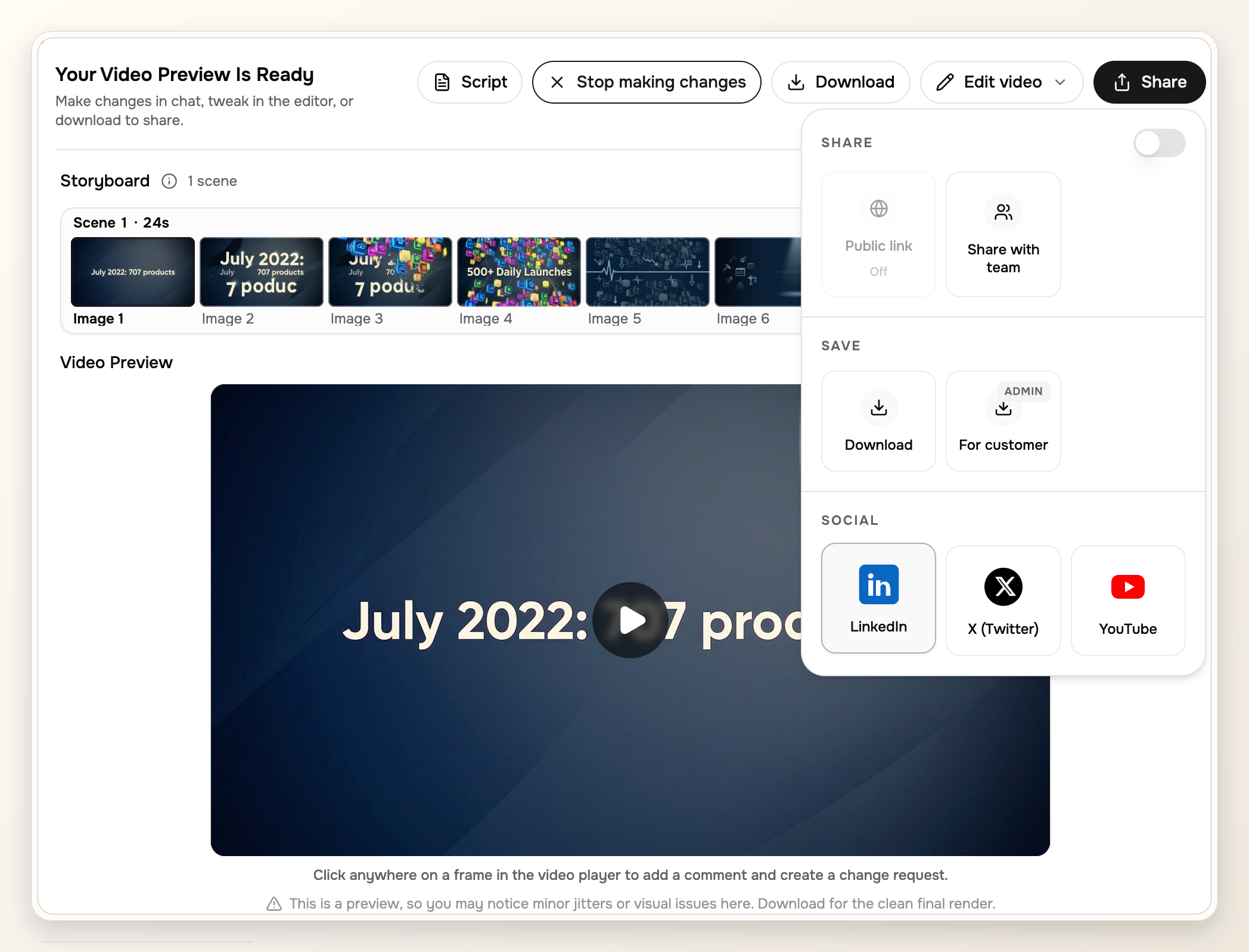
The LinkedIn handoff starts from the ngram video preview. Open the share menu, choose LinkedIn, and confirm the connected destination. The public LinkedIn integration page is the canonical integration reference.
The screenshots below show the actual proof path: a rendered ngram video, the ngram share menu with LinkedIn, the LinkedIn composer, and the live LinkedIn post.
The modal should make the state obvious: which ngram video is being sent, which destination is selected, what copy will go with it, and whether the post is publishing now or being scheduled.
Choose the profile or Page, then publish from the handoff
The account selector matters because the same ngram video reads differently depending on the sender. A founder profile can invite replies; a company Page can make the launch official.
LinkedIn's general scheduling help says scheduled posts can be set from 10 minutes to 3 months ahead from the current time, while LinkedIn Page scheduling guidance says Page posts can be scheduled from 1 hour to 3 months ahead. Sources: Schedule posts and Schedule a LinkedIn Page post.
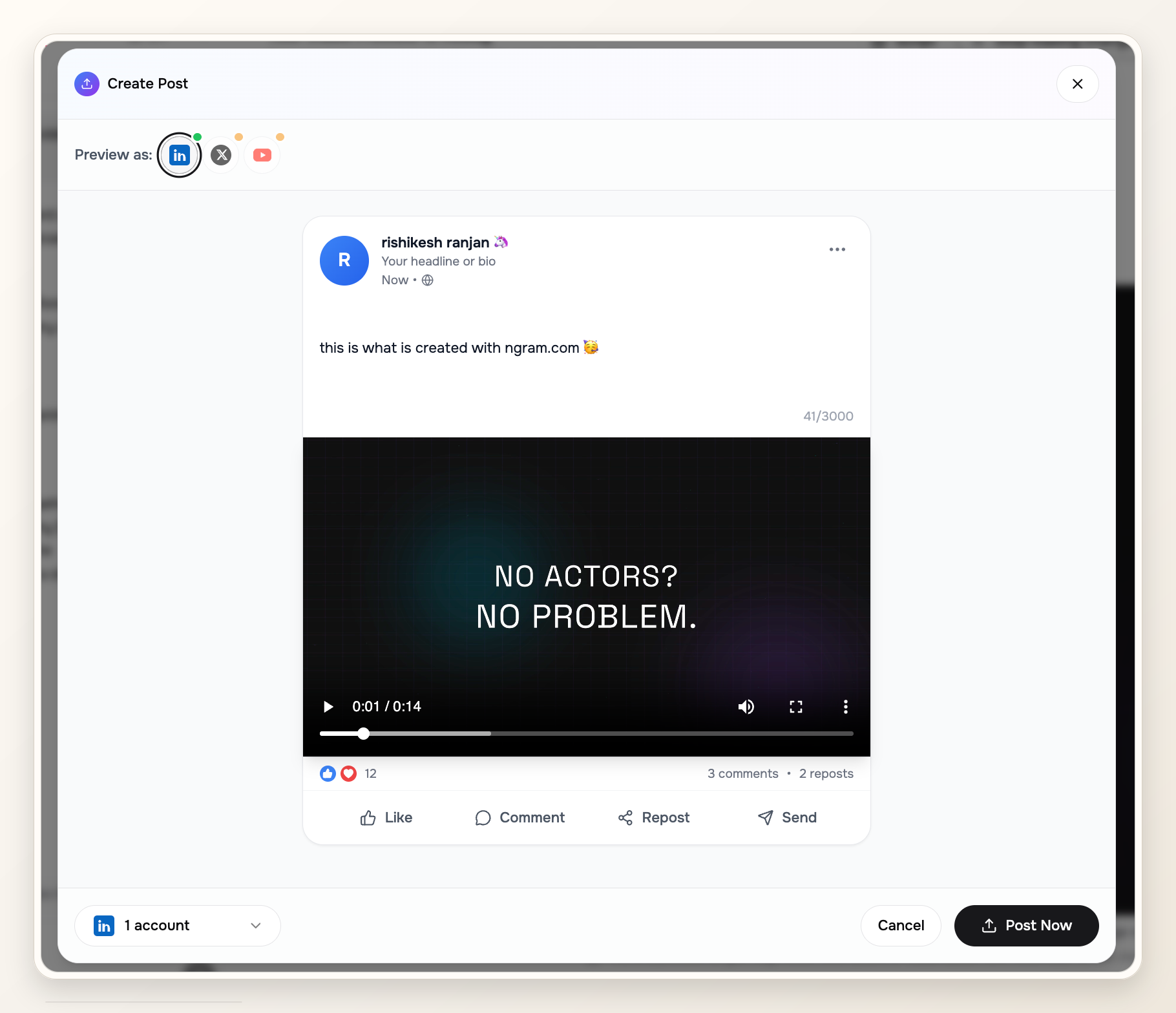
Before publishing, check four fields: the chosen profile or Page, the post text, the launch URL, and the publish or schedule time in the account's time zone.
Verify the final LinkedIn post
After publishing, open the LinkedIn post as a viewer. Confirm the thumbnail, captions, first line, link preview, and sender all match the ngram video you intended to share.
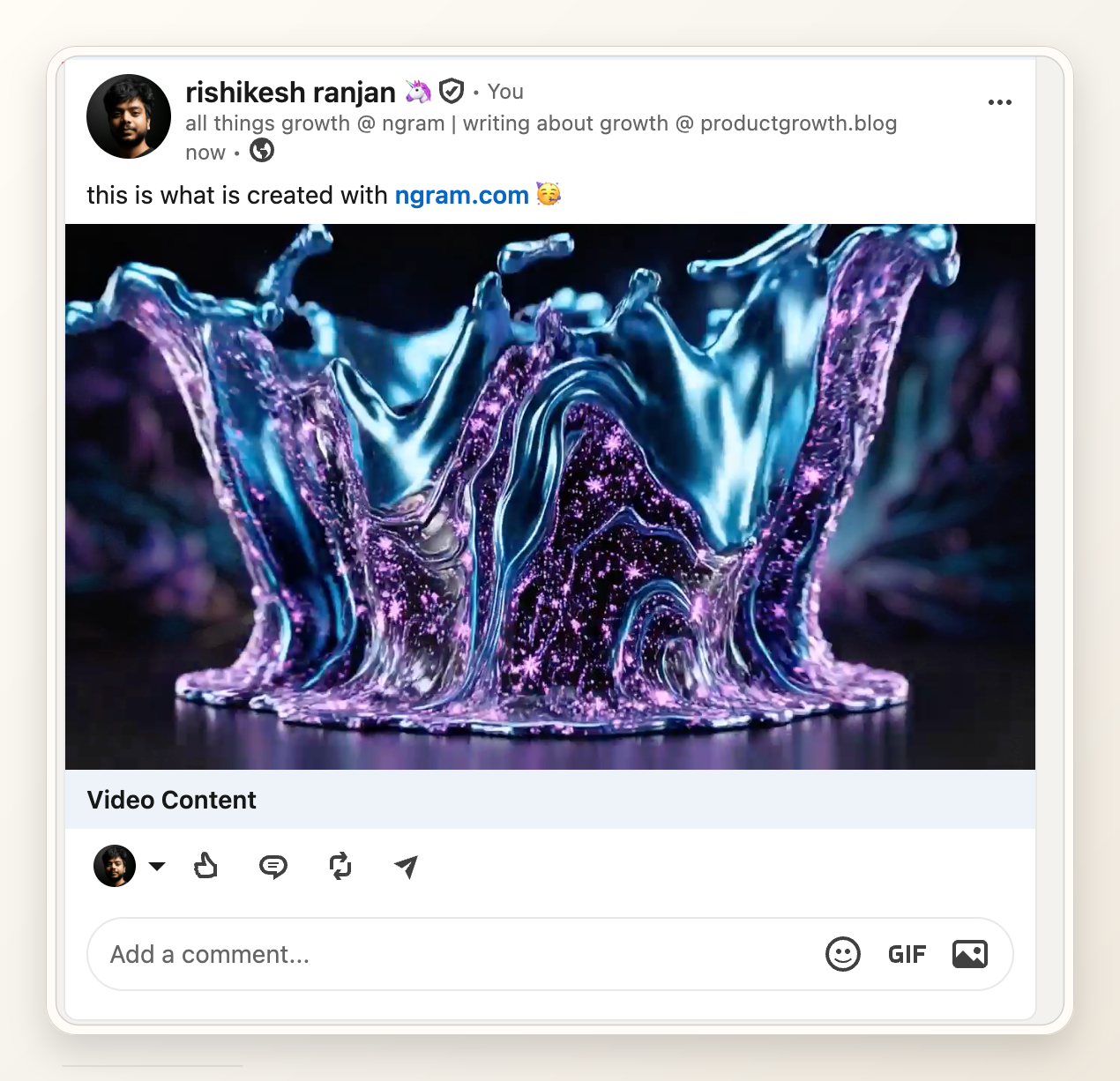
Capture the scheduled preview or public post and keep it with the launch checklist. The proof matters because it shows the exact ngram video that went live.
ngram video to LinkedIn checklist before publishing
Use this checklist for the final pass inside ngram and LinkedIn.
- The first frame explains the launch without audio.
- Captions are readable on mobile and do not cover the core product action.
- The aspect ratio matches the planned placement.
- The post copy names the audience, the launch promise, and the CTA.
- The selected profile or Page is intentional.
- The scheduled or live post has been opened and checked by someone other than the creator.
When the one-click LinkedIn flow is the right fit
Use the LinkedIn AI video maker when the destination is already LinkedIn and you want the draft shaped for the feed. Use the broader launch workflow when the same source needs multiple video versions before one of them goes to LinkedIn.
The distinction keeps the post honest: this article is about publishing an ngram video from ngram, not making a generic upload checklist for any video file.
FAQ
What is an ngram video-to-LinkedIn workflow?
It is the path from a finished ngram video to the LinkedIn share handoff: preview the video, choose LinkedIn, review the destination and copy, then publish or schedule the post.
How long should an ngram video be for LinkedIn?
LinkedIn allows much longer uploads than most launch posts need. For an ngram announcement video, start with a short cut that makes the product clear quickly, then create a longer walkthrough only if the audience needs it.
Should I post from a founder profile or the company Page?
Use the founder profile when the launch needs voice and replies. Use the company Page when the launch needs an official record, paid amplification, or a single source for employees to share.
Can I schedule a LinkedIn video post?
Yes, LinkedIn supports scheduling for regular posts and LinkedIn Page posts, with timing windows documented in its help center. Check the current scheduling UI before launch day because unsupported post types and Page permissions can change what you see.
Do I need burned-in captions?
Burned-in captions are the safer launch default because the message remains visible in silent feed viewing and in exported versions. Keep them short and leave space around product labels, buttons, and the CTA.
What proof does this ngram LinkedIn workflow use?
The proof screenshots show the final ngram video preview, ngram LinkedIn share menu, LinkedIn post composer, and live LinkedIn post.