
A product launch video usually gets requested at the worst possible time: the page is almost live, the launch owner is chasing screenshots, sales wants a proof clip, and someone is still turning a release note into a story. The problem is not that the team forgot video. The problem is that the video task often starts after every other launch task has already become urgent.
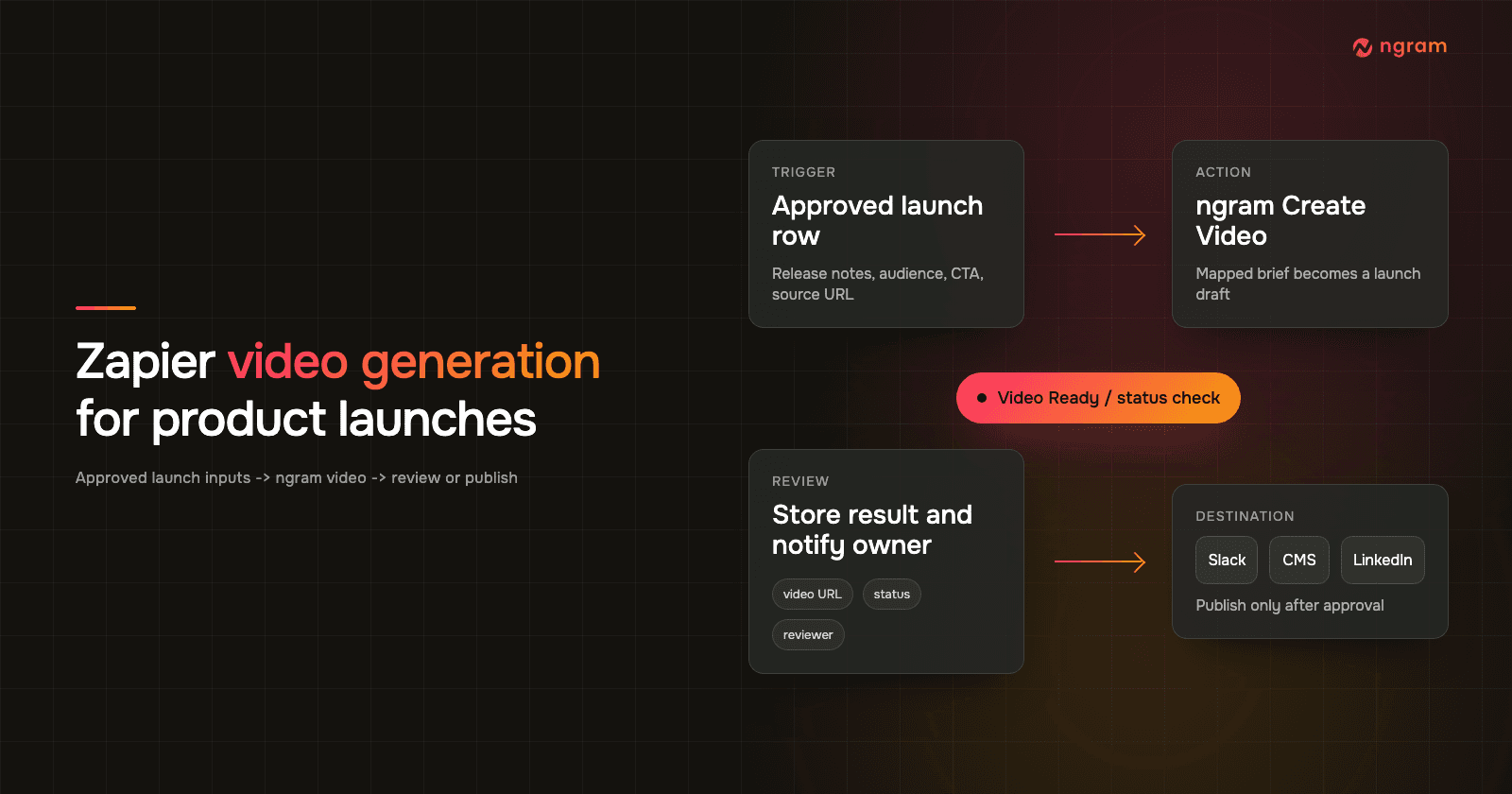
Zapier video generation fixes the handoff when the launch process already has approved inputs. A tracker row, CMS item, form response, CRM update, or webhook can trigger ngram only when the launch record is ready. The result is a repeatable product launch video draft that starts from the same approved story the rest of the launch uses.
This guide shows a practical automated video generation workflow: define the approval trigger, normalize the fields, connect ngram in Zapier, use the ngram Create Video action, map the launch brief, test the Zap, review the output, and route the final link back to the right owner or system.
Why a product launch video matters
Launch attention is short. Nielsen Norman Group found that users often leave web pages in 10 to 20 seconds unless the page communicates a clear value proposition quickly. Source: Nielsen Norman Group on web-page attention.
Video is one of the fastest ways to put the value proposition, proof, and next step in front of that visitor. Wyzowl surveyed 266 respondents in late 2025 and found that 91% of businesses use video as a marketing tool, 82% of video marketers say video gives them good ROI, 93% say video has increased user understanding of their product or service, 82% say video has increased web traffic, 85% say it has generated leads, and 83% say it has directly increased sales. Source: Wyzowl Video Marketing Statistics 2026.
The buyer data points in the same direction. In the same Wyzowl report, 96% of people said they had watched an explainer video to learn about a product or service, 85% said video had convinced them to buy a product or service, 80% said an app demo video had convinced them to buy or download an app, and 63% said they would most like to learn about a product or service by watching a short video.
That does not mean every launch needs a huge production. Wyzowl also found that 71% of people believe videos between 30 seconds and 2 minutes are most effective, and 89% of consumers say video quality affects their trust in a brand. A launch video has to be short, specific, and credible. It cannot look like a rushed afterthought.
The operations data points in the same direction. Content Marketing Institute and MarketingProfs found that 45% of B2B marketers lack a scalable model for content creation, while 44% say their marketing tech stack is missing the ability to automate repetitive tasks and workflows. Source: CMI B2B Content Marketing Benchmarks 2025.
Asana reports that knowledge workers spend 60% of their time on work about work, including chasing updates, searching for information, switching apps, managing shifting priorities, and checking status. It also reports that 88% of knowledge workers say time-sensitive projects or large initiatives have fallen behind or slipped through the cracks because of task volume. Source: Asana Anatomy of Work Index.
That is where a Zap helps. It will not make the launch strategy better by itself. It can remove the copy-paste layer between approved launch data and the first product launch video draft.
Prerequisites before you build the Zap
Do this setup before touching Zapier. The automation should start after the launch story is stable, not while the product marketer is still rewriting the promise.
- Approved launch source: a tracker row, CMS entry, form response, CRM record, release note, or webhook that contains the final launch inputs.
- Required fields: launch name, source URL or brief, audience, promise, proof, CTA, channel, and reviewer.
- Review route: a destination for the ngram output link, such as a CMS field, task, review queue, or launch-owner notification.
- Brand context: a usable brand kit, preferred tone, aspect ratio, and any approved language the launch team expects. If brand consistency is the blocker, review ngram brand kit before wiring the Zap.
- Failure owner: the person who receives Zap errors, missing field alerts, delayed renders, or launch-day override requests.
Zapier defines a Zap as a workflow with a trigger and one or more actions. Zapier also supports mapping dynamic values from previous steps into later action fields, which is the core mechanic this product launch video workflow uses. Source: Zapier guide to Zaps.
Step 1: define the approved launch trigger
The trigger is the most important decision in the workflow. It should mean the launch is approved for a video draft. Zapier notes that similar trigger events can behave differently. A new row and a new-or-updated row are not the same thing, and that difference matters when a draft launch record changes many times before approval. Source: Zapier trigger setup guide.
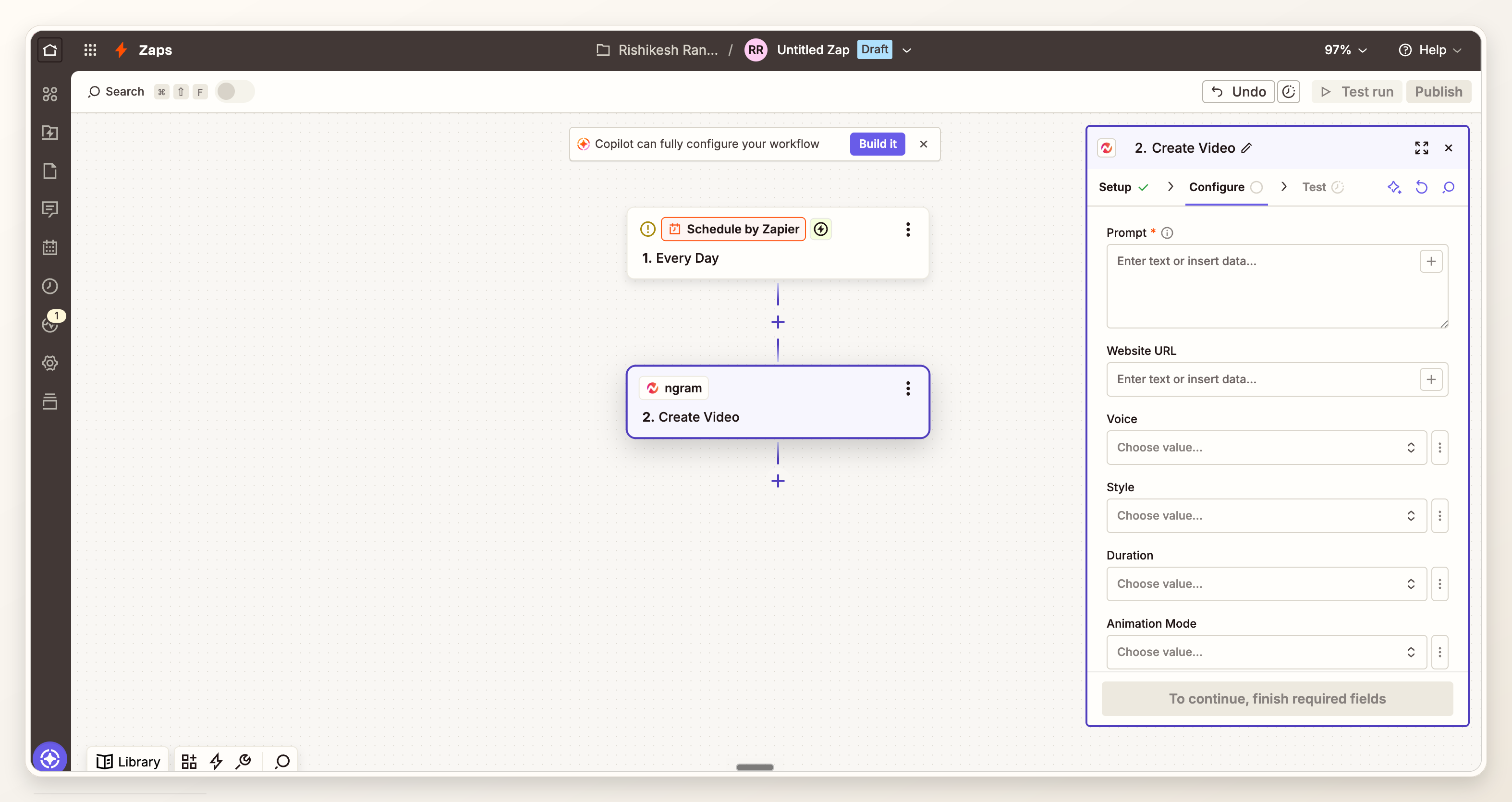
Use a trigger like one of these:
- A launch tracker row enters an Approved for video view.
- A CMS item changes from draft to ready-for-launch-assets.
- A product marketing intake form is submitted with every required field complete.
- A CRM campaign record moves to launch asset requested.
- An internal webhook fires after release notes are approved.
Add filters so the Zap does not run for bug-fix notes, internal-only launches, incomplete forms, records with no reviewer, or test rows. Automated video generation should reduce cleanup, not multiply drafts nobody asked for.
Step 2: normalize the launch fields
Launch inputs rarely arrive in the shape a video tool needs. A tracker may have 30 fields, a CMS item may have long body copy, and a form response may include private context. Normalize the record into a short launch brief before it reaches ngram.
- Launch name: the public product, feature, package, or offer name.
- Source URL or brief: the page, release note, changelog, doc, or approved campaign summary ngram should use as source context.
- Audience: customers, prospects, partners, sales, investors, internal users, or a named segment.
- Promise: one sentence that explains what changed and why the audience should care.
- Proof: a metric, screenshot note, demo moment, customer quote, before-and-after, or source asset that supports the promise.
- CTA: the single next action, such as join waitlist, request access, read launch notes, book demo, or try the feature.
- Channel: launch page, email, in-app announcement, sales enablement, community post, or internal rollout.
- Reviewer: the launch owner or approver who checks the video before it is used publicly.
If the source is a changelog or release note, use the same discipline as a release notes to video workflow: group related changes, lead with the user-visible value, and keep low-level fix lists out of the hook.
Step 3: connect ngram in Zapier
Zapier says workflows can use any of 9,000+ apps, and ngram is live as a public Zapier integration. Inside the Zap, add ngram as the action app and use the ngram connection your workspace is approved to use. Sources: Zapier app count and Zap basics and ngram Zapier integration.
Name the connection and Zap like an operations asset, not a personal experiment. For example: Product launch video - approved CMS item to ngram - production. That name makes Zap history easier to audit when launch week gets noisy.
Step 4: map the ngram Create Video action
Choose the ngram Create Video action, then map the normalized fields into the action fields Zapier shows for your account. Zapier says action fields can use manual values, mapped fields from earlier steps, or dropdown selections. Source: Zapier action setup guide.
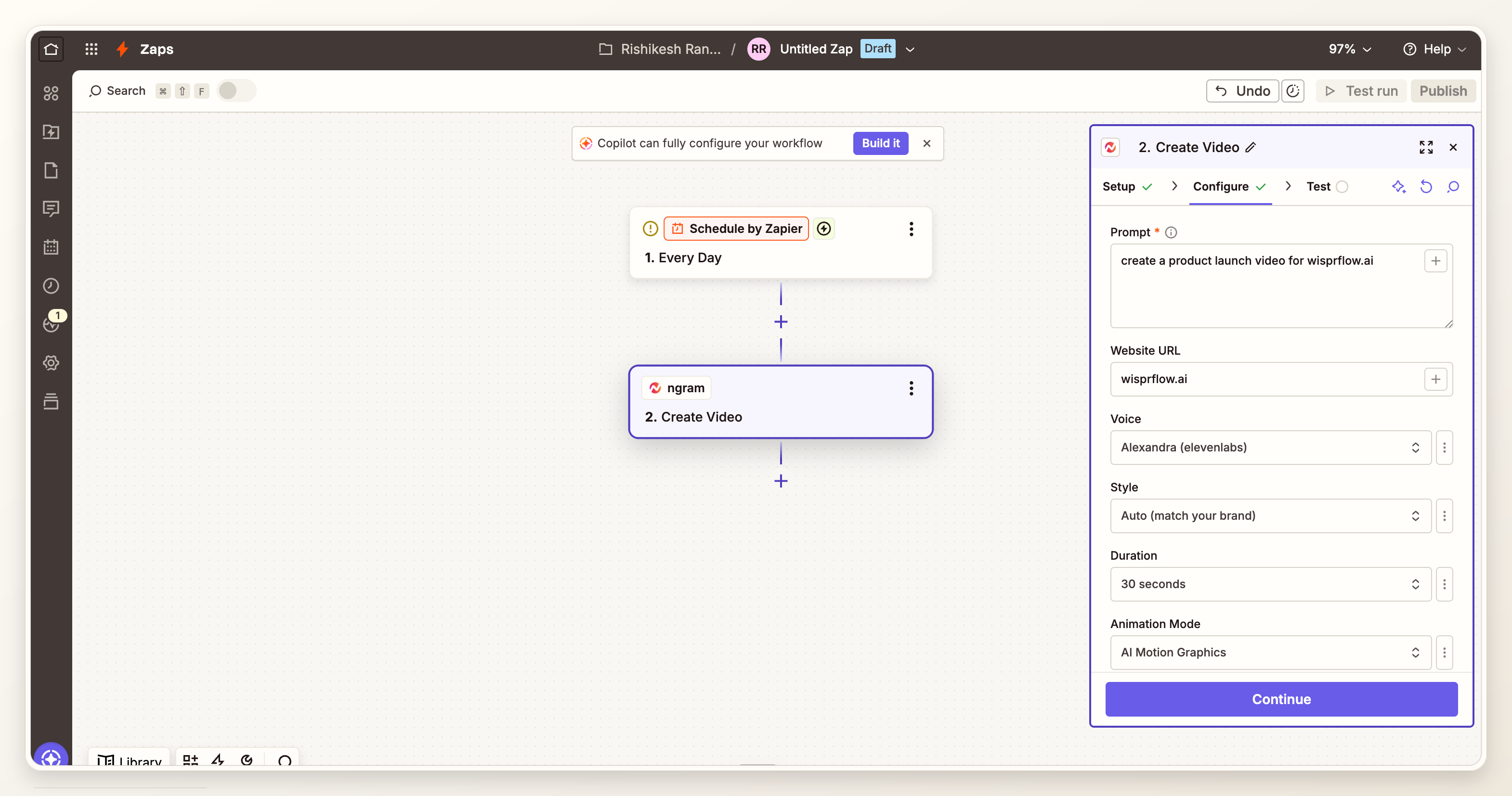
Keep the mapped prompt compact. ngram can use text prompts, URLs, screenshots, and launch source material, but a Zap should pass the story the viewer needs, not every internal note attached to the launch.
Create a product launch video for [launch_name].
Audience: [audience].
Source: [source_url_or_brief].
Launch promise: [one_sentence_promise].
Proof to include: [proof_point_or_asset_note].
Channel: [channel].
Tone and brand notes: [tone_or_brand_constraints].
CTA: [cta].
Reviewer: [reviewer_name_or_queue].
For the creative direction, use the AI product launch video maker page as the mental model: source material in, launch narrative out, then review and refine before distribution.
Step 5: test the Zap with a real launch record
Zapier recommends testing steps before publishing, and its action test can show both the data sent into the action and the data returned by the app. Use a real approved launch record for this test, not dummy copy. Source: Zapier action testing guidance.
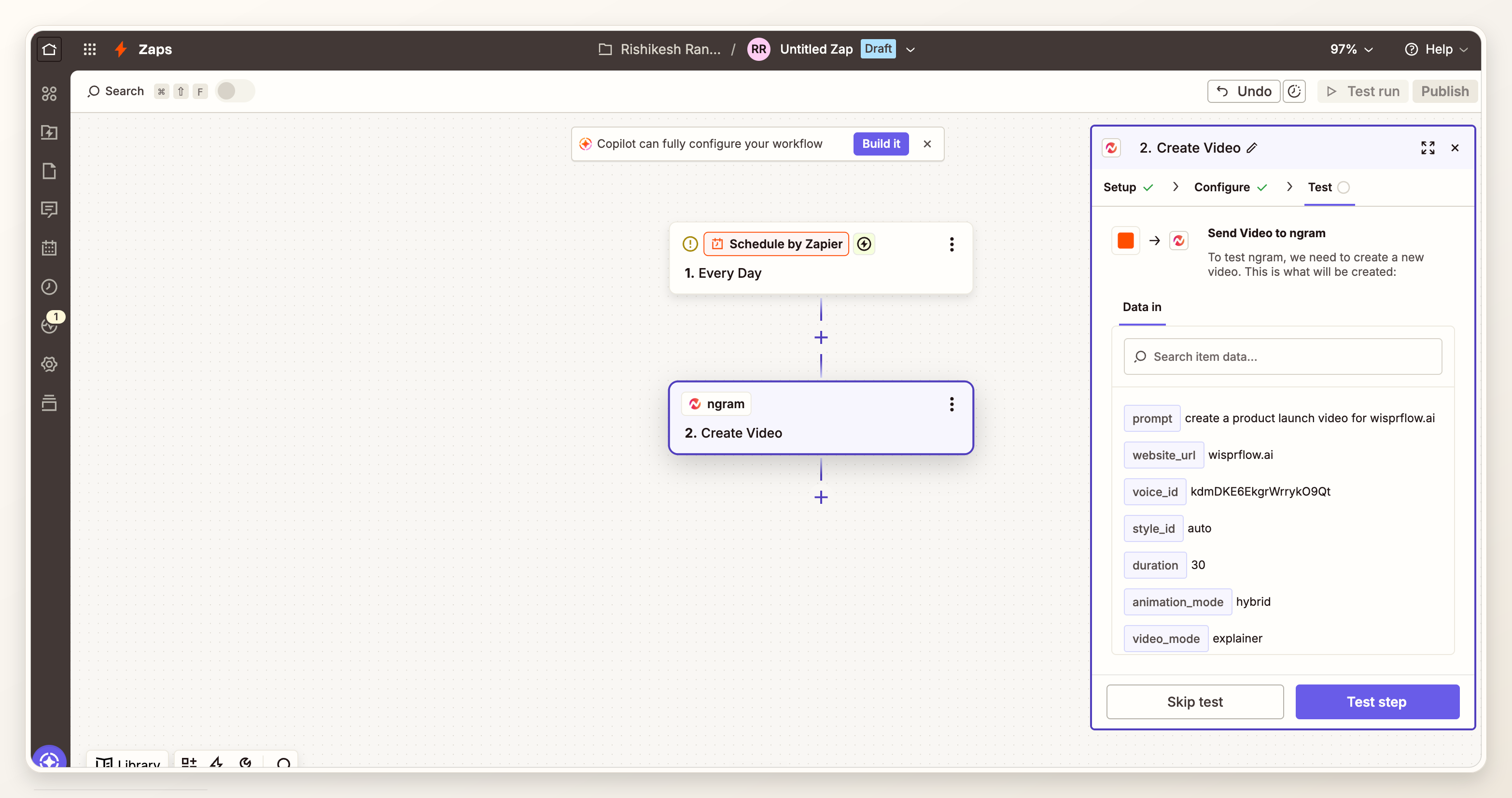
The test should answer five questions:
- Did the Zap fire only from an approved launch trigger?
- Did required fields arrive with usable values?
- Did the ngram prompt include launch name, audience, promise, proof, CTA, channel, and reviewer?
- Did the action return the status, ID, URL, or metadata your downstream step needs?
- Did the review route receive the right record link and context?
Step 6: review the ngram output
This is the review gate. The first output is a draft, not a public asset. A PMM, founder, growth ops lead, RevOps owner, or launch reviewer should check the video against the same approved launch brief that triggered the Zap.
Review for message accuracy, source fidelity, proof quality, CTA clarity, brand fit, aspect ratio, captions, pronunciation, timing, and whether the first few seconds carry the launch promise. This matters because Wyzowl found that 89% of consumers say video quality affects brand trust, while 93% of video marketers say video improves product understanding. Source: Wyzowl Video Marketing Statistics 2026.
If the video needs changes, make those changes in ngram before routing the final link. The Zap should not turn a rough draft into a public post by default.
Step 7: route the final link to the launch owner
After review, send the final ngram link where the launch process already expects assets. That might be a CMS media field, launch tracker column, review task, internal announcement thread, or the launch owner directly. Keep the automation focused on asset handoff, not automatic publishing.
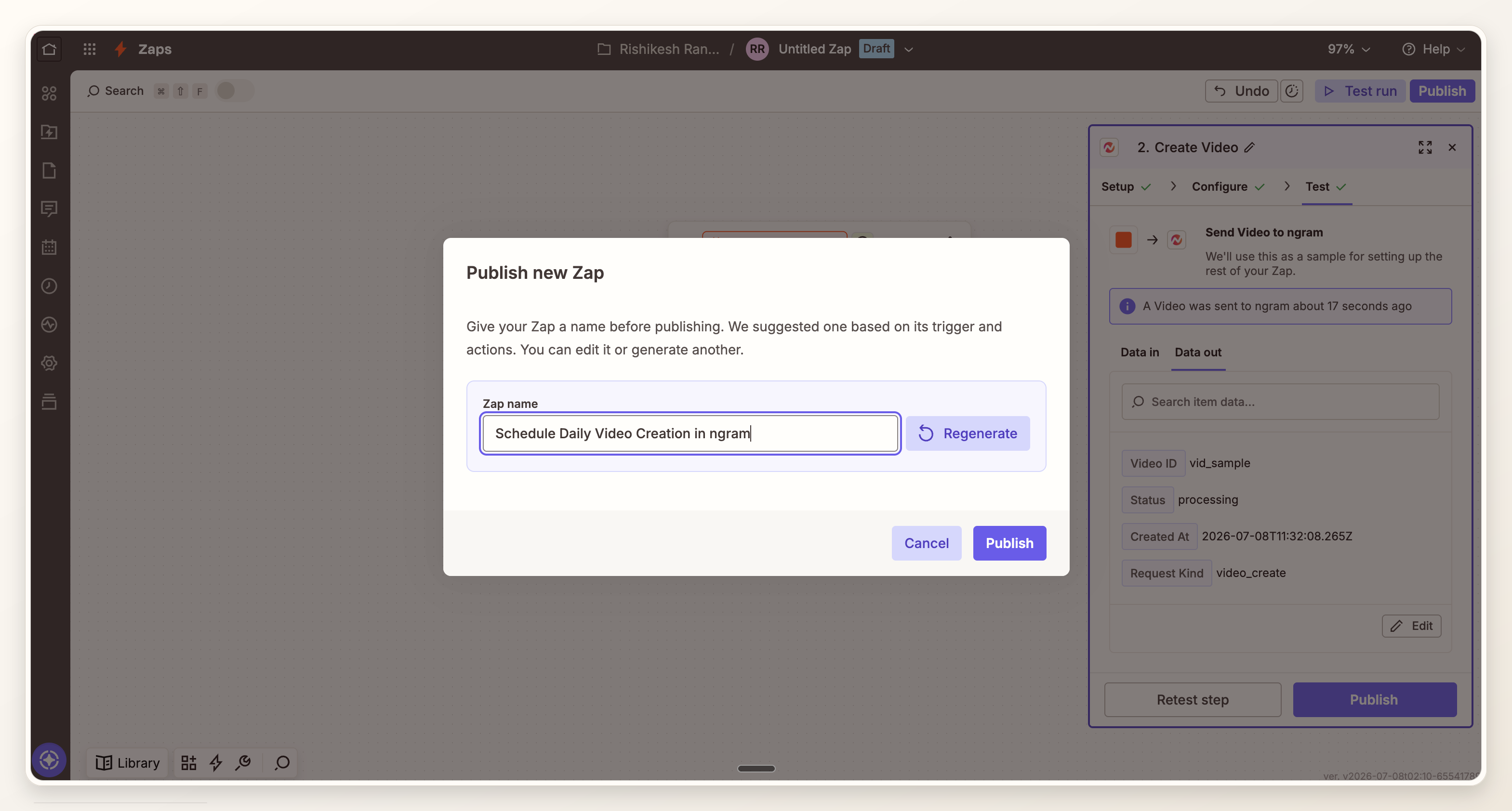
For feature announcements, the same logic applies to broader launch motion. The feature announcement video workflow is the closest adjacent use case: make the change understandable, show the proof, and give the viewer one next step.
Field map to copy
Use this as the default field map. Rename fields to match the tracker, CMS, form, CRM, or webhook payload your team already uses.
- launch_name -> video title and first prompt sentence.
- source_url_or_brief -> source context for ngram.
- audience -> level of detail, tone, and opening hook.
- one_sentence_promise -> core narrative and first scene.
- proof_point_or_asset_note -> product proof, screenshot note, metric, or demo moment.
- cta -> closing line and final card.
- channel -> aspect ratio, pacing, caption density, and expected length.
- reviewer -> person or queue that receives the draft link.
- launch_record_url -> audit trail in the review message or CMS note.
QA checklist before you turn the Zap on
Run this checklist before publishing the Zap. A good product launch video automation should fail quietly in testing, not loudly on launch day.
- The trigger fires only after launch inputs are approved.
- A filter blocks incomplete records, internal-only launches, and rows without reviewers.
- The normalized brief contains launch name, source URL or brief, audience, promise, proof, CTA, channel, and reviewer.
- The ngram Create Video action receives a compact prompt, not a raw dump of internal fields.
- The test record uses real approved launch data.
- The review route includes the video link, launch record link, reviewer, and source context.
- The workflow stores waiting, ready, and failed states in a place the launch owner checks.
- No public publishing step runs before human review.
- A failure path notifies the owner with the Zap run link and source record.
Common mistakes to avoid
The first mistake is triggering too early. If the Zap runs on every draft edit, it creates noise and teaches the team to distrust the automation.
The second mistake is mapping too much. Long internal notes include half-decisions, private context, and unresolved positioning. A product launch video needs the approved story and proof.
The third mistake is skipping review. HubSpot reports that the top three ROI-driving content formats marketers name are all video-based: short-form video at 49%, long-form video at 29%, and live-streaming video at 25%. It also reports that 47% of marketers use automation to make marketing processes more efficient. The lesson is not to automate judgment away. The lesson is to automate the repeatable handoff so humans can spend review time on the message. Source: HubSpot marketing statistics 2026.
FAQ
Can Zapier create a product launch video automatically?
Zapier can start the workflow and pass approved launch data into ngram. ngram creates the product launch video draft from that context. Keep the final link behind review unless your team has already approved the prompt pattern, source fields, and destination behavior.
What should trigger Zapier video generation for a launch?
Use a trigger that means the launch story is ready: an approved tracker row, CMS status change, completed product marketing form, CRM campaign stage, or internal webhook. Avoid triggers that fire from every draft edit or partial record.
What fields should I map into ngram Create Video?
Map launch name, source URL or brief, audience, promise, proof, CTA, channel, reviewer, and launch record URL. If the Zapier action screen exposes account-specific fields, use only the ones that support the launch brief and review route.
Should the Zap publish the launch video automatically?
Usually, no. Let Zapier route the finished video link to review, a CMS field, a task, or the launch owner. Fully automatic public publishing only makes sense when the source data, prompt, destination, and approval policy have already been tested and locked.
How do I handle failed or delayed renders?
Add a failure path. Write a waiting or failed state back to the launch record, notify the owner, and include the Zap run link plus source record. This keeps the workflow accountable without making someone hunt across tools during launch week.
Is this workflow only for launch pages?
No. The same structure works for sales enablement, customer updates, internal rollout notes, and partner announcements. The trigger, field map, and review route should change for each workflow, but the approval-before-generation rule stays the same.