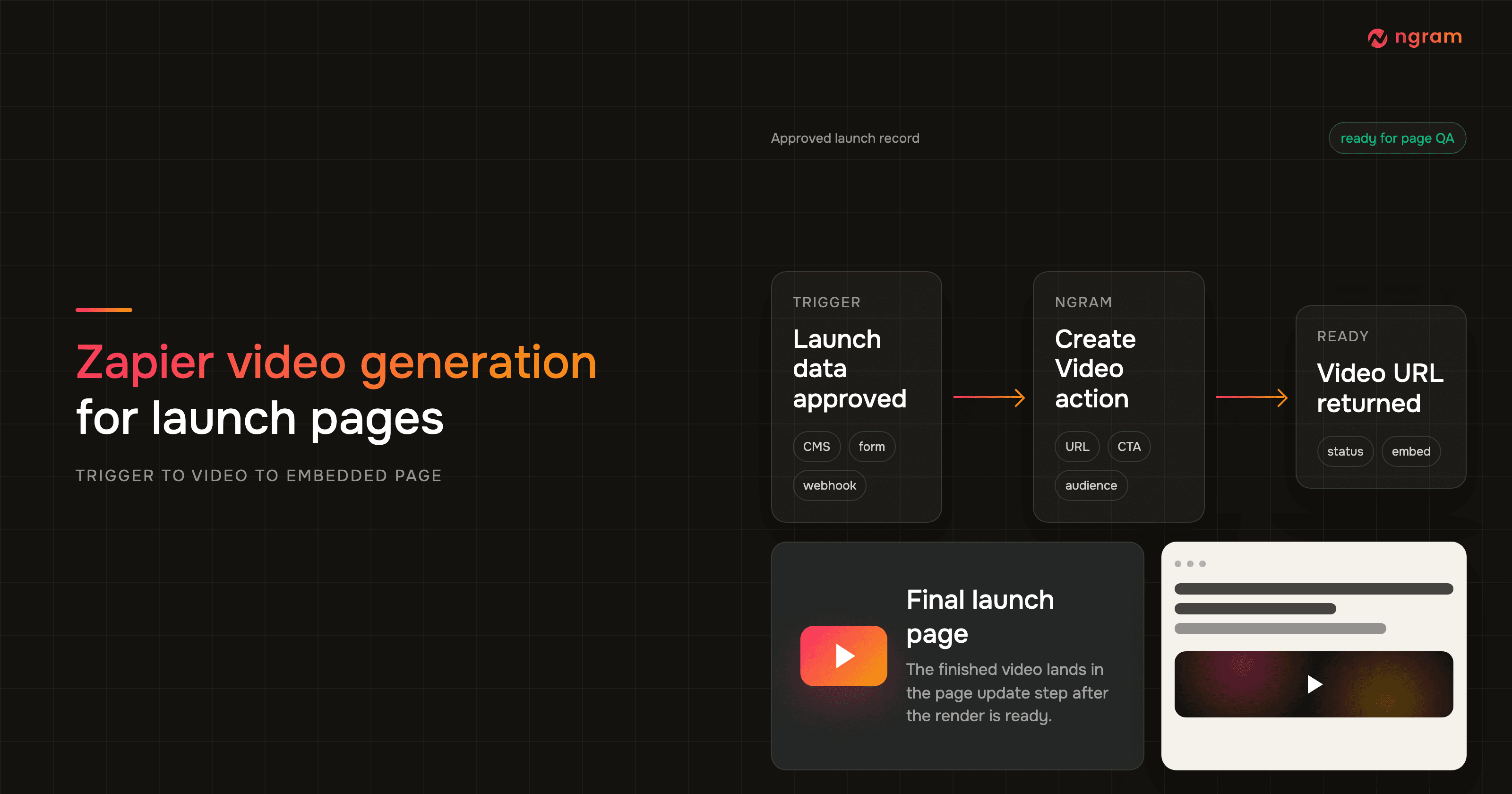

Zapier video generation is useful when the launch page is already driven by a structured workflow. A product marketer approves launch copy, a CMS item moves to ready, or a release tracker row changes status. Zapier catches that event, asks ngram to create the video, then sends the finished video URL into the page update step.
The important detail is sequence. The page should not publish with a half-finished render, a placeholder URL, or a video that nobody has watched. Build the Zap so Zapier video generation, status handoff, CMS update, and launch-page QA are separate decisions.
When Zapier video generation fits a launch page
Use this workflow when the launch has a repeatable source of truth. That might be Webflow CMS, Airtable, a product marketing form, a Notion database, Linear, a release note, or a custom webhook. Zapier's own workflow docs define a Zap as a trigger followed by one or more actions, and the same model works well for launch operations: approved launch event in, video output and page update out. Source: Zapier workflow concepts.
Do not use the Zap as a creative brief substitute. Zapier video generation should pass clean inputs to ngram: the page URL, product name, launch promise, audience, proof point, call to action, and destination. If the source fields are vague, the video will need more manual review.
Step 1: connect ngram in Zapier
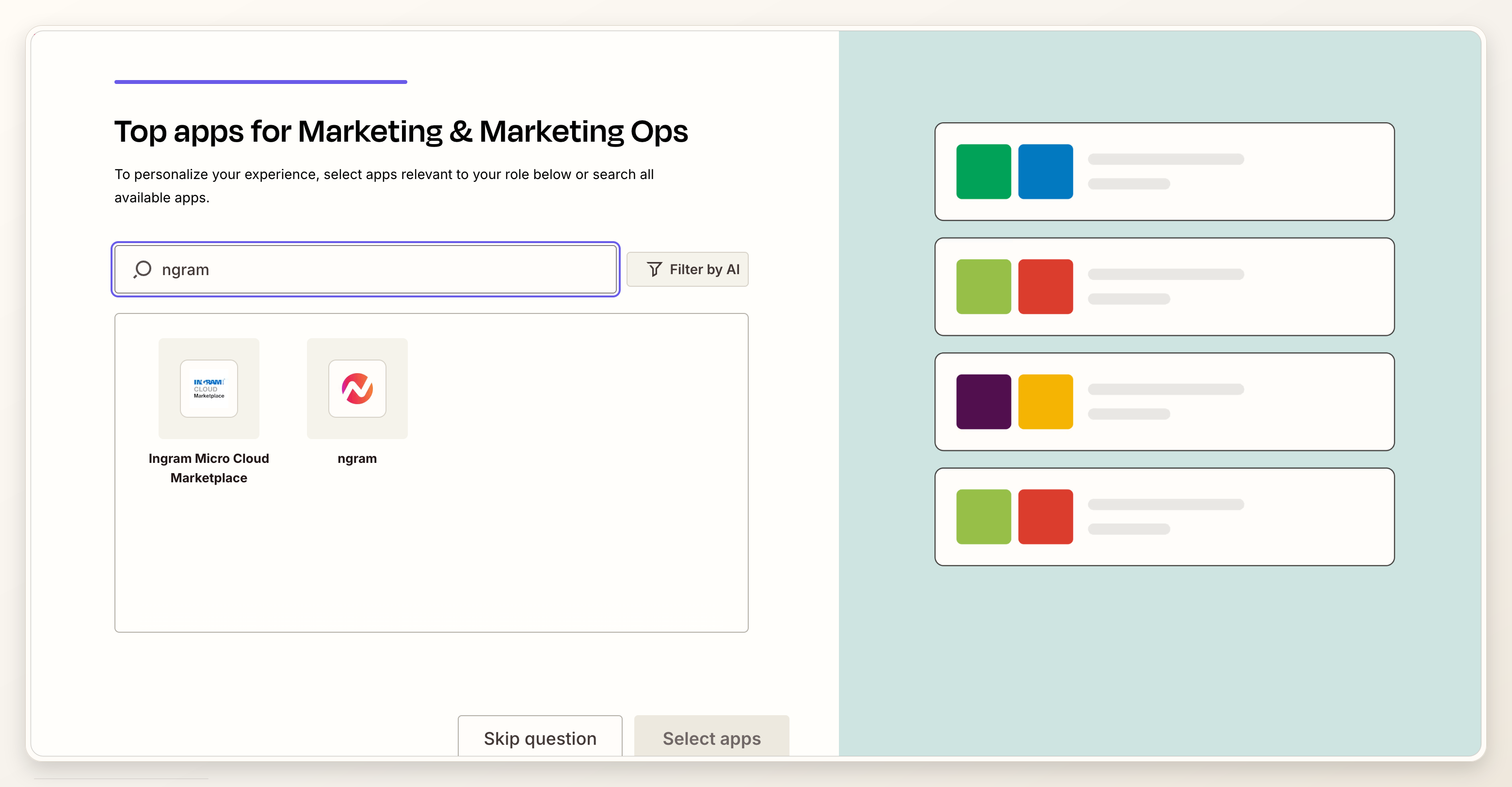
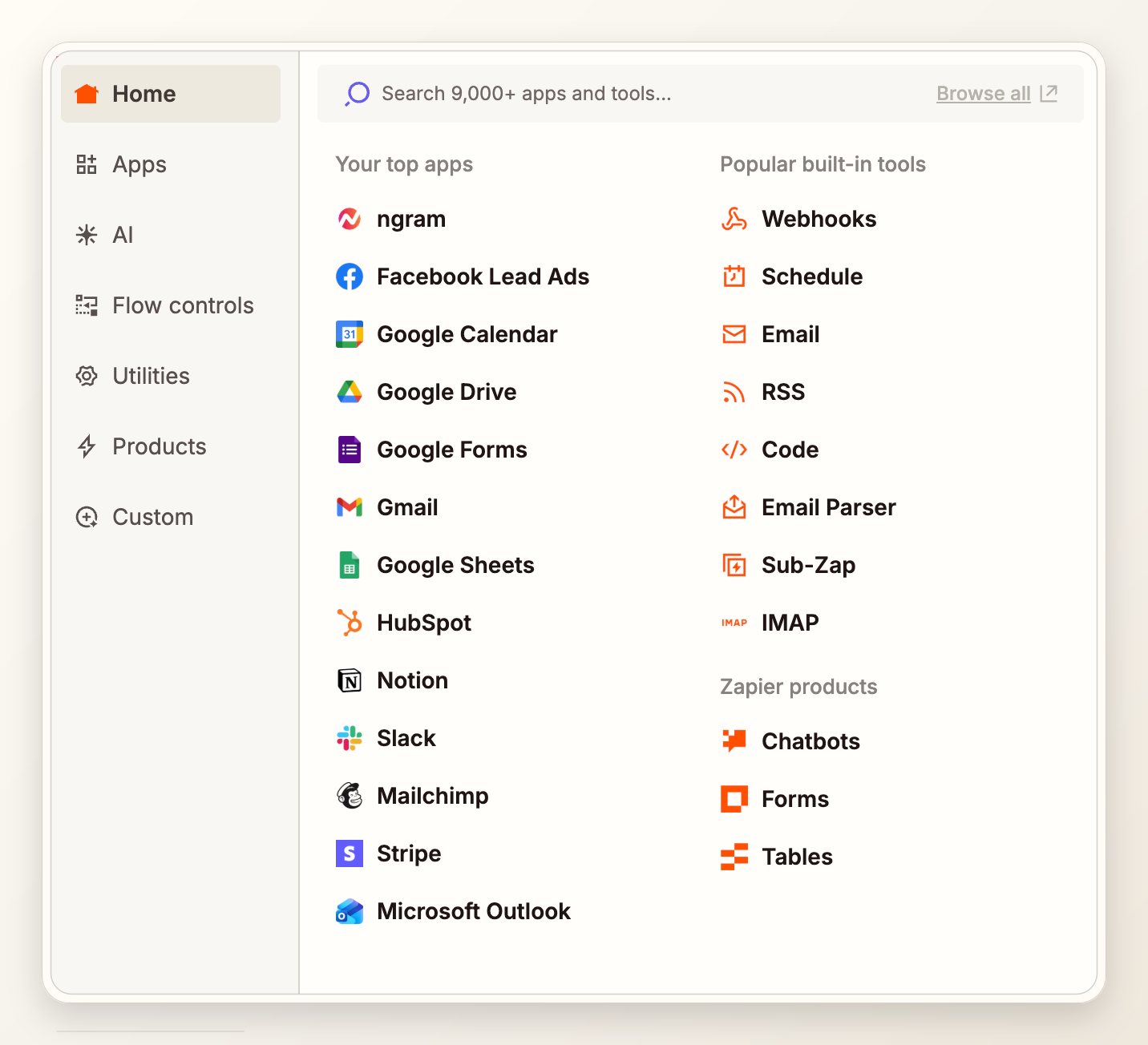
Start in Zapier and add ngram as the app that will create the video. The ngram Zapier app is publicly listed, and the integration surface includes Create Video, Video Ready, Video Failed, and Get Status. If your workspace does not show API key access, get access provisioned first rather than trying to build around it.
Keep one connection per environment when you can. A production launch page should not share the same test connection you used while mapping fields.
Step 2: choose the launch trigger
Pick a trigger that means the launch is approved, not merely drafted. Zapier's trigger setup guide recommends selecting the trigger app, choosing the event, connecting the account, configuring required fields, and testing with a representative record before using that data in later steps. Source: Zapier trigger setup.
- CMS item status changes to ready for launch.
- Airtable or spreadsheet launch row is marked approved.
- Product marketing form is submitted with final copy and page URL.
- Webhook posts a release payload from your own launch system.
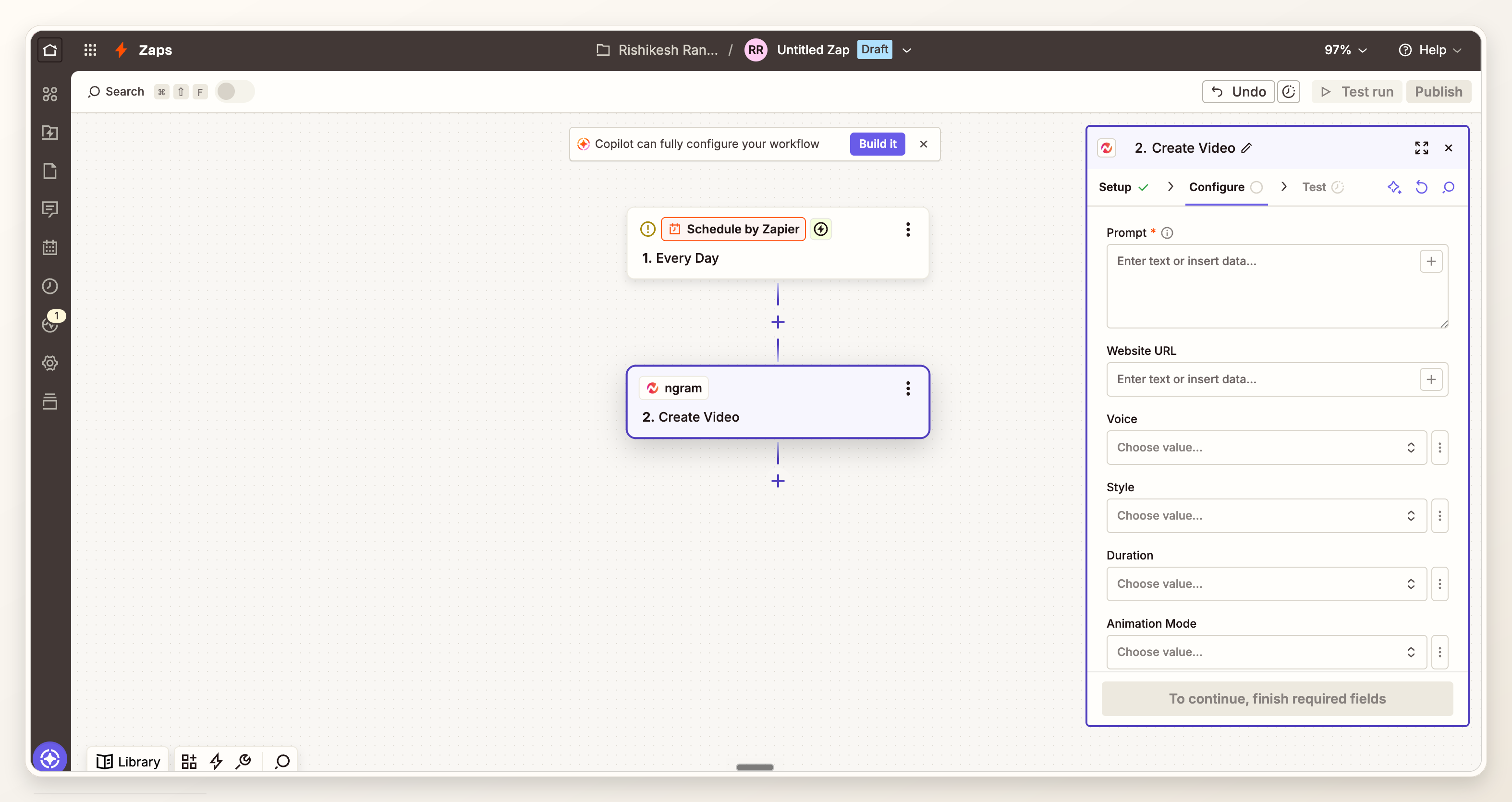
Step 3: map ngram Create Video fields
Add the ngram Zapier integration as the video step, then choose Create Video. Zapier's action setup guide says action fields can be entered manually, mapped from earlier steps, or selected from dropdowns. Use that model here: map the stable launch data from the trigger, and manually set any video direction that should stay the same across launches. Source: Zapier action setup.
Do not claim or depend on fields you have not seen in your own ngram action screen. The safe mapping rule is simple: map the fields available in Zapier, keep a short prompt, and test the Zapier video generation action before routing the result to the live page.
Create a launch page hero video for {{product_name}}.
Use this URL as source context: {{launch_page_url}}.
Audience: {{audience}}.
Main message: {{launch_promise}}.
Show: {{feature_or_workflow_to_show}}.
Proof point: {{proof_point}}.
Close with: {{primary_cta}}.
Destination: website launch page embed.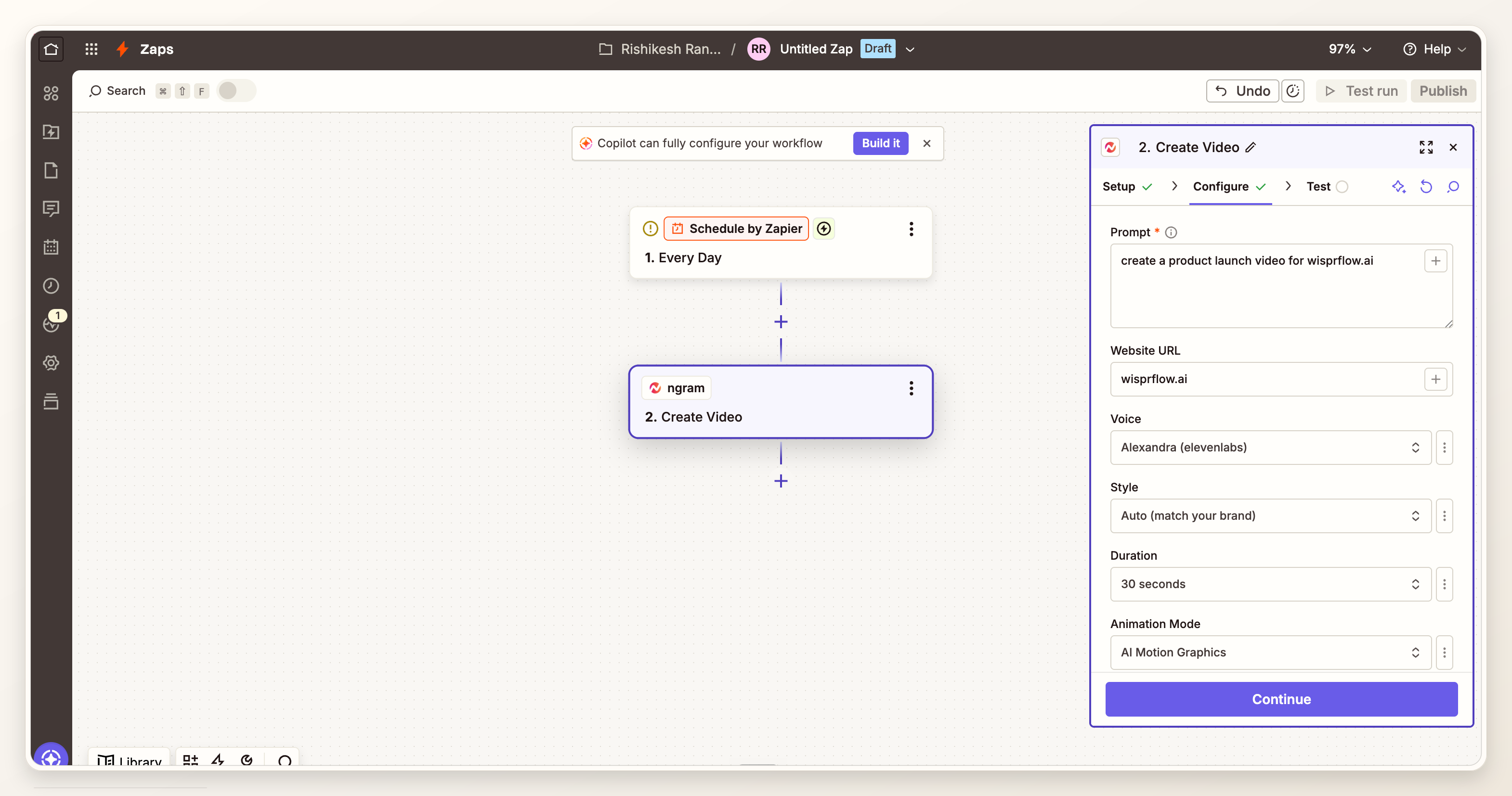
Step 4: wait for Video Ready before the page update
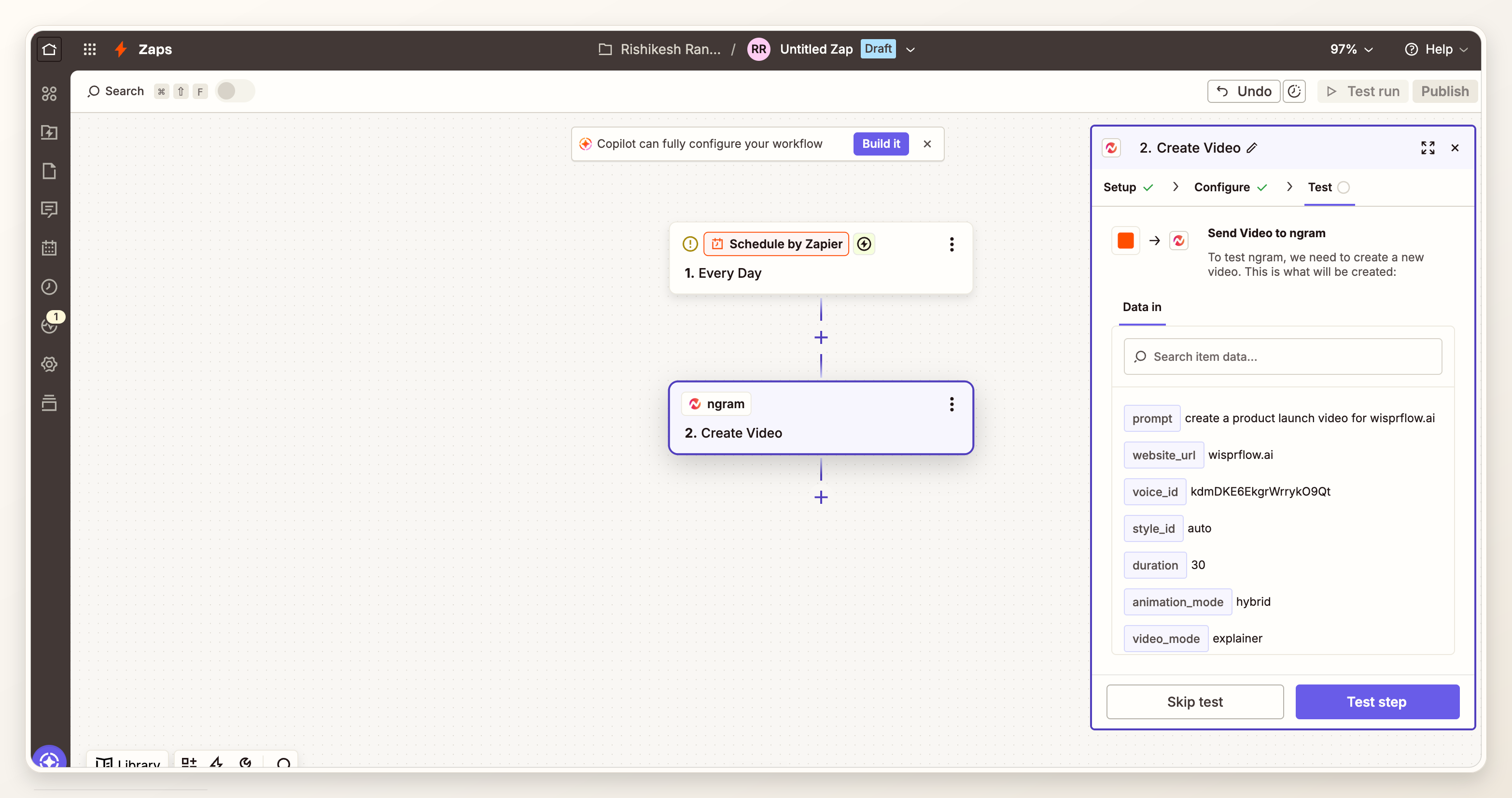
A launch page should update only after the render is ready. ngram's Zapier page documents Video Ready, Video Failed, and Get Status as part of the Zapier surface. Use that lifecycle instead of assuming the Create Video step means the final asset is already usable.
The cleanest pattern is to store the returned video ID and final URL in the same launch record. That gives product marketing, web, and social teams one place to see the status of the Zapier video generation asset.
Step 5: update the CMS or launch page
Now send the finished video URL to the page system. In Webflow, the native Zapier connector can create CMS items and Create Live Item can add items directly to the published site; Webflow's API path covers workflows that need more control. For Framer, a custom CMS, or a static site pipeline, the equivalent step is usually an API request, database update, or deploy hook. Source: Webflow Zapier integration.
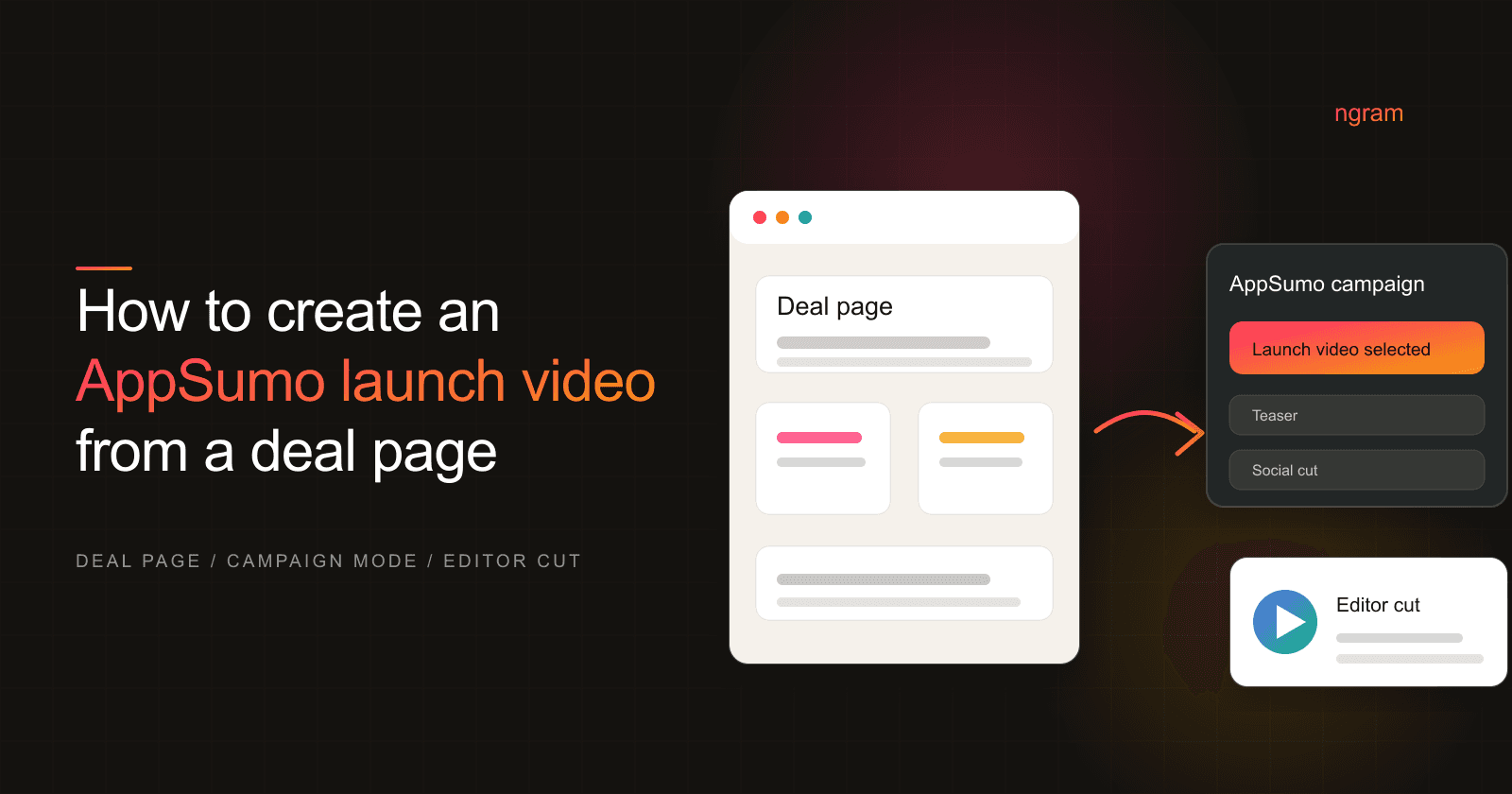
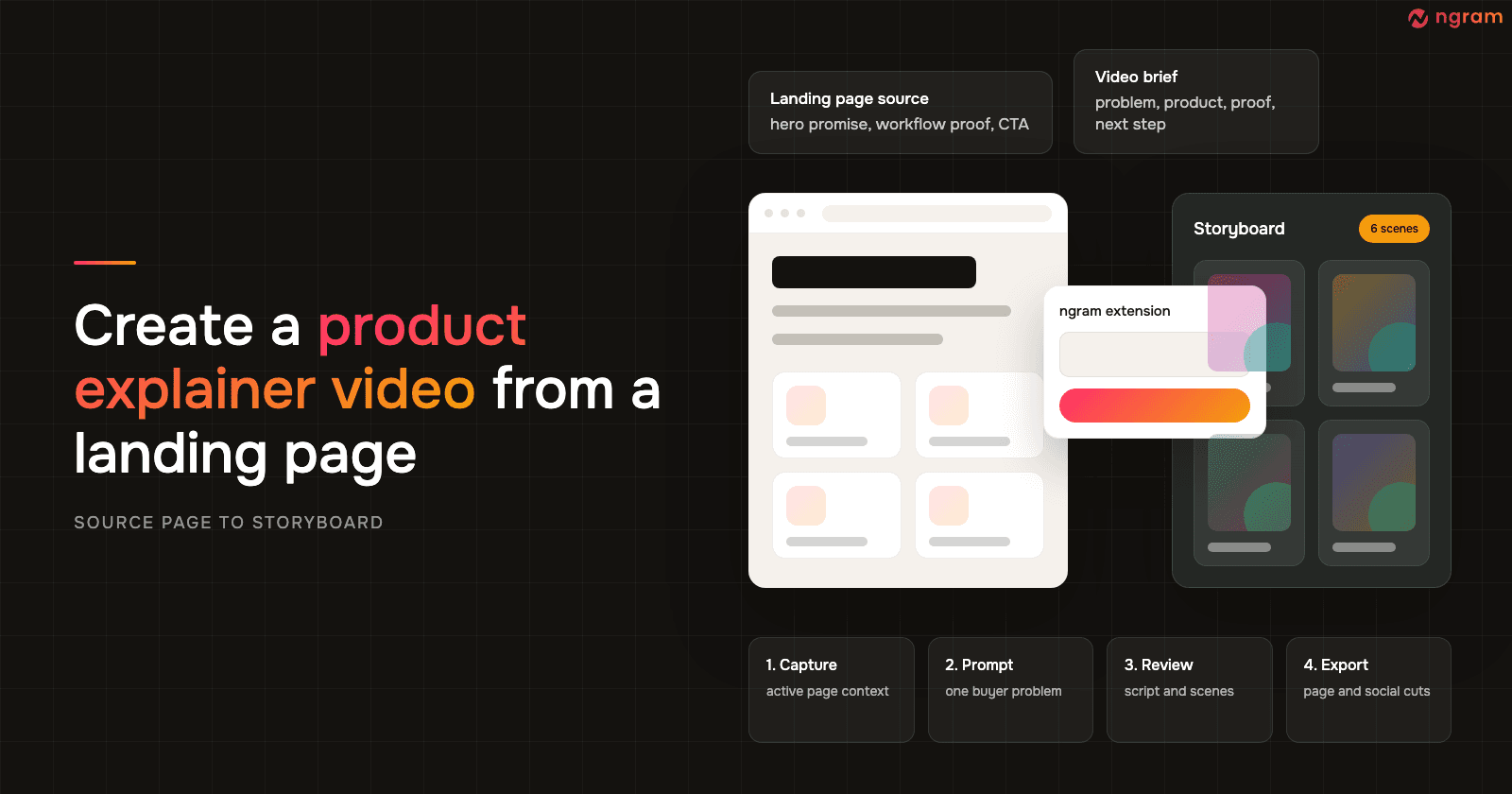
If your launch page source is already a public URL, pair this workflow with URL to Video so the page itself becomes source context for the storyboard.
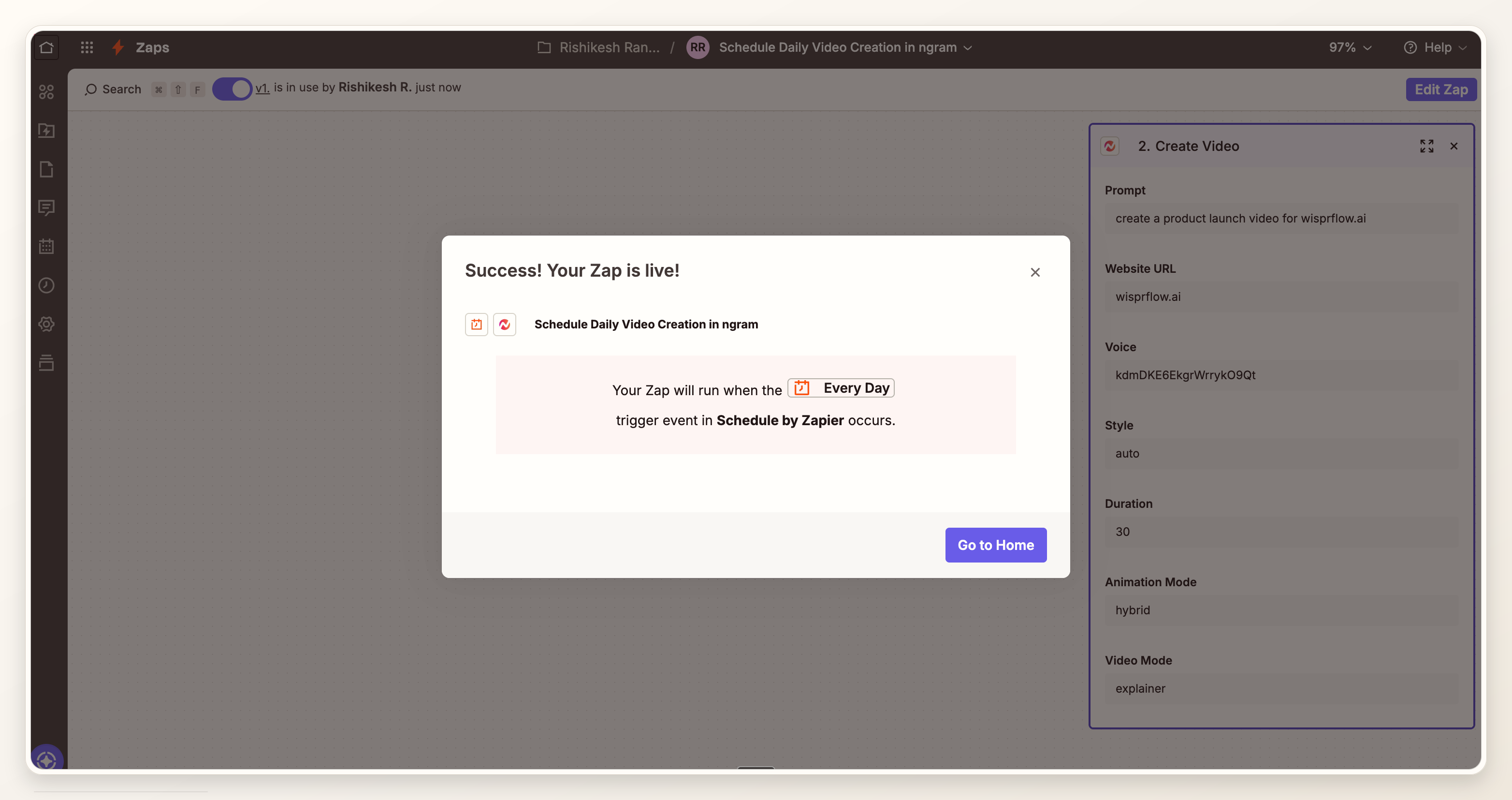
Step 6: publish the Zap and QA the launch page
After the Zapier steps are mapped and tested, publish the Zap so it can run on the approved launch trigger. Then open the launch page yourself and check the hero copy, thumbnail, play behavior, mobile layout, and fallback state after the video URL is written.
If the same finished video also needs to ship to distribution channels, ngram has dedicated publish surfaces for YouTube publishing and LinkedIn publishing. Zapier also lists YouTube upload and LinkedIn update actions, so you can decide whether distribution belongs in the Zap, in ngram's editor, or in a human review step. Source: Zapier YouTube and LinkedIn actions.
Field map template
| Launch field | Why it matters | Example mapping |
|---|---|---|
| Product name | Keeps the script anchored to the launch. | CMS title or launch tracker name |
| Launch URL | Gives ngram source context for page copy and structure. | Published page URL or preview URL |
| Audience | Changes tone, pacing, and CTA. | Existing customers, prospects, developers |
| Proof point | Prevents a generic launch video. | Metric, customer quote, workflow screenshot, demo moment |
| CTA | Keeps the final scene aligned with the page. | Try it, book demo, join waitlist, read docs |
| Destination | Shapes aspect ratio and length. | Website hero, product page embed, launch blog |
Pre-publish checklist
- The trigger fires only after launch copy and page structure are approved.
- The Create Video action maps the page URL, audience, proof point, CTA, and destination.
- The Zap waits for Video Ready or checks status before updating the page.
- The page update step writes to a draft field or review state unless your team has approved auto-publish.
- The final page has been opened on desktop and mobile after the video URL is embedded.
- There is a failure path if the render fails, the video URL is missing, or the CMS update is rejected.
Common failure modes
- The trigger fires too early. Fix it by using an approved status, not a draft-created event.
- The prompt receives a raw database dump. Fix it by mapping a short set of named fields.
- The CMS publishes before the video is ready. Fix it by splitting render creation and page update into separate lifecycle steps.
- The video loads but the page no longer makes sense without sound. Fix the surrounding copy and thumbnail so the page still works for silent visitors.
FAQ
Is the ngram Zapier app public?
Yes. The ngram Zapier app is publicly listed. Workspace API key access may still need to be provisioned for your account, so confirm you can connect before you build the launch workflow.
Can Zapier create the whole launch page for me?
Zapier can move data between apps and call actions, but the page model still belongs to your CMS or site builder. Treat Zapier as the workflow layer, ngram as the video generation layer, and your CMS as the publishing layer.
Should the Zap publish the launch page automatically?
Only if your team already trusts the review path. For most launches, the safer pattern is to write the video URL into a draft field, notify the owner, and publish after someone checks the final page.
What should I map for Zapier video generation?
Map the page URL, product name, audience, launch promise, proof point, CTA, and destination. Keep the Zapier video generation mapping close to the visible action screen rather than assuming hidden or unsupported fields exist.
Do I need Webflow for this workflow?
No. Webflow is a common CMS example because it has Zapier and API paths, but the same workflow works with Framer, a custom CMS, a database-backed page, or a deploy pipeline as long as the final step can accept the video URL.
Sources and methodology
This guide uses the official ngram product-state docs and live ngram integration pages for ngram capability claims. It uses Zapier Help Center docs for trigger/action behavior and Webflow's Zapier integration page for CMS update examples. The screenshots show Zapier app selection, trigger setup, ngram action mapping, test/status output, destination selection, and publish confirmation.