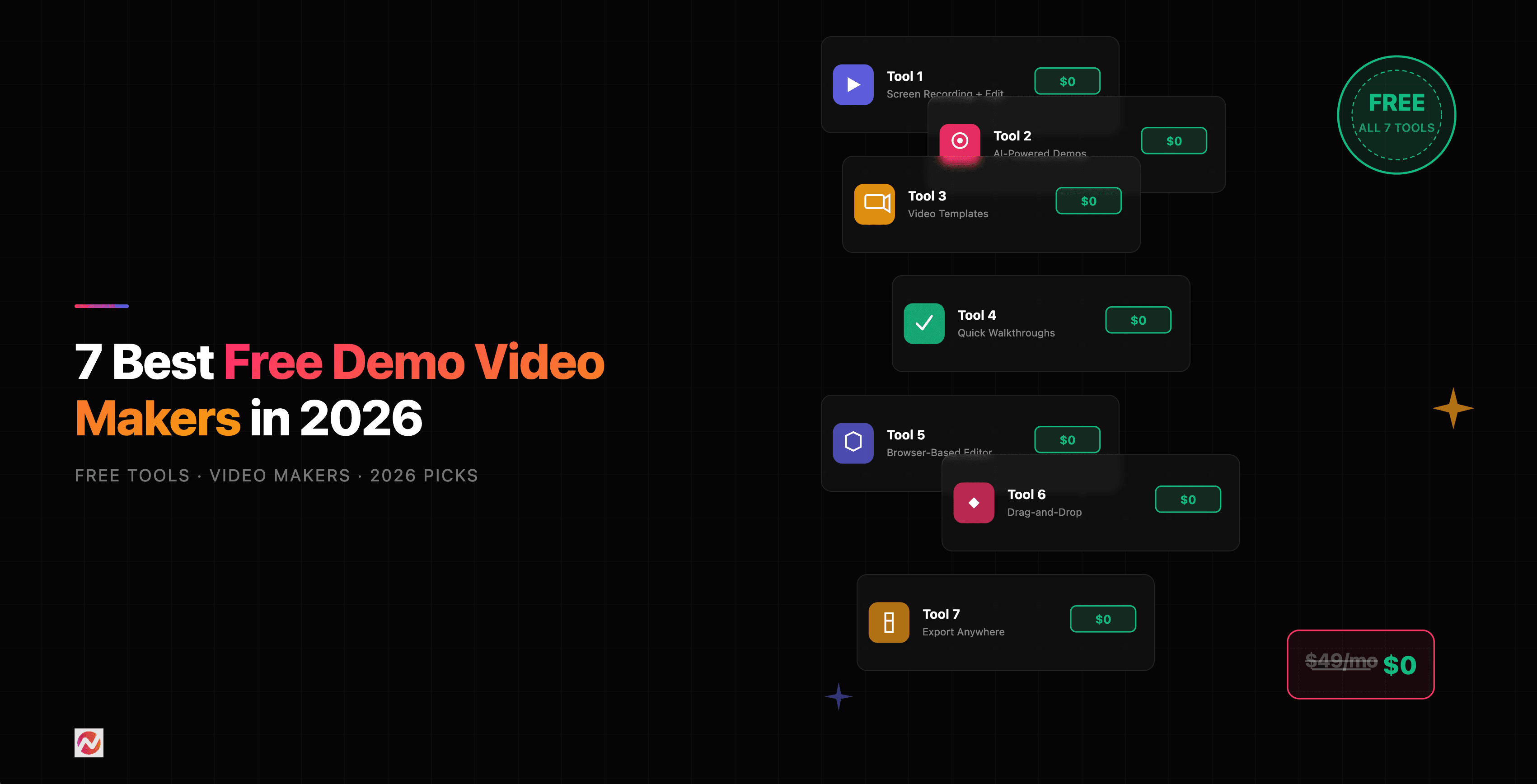


7 Best Free Demo Video Makers in 2026
Product demos are some of the most effective sales and marketing tools available. According to research, 91% of businesses now use video as a marketing tool, and demo videos specifically drive engagement and conversions at rates that text and images can't match.
But here's the challenge: creating polished demo videos used to require expensive software, professional equipment, or hiring a videographer. Today, that's changed. We've found seven tools that deliver professional-quality demo video results without costing you a dime.
We've tested each of these tools extensively. Some are best for quick screen recordings, others excel at AI-powered editing, and a few can handle both. Let's break down what each one does, what's actually free, and where they fall short.
1. ngram: Free Plan with Honest Limitations
We're starting with ngram because we built it to solve real demo video problems. Our free plan gives you everything you need to create your first product demo in minutes.
What's free:
- Unlimited screen recordings with native in-browser capture (no extension or download needed)
- Auto-cut feature that removes silence and dead air
- Basic editing tools (trim, speed, trim silence)
- 1-minute maximum video length per upload
- Limited export quality on free tier
- Cloud storage for up to 5 videos
- Watermark-free exports
Best for: Teams and solopreneurs who need to create quick, shareable demo videos without watermarks. If you're recording once a week or less, the free plan handles it well.
Key limitations: The 1-minute limit means longer demos require multiple uploads. You'll need to upgrade to access advanced features like AI visuals, auto-captions, and motion graphics. The limited export resolution works fine for Slack or quick sends, but won't impress in high-definition contexts.
Our take: We built this for practitioners, not enterprise sales teams. If you're creating demos for internal use or quick customer follow-ups, it's genuinely solid. When you're ready to scale,multiple videos per week, professional branding, longer formats,you'll likely outgrow it, which is exactly when you should upgrade.
2. Loom: Best for Speed and Simplicity
Loom nailed the simplest possible recording experience. Click record, hit stop, get a shareable link. Done.
What's free:
- 25 videos (5 min max each)
- 25 videos stored per person
- Webcam and screen recording together
- Basic sharing links (no passwords)
- 720p resolution export (1080p requires paid plan)
Best for: Quick demos sent to customers or internal team members. If your demos are under 5 minutes and you're not creating dozens per month, Loom's free tier is ideal.
Key limitations: You can't download videos on the free plan,they're stuck in Loom's cloud. Once you hit 25 videos, you have to delete old ones to record new ones. There's no editing (you can't trim, add captions, or adjust anything after recording). The 5-minute limit means longer walkthroughs don't fit.
Our take: Loom is perfect for what it does,async communication. If your demos are meant to be shared as links and they're under 5 minutes, it's unbeatable. You'll hit the wall fast if you need to edit, download, or create longer videos.
3. Clipchamp: Best for Design-Focused Teams (Powered by Microsoft)
Clipchamp is Microsoft's free video editor, and it brings serious design capabilities to the free tier. If you work in an organization with Microsoft accounts, this integrates seamlessly.
What's free:
- Full video editor with templates
- 1080p export (highest quality free tier)
- Stock footage and images library
- Text-to-speech voiceovers
- Basic AI features (auto-captions, auto-background removal)
- Unlimited export time (only queue limits apply)
- No watermark
Best for: Teams that want to edit existing videos, add voiceovers, and create branded content from scratch. If you're starting with a script and want to build a video around it, Clipchamp's design flexibility shines.
Key limitations: The learning curve is steeper than Loom,you're in a full editor, not a simple recorder. Screen recording is available but isn't as polished as Loom's. Rendering times can be long during busy hours. The free tier has limits on background removal and AI features compared to paid plans.
Our take: This is the best free video editor in terms of what you can create. But it's an editor, not a screen recorder. If you want to build videos rather than just capture screens, this is your tool.
4. Canva: Free Tier for Teams Who Need Design Speed
Canva's video tools focus on design templates. If you think in terms of visuals and layouts rather than raw footage, Canva gets you to a polished video fast.
What's free:
- 10,000+ video templates
- Screen recorder (Canva Screen)
- Stock footage and music library (limited)
- Basic editing tools
- 1080p export quality on free tier
- Cloud storage (limited to 5GB for free)
- Watermark-free videos
Best for: Marketing teams and creators who want to start with templates, not raw footage. If you're comfortable with templated designs, Canva is incredibly fast.
Key limitations: While the free tier supports 1080p exports, the stock footage library is limited. The design-first approach means you're not starting from a blank canvas,you're editing around templates. Advanced AI features (auto-captions, smart templates) are paid-only.
Our take: Canva is fantastic if you like starting with a template. You'll feel constrained if you want to work from raw footage and build something custom. Think of it as the design tool for people who don't design.
5. OBS Studio: Best for Advanced Users (Fully Free, No Limits)
OBS is the only truly unlimited, zero-cost tool on this list. It's open-source, powerful, and takes effort to master.
What's free:
- Unlimited recordings with no watermarks
- Multi-source inputs (screen, webcam, media files)
- Professional-grade output settings
- Green screen and filters
- Scene switching and scene collections
- Entirely open-source and offline
- No time limits, no video limits, no paywalls
Best for: Technical users, streamers, and anyone who wants complete control. If you're comfortable with settings menus and aren't afraid to troubleshoot, OBS is the most powerful free tool.
Key limitations: OBS has almost no learning curve,it's a cliff. There's no built-in editing; you record raw footage and edit elsewhere. Setup for screen recording varies by operating system. The UI is dated and dense. There's no cloud storage; you're managing files on your computer.
Our take: OBS is a professional tool dressed up in open-source clothes. If you're already comfortable with broadcasting software or want to learn, it's phenomenal. If you want to click record and finish, keep looking.
6. DaVinci Resolve: Best for Post-Production (Professional Grade, Free)
DaVinci Resolve is the tool professionals use. It's used in Hollywood studios. The free version is genuinely powerful.
What's free:
- Professional color grading tools
- Fairlight audio editing (mixing, syncing, effects)
- Fusion (motion graphics and animation)
- Edit workspace with advanced timeline controls
- Unlimited exports with no watermark
- No file type restrictions
- Works offline
Best for: Anyone editing demo footage after recording it. If you're using ngram, Loom, or OBS to record, DaVinci Resolve is where you polish it.
Key limitations: The learning curve is steep,this is professional software. Mastering color grading and Fusion takes weeks. The interface is dense. There's no built-in screen recording. For simple cuts and trims, it's overkill.
Our take: DaVinci Resolve is the free-tier equivalent of Final Cut Pro. Use it if you're creating longer-form content and want professional-grade color and audio. For quick 2-minute demos, you're overthinking it.
7. CapCut: Best for Vertical Video and Social Content
CapCut is owned by ByteDance (TikTok's parent company) and shows it,the tool is optimized for fast, snappy vertical content.
What's free:
- Unlimited edits with no watermarks on your own content (note: Pro templates bake in permanent watermarks, and AI features are throttled to 5 auto-edits/month and 10 min auto captions/video)
- Extensive effects and transitions library
- Text-to-speech and voiceover tools
- AI background removal
- Green screen effects
- Captions (auto-generated)
- Cloud storage (limited)
- Screen recording (desktop app)
- Works on desktop and mobile
Best for: Short-form social content, clips under 60 seconds, TikTok and Instagram Reels creators. If you're cutting down longer demos for social, CapCut is incredibly fast.
Key limitations: CapCut is built for speed, not precision. If you're creating professional 10-minute walkthrough videos, this isn't your tool. Vertical orientation is the default. Rendering quality is compressed for social by design. The mobile-first interface feels cramped on desktop.
Our take: CapCut is the best tool for creators who think in TikToks and Reels. If your demos are destined for LinkedIn or social feeds, use it. If you're sending a video to a serious customer, look elsewhere.
Pricing Comparison Chart
Here's a quick reference for what each tool costs and what you get free:
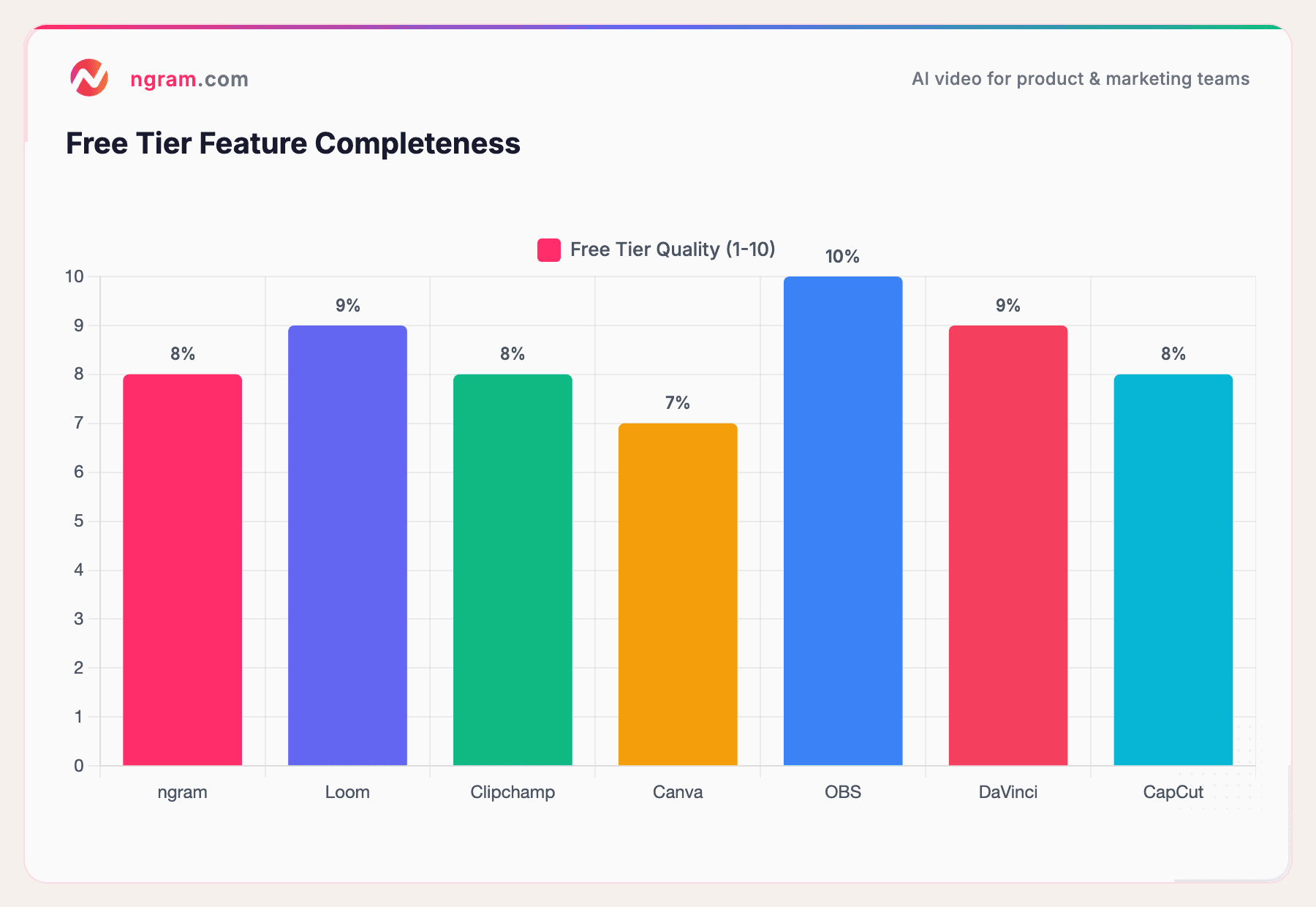
Editorial assessment based on hands-on testing of feature completeness and export quality in free tier (assessed March 2026)
All seven tools offer zero-cost entry. The difference isn't cost,it's what you can do without upgrading.
Feature Capability Comparison
Which tool handles what? Here's the honest breakdown:
| Feature | ngram | Loom | Clipchamp | Canva | OBS | DaVinci | CapCut |
|---|---|---|---|---|---|---|---|
| Screen Recording | Yes | Yes | Limited | Yes | Yes | No | Yes |
| Built-in Editing | Yes | No | Yes | Yes | No | Yes | Yes |
| AI Captions | Paid | No | Yes | Paid | No | No | Yes |
| Voiceover Tools | Paid | No | Yes | Paid | No | No | Yes |
| 1080p Export | Paid | Paid | Free | Free | Free | Free | Free |
| Motion Graphics | Paid | No | Limited | No | No | Yes | Yes |
| Cloud Storage | Yes | Yes | Yes | Yes | No | No | Yes |
| Offline Export | Yes | No | Yes | No | Yes | Yes | Yes |
| Learning Curve | Easy | Easy | Medium | Easy | Steep | Steep | Easy |
When Should You Upgrade?
Free tools are great for starting. But when you're ready to scale demo videos, upgrade when you hit these limits:
Upgrade from ngram when:
- You're creating more than one 1-minute video per week
- You need videos longer than a few minutes
- You want to use branded motion graphics and custom colors
- You need AI features like auto-captions or silence removal (which we do for you)
Upgrade from Loom when:
- Your demos are longer than 5 minutes
- You need to edit videos after recording
- You want to download videos, not just share links
- You're creating dozens of videos per month and hitting storage limits
Upgrade from Clipchamp when:
- You need advanced color grading or audio mixing
- You're working on longer-form content (15+ minutes)
- You want more AI features and templates
Upgrade from Canva when:
- You want to customize beyond templates
- You need 4K exports or premium stock footage
- You're tired of the design-first workflow
Upgrade from OBS when:
- You want built-in editing instead of recording raw footage
- You want cloud storage and backups
- The setup and technical complexity feels like overkill
Upgrade from DaVinci when:
- You need collaboration features (working with team members)
- You want cloud-based workflows instead of local files
- You need easier AI features and faster rendering
Upgrade from CapCut when:
- You're creating videos longer than 60 seconds regularly
- You need horizontal video orientation and professional layouts
- You want more control over color grading and audio
The Honest Truth About Free Tools
We believe in free tiers. Every tool on this list, including ngram, gives you something real for zero dollars. But free tiers exist for a reason: they're designed to let you see if a tool works for you before you pay. If you're interested in a more comprehensive solution, ngram's product handles demo creation end-to-end with advanced automation.
Where you'll feel the limits:
- Video length limits - Loom caps you at 5 minutes. ngram limits uploads to 1 minute. OBS has no limits but requires editing elsewhere.
- Export quality - Some free tiers cap exports at 720p or lower, while others like Clipchamp and Canva offer 1080p for free. Paid plans typically unlock 4K.
- Advanced features - AI captions, voiceovers, motion graphics, and color grading live in paid plans.
- Storage - Canva gives 5GB free. Others let you store in cloud but throttle you after dozens of videos.
- Editing capability - Simple trims and cuts are free. Advanced effects and transitions are locked behind payments.
None of this is deceptive. You get a real tool. You just get a subset of what the full product offers.
How We Tested These Tools
We spent time with each of these tools in March 2026. We recorded demo videos using each one, tested their export quality, and assessed the learning curve for new users. We focused on what's actually available in the free tier,not what you get after upgrading.
Our testing methodology:
- Record a 5-minute product demo using each tool
- Test export quality at the highest free tier option
- Assess ease of use for first-time users
- Document actual free tier limitations
- Check if features are actually free or gated behind paywalls
FAQ
What's the best free demo video maker overall?
There's no single "best" because it depends on your workflow. If you want the fastest screen recording, use Loom. If you want the highest quality export for free, choose Clipchamp or DaVinci Resolve. If you want to build something custom from scratch, go with ngram's free plan, which handles screen recording and built-in editing in one place, and reach for DaVinci Resolve when you need pro color grading on top. Most professionals use a combination of two tools rather than one.
Can I really use these free tools for business demos?
Absolutely. Most of these tools are used by professionals every day. The question isn't whether free tools are "good enough",they are. The question is whether they fit your workflow and whether your volume justifies upgrading. A solopreneur creating one demo per month is fine on Loom or CapCut free tier. A team creating 20 demos per month should probably invest in a paid plan.
Which tool should I use if I'm just starting with demo videos?
Start with Loom for speed and simplicity, or ngram if you want automatic silence removal and built-in editing tools on the free tier. Record a few demos and see what bothers you about the free tier. That frustration will tell you which paid features are actually worth paying for.
Do any of these tools have watermarks?
Most tools on this list export watermark-free on the free tier. ngram, Clipchamp, Canva, OBS, and DaVinci Resolve all export without watermarks. CapCut is watermark-free on your own content, but using Pro-labeled templates will bake in a permanent watermark. Loom doesn't add watermarks either, but you can't download on the free plan anyway.
Can I use these tools to record meetings and turn them into demos?
Yes, but your tool choice matters. Loom and ngram are built for this, record once, share immediately. ngram can turn a recording into a polished demo in one place, adding AI voiceovers, captions, and branding without leaving the tool, or you can record in OBS and edit in DaVinci Resolve or Clipchamp instead. Many teams use ngram specifically for sales demos because the workflow is optimized for that use case.
Is OBS really free forever with no limitations?
Yes. OBS is open-source and maintained by volunteers. There are no paywalls, no feature gates, no ads. You're just responsible for hosting and managing your own video files. It's genuinely unlimited.
Which tool should I use if I'm creating demo videos for TikTok or Instagram?
CapCut without hesitation. It's optimized for vertical, short-form content and its effect library is unmatched. Record your demo in ngram or Loom, export it, then use CapCut to cut it into clips and add effects.
What if I need to edit someone else's demo video?
Use Clipchamp or DaVinci Resolve. Both are full editors with no screen recording required. Drop in any video file and start trimming, adding voiceovers, captions, and effects. Clipchamp is faster to learn; DaVinci Resolve is more powerful.
Can I use these tools for enterprise-level demo videos?
Enter conversations carefully here. The free tiers can produce professional-looking videos, absolutely. But enterprise-level typically means collaboration, version control, brand consistency across a large team, and support. You'd likely upgrade to paid plans or use dedicated enterprise video platforms. Most companies with 50+ employees creating demo videos regularly will outgrow free tiers within months.
The Next Step
You don't need to pick the "best" tool. You need the right tool for your current workflow and volume.
If you're creating one demo per week, free is fine. Pick the one that feels fastest to you.
If you're creating 5+ demos per week or you need features like AI captions and motion graphics, try ngram's paid plans. We built it specifically for teams creating demo videos at scale.
Start free. Create a few demos. Notice what slows you down. That's your signal to upgrade or switch tools.
The best demo video maker is the one you'll actually use consistently.