Video to GIF by ngram
Video to GIF Product Loops for Docs
Drop a video or click to upload
MP4, MOV, WebM, MKV - product moments, UI captures, demo clips, and short social cuts all convert cleanly to GIF
What it does
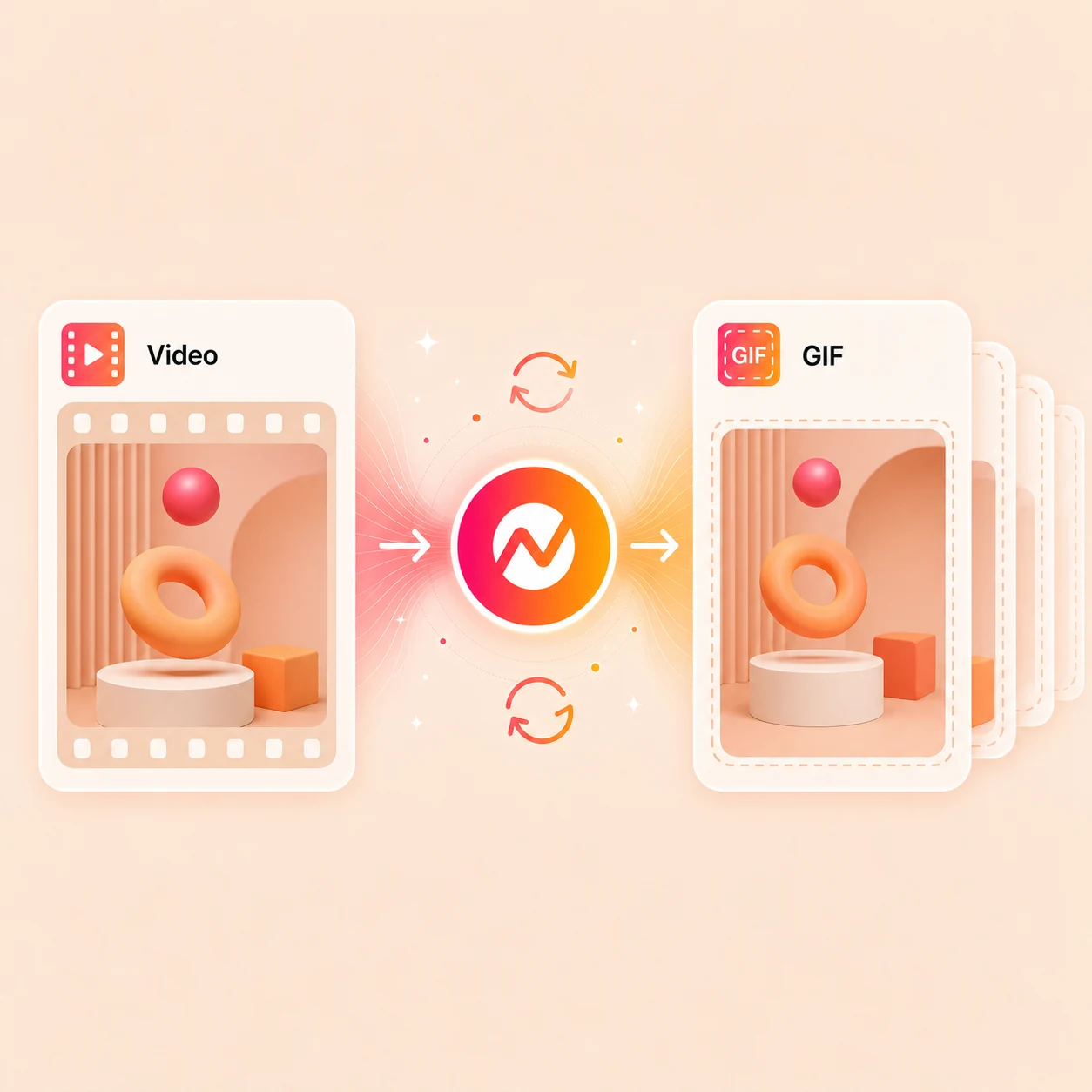
Upload an MP4, MOV, WebM, or MKV, trim to the exact moment by frame, tune the per-clip palette, preview a seamless loop, and export the GIF. The source video stays in the same project for captions, text, brand, and multi-format export.
Trusted by teams at












How it works
Four steps from video to a looping GIF.
Drop the clip, lock the moment by frame, preview the loop, then export the GIF or keep editing the source in ngram.
Upload the source video
Start with an MP4, MOV, WebM, or MKV. ngram reads dimensions, frame rate, and length, then pulls a thumbnail strip you can scrub.
Clip detected
Trim to the GIF moment
Set the in and out frames on the thumbnail strip. The trim locks to the millisecond so the GIF starts and ends exactly where the action does.
Frames locked
Tune palette and loop
ngram computes a smart per-clip palette so skin tones, gradients, and product UI stay sharp. Pick seamless, ping-pong, or hard-cut and preview the loop before export.
GIF previewed
Export or keep editing
Download the GIF, copy a hosted link, or open the source video in ngram for captions, text overlays, brand kit, resize, and multi-format export.
Ready to share
What it can do
What the video to GIF tool actually does.
Quick GIF export with the controls that decide whether the loop looks intentional - and a clear path back into the rest of the video workflow.
Frame-accurate trim
Scrub the source by thumbnail strip and lock the in and out frames precisely, so the GIF starts and ends exactly where you mean - no off-by-one seam.
Per-clip palette and dithering
ngram computes a 256-colour palette per clip and applies smart dithering, so skin tones, product UI, and gradients hold up under tight GIF compression.
Seamless loop preview
Pick seamless frame-blend, ping-pong, or hard cut and preview each option before export, so the cycle never breaks the moment the GIF reaches its end.
Burn text into the loop
Stack a feature name, a label, or a one-line caption on the source before export so the GIF carries context the second a muted viewer scrolls past.
Full conversion workflow
Need bitrate, palette, dither, and the editable project in one place? The sibling converter handles the deeper end-to-end video-to-GIF flow.
Open the full converterReuse the source clip
After the GIF lands, the same source stays editable for captions, voiceover, brand kit, translation, and multi-format export inside the same ngram project.
Built for short visual proof inside business video projects
When it matters
Where a converted GIF earns its place.
Nine ngram use-case pages where a short looping GIF beats a 30-second muted MP4 - inside docs, release notes, support replies, newsletters, and social.
Changelog Video
Render a 3-second GIF for each shipped feature so the changelog post autoplays inline in docs and email instead of waiting for a video player to load.
Open AI video use caseFeature Announcement Video
Pull the hero moment out of a launch video and ship the GIF in release-note hero cards, launch emails, and in-app what's-new pop-ups.
Open AI video use caseProduct Demo Video
Slice a 5-second product moment off a demo recording and convert it to a GIF for the prospect email, the deal-room follow-up, and the public docs.
Open AI video use caseProduct Walkthrough Video Creator
Lift the key UI interaction from a walkthrough and convert it to a GIF for inline tutorials, where a 2-second loop reads faster than a numbered list.
Open AI video use caseBug Report Video
Turn a screen recording of the broken state into a tight GIF that loops in the ticket, the Slack thread, and the engineering issue without anyone hitting play.
Open AI video use caseHelp Center Video
Replace 200-word help articles with a 3-second GIF that shows the click sequence inline, so the customer sees the fix instead of reading two paragraphs about it.
Open AI video use caseAPI Documentation Video
Drop a tiny GIF into API docs and GitHub READMEs that shows the SDK or CLI in motion - GitHub renders GIFs inline at full quality, no codec required.
Open AI video use caseMarketing Social Clips
Convert a campaign clip into a 9:16 or 1:1 GIF for landing-page hero modules, social previews, and newsletter blocks without needing the video player to fire.
Open AI video use caseNewsletter Video
Use the GIF as the lightweight visual hook in the newsletter, then link to the full ngram video page when the reader wants the rest of the story.
Open AI video use caseProduct stack
Features the source clip keeps after the GIF lands.
A GIF is one cheap output. The source video usually still needs captions, brand treatment, motion graphics, and channel variants - these features handle that.
Multi-Format Export
Render the same trimmed source as a 1:1 GIF for chat, a 16:9 GIF for the blog hero, and a 9:16 MP4 for vertical social - one render, smart reframing per output.
Learn more about Multi-Format ExportVideo Editing
Open the source clip on the timeline before the GIF render to trim by transcript, crop the frame, or burn a caption in - then convert the polished cut to GIF.
Learn more about Video EditingMotion Graphics
Stamp a feature name, a label, an arrow, or a CTA onto the source before export, so the GIF carries context for muted feeds instead of relying on audio.
Learn more about Motion GraphicsBrand Kit
Apply logo, colors, fonts, and intro frames to the source before the GIF render so the changelog GIF, the prospect email GIF, and the launch GIF all look like one product.
Learn more about Brand KitScreencast Understanding and Editing
Run cursor smoothing, click emphasis, dead-air trimming, and smart zooms on the source recording first, so the resulting GIF reads as a clean UI demo instead of raw capture.
Learn more about Screencast Understanding and EditingCaptions
Generate captions on the trimmed source before the GIF render, so the burned-in text reads inside the loop where audio cannot - critical for muted feeds and email inlines.
Learn more about CaptionsMore tools
Tools that pair with the GIF render.
Trim the right window, polish the source before conversion, annotate the loop, or convert into other formats once the GIF is shipped.
Prep the source for the GIF
Get the right window of the source clip ready to convert
Video Cutter
Trim the source by transcript or timeline so the GIF window covers the exact 3 to 6 seconds worth looping, with no padding on either side.
Open toolScreen Recorder
Capture the click sequence in-browser with cursor smoothing and dead-air trim, then send the polished recording straight into the GIF tool.
Open toolVideo Compressor
Shrink the source file before the GIF render when the upload is over the 500 MB cap or the team needs a smaller download alongside the loop.
Open toolAnnotate before export
Add the on-screen context the muted loop needs to land
Add Text to Video
Burn a one-line caption, a feature name, or a stat onto the source before the GIF render so the loop carries the why, not just the motion.
Open toolVideo Caption Generator
Generate captions on the trimmed source first, so the GIF burns them inside the loop - the only way captions survive in muted social and inline email previews.
Open toolAdd Subtitles to Video
Burn formatted subtitles into the cut before conversion, useful for talking-head GIFs that need the speech to read inside the loop.
Open toolEye Contact AI
Redirect gaze on a talking-head source before the GIF render so a 4-second loop does not show eyes drifting off-camera mid-cycle.
Open toolConvert from or to other formats
Pivot the source into another container or output once the GIF ships
Video Converter
Swap the source between MP4, MOV, WebM, and MKV before or after the GIF render when web embeds and ad uploads need a different container.
Open toolImage to Video
If the GIF idea is built from stills first, animate them into a short video and then run that clip through the GIF tool for the looping export.
Open toolVideo to Audio
Pull the audio out of the same source when the GIF is the silent loop and a separate MP3 or WAV is needed for a podcast snippet or transcript pass.
Open toolConvert
Converters that feed the GIF workflow.
The quick tool handles the GIF render. These converters supply the source clips that most often need a looping moment pulled out.
Video to GIF (full workflow)
The sibling /convert page owns the deeper end-to-end flow - file up to 500 MB, palette controls, dither modes, loop seam picker, and the editable project end-to-end.
Open converterScreen Recording to Video
Polish a raw Loom, QuickTime, or OBS capture into a clean branded video first, then run the keepable section through the GIF tool for the inline loop.
Open converterWebinar to Clips
Turn an hour-long webinar into short clips, then convert the strongest 3-second moment into a GIF for social posts, recap emails, and follow-up threads.
Open converterWho it is for
Teams that reach for GIFs first.
These teams ship short looping proof every week - inside changelog posts, support tickets, prospect emails, and social feeds where a full video player is overkill.
Product Marketing Managers
Render hero GIFs for landing pages, launch announcements, release notes, and changelog cards - same trim, resized per surface, brand kit applied.
See product marketing workflowsDeveloper Relations
Drop tiny GIFs into API docs, GitHub READMEs, and dev newsletters that show the SDK in motion - inline, no player needed, GitHub-safe sizing baked in.
See DevRel workflowsProduct Managers
Convert internal demo recordings into changelog GIFs that ship with every release, so PMs can drop them in posts without filing a design ticket.
See product workflowsSupport Teams
Replace 200-word help articles with a 2-second loop that embeds inline in Zendesk, Intercom, and Help Scout - the customer sees the click, not a paragraph.
See support workflowsGrowth & Marketing
Turn campaign cuts into GIFs for cold email, ad creative previews, and landing-page hero modules where the autoplay video keeps getting flagged.
See growth workflowsSales Enablement Teams
Turn demos, proposals, and follow-up recordings into polished assets sales can reuse with prospects.
See sales enablement workflowsIntegrations
Live integrations that move source clips in and GIFs out.
Each recipe wires the video-to-GIF tool into a real workflow your team already runs - capture, automation, agentic call, or publish.
Zapier
No-codeWhenA Loom recording, demo capture, or webinar replay finishes in a Drive or Dropbox folder.
ThenHand it to ngram, trim to the highlight moment, and post the converted GIF inline in the right Slack channel.
n8n
WorkflowWhenA self-hosted pipeline drops a new MP4 on S3 ready for clipping.
ThenConvert it to GIF inside the same VPC so the source file never leaves the bucket and the loop lands in the docs CMS.
Make.com
ScenarioWhenA Linear issue closes with a shipped label and an attached demo clip.
ThenRender the clip as a changelog GIF and attach it to the auto-drafted release note before review.
MCP Server
AgenticWhenClaude, ChatGPT, or another agent is asked to summarize a video as a short looping GIF.
ThenCall the video-to-GIF tool through MCP and return both a hosted GIF link and an inline preview inside the agent thread.
Chrome Extension
CaptureWhenYou spot a product moment in a Loom recording or a teammate's demo tab worth turning into a loop.
ThenSend the tab into ngram and get a trimmed, palette-tuned GIF back in a new tab with the share link ready.
WhenA 9:16 or 1:1 GIF render finishes for a launch, founder update, or product post.
ThenPublish the loop natively to LinkedIn with brand-styled caption text so it autoplays in the feed.
X (Twitter)
PublishWhenA short product moment or launch teaser is converted to GIF and approved for posting.
ThenPush the GIF to X with the post copy attached so the thread leads with motion instead of a still preview.
YouTube
PublishWhenThe same source video that produced the GIF needs the full long-form cut uploaded too.
ThenSend the polished MP4 to YouTube with title, description, and chapters intact, while the GIF carries the inline preview elsewhere.
Run the GIF render from your own product through API, webhook, or MCP when the workflow needs programmatic control over input, palette, and output dimensions.
Why ngram
How video to GIF tools compare.
Most converters stop at the GIF file. ngram treats the conversion as one cheap output inside a project that still owns captions, brand, edits, and channel variants.
| Compare | ngram | Ezgif | Kapwing | CloudConvert |
|---|---|---|---|---|
| Workflow fit | Frame-accurate trim, per-clip palette, smart dithering, and three previewable loop-seam modes before the GIF ships. | Public docs describe a browser GIF utility that accepts video uploads up to 200 MB, with frame-rate-bound duration caps and a generic web palette. | Public pages describe a full browser editor with trim, text, transitions, and GIF as one of many export formats, plus a Pro tier that removes the watermark. | Public pages describe an MP4-to-GIF route with control over resolution, quality, and file size, plus a documented conversion API for automation. |
| How ngram fits | The trimmed source stays editable in the same ngram project for captions, motion graphics, brand kit, translation, and multi-format export. | Good fit when the job is a one-off GIF and nothing has to happen to the source clip afterward. | Good fit for creator and social workflows that live entirely inside the Kapwing editor. | Good fit for technical, scriptable conversions across many file types where the GIF is the final artifact. |
| Best use | Fits business teams that need the GIF and the polished source video out of one workflow, not two disconnected tools. | ngram is closer when the same source has to keep moving into captions, brand kit, and other export formats inside the same project. | ngram is closer when the GIF is one of several outputs from a branded business video that also ships as MP4, captions, and localized variants. | ngram is the closer fit when the converted clip still needs editing, captions, motion graphics, and brand treatment after the GIF lands. |
FAQ
Common questions about video to GIF in ngram
Still curious?
Convert the moment, keep the rest of the video
Turn a short video section into a clean looping GIF, then keep the source clip live for captions, text, brand kit, and multi-format export inside the same ngram project.
Run the quick video to GIF tool now, then finish the full video in ngram.
GIF, captions, text, export