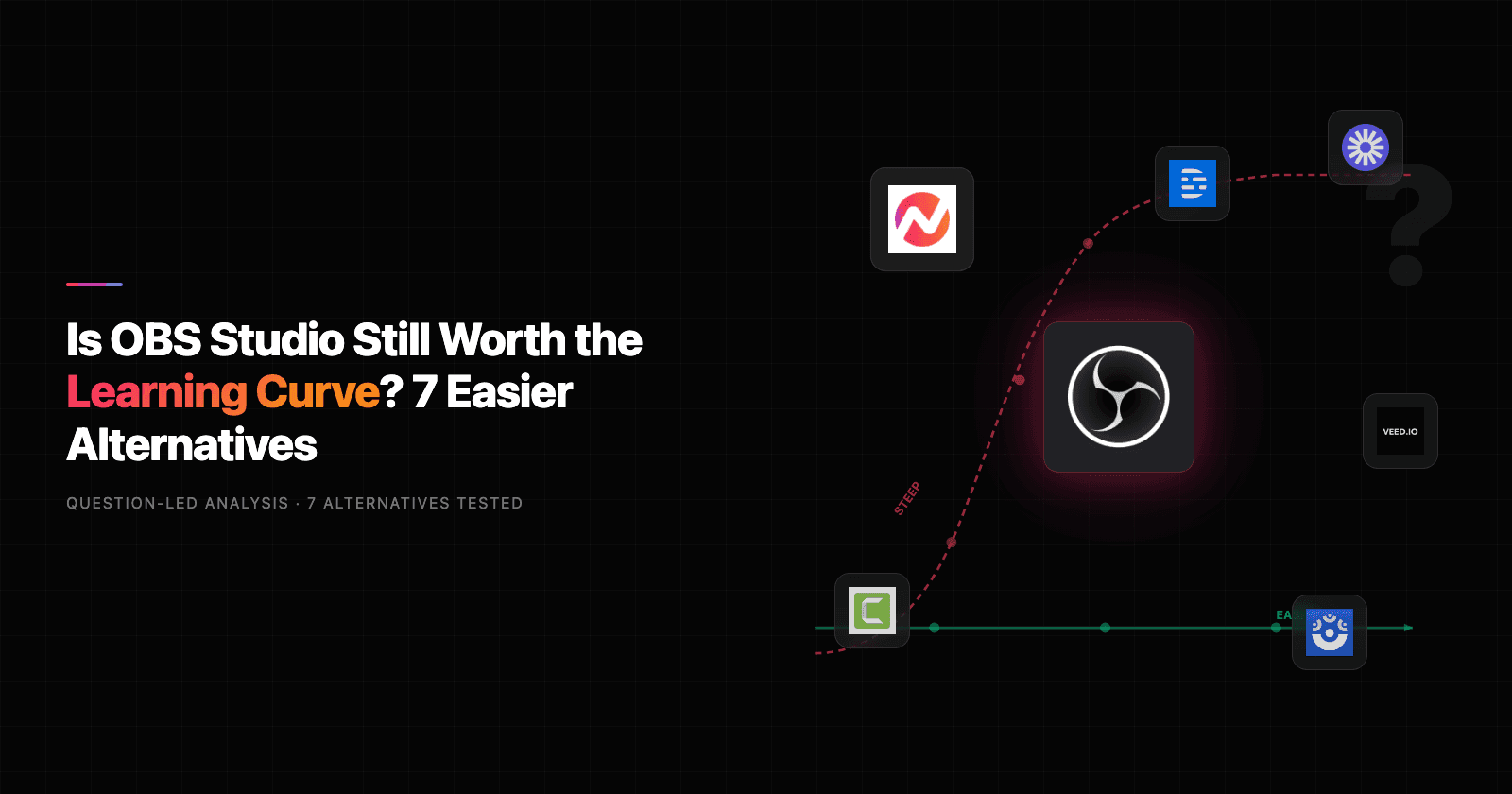

Is OBS still the best free option, or has the market caught up?
OBS Studio has 28 million downloads on GitHub and powers an estimated 70% of Twitch streams. It's free, open-source, and endlessly configurable. For a tool that costs nothing, OBS does a remarkable amount.
But that power comes at a cost: complexity. OBS was built for technical users who are comfortable configuring scenes, sources, encoders, bitrate ladders, and audio routing from scratch. The learning curve is real. Reddit threads asking "how do I set up OBS for the first time" regularly hit 50+ comments, and the most common advice starts with "watch a 20-minute YouTube tutorial."
Per Wyzowl's 2026 State of Video Marketing report, 91% of businesses now use video as a marketing tool. But the majority of those teams aren't streamers configuring NVENC settings. They're marketers, product managers, educators, and sales teams who need to record a screen, add some polish, and ship.
The screen recording software market has grown into a $1.05 billion segment in 2025 (Global Growth Insights), and newer tools have closed the gap on OBS while being dramatically easier to use. We tested 7 OBS alternatives across features, ease of use, AI capabilities, and value. Here's what held up.
The case for switching off OBS Studio
OBS is powerful, but these friction points push non-technical users toward alternatives.
The learning curve is the product. OBS has no onboarding wizard, no templates, and no presets. Every setting from audio input to output encoder must be configured manually. A first-time user faces a blank canvas with 15+ menus. For streamers who enjoy the tinkering, that's a feature. For everyone else, it's a wall.
Audio issues are persistent. Desktop audio randomly cutting off, mic sync drifting over time, and audio sources disappearing after updates are among the most common complaints on the OBS Forums and Reddit. The fixes usually involve editing JSON config files or reinstalling audio drivers.
No built-in editing. OBS records raw footage. Trimming, captioning, zooming, adding callouts, removing filler words - all of that requires exporting to a separate editor. For teams that need polished output, this means adding another tool (and another learning curve) to the workflow.
Mac performance lags behind. OBS on macOS lacks the hardware encoding support that Windows users get with NVENC. Screen capture on Mac requires workarounds, and Apple Silicon optimization has been slow. The "obs studio for mac" search term gets 1,300 queries per month, suggesting this is a widespread pain point.
Crashes under load. GPU encoder overload causing frame drops 30-40 minutes into a session is a recurring report on r/obs and the OBS Forums. For live streams, a mid-session crash means lost content and audience.
Quick comparison
| Tool | Best For | Starting Price | Key Differentiator |
|---|---|---|---|
| ngram | Professional video from any asset | Free / $17.40/mo | AI-powered, context-aware generation |
| Streamlabs | Beginner-friendly streaming | Free / $27/mo Ultra | Built-in overlays, alerts, themes |
| Camtasia | Tutorial and course creation | $180/year | Timeline editor + screen recorder |
| Loom | Async team communication | Free / $15/user/mo | Record and share in under a minute |
| ScreenPal | Budget screen recording | Free / $3/mo | Lowest price point with hosting |
| Descript | AI-powered video editing | Free / $24/mo | Edit video by editing the transcript |
| VEED | Quick browser-based editing | Free / $12/mo | No download, instant editing |
1. ngram
If you're looking for OBS alternatives because you need more than raw recordings, ngram skips the recording-then-editing workflow entirely. Instead of capturing your screen and then spending 30 minutes trimming in a separate editor, ngram takes whatever you already have - a screen recording, a document, some screenshots, a URL - and produces a finished, on-brand video.
The difference from OBS is fundamental. OBS is a capture tool. ngram is a creation engine.
What makes ngram stand out
Context-aware generation adapts the output to your audience, goal, and channel. Tell ngram you're making a LinkedIn product demo for engineering managers and it adjusts structure, pacing, and tone accordingly. A sales explainer for a landing page gets a completely different treatment. OBS gives you the same raw recording regardless of destination.
AI-powered editing handles the work that makes OBS users reach for a second tool. Automatic filler word removal, smart zoom on mouse interactions, cursor emphasis, and callouts generated from your prompts. No timeline editing required.
Script and storyboard before rendering. ngram shows you the plan before it generates anything. You review and fix direction at the cheapest possible moment, not after rendering a 10-minute video. See how this works with ngram's screen recording editor.
Key features:
- Context-aware generation - Adapts structure, pacing, and tone to audience and channel
- Script and storyboard review - Fix direction before rendering
- Any asset in - Text, images, docs, URLs, screen recordings as input
- AI editing - Auto-cut, filler removal, smart zoom, cursor emphasis
- Multi-format export - 16:9, 9:16, 1:1 with captions included
- Brand kits - Logo, colors, fonts applied automatically
Pros
- ✅ Turns raw recordings into polished videos without a separate editor
- ✅ Context-aware output means no manual reformatting per channel
- ✅ Brand consistency enforced automatically across every video
Cons
- ❌ Web-based only, no native desktop app yet
- ❌ Not a live streaming tool (use alongside OBS if you stream)
Who is ngram best for?
Product Marketing, Growth, Sales Enablement, Customer Success, and Agencies who need professional videos without the OBS-then-editor double workflow. If your videos go to customers, prospects, or public audiences, ngram is the pick.
ngram has a generous free plan with paid plans starting at $17.40 per month.
Ready to try ngram? Create your first video in under 5 minutes. Start free
See ngram in action:
2. Streamlabs
Streamlabs is OBS with training wheels. It's built on the same open-source core but wraps it in a friendlier UI with built-in themes, overlays, alerts, and a tip jar. If you want OBS's streaming capabilities without the blank-canvas setup experience, Streamlabs is the most direct upgrade.
The free tier includes scene management, alerts, chat integration, and thousands of overlay themes you can install with one click. The Ultra plan ($27/month or $189/year) adds cloud multistreaming to Twitch, YouTube, TikTok, Kick, and Facebook simultaneously.
Key features
- Built-in themes and overlays - Thousands of free options, one-click install
- Alert and widget system - Donations, follows, subs built in
- Multistreaming - Stream to multiple platforms at once (Ultra)
- Talk Studio - Browser-based streaming option
- Monetization tools - Tip jar, merch, and sponsorship integrations
Pros
- ✅ Same OBS engine with a friendlier interface
- ✅ One-click overlay themes save hours of setup
- ✅ Free tier covers most solo streamer needs
Cons
- ❌ Higher CPU usage than vanilla OBS
- ❌ Some advanced OBS features are simplified away
What users say
Reddit users praise Streamlabs for getting new streamers live faster than OBS. The main complaint is resource usage: Streamlabs consumes more CPU and RAM than vanilla OBS, which matters on older hardware. G2 reviewers note it's the "easiest way to start streaming" but flag the Ultra pricing as steep for hobbyists.
Best for
New streamers and content creators who want OBS-level streaming without the manual configuration. Not built for screen recording or video editing workflows.
3. Camtasia
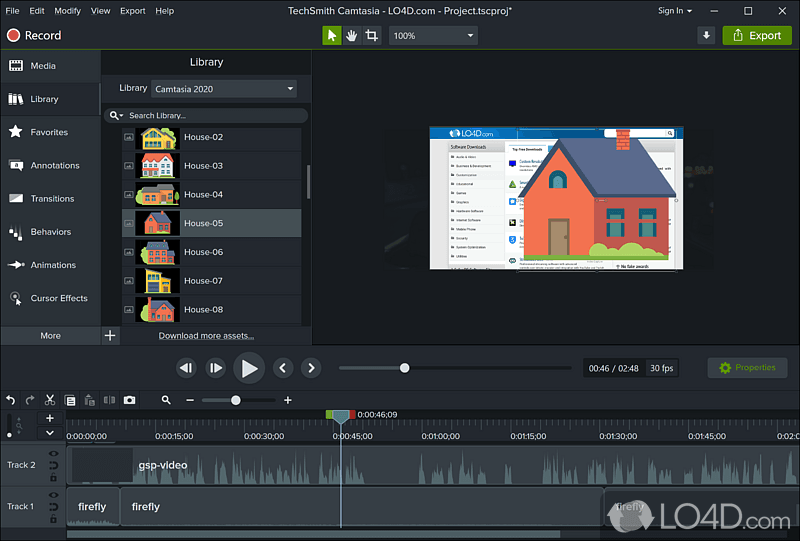
Camtasia does what OBS can't: record and edit in the same application. TechSmith has been building Camtasia since 2002, and in 2026 it's a full-featured screen recorder with a drag-and-drop timeline editor, AI features, and SCORM export for e-learning. It holds a consistent position as the go-to tool for tutorials, courses, and training videos.
Where OBS gives you a raw recording, Camtasia gives you a production workflow. Record your screen, switch to the editor, add annotations, callouts, transitions, and captions, then export. No second tool needed.
Key features
- Screen recorder + timeline editor - All-in-one workflow
- AI features - Text-based editing, filler word removal, AI avatars (Pro)
- Annotations and callouts - Built-in library of visual elements
- SCORM export - Push directly to learning management systems
- Cursor smoothing - Industry-leading cursor path editing
What users say
G2 reviewers praise Camtasia's editing depth and the quality of the output. The learning curve is moderate - easier than OBS but steeper than Loom or ScreenPal. The most common complaints are price ($180/year for a subscription model that used to be a one-time purchase) and occasional lag with complex timelines. Reddit users recommend it for "anyone making tutorials or courses" but note it's overkill for quick screen captures. For a direct comparison, see our ngram vs Camtasia comparison.
Best for
Educators, instructional designers, and marketing teams who need to record screens and edit polished tutorials in one tool. $180/year.
4. Loom
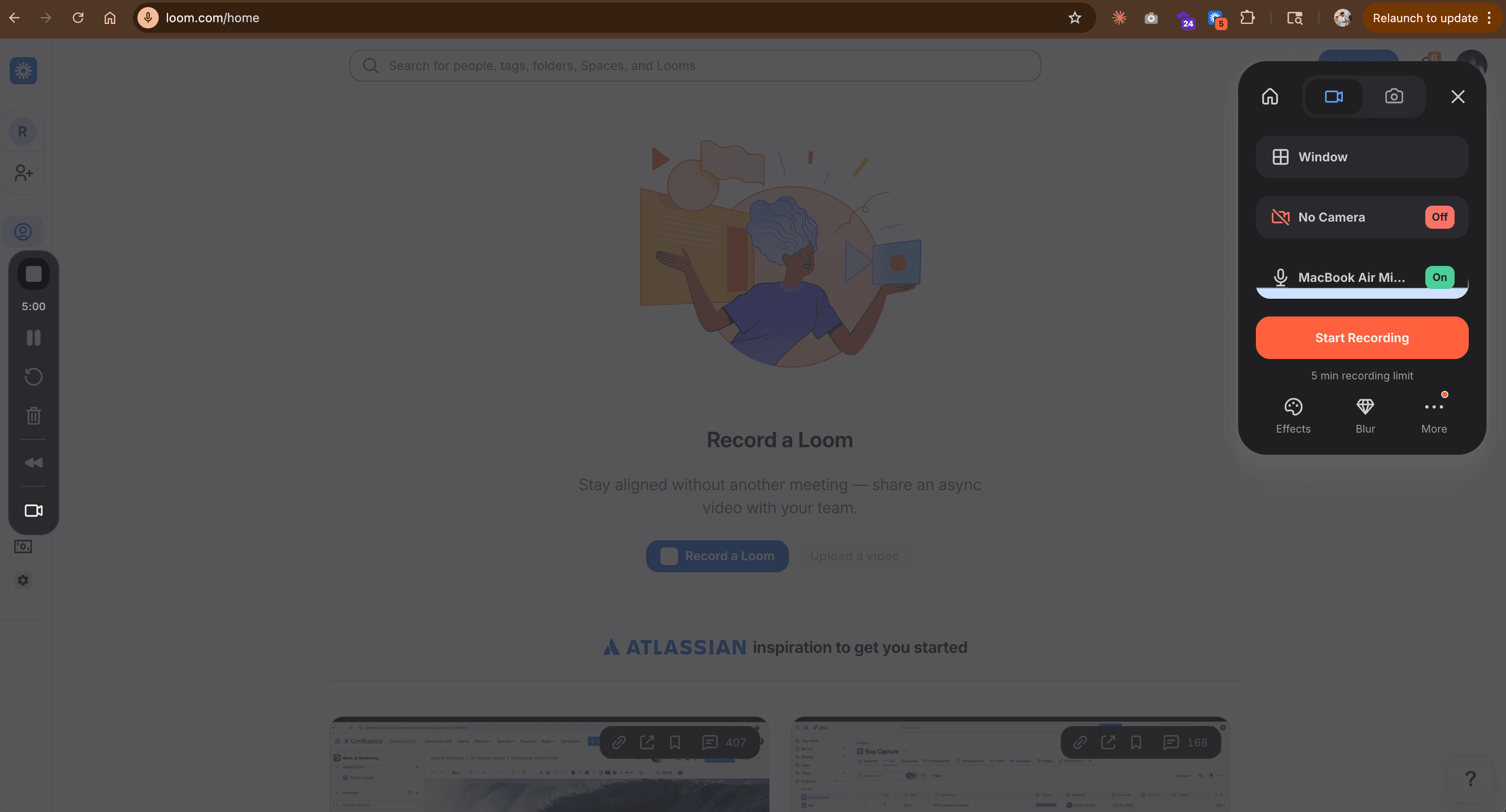
Loom is the anti-OBS. Where OBS requires 20 minutes of configuration before your first recording, Loom takes about 20 seconds. Click the extension, choose screen + camera, hit record, done. Acquired by Atlassian for $975 million in 2023, it now has over 25 million users.
Loom doesn't compete with OBS on features. It competes on speed. If your OBS use case is "record a quick walkthrough for my team," Loom does that job in a fraction of the time with zero configuration.
Key features
- Instant recording - Chrome extension, desktop app, or mobile
- AI summaries - Auto-generated titles, chapters, and summaries
- Filler word removal - Available on Business + AI plan
- Reactions and comments - Async feedback built in
- Drawing tools - Annotate while recording
What users say
Reddit consensus: Loom is the fastest path from "I need to show something" to a shareable link. G2 reviewers flag the Atlassian acquisition as a pricing concern, with new tier-based billing charging in seat blocks. The "obs vs loom" comparison (1,300+ monthly searches) confirms a large audience weighing the two. See our ngram vs Loom comparison for a deeper breakdown.
Best for
Teams in Slack, Jira, and Notion who need async communication. Not a replacement for OBS if you stream or need advanced recording controls.
Free plan available. Business at $15/user/month.
Looking for the fastest way to create professional videos? ngram turns your screen recordings, docs, and images into polished videos in minutes. Try ngram free
5. ScreenPal
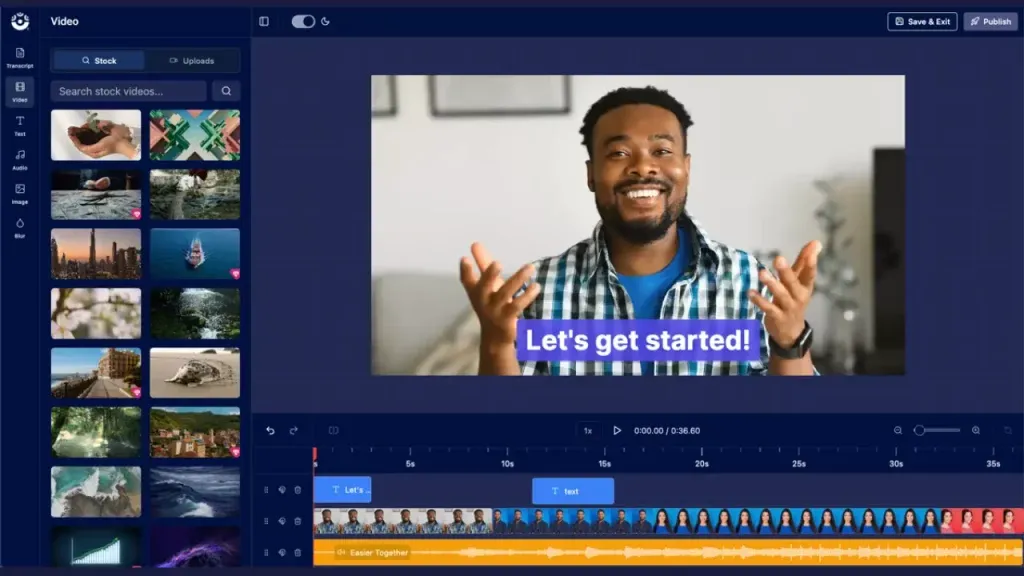
ScreenPal (formerly Screencast-O-Matic) is the budget pick. At $3/month for the Deluxe plan, it offers screen recording, basic editing, and video hosting at a price point that makes it almost an impulse buy. The free plan works on Windows, Mac, iOS, Android, and Chromebooks.
For OBS users who only use it for screen recording (not streaming), ScreenPal delivers a simpler experience at a fraction of the complexity. Record, trim, add captions, share. Done.
Key features
- Cross-platform recording - Works on nearly every device including Chromebooks
- Built-in editor - Trim, annotate, add captions
- Video hosting - Unlimited secure hosting with viewer analytics
- Stock library - Photos and music included even on lower tiers
- Script-to-video tools - Structure content before recording
What users say
G2 reviewers consistently praise the value proposition. The editing features are basic compared to Camtasia, but for quick recordings with light edits, ScreenPal delivers. Reddit users recommend it for educators and support teams. The main limitation: no live streaming capability. See our ngram vs ScreenPal comparison.
Best for
Educators, students, and budget-conscious teams who need screen recording with basic editing and hosting. $3/month Deluxe, $6/month Premier.
6. Descript
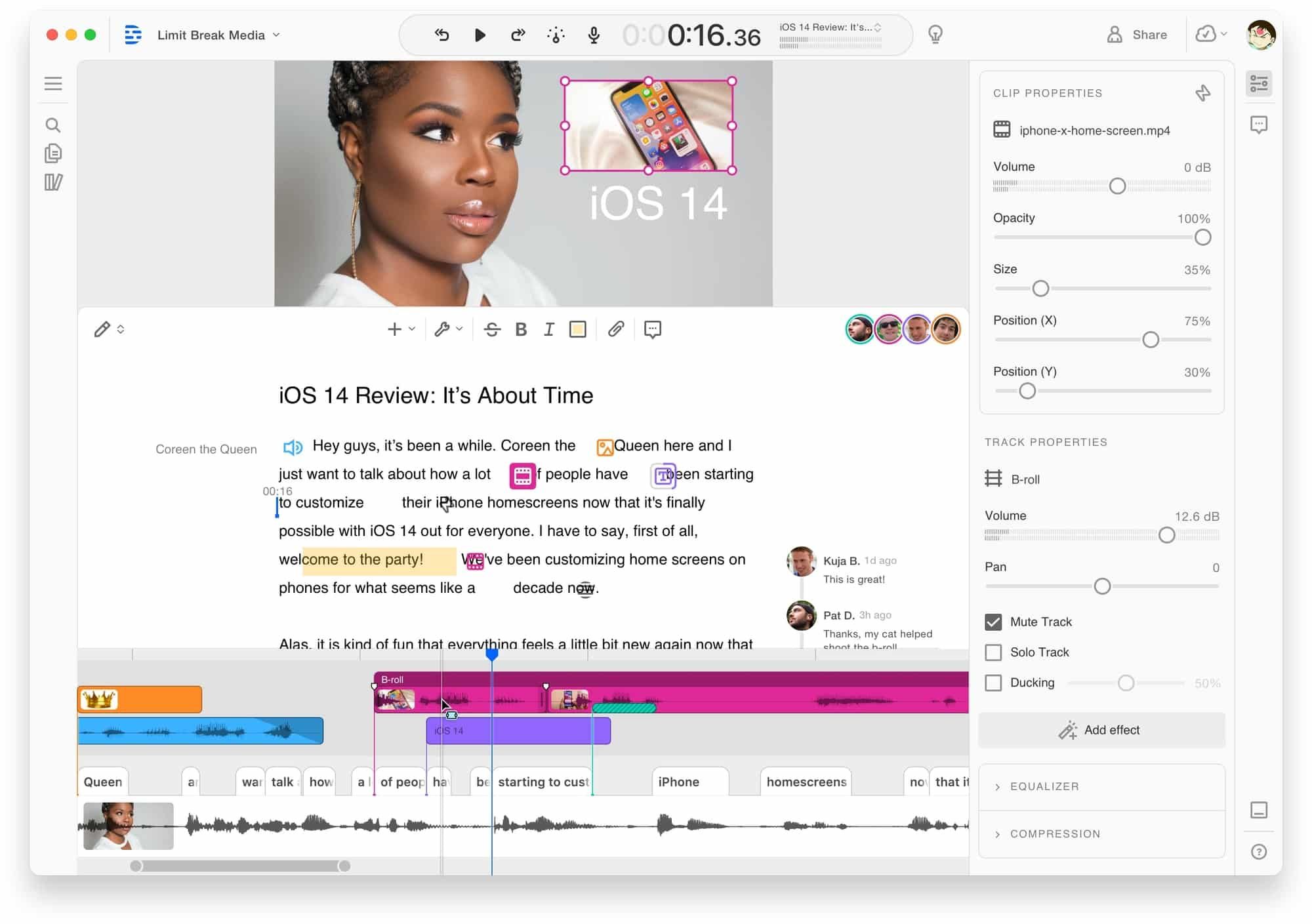
Descript turns video editing into document editing. Record or import footage, and Descript generates a transcript. Edit the transcript - delete a word, and the video cuts accordingly. It's a fundamentally different approach to editing that makes OBS's "record raw, then learn Premiere" workflow feel outdated.
With AI features like filler word removal, eye contact correction, and voice cloning for pickups, Descript has positioned itself as the AI-first video editor. It holds a G2 presence with 500+ reviews.
Key features
- Transcript-based editing - Edit video by editing text
- AI filler word removal - Automatic um/ah detection and cuts
- Eye contact correction - AI adjusts gaze to look at camera
- Voice cloning - Re-record sections in your cloned voice
- Screen recording - Built-in recorder with webcam overlay
What users say
Reddit users call transcript-based editing "mind-blowing for long-form content." G2 reviewers flag rendering speed and occasional audio/video sync issues as pain points. The learning curve is moderate - easier than traditional editors but more complex than Loom. For a direct comparison, see our ngram vs Descript comparison.
Best for
Content creators and podcasters who work with long-form video and want transcript-level control. Free tier available. Hobbyist at $24/month.
7. VEED
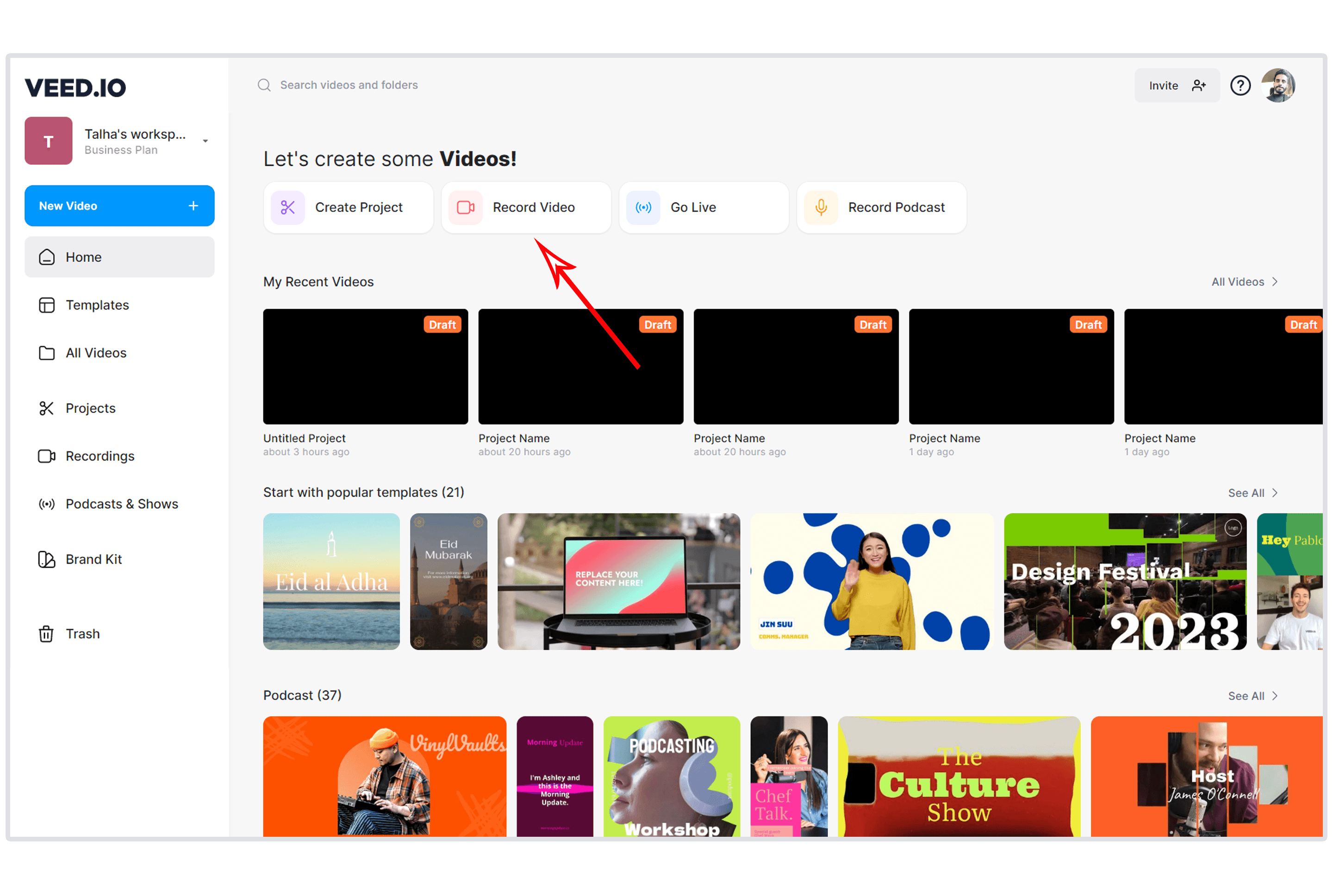
VEED is the browser-based option. No download, no installation, no configuration. Open a browser tab, upload or record, edit, export. For teams that want to avoid installing any software (OBS requires a desktop install), VEED removes that friction entirely.
The editing suite is surprisingly capable for a browser tool: automatic subtitles, AI avatars, stock footage, and collaboration features. VEED has grown to serve over 1 million creators.
Key features
- Browser-based - No download required, works on any device
- Auto subtitles - AI-generated captions in 100+ languages
- Screen recording - In-browser recorder with webcam overlay
- Templates - Pre-built video templates for social media
- Collaboration - Team editing and review workflows
What users say
G2 reviewers praise VEED for speed and simplicity. The main complaints center on export quality on the free tier (watermark) and occasional lag with longer videos. Reddit users recommend it for "quick social media clips and simple edits" but note it can't match desktop editors for complex projects. For more detail, see our ngram vs VEED comparison.
Best for
Social media teams and individual creators who need fast, browser-based editing without installing software. Free tier with watermark. Paid plans start at $12/month.
Here's how monthly costs compare across the 7 OBS alternatives:
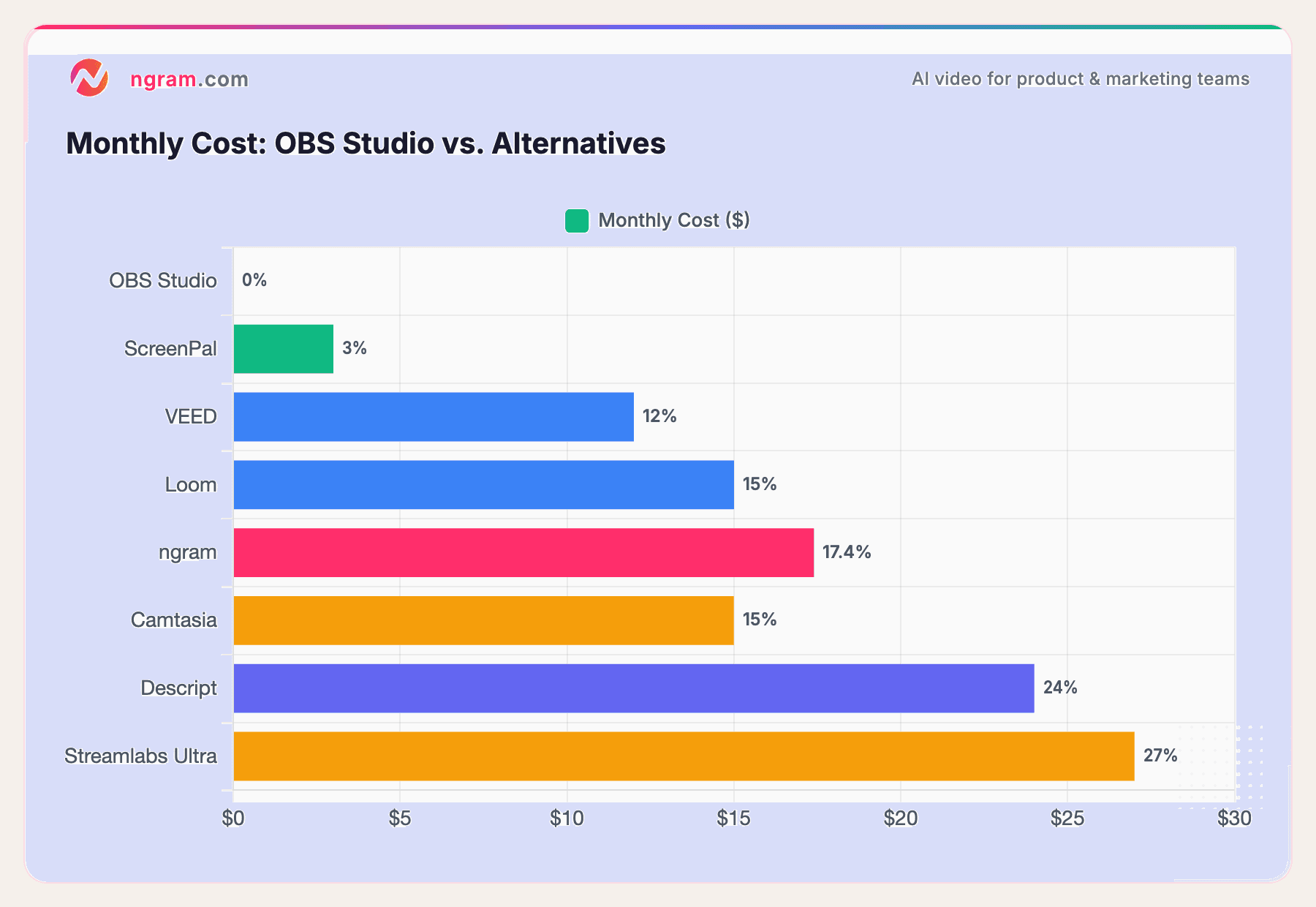
OBS Studio is free, but the real cost is time. The tools on this list trade dollars for hours saved on configuration, editing, and troubleshooting.
How we compared these tools
We tested each tool hands-on, read hundreds of user reviews across G2, Capterra, Reddit, and Product Hunt, and compared them across five weighted criteria:
| Criteria | Weight | What we looked at |
|---|---|---|
| Features | 25% | Core capabilities, recording quality, editing tools, export options |
| Ease of Use | 25% | Learning curve, onboarding, time-to-first-video, UI quality |
| AI Capabilities | 20% | AI editing, generation, smart features, automation |
| Value | 20% | Pricing relative to features, free tier generosity |
| Support & Community | 10% | Documentation quality, community size, customer support responsiveness |
We also factored in:
- Real user reviews from G2, Capterra, Reddit, and Product Hunt (qualitative sentiment, not numerical scores)
- Platform compatibility (Mac, Windows, Chromebook, browser)
- Integration ecosystem with common business tools
- Use-case fit for recording, editing, and streaming separately
OBS wins on raw power and price (free). The alternatives win on time-to-value and the editing gap.
Common questions
Is there a free alternative to OBS Studio for recording?
ScreenPal and Loom both offer free plans for screen recording. ngram has a free tier for AI-powered video creation. OBS itself remains the most feature-rich free option, but if you want recording without the configuration complexity, ScreenPal's free plan is the closest match.
What's the best OBS alternative for Mac?
Loom and Descript both run natively on macOS with Apple Silicon optimization. VEED requires no install at all (browser-based). OBS on Mac has known performance limitations because it lacks full hardware encoding support, making these alternatives particularly strong on Apple hardware.
Can any OBS alternative also handle live streaming?
Streamlabs is the direct streaming alternative. It uses the same OBS engine with a friendlier interface and supports multistreaming on the Ultra plan. The other tools on this list focus on recording and editing rather than live streaming.
What's the cheapest OBS alternative with editing?
ScreenPal at $3/month for Deluxe includes both recording and basic editing. VEED at $12/month offers more advanced editing in the browser. For AI-powered editing, ngram's paid plans start at $17.40/month.
How does OBS compare to Streamlabs in 2026?
OBS is leaner, more customizable, and uses less CPU. Streamlabs is easier to set up, has built-in overlays and alerts, and supports multistreaming. The "obs vs streamlabs" comparison gets 1,300 searches per month, making it one of the most common decisions in the streaming space. Choose OBS for control, Streamlabs for convenience.
Is OBS Studio still worth learning in 2026?
For live streaming on a budget, yes. OBS remains the most powerful free streaming tool available. But for screen recording and business video creation, the learning curve isn't justified when tools like ngram, Loom, and ScreenPal produce polished output in minutes. The right answer depends on whether you're streaming or creating content. For the OBS vs ngram matchup, see our ngram vs OBS comparison.
Our verdict
OBS Studio is still the best free tool for live streaming if you're willing to invest the time to learn it. But for screen recording, tutorials, async communication, and professional video creation, the market has moved past the record-raw-then-edit workflow.
If you need polished, on-brand videos from raw recordings without a separate editor, ngram is the strongest fit. If you want OBS-like streaming with less friction, Streamlabs is the direct upgrade. If you need the cheapest possible screen recorder that works everywhere, ScreenPal at $3/month is hard to beat.
The honest answer: most teams that "use OBS" only use 10% of it. Pick the tool that does your 10% better.
Try ngram free - your first video in under 5 minutes. Turn raw screen recordings into polished, on-brand videos without touching a timeline. Start free