
ScreenPal (formerly Screencast-O-Matic) built its reputation on one thing: being the easiest, cheapest screen recorder in the market. At $3/month for the Solo Deluxe plan, it undercuts nearly every competitor. For K-12 teachers recording quick lessons and small teams making internal walkthroughs, that simplicity is genuine value.
But the screen recording market in 2026 has matured. According to OpenPR, the screen recording software market is worth $1.5 billion and growing at 9.2% annually. Tools now offer AI-powered editing, transcript-based workflows, professional effects, and team collaboration - features ScreenPal simply doesn't have. And the free plan's 15-minute recording cap, branded outro, and missing system audio capture make it more of a demo than a real product.
Meanwhile, Wyzowl's 2026 report shows 91% of businesses using video as a marketing tool. The teams creating that content need more than basic screen recording with a watermark.
We tested 7 ScreenPal alternatives across ease of use, features, AI capabilities, pricing, and real user sentiment from G2, Capterra, and Reddit. Here's what held up.
Where ScreenPal falls short in 2026
ScreenPal is affordable and easy to learn. But teams hit the ceiling fast.
The 15-minute free recording cap. ScreenPal's free tier limits recordings to 15 minutes with a branded three-second outro. For anything longer than a quick walkthrough, you're forced to upgrade or splice multiple recordings.
No system audio on free tier. You can record your microphone, but not the audio playing from your computer. For software demos where you need to capture UI sounds, notifications, or media playback, this is a dealbreaker.
Basic editing lacks depth. ScreenPal's editor handles trimming, annotations, and text overlays. But it lacks multi-track editing, keyframes, advanced transitions, or any meaningful effects library. If you've cut a section and then added overlays, you can't remove the cut without losing the overlays - a layering limitation that frustrates users.
MacOS reliability issues. Multiple Capterra and G2 reviews flag screen recording bugs on Mac, particularly with system audio capture. Some users report spending hours configuring audio drivers with no success.
No AI-powered features. In 2026, competitors offer auto-captions, smart zoom, filler word removal, and transcript-based editing as standard. ScreenPal's AI capabilities are limited to basic captioning on paid plans. The editing workflow is entirely manual.
For a direct comparison, see our ngram vs ScreenPal comparison.
Quick comparison
| Tool | Best For | Starting Price | Key Differentiator |
|---|---|---|---|
| ngram | Professional video from any asset | Free / $17.40/mo | AI-powered, context-aware generation |
| Loom | Async team communication | Free / $15/mo | Record and share in under 60 seconds |
| OBS Studio | Free advanced recording | Free (open source) | Zero cost, unlimited capabilities |
| Camtasia | Tutorial creation | $179.88/yr | Desktop editing with annotations |
| Descript | Transcript-based editing | Free / $16/mo | Edit video by editing text |
| VEED | Browser-based editing | Free / $12/mo | 10M+ monthly users, auto subtitles |
| CapCut | Free mobile-first editing | Free / $7.99/mo | 1B+ downloads, full free toolkit |
1. ngram
If ScreenPal's basic recording-plus-trimming workflow isn't enough for your team's output quality, ngram skips the manual editing step entirely. Instead of recording your screen and then spending time in a limited editor, ngram takes whatever you have - screen recordings, docs, images, URLs, or text - and builds a professional video.
What makes ngram stand out
Context-aware generation is the core difference from ScreenPal's one-size-fits-all approach. Tell ngram your audience, goal, and channel. A LinkedIn product update gets different pacing than an internal training recap. ScreenPal gives you the same basic recording regardless.
AI-powered editing. Upload a rough screen recording, and ngram auto-cuts dead air, adds smart zoom on interactions, emphasizes cursor movements, and inserts callouts. Everything ScreenPal requires you to do manually in its basic editor, ngram handles automatically.
Plan first, generate second. Review the script and storyboard before anything renders. ScreenPal's workflow is: record, watch, trim, hope it works.
Brand kits keep every video on-brand across the team - logo, colors, fonts applied automatically. ScreenPal has no branding capabilities beyond removing its own watermark.
Key features
- Context-aware generation - Adapts structure, pacing, and tone to your audience and channel
- Any asset in - Text, images, docs, URLs, screen recordings as input
- AI editing - Auto-cut, filler removal, smart zoom, cursor emphasis
- Multi-format export - 16:9, 9:16, 1:1 with captions included
- Brand kits - Logo, colors, fonts applied to every video automatically
Pros
- ✅ Turns raw recordings into polished video without manual editing
- ✅ AI handles captions, zoom, and callouts that ScreenPal can't
- ✅ Browser-based with no 15-minute recording limits
Cons
- ❌ No built-in screen recorder (pair with OBS or Loom for capture)
- ❌ Newer platform with a smaller user base than established tools
Who is ngram best for?
Marketing, Sales, Customer Success, and Product teams who need professional video from existing content. If you're using ScreenPal because it's cheap but need output that looks professional, ngram is the upgrade.
ngram has a generous free plan with paid plans starting at $17.40 per month.
Ready to try ngram? Create your first video in under 5 minutes. Start free
See ngram in action:
2. Loom
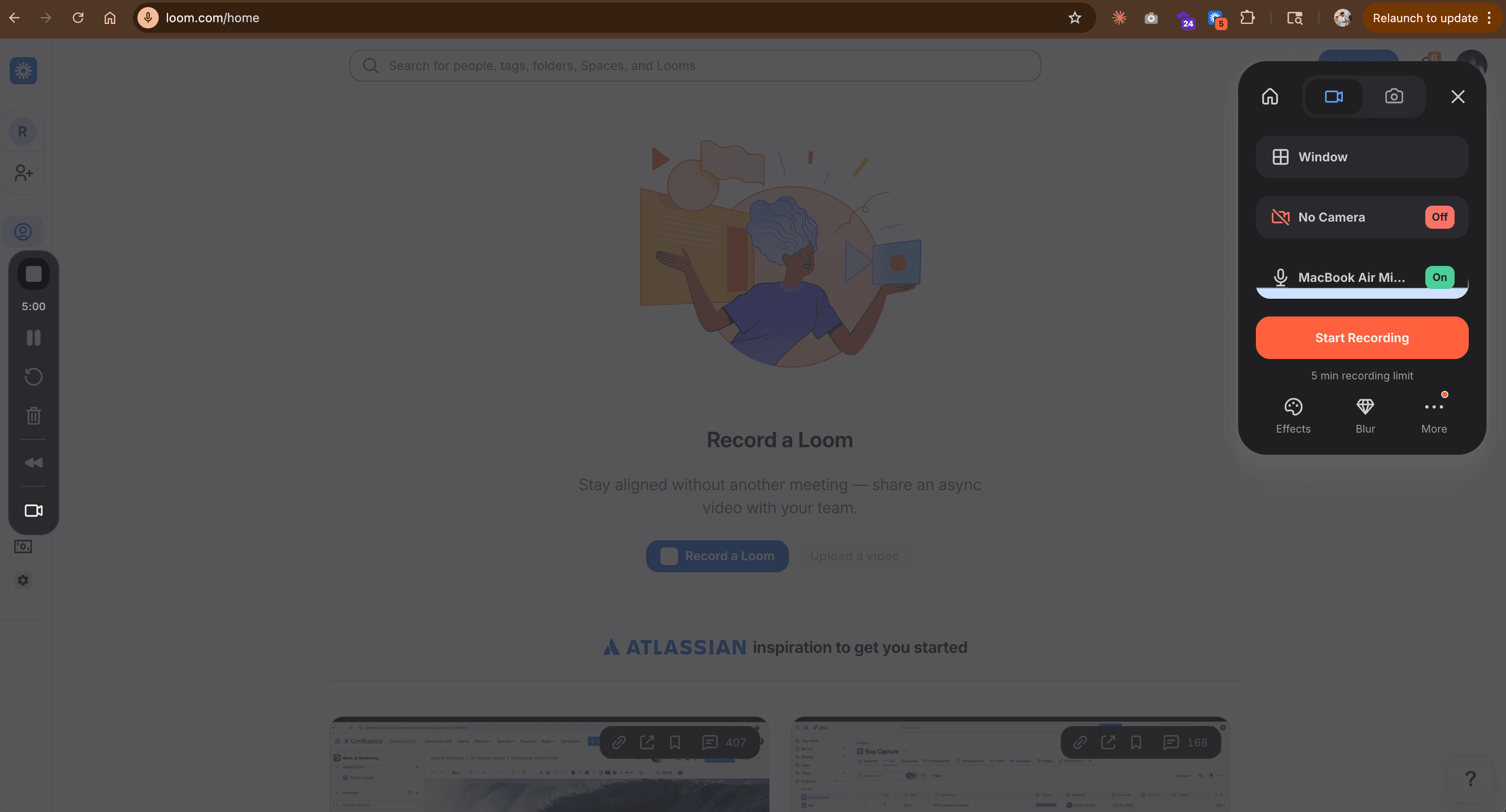
Loom is the closest workflow match to ScreenPal: record your screen, share a link. But where ScreenPal stops at basic recording and editing, Loom adds instant sharing, viewer analytics, auto-transcription, and team collaboration. Over 25 million users rely on it for async communication.
For teams that use ScreenPal primarily for quick internal recordings (bug reports, team updates, walkthroughs), Loom is the natural upgrade. Record, share a link, see who watched. No export, no upload, no file management. See our ngram vs Loom comparison.
Key features
- Instant sharing - Record and share via link in seconds
- Viewer analytics - See who watched, engagement heatmaps
- Auto-transcription - AI-generated transcripts and captions
- Drawing tools - Annotate during recording in real-time
- Integrations - Slack, Notion, HubSpot, Salesforce, Jira
What users say
G2 reviews from 4,300+ users praise Loom's speed and simplicity. The main complaints: limited editing (you can't add annotations post-recording), the free tier became more restrictive in 2025, and recording quality occasionally drops on slow connections.
Pros
- ✅ Fastest record-to-share workflow available
- ✅ Viewer analytics show exactly who watched and when
- ✅ 25M+ users means extensive integrations
Cons
- ❌ Editing features are minimal - no post-recording annotations
- ❌ Free plan limits are tighter than ScreenPal's paid plans
Best for
Teams that need fast async video communication. If you're recording for colleagues, not customers, Loom is faster than ScreenPal at every step. Free plan available, Business at $15/month.
3. OBS Studio
OBS Studio is the free, open-source recording and streaming tool that makes ScreenPal's paid plans hard to justify. It offers unlimited recording length, multi-source scene composition, hardware encoding, and zero watermarks - all at no cost.
The tradeoff: OBS has no built-in editor and the setup is more complex. But for the pure recording use case, OBS delivers more capability for free than ScreenPal does at $3/month. See our ngram vs OBS comparison.
Key features
- Completely free - No watermarks, no time limits, no subscriptions
- Multi-source scenes - Screen, webcam, images, text, browser combined
- Hardware encoding - Minimal CPU impact via GPU acceleration
- Plugin ecosystem - Thousands of community extensions
- Cross-platform - Windows, Mac, Linux
What users say
Reddit consistently ranks OBS as the best free screen recorder. The main criticism: initial setup is intimidating. OBS was designed for streamers and power users, not someone who just wants to hit "record." But once configured, it's rock-solid.
Best for
Creators who want maximum recording flexibility at zero cost. Pairs well with ngram for AI-powered editing or DaVinci Resolve for manual editing.
Looking for the fastest way to create professional videos? ngram turns your screen recordings, docs, and images into polished videos in minutes. Try ngram free
4. Camtasia
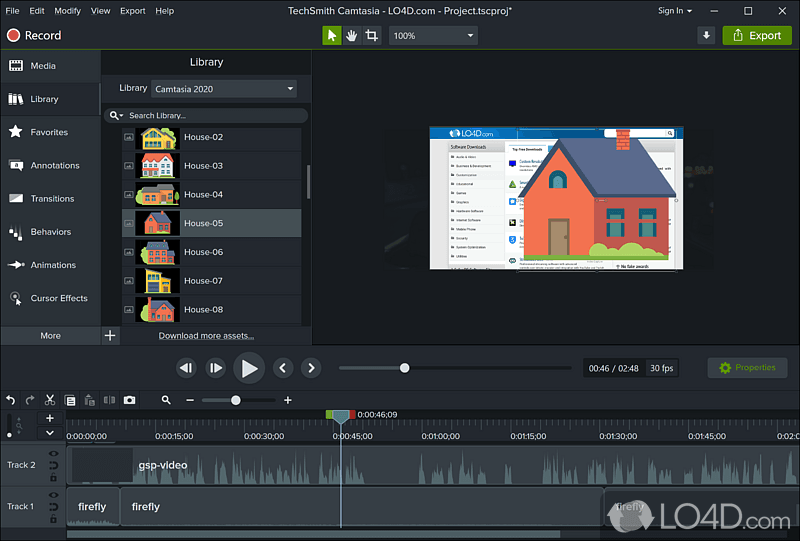
Camtasia is what ScreenPal would be if it grew up. TechSmith's desktop editor offers timeline editing, annotations, callouts, quizzes, green screen, and an effects library built specifically for tutorials and training content. It's been the standard for instructional video for over 20 years.
At $179.88/year (or $299.99 one-time), Camtasia costs 5x more than ScreenPal. But the feature gap is massive: keyframes, motion tracking, color correction, and professional transitions versus ScreenPal's trim-and-annotate. See our ngram vs Camtasia comparison.
Key features
- Professional timeline editor - Multi-track editing with keyframes
- Annotations and callouts - Extensive library for tutorials
- Interactive quizzes - Built-in for training content
- Green screen - Chroma key compositing
- AI features - Script generation, text-to-speech (new in 2026)
What users say
G2 and Capterra reviews praise Camtasia's depth for tutorial creation. The main complaints: expensive for individual users, desktop-only, and performance issues with longer recordings.
Best for
Educators, trainers, and content creators who need professional instructional video. If you've outgrown ScreenPal's editing but want the same record-and-edit workflow, Camtasia is the step up.
5. Descript
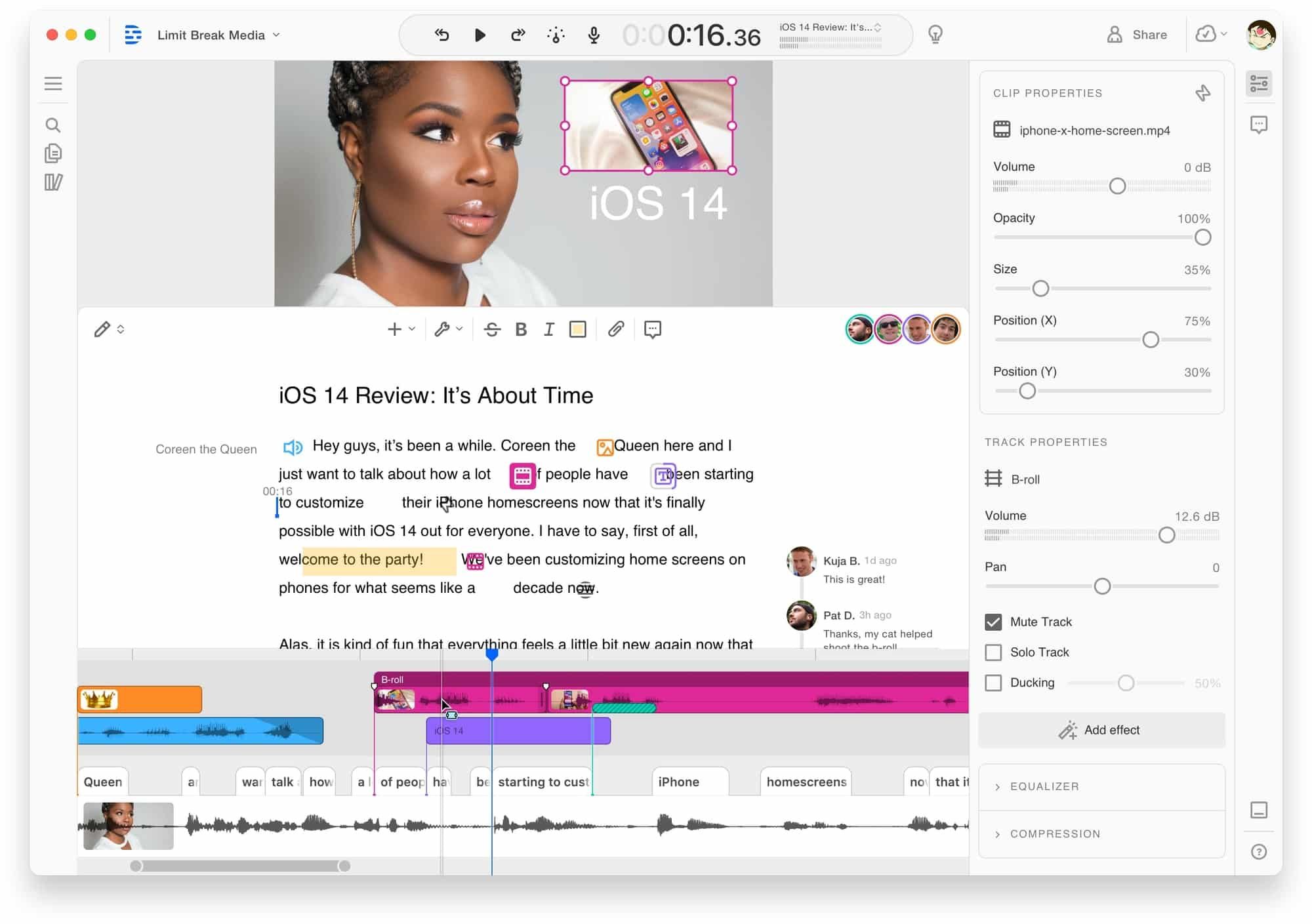
Descript changes how editing works: edit video by editing text. Import a recording, Descript transcribes it, and you edit the transcript like a document. Delete a word, the video cuts. Users report 60-70% time savings compared to timeline editing.
For ScreenPal users frustrated with manual trimming, Descript's transcript approach is dramatically faster. Record a walkthrough, speak naturally, then clean up the transcript. Filler words removed with one click. See our ngram vs Descript comparison.
Key features
- Text-based editing - Edit video by editing the transcript
- AI voice cloning - Fix mistakes without re-recording
- Filler word removal - One-click um/ah elimination
- Screen recording - Built-in recorder with webcam
- Collaboration - Real-time team editing
What users say
Reddit users call it "mind-blowing for tutorials." Complaints center on the credit-based AI system and customer support relying on chatbots.
Best for
Tutorial creators who want faster editing than ScreenPal or Camtasia's timeline approach. Hobbyist at $16/month, Creator at $24/month.
6. VEED
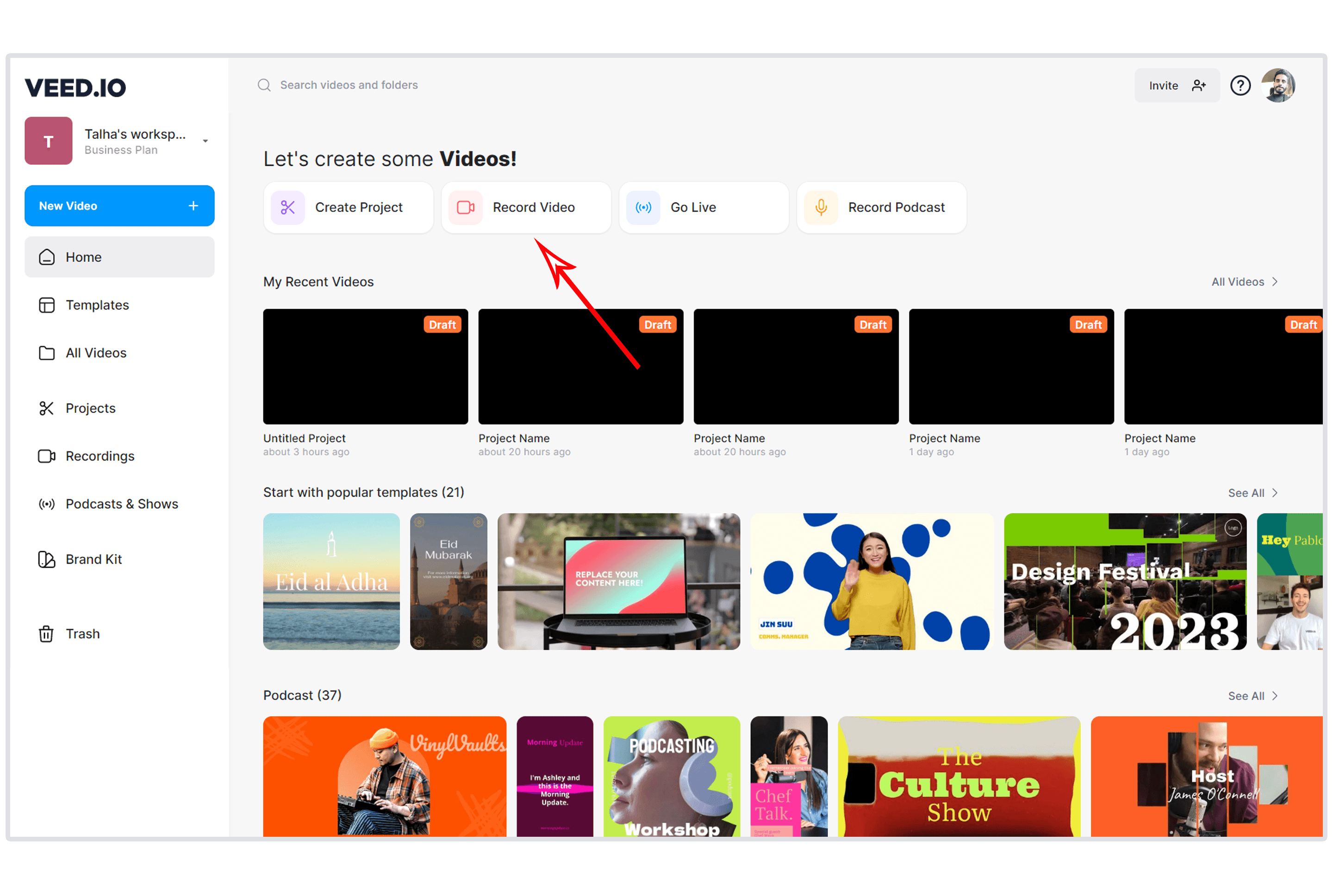
VEED is the browser-based editor with over 10 million monthly active users and $35 million in Sequoia Capital backing. For ScreenPal users who want to stay browser-based but need real editing power, VEED offers a full timeline editor plus AI features: auto-subtitles in 50+ languages, background noise removal, and one-click platform resizing. See our ngram vs VEED comparison.
Key features
- Browser-based editor - Full timeline, no downloads
- Auto subtitles - AI captions in 50+ languages
- Screen recording - Built-in screen and webcam capture
- Background removal - AI-powered background replacement
- Multi-platform export - Auto-resize for social platforms
What users say
G2 reviews praise VEED's simplicity and subtitle accuracy. The Pro plan at $24/month is the sweet spot. Criticism: transcription accuracy with accents and free tier watermarks.
Best for
Teams who want ScreenPal's browser-based simplicity with actual editing power. Free plan available, Lite at $12/month.
7. CapCut
CapCut is the free editing wildcard. With over 1 billion downloads, it offers a complete editing toolkit at zero cost: multi-track timeline, keyframe animation, chroma key, AI voiceover, and 1080p export. No watermarks on the free plan.
For ScreenPal users whose main appeal is the low price, CapCut is even cheaper (free) and more capable. The trade: it's primarily a manual editor, not an AI generator. See our ngram vs CapCut comparison.
Key features
- Free full editing - Timeline, keyframes, chroma key at no cost
- AI auto-captions - Accurate subtitles with styling
- Cross-platform - Desktop, mobile, browser
- 12M+ royalty-free assets - Music, effects, templates (Pro)
- Motion tracking - AI-powered camera tracking (Pro)
What users say
Users love the free tier's generosity. Criticism centers on ByteDance data practices and limited AI generation.
Best for
Creators who want more editing power than ScreenPal at an even lower price (free). Pro at $7.99/month for 4K and full AI.
Here's how starting prices compare across all 7 alternatives:
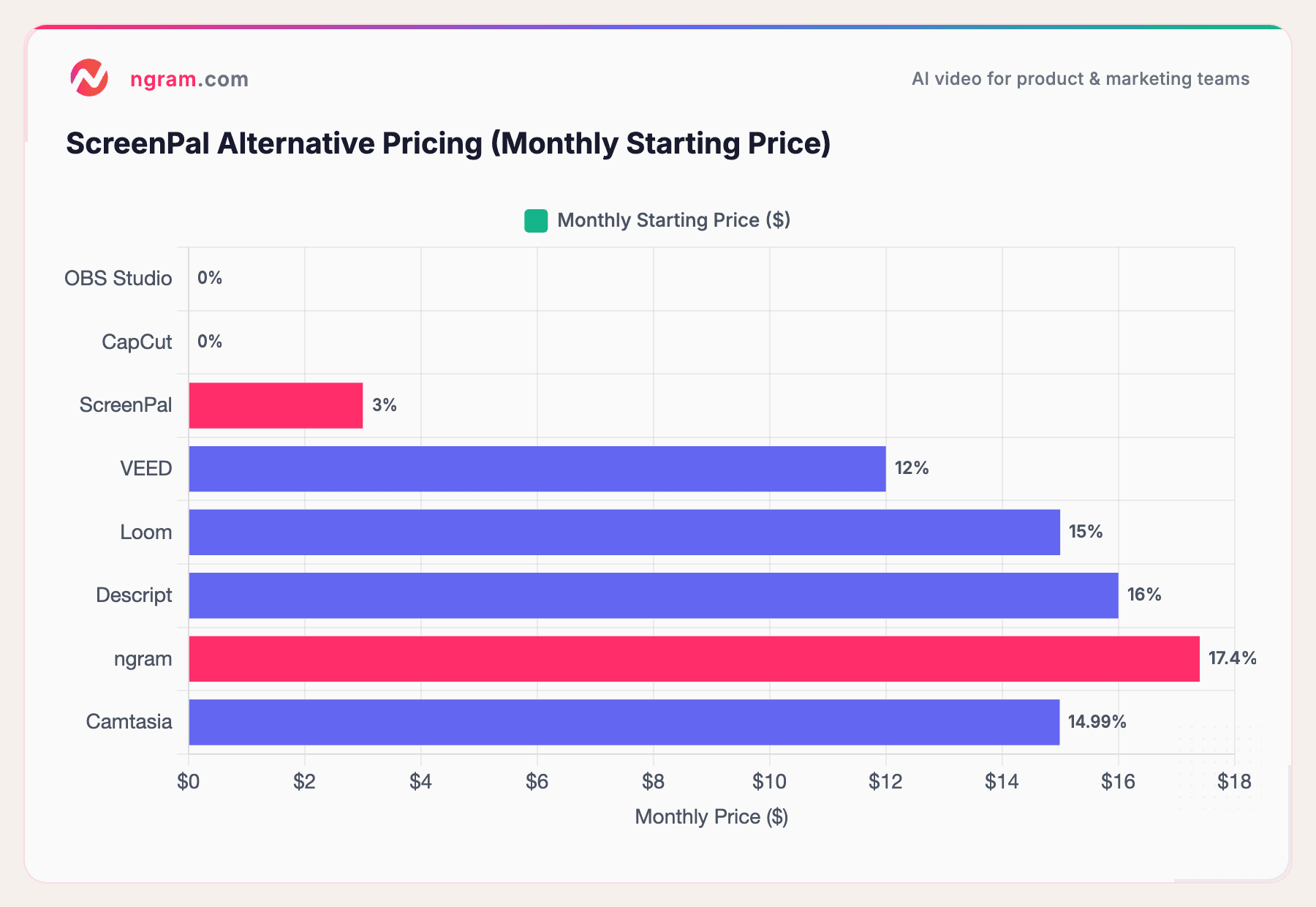
ScreenPal at $3/month is cheap, but OBS Studio and CapCut are free with more features. The real cost of ScreenPal isn't the subscription - it's the hours spent in a basic editor doing what AI tools handle in minutes.
How we compared these tools
We tested each tool hands-on, recorded sample tutorials, read hundreds of user reviews across G2, Capterra, and Reddit, and compared them across five weighted criteria:
| Criteria | Weight | What we looked at |
|---|---|---|
| Ease of Use | 30% | Onboarding speed, learning curve, recording simplicity, UI quality |
| Features | 25% | Editing depth, effects library, export options, collaboration |
| Value | 20% | Price relative to capability, free tier generosity, hidden costs |
| AI Capabilities | 15% | Auto-captions, smart zoom, transcript editing, AI generation |
| Support & Community | 10% | Documentation, response times, community size |
We also factored in:
- Real user reviews from G2, Capterra, and Reddit (qualitative, not numerical scores)
- Platform flexibility - browser vs. desktop, cross-device support
- Recording quality - resolution, audio capture, system sound support
Frequently Asked Questions
Is there a free alternative to ScreenPal?
Yes. OBS Studio and CapCut are both free with more features than ScreenPal's paid plans. OBS offers unlimited screen recording with no watermarks. CapCut provides a full editing suite with timeline editing, keyframes, and 1080p export at zero cost.
Is ScreenPal still called Screencast-O-Matic?
Screencast-O-Matic rebranded to ScreenPal in 2022. The product is the same, but some older reviews and documentation still reference the old name. The pricing, features, and limitations are unchanged by the rebrand.
Which ScreenPal alternative is best for teachers?
Loom works well for quick classroom walkthroughs with instant sharing. For more polished instructional content, Camtasia offers quiz features and annotations designed for education. ngram generates professional video from lesson notes and recordings without manual editing.
Can I record my screen for free without watermarks?
OBS Studio records your screen with zero watermarks, no time limits, and no subscriptions. CapCut's desktop app also records without watermarks. ScreenPal's free plan adds a branded three-second outro to every recording.
What's better than ScreenPal for quick team updates?
Loom is purpose-built for fast async team communication. Record your screen, get an instant shareable link, see who watched. No export, no file management, no editing required. It's the fastest path from "I need to show someone something" to "done."
Our verdict
ScreenPal earns its place as the cheapest screen recorder with built-in editing. If you're a teacher recording 10-minute lessons or a small team doing quick internal walkthroughs, the $3/month Solo Deluxe plan is fair value.
But the moment you need professional output, AI-powered editing, or features beyond basic trimming, ScreenPal stops being cheap and starts being a bottleneck. The free alternatives (OBS Studio, CapCut) offer more recording and editing capability at zero cost. The paid alternatives (ngram, Loom, Descript) offer AI-powered workflows that turn what used to take hours into minutes.
The cheapest tool isn't always the best value. Sometimes the time you save is worth more than the $3 you spend.
Try ngram free - your first video in under 5 minutes. Turn raw screen recordings, docs, or images into polished, on-brand videos without touching a timeline. Start free