
Quick comparison
| Tool | Best For | Starting Price | Key Differentiator |
|---|---|---|---|
| ngram | Professional video from any asset | Free / $17.40/mo | Context-aware AI generation |
| OBS Studio | Free screen recording | Free (open source) | Zero cost, infinite customization |
| Loom | Async team communication | Free / $15/mo | Record and share in under 60 seconds |
| Descript | Transcript-based editing | Free / $16/mo | Edit video by editing text |
| ScreenPal | Budget screen recording | Free / $3/mo | Lowest price point in the category |
| DaVinci Resolve | Professional editing + color | Free / $295 one-time | Hollywood-grade tools, no subscription |
| Filmora | Beginner-friendly desktop editor | $69.99/yr | 10,000+ effects, 90% user satisfaction |
Camtasia has been the default screen recording and editing tool for educators, trainers, and tutorial creators for over 20 years. TechSmith built a genuinely capable product: timeline editing, annotations, callouts, quizzes, and effects designed specifically for instructional content.
But the market around Camtasia has shifted. TechSmith moved to a subscription model at $179.88/year (or $299.99 one-time purchase), and users who'd relied on perpetual licenses found themselves choosing between paying annually or being stuck on an aging version. Meanwhile, AI-powered tools can now handle much of what Camtasia does manually - auto-captions, smart zoom, filler word removal, even full video generation from text - often at a fraction of the cost.
According to Wyzowl's 2026 report, 91% of businesses use video as a marketing tool, and 63% of marketers have used AI to create videos this year. The tools available in 2026 make Camtasia's manual, desktop-only workflow feel like a relic for teams that need to move fast.
We tested 7 Camtasia alternatives across ease of use, features, AI capabilities, pricing, and real user sentiment. Here's what held up.
1. ngram
If you're outgrowing Camtasia because you need more than screen recordings with annotations, ngram is built for the next step. Instead of recording your screen and manually editing in a timeline, ngram takes whatever you have - screen recordings, docs, images, URLs, or plain text - and builds a professional video.
What makes ngram stand out
Context-aware generation is the core difference. Tell ngram your audience (developers vs. executives), your goal (educate vs. convert), and your channel (LinkedIn vs. website). The output adapts structure, pacing, tone, and visuals automatically. Camtasia gives you the same timeline regardless of what you're making.
Plan first, generate second. Before anything renders, ngram shows you the script and storyboard. You fix direction issues before the AI generates the wrong video. Camtasia's workflow is: record, edit, discover you need a different angle, re-record.
AI-powered editing for screen recordings. Upload a rough screen recording, and ngram auto-cuts dead air, adds smart zoom on interactions, emphasizes cursor movements, and inserts callouts. Camtasia can do all of this manually - ngram does it automatically.
Brand kits keep every video consistent across the team. Camtasia has themes, but they're limited to the individual editor's installation.
Key features
- Context-aware generation - Adapts structure, pacing, and tone to your audience and channel
- Plan first, generate second - Script and storyboard review before rendering
- Any asset in - Text, images, docs, URLs, screen recordings as input
- AI editing - Auto-cut, filler removal, smart zoom, cursor emphasis
- Multi-format export - 16:9, 9:16, 1:1 with captions included
- Brand kits - Logo, colors, fonts applied to every video automatically
Pros
- ✅ Turns raw screen recordings into polished video without timeline editing
- ✅ Browser-based - no heavy desktop software to install or update
- ✅ AI handles annotations, zoom, and callouts that Camtasia requires manually
Cons
- ❌ No built-in screen recorder (you need a separate tool for capture)
- ❌ Newer platform with a smaller effects library than Camtasia's 20-year catalog
Who is ngram best for?
Product Marketing, Growth, Sales Enablement, Customer Success, and Agencies who need professional videos from existing content. If you're spending hours in Camtasia's timeline doing what AI can do in minutes, ngram is the upgrade.
ngram has a generous free plan with paid plans starting at $17.40 per month.
Ready to try ngram? Create your first video in under 5 minutes. Start free
See ngram in action:
2. OBS Studio
OBS Studio is the free, open-source screen recording and streaming tool that an enormous community of creators uses daily. For Camtasia users whose primary need is capturing screen recordings, OBS delivers studio-quality capture at zero cost - forever.
The tradeoff is clear: OBS has no built-in editor. You record in OBS and edit elsewhere. But the recording capabilities are more flexible than Camtasia's: multi-source scenes, unlimited recording length, customizable layouts, and hardware encoding for minimal performance impact.
Key features
- Completely free - Open source, no watermarks, no limits, no subscriptions
- Multi-source recording - Combine screen, webcam, images, text, and browser sources
- Scene composition - Switch between pre-configured layouts during recording
- Hardware encoding - Minimal CPU impact using GPU acceleration
- Plugin ecosystem - Thousands of community plugins for extended functionality
What users say
Reddit consistently ranks OBS as the best free screen recorder available. The main criticism: the initial setup is intimidating for beginners. The UI was designed for streamers and power users, not for someone who just wants to hit "record." But once configured, it's rock-solid. See our ngram vs OBS comparison.
Best for
Creators who want maximum recording flexibility at zero cost and don't mind editing in a separate tool. Pairs well with ngram (for AI editing) or DaVinci Resolve (for manual editing).
3. Loom
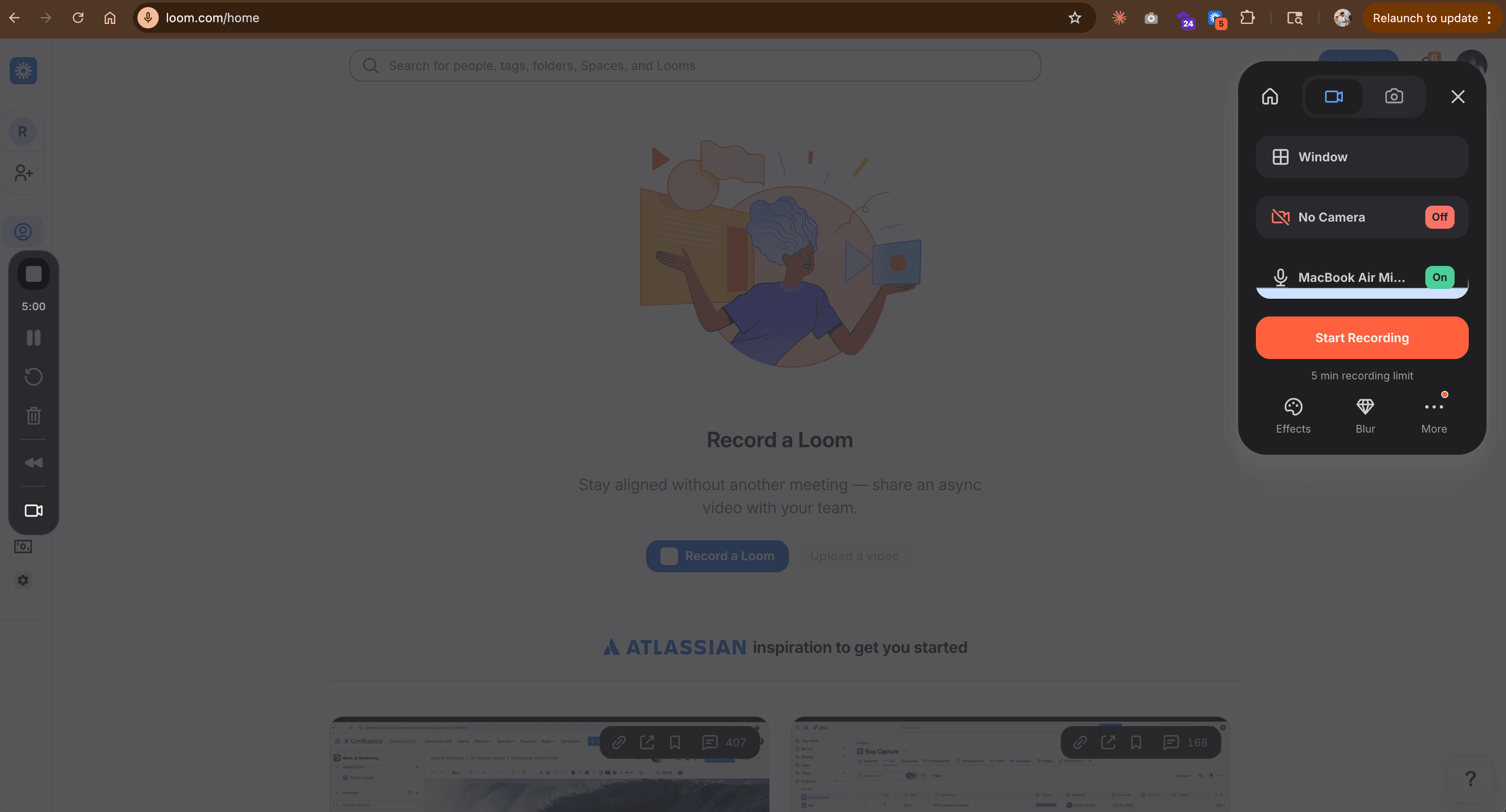
Loom solves a different problem than Camtasia. Where Camtasia is built for polished tutorials, Loom is built for fast async communication - record your screen with webcam, add a quick message, share a link. Over 25 million users rely on it for team updates, bug reports, product demos, and quick walkthroughs.
For Camtasia users who discovered they spend 80% of their time on quick internal recordings that don't need heavy editing, Loom eliminates the entire post-production step. Record, share, done. See our ngram vs Loom comparison.
Key features
- Instant recording + sharing - Record and share via link in under 60 seconds
- Viewer analytics - See who watched, how long, and which parts
- Auto-transcription - AI-generated transcripts and captions
- Drawing tools - Annotate during recording in real-time
- CRM integrations - Connect with Slack, Notion, HubSpot, Salesforce
What users say
G2 reviews from 4,300+ users praise Loom's speed and simplicity. The main complaints: limited editing features (you can't add annotations post-recording), recording quality occasionally drops, and the free tier became more restrictive in 2025.
Best for
Teams that need fast async video communication without post-production. If most of your Camtasia recordings go to colleagues rather than customers, Loom is faster. Free plan available, Business at $15/month.
Looking for the fastest way to create professional videos? ngram turns your screen recordings, docs, and images into polished videos in minutes. Try ngram free
4. Descript
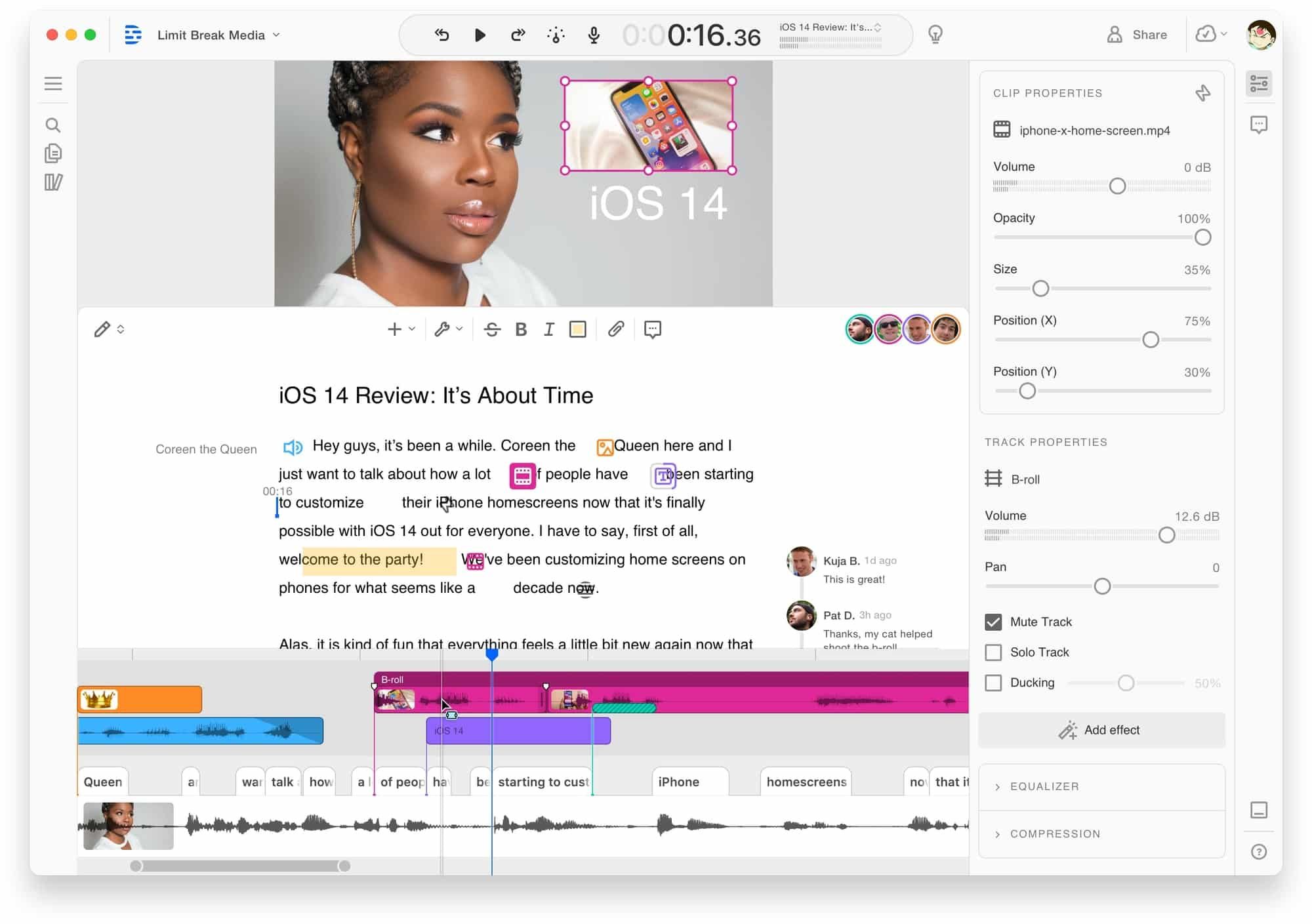
Descript's headline feature is what Camtasia users wish they had: edit video by editing text. Import a recording, Descript transcribes it, and you edit the transcript like a document. Delete a word, and the video cuts accordingly. Users report 60-70% time savings compared to traditional timeline editing.
For Camtasia's core use case - screen recordings with narration - Descript's approach is faster. Record your screen, speak your walkthrough, then clean up the transcript. Filler words get removed with one click. Mistakes get fixed by retyping. See our ngram vs Descript comparison.
Key features
- Text-based editing - Edit video by editing the transcript
- AI voice cloning - Fix mistakes without re-recording
- Filler word removal - One-click elimination of ums and ahs
- Screen recording - Built-in recorder with webcam overlay
- Collaboration - Real-time team editing and commenting
What users say
Reddit users call transcript-based editing "mind-blowing for tutorials." The biggest complaints: Descript's 2026 shift to credit-based AI features means costs escalate fast, and customer support relies heavily on chatbots.
Best for
Tutorial creators and educators who record narrated walkthroughs and want faster editing. Hobbyist at $16/month, Creator at $24/month, Business at $65/month.
5. ScreenPal
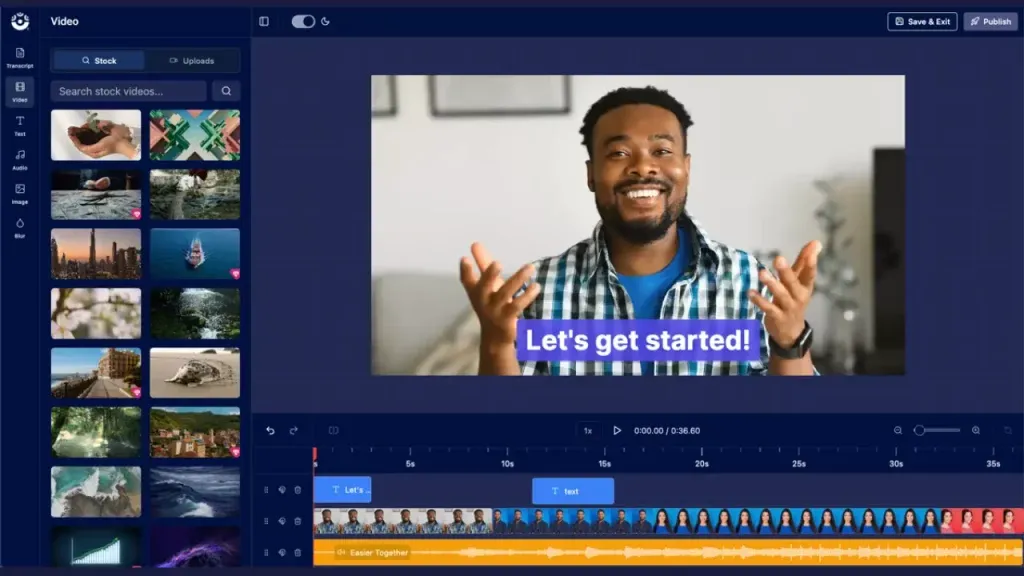
ScreenPal (formerly Screencast-O-Matic) is the budget Camtasia. At $3/month for the Solo Deluxe plan, it offers screen recording, basic editing, annotations, and hosting - the core Camtasia workflow at a fraction of the price.
For educators and small teams who use Camtasia primarily for simple screen recordings with annotations, ScreenPal covers the essentials without the $180/year commitment. See our ngram vs ScreenPal comparison.
Key features
- Screen + webcam recording - Capture screen with webcam overlay
- Built-in editor - Trim, annotate, add text and shapes
- Cloud hosting - Share recordings via link without file transfers
- Auto-captions - AI-generated subtitles
- Team management - Shared content library for teams
What users say
Capterra reviews praise ScreenPal's simplicity and pricing. The main criticism: the editing tools are basic compared to Camtasia. You won't get keyframe animation, green screen, or advanced effects. But for the core record-annotate-share workflow, it's 20x cheaper.
Best for
Educators, trainers, and small teams who need basic screen recording and annotations at a budget price. Free plan available, Solo Deluxe at $3/month, Solo Max at $6/month.
6. DaVinci Resolve
DaVinci Resolve is the professional editing tool that makes Camtasia look like a toy. Used by Hollywood colorists and indie filmmakers, its free version includes professional editing, color correction, visual effects (Fusion), and audio post-production (Fairlight). The Studio upgrade is a one-time $295 payment - less than two years of Camtasia.
For Camtasia users who hit the ceiling on effects, color grading, or audio quality, DaVinci Resolve is the step up. The learning curve is steep, but the capability gap is massive.
Key features
- Professional color grading - Industry-standard node-based color correction
- Fusion VFX - Built-in visual effects and motion graphics
- Fairlight audio - Complete audio post-production suite
- 8K support - In Studio version ($295 one-time)
- DaVinci Neural Engine - AI tools for face recognition, speed warp, scene detection
What users say
90% of G2 reviewers praise the value. The learning curve is the number one barrier. Reddit users consistently call it "the best free editor, period" but warn it's overkill for quick tutorial recordings.
Best for
Creators who need professional editing, color grading, and VFX beyond what Camtasia offers. Free version available, Studio at $295 one-time.
7. Filmora
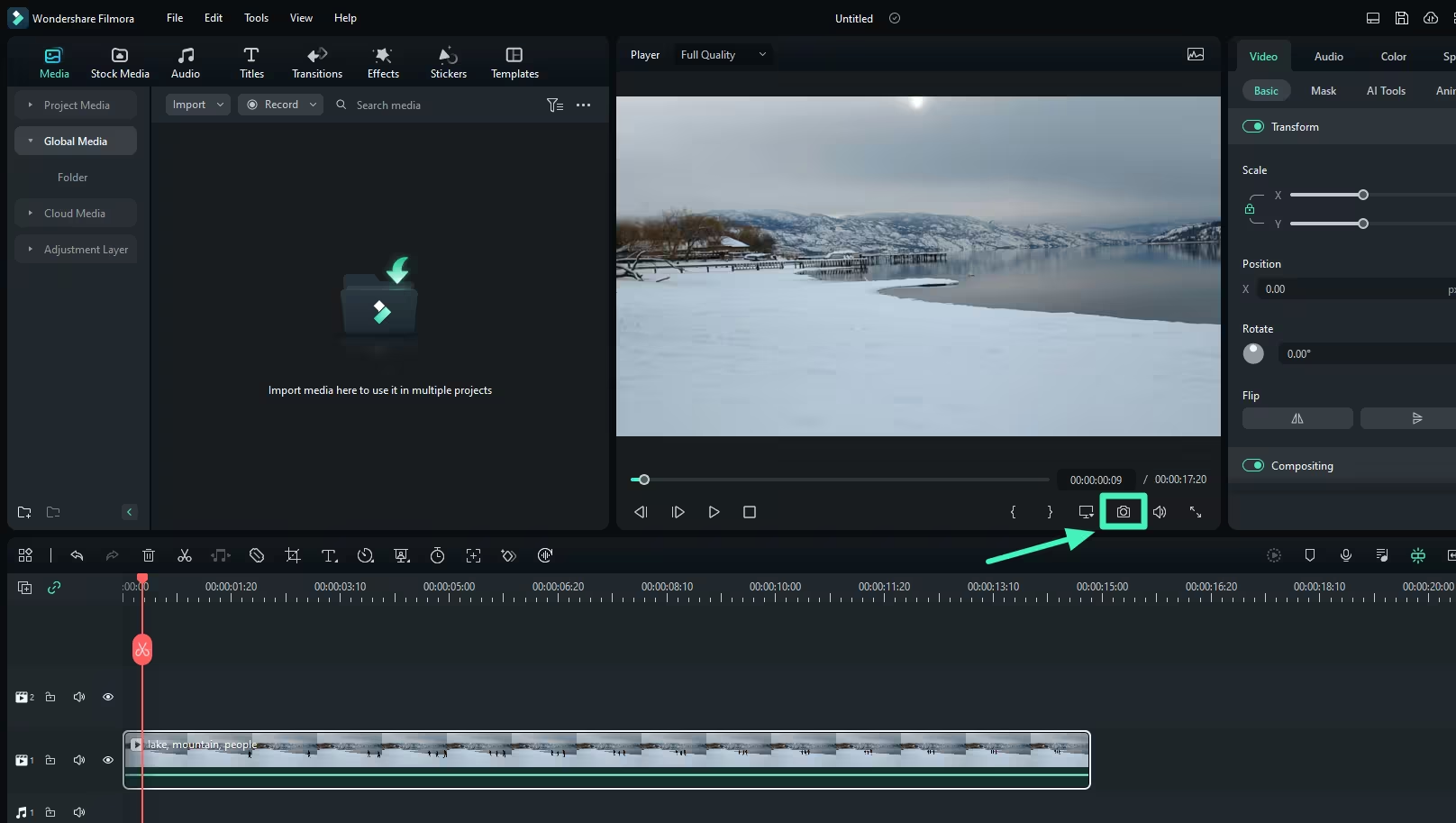
Filmora is the desktop editor that sits right between Camtasia's tutorial focus and DaVinci Resolve's professional depth. It earns 90% user satisfaction from 1,420+ reviews, with Capterra reviewers praising the balance between simplicity and capability.
Where Camtasia's effects library is optimized for instructional content (callouts, annotations, quizzes), Filmora's 10,000+ effects cover a broader range: social media transitions, cinematic titles, AI-powered templates. At $69.99/year or $99.99 perpetual, it undercuts Camtasia's pricing by $110/year.
Key features
- 10,000+ effects - Transitions, overlays, motion graphics, and templates
- AI tools - Speech-to-text, text-to-speech, AI copywriting, smart cutout
- Keyframing - Full animation control
- Motion tracking - Attach elements to moving objects
- Screen recording - Built-in recorder (simpler than Camtasia's)
What users say
Capterra reviewers praise Filmora's pricing relative to features. The main complaints: performance lag with high-resolution video, occasional crashes during long edits, and a watermark on trial exports. Cross-platform support (Windows + Mac) is a plus.
Best for
Beginners and content creators who want broader editing capabilities than Camtasia at a lower price. Annual plan at $69.99, perpetual license at $99.99.
Here's how annual costs compare between Camtasia and the alternatives:
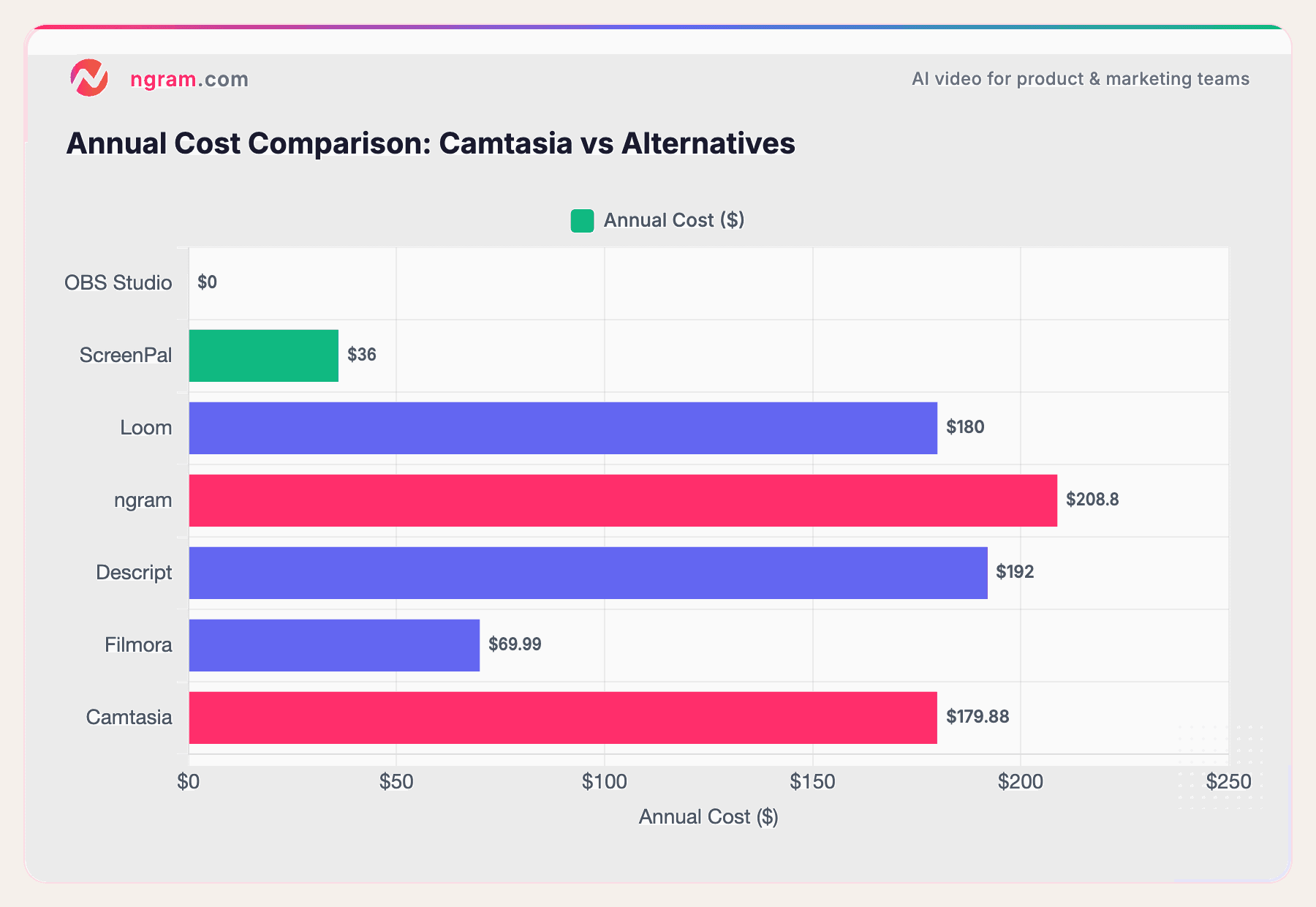
OBS Studio and DaVinci Resolve (not shown - one-time $295) are both free. ScreenPal at $36/year is the cheapest paid option. Camtasia at $179.88/year sits at the high end for what is essentially a screen recording tool.
Why are teams looking for Camtasia alternatives?
Camtasia is a solid tool for its original purpose: recording your screen and editing the footage with annotations. But the category has evolved.
The subscription shift hit hard. TechSmith moved from perpetual licenses to $179.88/year subscriptions. Users who'd paid once and used Camtasia for years suddenly faced recurring costs, with some reporting their perpetual licenses were no longer supported for updates.
Desktop-only feels outdated. Camtasia requires downloading, installing, and updating desktop software. Modern teams collaborate in browsers, share via links, and work across devices. Camtasia's files live on your local machine.
AI has changed the game. Auto-captions, smart zoom, filler word removal, transcript editing, even full video generation from text - these features now come standard in competitors. Camtasia added some AI features in 2026 (script generation, text-to-speech), but they're playing catch-up.
The pricing doesn't match the output. At $180/year, Camtasia costs more than Descript ($192/year but with transcript editing), Filmora ($70/year with 10K effects), and ScreenPal ($36/year for the core workflow). And none of those require desktop installation.
For a detailed head-to-head, see our ngram vs Camtasia comparison.
Our testing approach
We tested each tool hands-on, recorded sample tutorials and product demos, read hundreds of user reviews across G2, Capterra, Reddit, and Product Hunt, and compared them across five weighted criteria:
| Criteria | Weight | What we looked at |
|---|---|---|
| Ease of Use | 30% | Onboarding speed, learning curve, UI quality, recording simplicity |
| Features | 25% | Editing tools, effects library, export options, collaboration |
| Value | 20% | Price per feature, free tier generosity, subscription transparency |
| AI Capabilities | 15% | Auto-captions, smart editing, transcript features, AI generation |
| Support & Community | 10% | Documentation, response times, community size, update cadence |
We also factored in:
- Real user reviews from G2, Capterra, Reddit, and Product Hunt (qualitative sentiment, not numerical scores)
- Platform flexibility - browser-based vs. desktop-only, cross-device support
- Tutorial/training-specific features - annotations, quizzes, callouts, SCORM export
Ease of Use leads because Camtasia's core audience (educators, trainers, non-technical creators) prioritizes simplicity above all else.
Common questions
What's the best free Camtasia alternative?
OBS Studio is the most capable free recording tool, but it has no built-in editor. DaVinci Resolve offers the most powerful free editing suite. For the full record-edit-share workflow at zero cost, pair OBS for recording with ngram's free tier for AI-powered editing.
Is Camtasia still worth it in 2026?
Camtasia works well for educators and trainers who need instructional features like quizzes, callouts, and SCORM export. At $179.88/year, it's a reasonable investment if you use those specific features regularly. But if you primarily record screens and add basic annotations, ScreenPal does the same job at $36/year.
Can I edit Camtasia recordings in other tools?
Yes. Export from Camtasia as MP4, then import into any editor. ngram, Descript, DaVinci Resolve, and Filmora all accept standard video formats. Many Camtasia users record in Camtasia and edit in Descript for faster transcript-based workflows.
What replaced Camtasia for most teams?
No single tool replaced Camtasia - the workflow fragmented. Teams that need fast async communication moved to Loom. Teams that need AI-powered editing moved to Descript or ngram. Budget-conscious teams moved to ScreenPal. Power users moved to DaVinci Resolve. The common thread: most teams stopped using one heavy desktop app for everything.
Which Camtasia alternative is best for tutorials?
For traditional screen-recorded tutorials with annotations, ScreenPal is the closest match at the lowest price. For transcript-based tutorial editing, Descript is faster. For AI-generated tutorials from docs and recordings, ngram automates the entire process.
Which one should you pick?
Camtasia built the screen recording category. But the category has split into specialized tools that each do one thing better than Camtasia does everything.
If you need AI to turn recordings and docs into polished videos without timeline editing, ngram does the work for you. If you need free recording with maximum flexibility, OBS Studio is unbeatable. If you need fast async communication, Loom is purpose-built. If you want to edit by editing text, Descript is genuinely faster. And if you just need Camtasia's core workflow at a lower price, ScreenPal does it for $3/month.
The $180/year question isn't whether Camtasia is good - it is. The question is whether a 20-year-old desktop workflow is the best way to create video in 2026. For most teams, the answer is no.
Try ngram free - your first video in under 5 minutes. Turn raw screen recordings, docs, or images into polished, on-brand videos without touching a timeline. Start free