
This was a big infrastructure week. The headline: Pro plan users can now collaborate as a team. Beyond that, we shipped video reference uploads, a new visual style, and a set of editing improvements that make refining your videos through chat significantly faster and cheaper.
What's New
Teams for Pro Plan Users
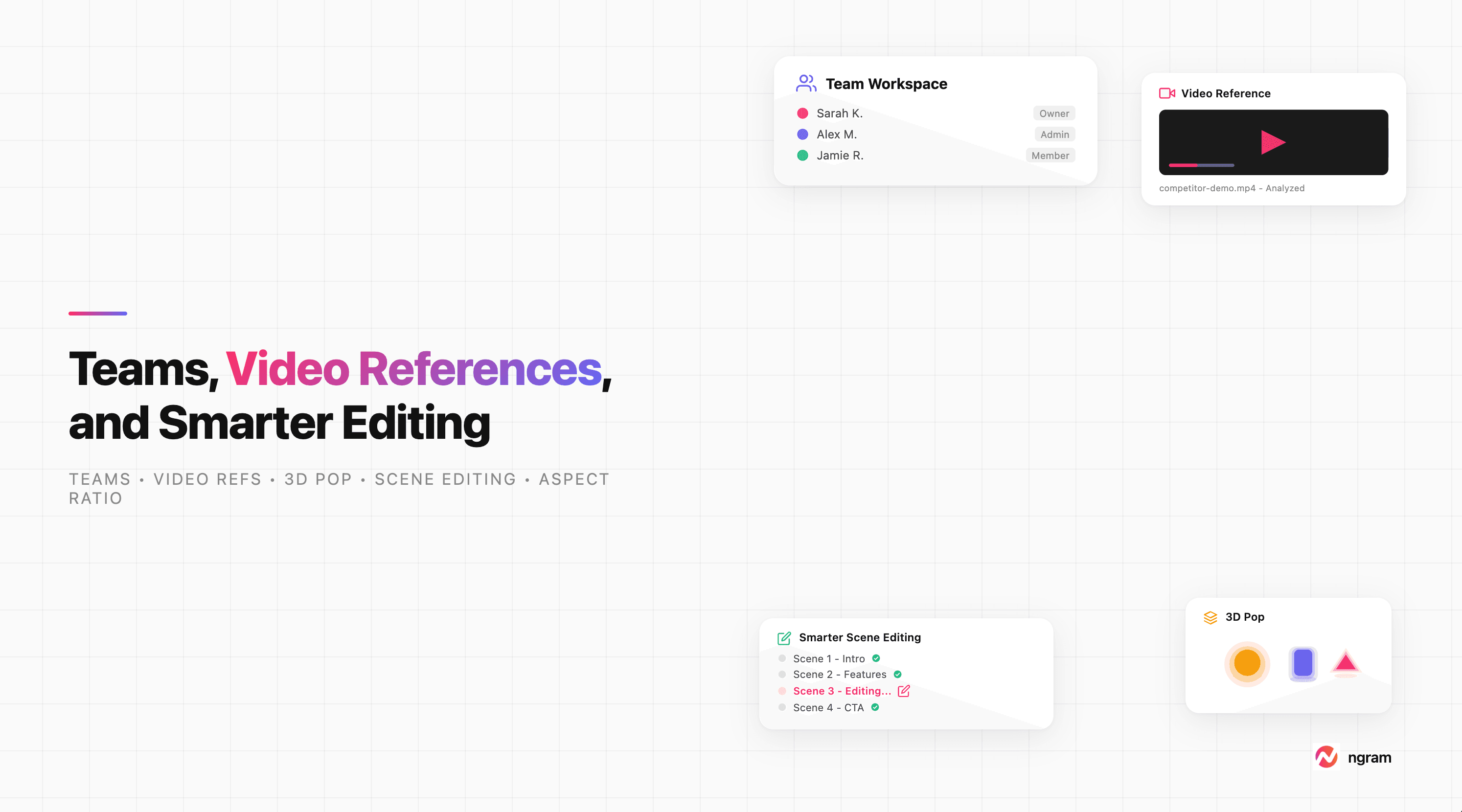
If you've been sharing login credentials with teammates or awkwardly forwarding ngram links back and forth, those days are over. Pro plan users can now create a team, invite members by email, and work together inside a shared workspace.
Here's what sharing looks like in practice: every upload, conversation, and brand kit lives in the team context. When your designer uploads product screenshots, your marketer can use them in a video immediately - no re-uploading, no "can you send me that file" messages. When someone on your team starts a video project, other members can see it in the shared conversations panel.
Team management lives in Settings. You can invite people by email, assign roles (owner, admin, member), transfer ownership, and remove members. Each member gets their own login - no more shared passwords.
Video References
You can now upload video files as reference material when creating a new video. Drop in a competitor's ad, a previous version of your explainer, a raw product walkthrough - ngram watches the video, understands what's in it, and uses that context to inform your new video.
For example, if you upload a competitor's product demo and say "make something like this but for our product," ngram analyzes the pacing, structure, and visual approach of the reference video and applies similar principles to your project. It works alongside image uploads - mix and match video references with screenshots, documents, and URLs as you normally would.
3D Pop Visual Style
There's a new visual style option for explainer videos: 3D Pop. It generates stylized 3D-rendered illustrations with smooth, rounded forms, studio lighting, and vibrant colors - think clay-render aesthetic meets modern product illustration.
It's a good fit for SaaS explainers, pitch decks, and feature announcements where you want a premium, tactile feel without commissioning custom 3D work. You'll find it in the visual style picker alongside the existing options.
Personalized Experience
ngram now tailors its suggestions to how you actually work. When you first sign up, you tell ngram your role (marketer, PM, founder, etc.), what kinds of videos you typically make, and what assets you usually start with. ngram uses this to recommend better templates, default settings, and creative approaches that match your workflow - so the tool feels tuned to you from the first project.
Improvements
Smarter Scene Editing
Editing through chat just got a major upgrade. Previously, if you asked to change a scene's narration, swap a visual, or tweak the script, ngram would often regenerate large portions of the video - burning credits and time on scenes you were already happy with.
Now, edits are surgical. Ask "change the narration on scene 3" and only that scene's voiceover gets regenerated. Ask "make the background darker on the intro slide" and only that slide's animation code gets updated. The rest of your video stays exactly as it was.
This also works for slide animations. If you're using AI Slides mode and want to tweak a specific slide's layout or content, ngram can edit just that slide without touching the others. The result: faster iteration, fewer credits spent, and no more re-reviewing scenes that were already perfect.
Script Locked After Storyboard
Once your storyboard is generated, the script tab becomes read-only. This prevents accidental edits that would trigger a full regeneration (and the credit cost that comes with it). If you need to make script changes after storyboarding, use the chat - ngram will handle the update intelligently, only regenerating what's needed.
Hover over the locked script to see a tooltip explaining why it's read-only.
Motion Graphics Respect Aspect Ratio
Motion graphics now properly adapt to your chosen aspect ratio. If you switch from 16:9 to 9:16 (say, for a TikTok version of your explainer), the motion graphics code is automatically regenerated for the new dimensions instead of awkwardly stretching or cropping. This applies to both motion graphics and slide animations.
Non-English Transcription
If you've uploaded a screen recording or voiceover in a language other than English and gotten an empty transcript back, that's fixed. Transcription now auto-detects the spoken language, so French, Spanish, Japanese, Hindi, and other languages are transcribed correctly without any manual configuration.
Clearer Workflow Progress
The progress indicators during video creation now show distinct phases - researching, writing script, building storyboard, generating visuals - instead of a generic spinner. You'll know exactly where ngram is in the process and what's happening at each step.
Bug Fixes
Export Fixed on Edge and iOS
The export dialog was crashing on Microsoft Edge and iOS Safari. Downloads now work reliably across all browsers with proper fallback handling.
Watermarks Removed for Paid Users
Some users who upgraded from the free tier were still seeing watermarks on their videos. Leftover watermarks are now automatically stripped when you open the editor and when you export - no manual action needed.
Mobile Banner Fixed
The mobile app download banner on conversation pages was stuck behind the chat UI, making it impossible to tap. It now renders above all other elements.
That's it for this week. Head to ngram.com to try out Teams, video references, and the new 3D Pop style. We'd love to hear what you think.