
Here's what landed this week: fixing a single word in your voiceover no longer means regenerating the entire audio track, video generation costs are significantly lower across all plans, and ngram now works properly on mobile devices.
What's New
Fix a Word in Your Voiceover Without Redoing the Whole Thing
Previously, if you wanted to change a single word in your narration - fix a pronunciation, swap "great" for "excellent," or adjust a product name - ngram had to regenerate the entire voiceover from scratch. That meant waiting through a full audio generation cycle for a one-word change.
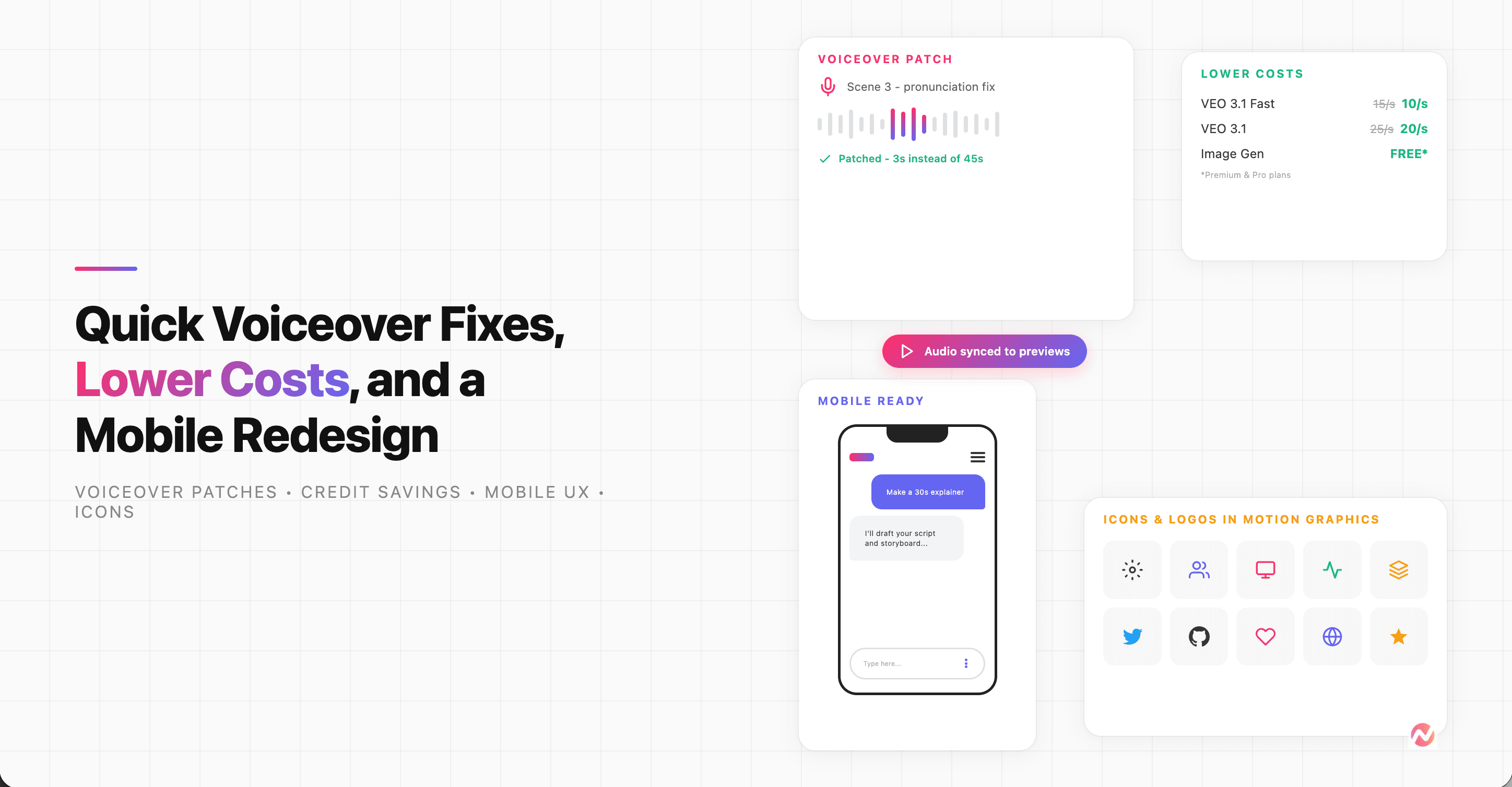
Now, when you ask the AI to make a small voiceover correction, ngram identifies which scenes are affected, regenerates only those audio segments, and splices them back into the existing track. The rest of your voiceover stays untouched. A change that used to take the same time as creating a new voiceover now takes a fraction of that.
For example, if your 60-second explainer has "ngram" mispronounced in scene 3, just tell the AI "fix the pronunciation of ngram in scene 3." It will patch that one segment and leave the other 55 seconds exactly as they were.
Your Motion Graphics Now Include Real Icons and Logos
When ngram generates motion graphics scenes - the animated visuals that bring concepts to life - they can now include professional icons and brand logos alongside your content. If a scene is about cloud computing, you'll see an actual cloud icon. If it references Slack or GitHub, the correct brand logo appears.
Previously, motion graphics relied only on shapes, text, and your uploaded images. Now ngram pulls from icon libraries with thousands of clean UI icons (settings gears, play buttons, charts, arrows) and brand logos (Twitter, Stripe, AWS, and hundreds more). Your generated animations look more polished and contextually accurate without you needing to upload additional assets.
Hear Your Voiceover While Previewing Scene Animations
Motion graphics scene previews in the storyboard now play synchronized voiceover audio. Each scene card has playback controls - play, pause, and a scrub slider - so you can hear exactly how the narration lines up with the animation timing.
Previously, you could see the animation and read the narration text, but you couldn't hear how they worked together until the final video render. Now you can catch timing mismatches early - if the narration runs long or the animation transitions too quickly, you'll know before you generate the full video.
Buy More Credits When You Need Them
If you're on a paid plan and run out of credits mid-project, you no longer need to wait for your monthly refresh. There's now a "Buy Credit Packs" option on the billing settings page. Select a pack, check out, and the credits are added to your account instantly.
Your Conversation History Follows You Across the App
The "Chats" button in the sidebar now opens your conversation history from anywhere in the app - the editor, settings, brand kit, referrals, any page. Previously, you could only access past conversations from the video creation page. Now, if you're adjusting your brand kit and want to pick up where you left off on a video, tap "Chats" and jump right back in.
Get Help Without Leaving the App
There's a new "Support" button in the sidebar that opens an in-app chat directly with our support team. The old floating chat widget that hovered over your workspace is gone - replaced by a cleaner, one-click option that stays out of your way until you need it.
Improvements
Video Generation Costs Are Lower
We reduced credit costs across all video models:
- VEO 3.1 Fast and VEO 3 Fast: 15 to 10 credits per second
- VEO 3.1 and VEO 3: 25 to 20 credits per second
- Image and keyframe generation: Now free for Premium and Pro users (previously 3 credits per operation)
If you're on a Premium or Pro plan, you'll notice your credits last noticeably longer - especially for videos that involve multiple scene generations.
New 90-Second Video Option
The duration picker now offers 15, 30, 60, and 90 seconds. If you've been building longer explainers or product walkthroughs, 90 seconds gives you room to go deeper without cutting content short.
ngram Works on Mobile Now
We redesigned the mobile experience from the ground up:
- A proper top navigation bar appears on every page with the ngram logo, sidebar access, and conversation history toggle.
- Settings, brand kit, referrals, and API key pages are now fully responsive - previously they were desktop-only layouts that were unusable on small screens.
- The chat input has a three-dot menu on mobile that opens voice, style, and model settings in a bottom sheet instead of cramming everything inline.
- Chat messages now display as proper chat bubbles with natural spacing.
- Smart auto-scroll stops hijacking your scroll position when you're reading earlier messages. If new messages arrive while you're scrolled up, a "New activity" button appears instead of yanking you to the bottom.
Sharing Is Now Available to Everyone
Public video sharing is no longer gated behind a feature flag - every user can now share their videos with a public link. In the video preview, there's a share toggle that generates a watch URL and copies it to your clipboard with one click.
The Video Creation Page Got a Visual Refresh
The agentic video creation interface has a new look. The layout is flatter - panels no longer look like cards-in-cards. Scene previews are wider. Loading states now show contextual messages like "Agent is drafting your script..." and "Agent is composing your storyboard..." instead of the generic "Getting things ready." Shimmer loading animations have a cleaner angled sweep effect.
Smaller Credit and UI Improvements
- Precise credit counts - Your credit balance now shows exact numbers under 10,000 (e.g., "9,500" instead of "9k").
- Credit multiplier badges - Premium video models show a "2x" badge so you know which models consume credits faster before selecting them.
- Clearer credit history - Usage history descriptions now read "Generated motion graphics" and "Updated motion graphics" instead of the vague "Animated a scene."
- Markdown tables in chat - If the AI responds with a table (comparing options, listing features), it renders as a proper formatted table instead of raw text.
- Refreshed sidebar - New conversations icon, filled icons for the active page, and the threads panel auto-closes when you navigate away.
Bug Fixes
- Reloading during video generation no longer crashes your browser. If you refreshed while a video was actively generating, the browser tab would run out of memory trying to replay thousands of streaming updates at once. Stream replays now batch those updates, so reloading during generation works smoothly.
- The video preview loading shimmer no longer gets stuck. Previously, the shimmer animation in the video preview area would sometimes show permanently - even when no generation was happening. It now only appears during active video generation and shows "Your video preview will appear here once generated" when idle.
- Sending a message no longer flashes the message twice. There was a brief flash where your message would appear, disappear, and reappear when you hit send. The send button's loading spinner also flickered between states. Both are fixed. AI suggestions also now appear as soon as they're generated instead of waiting for a backend round-trip.
- The update banner no longer covers the send button on mobile. The "Update available" notification was positioned at the bottom center on mobile, directly over the chat input. It's now a small badge at the top center on mobile and bottom-right on desktop.
- Videos uploaded to the video editor no longer get the wrong canvas size. When using the video editor to edit an uploaded video, the canvas now matches your video's actual dimensions. Previously, non-standard aspect ratios could result in incorrect cropping or mismatched canvas sizing.