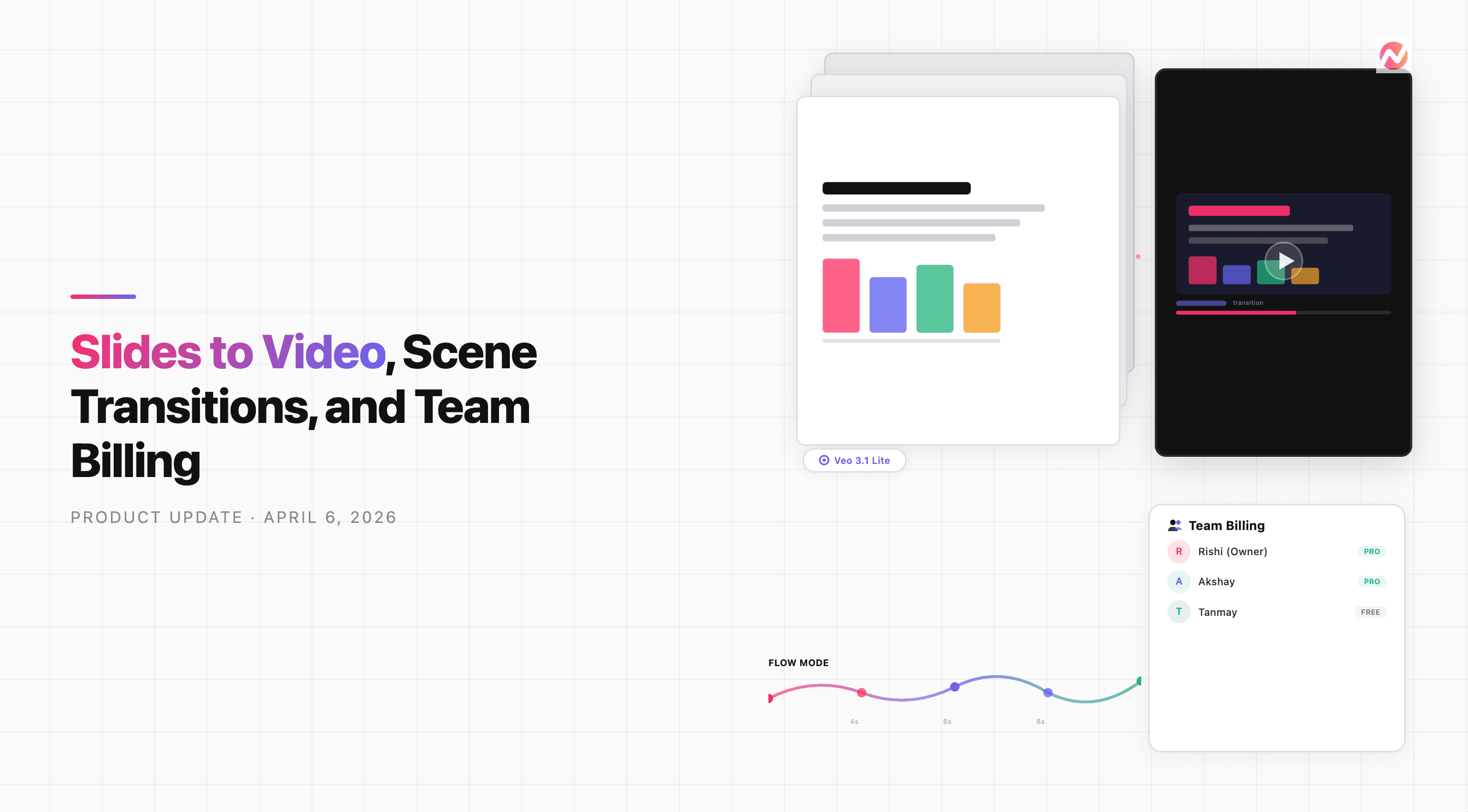

This week we shipped a big one for anyone working with presentations, plus several features that make ngram videos feel more polished out of the box. You can now turn slide decks into animated videos, your scenes get smooth AI-generated transitions automatically, and team owners can pay for their members' plans.
What's New
Turn Slide Decks into Animated Videos
If you've ever wanted to turn a presentation into a video without re-creating every slide from scratch, this is for you. You can now upload PPT, PPTX, or individual slide images directly into ngram, and the system will animate each slide with subtle motion - zooms, pans, element reveals - while preserving your original slide design exactly as-is.
Here's how it works: pick the "Slides Animation" template from the wizard, upload your deck (or drag in slide images), and hit proceed. ngram converts your PPTX into individual slides, assigns each one to a scene, and animates them using Veo 3.1. The result is a video that looks like a professionally animated presentation, not a slideshow with transitions bolted on.
This is great for turning training decks, pitch presentations, or step-by-step tutorials into shareable video content without starting over.
Smooth Scene Transitions
Videos created in ngram now include AI-generated transition clips between scenes. Instead of hard cuts from one scene to the next, the system renders 1-second visual bridges that smoothly connect consecutive scenes. These transitions are generated automatically during the animation process - you don't need to do anything differently.
The transitions use the end frame of one scene and the start frame of the next to create a natural visual flow. The result is videos that feel more cinematic and less like a series of separate clips stitched together.
Flow Animation Mode
There's a new animation mode called "Flow" available in the animation mode selector. Instead of breaking your video into discrete scenes with separate keyframes, Flow creates a single continuous scene with dynamically allocated keyframes based on your video's duration.
Shorter videos get fewer keyframes for a smooth, steady feel. Longer videos get more keyframes to maintain visual interest throughout. Flow mode is ideal for videos where you want a seamless, uninterrupted visual narrative - think brand stories, mood pieces, or atmospheric content where hard scene breaks would feel jarring.
Use Case Navbar
The app landing page now has a structured navigation bar that helps you pick exactly how you want to start. Instead of choosing from a flat list of templates, you'll see organized categories: "Create video" (from URL, document, text, screenshots, or slides) and "Create slides."
Each option opens the wizard pre-configured for that workflow. You can also share direct links to specific use cases - for example, sending a teammate a URL that opens straight to the slides animation wizard. And the wizard now lets you proceed with just a description, even if you haven't filled in the topic field.
Team Sponsored Billing
Team owners can now pay for their team members' subscriptions directly. From the redesigned Team Members settings page, owners can upgrade individual members to paid plans and manage those sponsored subscriptions - including canceling them if needed.
This means teams no longer need each member to manage their own billing. The team owner handles it centrally, and members get upgraded access without touching a credit card. The entire Teams settings UI has been refreshed with a cleaner layout and better organization.
Veo 3.1 Lite
A new video generation model is available in the model selector: Veo 3.1 Lite. It supports 4-second, 6-second, and 8-second clips at half the credit cost of standard Veo 3.1 (10 credits per second vs 20). If you're generating a lot of video clips and want to stretch your credits further, Lite gives you a lighter-weight option without switching to a completely different model family.
Improvements
Smarter Brand Extraction
When you start a new video, ngram now asks for your product or company website URL before beginning research. This lets the system automatically pull your brand colors, fonts, and visual style from your site - so your first draft already looks on-brand without you having to set up a brand kit first.
Better Video Feedback
The feedback widget that appears after your video is ready now uses a 5-point emoji scale (Terrible, Not great, Okay, Good, Loved it) instead of the previous 4-point scale. It also now handles duplicate submissions gracefully - if you accidentally try to rate the same video twice, you'll see a friendly message instead of an error.
Bug Fixes
- Fixed an issue where videos could get permanently stuck in a "pending" state when scenes were animated without transitions. If you've hit a video that just won't finish rendering, this was likely the cause.
Design Updates
- The default video page background is now black instead of white, giving your videos a more cinematic presentation in the editor and preview screens.