
Here's what we shipped this week: videos can now show real animated charts when your content has data, two new AI models are available to choose from, and several improvements that make the generation process faster and more responsive.
What's New
Your Videos Can Now Visualize Data as Charts
Data-heavy content is hard to explain with words alone. When your script includes numbers - revenue figures, conversion rates, feature comparisons, performance benchmarks - viewers absorb it faster when it's shown as a chart rather than read as text.
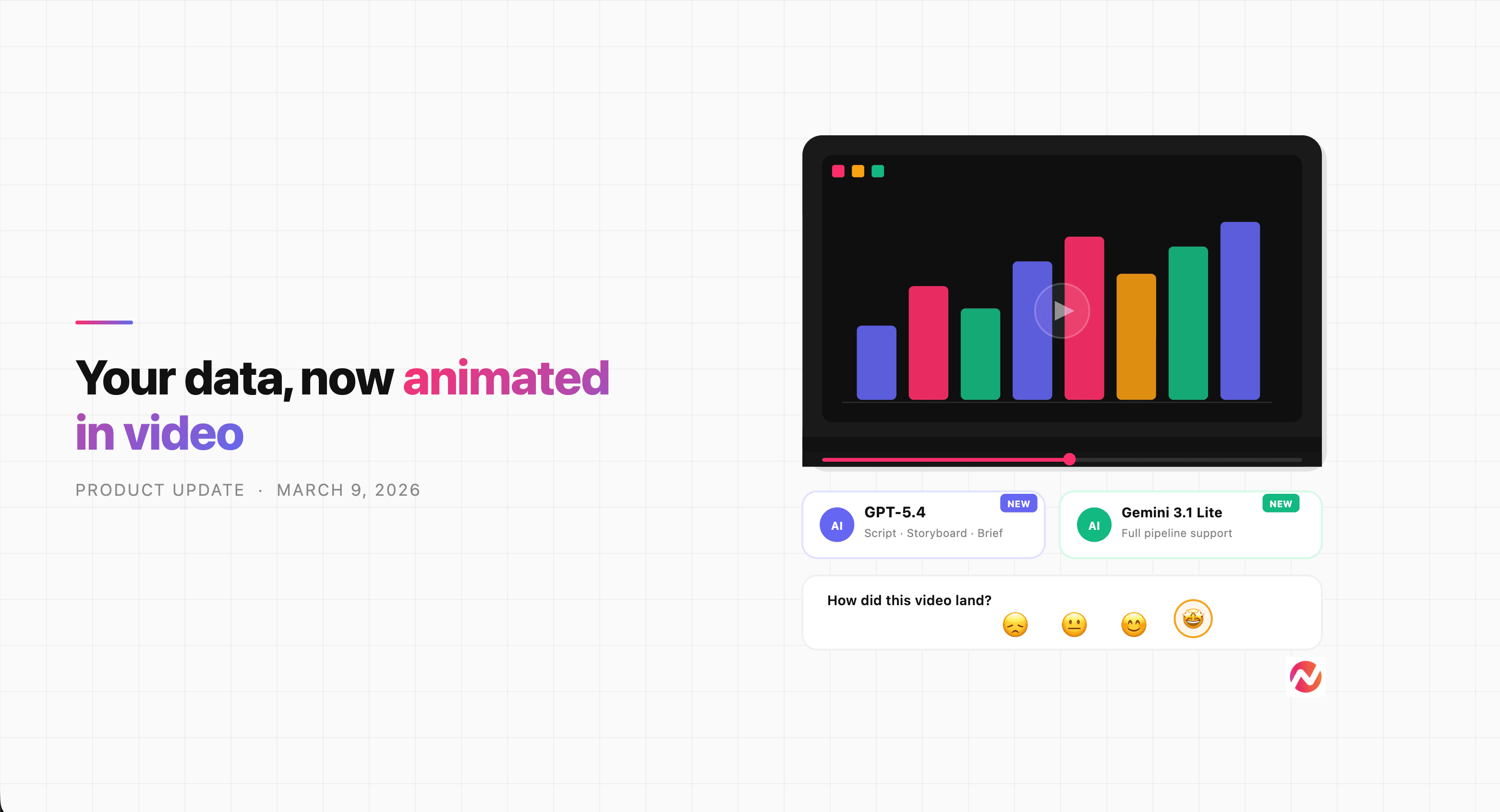
ngram can now generate animated data charts directly inside your videos. When a scene in your script contains quantitative information, the AI will produce a chart that brings that data to life - a bar chart for comparisons, a line chart for trends over time, an area chart for cumulative growth, or a donut chart for proportions and breakdowns.
For example, if your script has a scene that says "Our customer retention rate improved from 62% to 89% over 12 months," ngram will render that as an animated line chart on screen - the curve climbing from left to right, branded with your colors and fonts. Viewers see the improvement, they don't just read about it.
The charts animate, use your brand colors, and are built into the motion graphics layer of your video. You don't need to build them manually or import anything from a separate tool. Add the numbers to your script, and ngram handles the rest.
GPT-5.4 and Gemini 3.1 Flash Lite Are Now Available
Two new AI models are now available in ngram's model settings: GPT-5.4 from OpenAI and Gemini 3.1 Flash Lite from Google.
You can select either from the model settings toolbar when building your video. GPT-5.4 is available for script writing, storyboard creation, creative briefs, background music selection, and image descriptions. Gemini 3.1 Flash Lite covers the full pipeline - script, storyboard, keyframe generation, animation, brand style, and voice selection.
If you've been experimenting with different models for different content types, these give you more options to work with.
Rate Your Video - It Makes the Next One Better
After you watch 90% or more of a generated video, ngram now shows a short rating prompt. Pick a rating - that's it. The more videos you rate, the more ngram learns what works for your content and style, so future outputs land closer to what you're looking for.
The video pauses when the rating appears and you can skip it if you're in a rush. But a rating takes less than 10 seconds, and it directly shapes how ngram generates videos for you going forward.
A "Watch Again" button also now appears after a video finishes, so replaying doesn't require hunting for the play button.
Improvements
Spot Motion Graphics Issues Before the Final Render
Previously, if ngram built a motion graphics scene as part of your video, you'd only see it rendered in the final output. If something looked off - the layout, the colors, the data - you'd need to regenerate after the fact.
Scene cards in the storyboard now show live animated previews of motion graphics scenes. You can see exactly how a data visualization will look while you're still in the editing phase. Catch issues early, request changes before the final render, and avoid the back-and-forth of discovering problems at the end.
Scenes Appear as They're Ready - Not All at Once
When ngram generates multiple scenes in parallel, you used to wait for every scene to finish before any of them appeared. If four scenes took 10 seconds each but one took 30 seconds, you'd sit at a spinner for the full 30 seconds even though most of the work was already done.
Now, each scene appears in the chat the moment it's ready. You see progress in real time as scenes come in one by one, instead of waiting for the slowest one to finish before seeing anything.
Click a Suggestion Without Waiting for the AI to Finish
Suggestion chips - the quick reply options that appear after each response - now show up as soon as a tool result arrives, without waiting for the AI's full turn to complete. And if you click one while the AI is still processing, your selection queues automatically and sends the moment the current turn ends.
Previously, clicking a suggestion during streaming did nothing - you had to wait for the full response, then click. That extra wait is gone.
Watch Your Video Update Scene by Scene
When you ask ngram to re-animate or adjust specific scenes, the view now automatically switches to the storyboard so you can watch each scene being updated as it happens. You can see exactly which scenes are in progress and what they look like as they're being rebuilt - no need to switch tabs or wonder what's changing.
Bug Fixes
We fixed two bugs that were causing real problems:
- Storyboard creation was failing after script generation in the video editor. Scripts generated by the video editor agent were not being saved to session state - they'd appear in the chat and then be lost, causing every storyboard creation to fail with a "Missing script" error. If you hit this, it's fixed.
- Garbled text was appearing inside keyframe images. Font metadata was leaking into the visible layer of keyframe images, showing up as strange text overlays in generated scenes. Fixed.