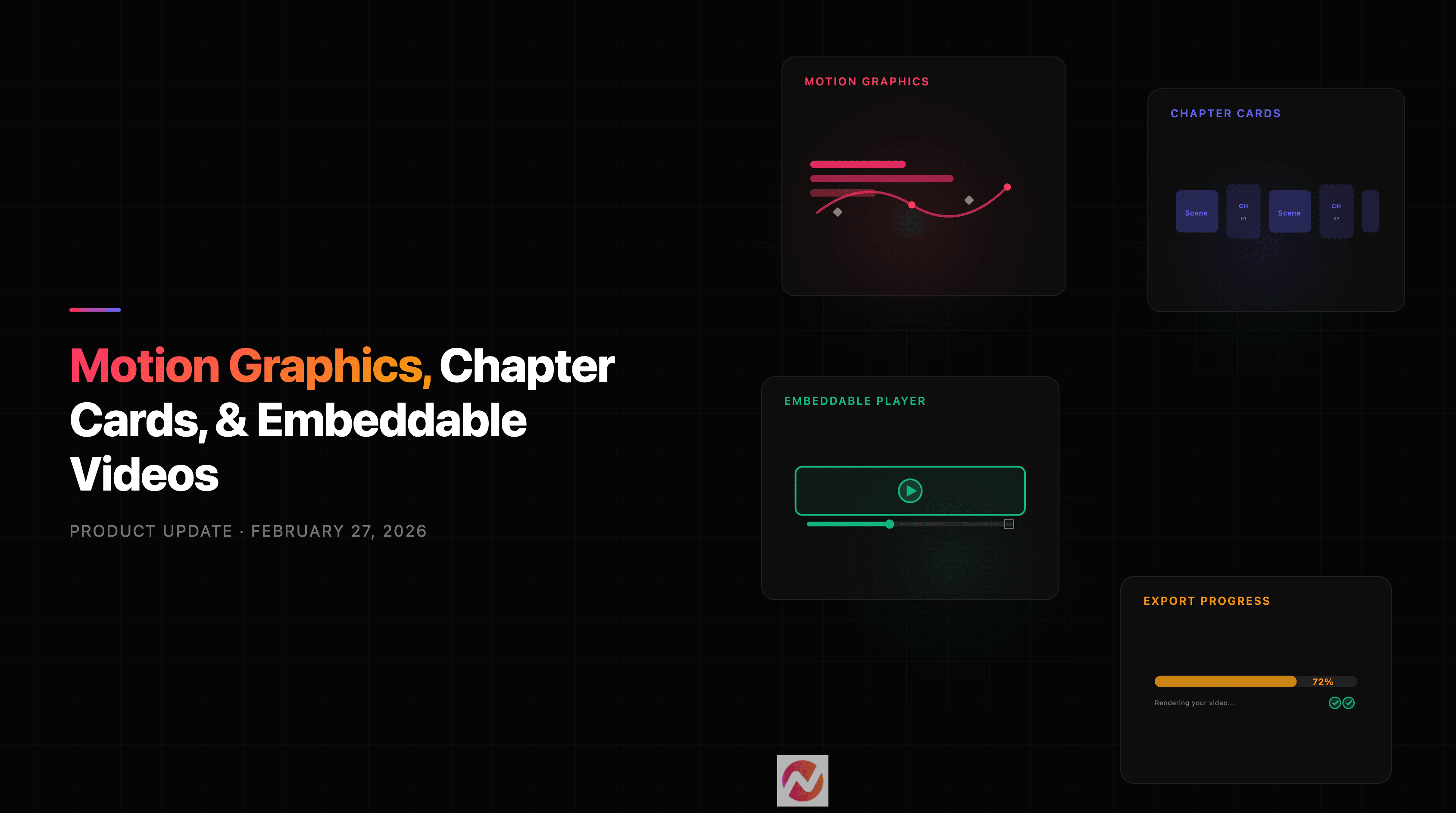

This week was a big one. We shipped a brand-new animation mode, chapter cards that make longer videos feel structured and intentional, an embeddable video player you can drop into any website, and a handful of improvements that make the whole creation flow faster and more intuitive.
Here's everything that landed.
What's New
Motion Graphics Mode
There's a new animation style in your video settings: Motion Graphics.
When you select it from the Animation dropdown (alongside Basic and Pro), ngram generates custom programmatic animations for each scene - think kinetic typography, animated data callouts, smooth transitions between concepts, and dynamic visual compositions. These aren't template-based. Each animation is generated specifically for your scene's content, so an "Our Growth" slide gets a different treatment than a "How It Works" breakdown.
You can preview each motion graphic right in the editor, and if something doesn't look right, regenerate individual scenes or tweak the parameters. It's a genuinely different visual language from the AI-generated image style - more polished, more "designed," and perfect for product explainers, pitch decks, and anything where you want that clean, intentional motion design feel.
Chapter Title Cards
Longer videos now have structure. When ngram generates a multi-section video - say, an explainer that covers features, pricing, and a demo - it automatically inserts chapter title cards between sections.
These aren't generic black-and-white dividers. They pull from your brand kit: your colors, your fonts, your logo. So if your brand uses a deep blue with white text, your chapter cards will match. The result is something that looks like it was designed on purpose - "Key Features," "How It Works," "Get Started" - each section clearly marked with your visual identity.
You'll see them appear as distinct scene cards in the editor with a "Chapter" badge, so you can reorder or edit them just like any other scene.
Embeddable Video Player
You can now embed ngram videos on any website with a clean, custom-built player.
Instead of the browser's default video controls, embedded videos get a polished player with a centered play button overlay, a custom progress bar, playback controls, and a fullscreen button. It handles loading and error states gracefully, so your visitors never see a broken embed.
You can also enable autoplay by adding `?autoplay=true` to the embed URL - useful for landing pages or product pages where you want the video to start playing as soon as someone scrolls to it.
"Create a Video Like This"
When someone watches a shared ngram video on the watch page, they now see a "Create a Video Like This" button. Clicking it takes them to ngram with the original prompt already prefilled - so they can create a similar video with one click, then customize from there.
It's a small but powerful loop: share a video, and anyone who sees it can jump straight into making their own version.
Nano Banana 2 Image Model
There's a new AI image model in the model picker: Nano Banana 2, marked with a "New" badge. It's another option for the AI-generated images in your scenes - try it out and see if the style fits your project better than the existing models.
Improvements
Background Music Energy Levels Actually Work Now
You might have noticed the energy level selector for background music - Calm, Upbeat, or Energetic. The selector was there, but honestly, it wasn't doing much behind the scenes. That's fixed now.
Pick "Calm" and you'll get ambient, low-key underscore that stays out of the way. "Upbeat" adds tempo and rhythm - good for walkthroughs and product tours. "Energetic" pushes it further with driving beats, which works well for launch videos and ads. The difference between each level is now genuinely noticeable.
Motion Graphics Preview in Chat
When the AI generates a motion graphic for a scene, you now see a live preview right in the chat panel. No more guessing what the animation looks like from a text description - you see the actual rendered animation inline, and you can click "Use" to apply it to a specific scene immediately. It makes the back-and-forth of refining motion graphics much faster.
Inline Script Editing
We replaced the old Edit/Cancel/Save workflow for scripts. Previously, you had to click "Edit," make your changes in a separate text area, then click "Save edits." Now the script is always directly editable - just click anywhere in the text and start typing. It feels much more natural, like editing a Google Doc instead of toggling between view and edit modes.
Real-Time Export Progress
Video exports now show you exactly where they are. Instead of a spinner with no context, you see a progress bar with a percentage - "Rendering 45%," "Rendering 72%," "Downloading..." - so you know whether to wait ten seconds or grab a coffee. This shows up both in the notification card and on the export button itself.
Under the Hood
We also shipped a wave of internal improvements this week - rendering infrastructure stabilization, pipeline optimizations, and general UI polish to make the whole experience smoother. Nothing you'd point to and say "that's new," but the kind of work that makes everything feel a little more solid.
That's it for this week. If you want to try any of these features, head to ngram.com and start a new project. We'd love to hear what you think.